How to Configure Checkout Options for Your Tournament in PT
Checkout options in Pickleball Tournaments (PT) control how players pay to register — whether through Stripe, on-site at the event, after a pay-later deadline, on an external site you already use, or by custom instructions you write yourself. This guide walks through every option, when to use each one, and the service-fee implications. Watch the short video below or follow the step-by-step sections for full detail.
Once a player registers, the tournament owner is charged service fees for that registration whether the player ultimately pays, plays, or no-shows. Plan your checkout option carefully and review your refund policy before opening registration.
Stripe with your own account
PT partners with Stripe for online payments. If you've already added your own Stripe email and information under Checkout Options in your Club, you can click Activate here to turn on Stripe payments for this tournament. If you haven't set up Stripe yet, head over to the Club's Checkout Options page first — see How to Set Up Stripe as a Payment Option.
Click Activate to turn on Stripe payments using your own account.
Stripe using our account
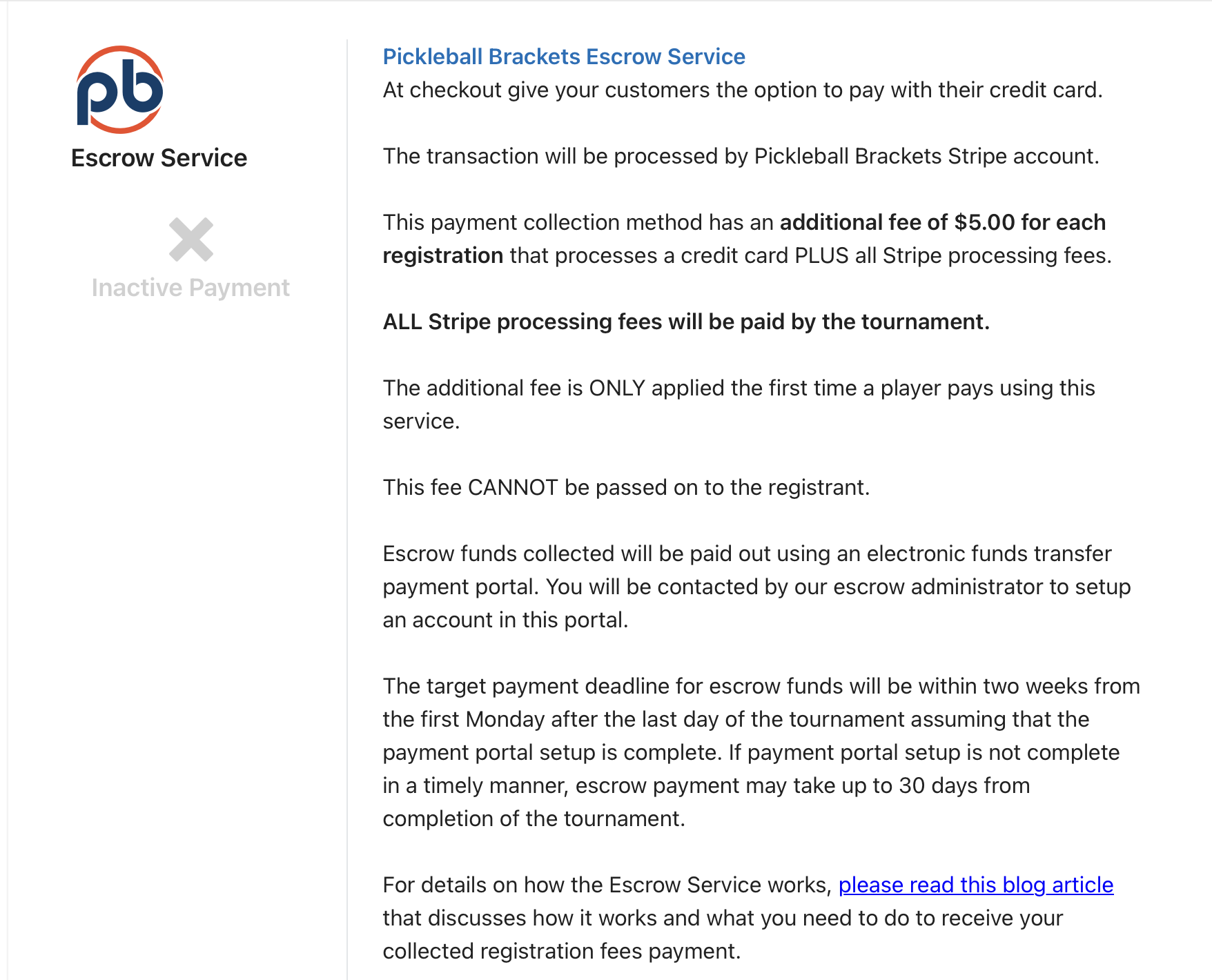
If you want to collect online payments but don't have your own Stripe account, you can use PT's Stripe account instead. This option carries an additional $5.00 per player fee billed to your tournament at the end of the event. Fill in the information in this section and click Activate to turn it on.
Onsite payment
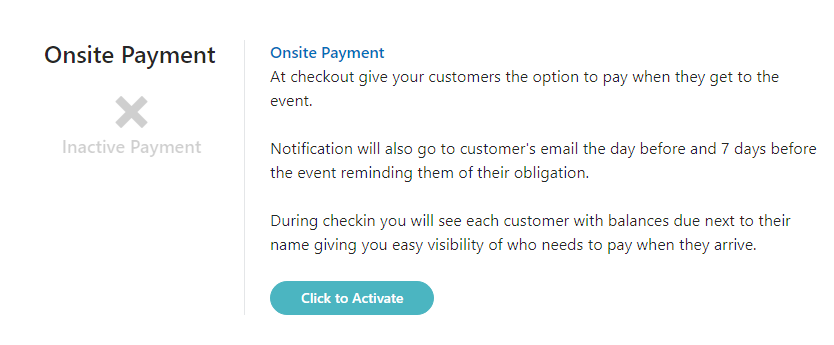
Onsite payment lets players register without paying upfront — they pay you in person on tournament day (cash, check, or however you handle it locally). You can run Onsite Payment alongside a Stripe option, giving players the choice between paying online at registration or settling up day-of.
Onsite Payment lets players register without paying online.Note
When a player pays by cash or check rather than through Stripe, you'll need to manually record their payment in the Attendees screen so PT shows them as paid. Otherwise the system continues to flag them as having a balance due.
Recording an onsite payment from the Attendees screen.
Pay later
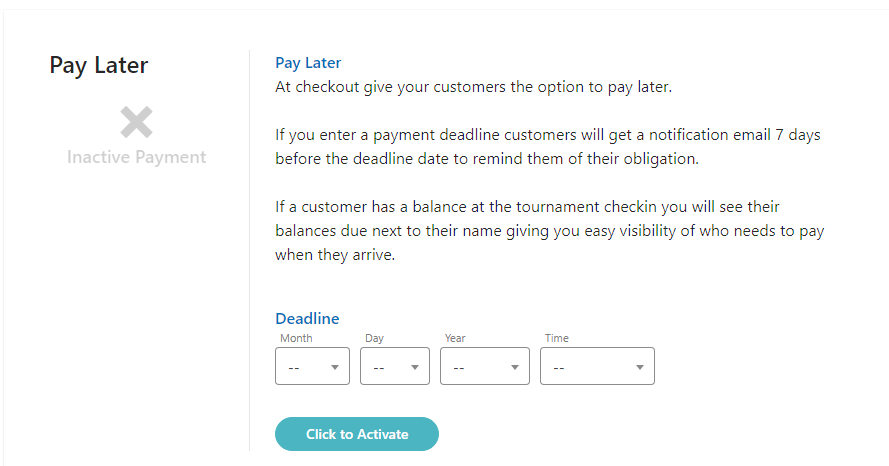
Pay Later works the same way as Onsite Payment except players have a deadline to arrange payment. Set the deadline to whatever works for your event. As with Onsite Payment, any payments received by cash or check (rather than online through PT) need to be manually recorded so the player shows as paid in the system.
Pay Later lets you set a deadline by which players must arrange payment.
External payment URL
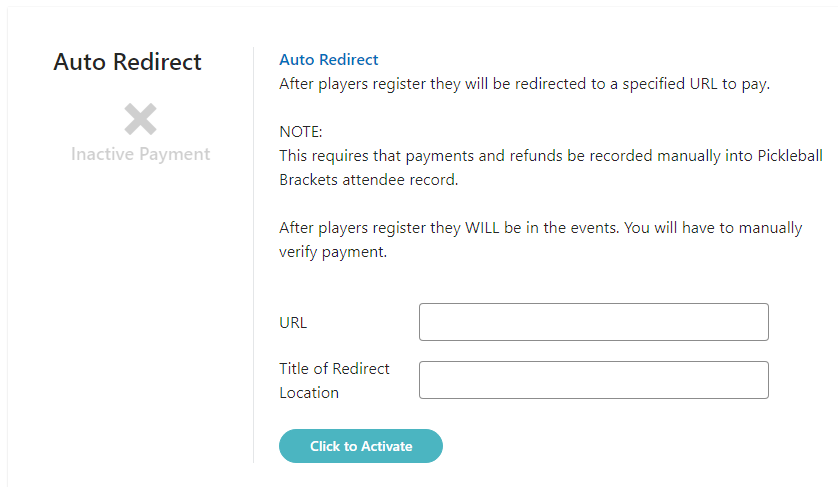
If you already accept payments through another platform (a club website, a separate processor, etc.), enter the URL here and players will be automatically transferred to that location to complete payment.
External Payment URL redirects players to your own payment platform.Warning
External payment URLs do not record payments in PT. You'll need to manually record each player's payment in the Attendees screen, or PT will continue to show them as owing money.
Custom payment instructions
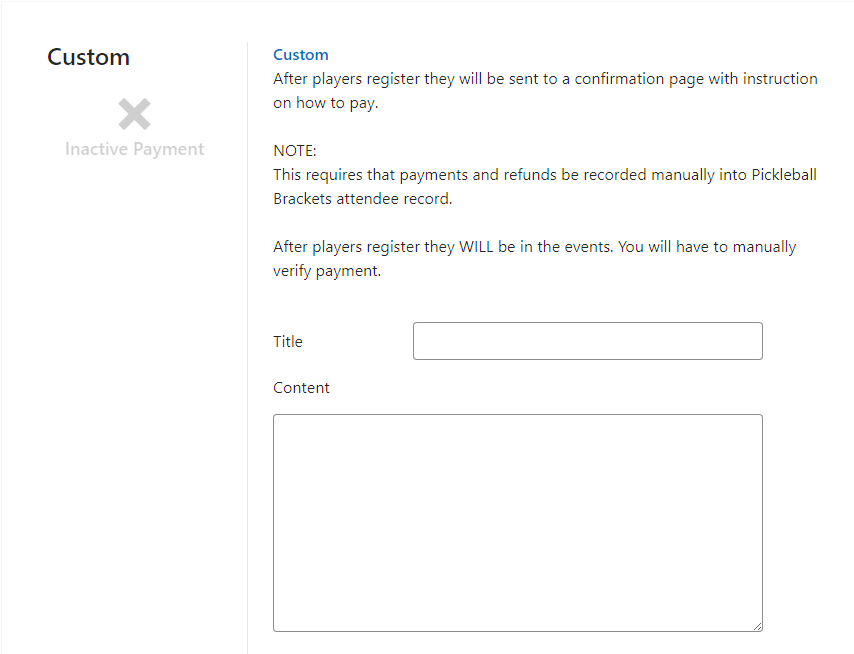
Custom lets you write a free-form text instruction box telling players how to pay (mail a check, Venmo a specific handle, wire transfer, etc.). Use this when none of the structured options above fit your setup.
Custom lets you write your own payment instructions for players.Warning
At least one payment option must be turned on before your tournament can be completed and opened for registration. PT won't let you open registration with all checkout options disabled.
Frequently Asked Questions
Can I use more than one checkout option at the same time?
Yes. The most common combination is Stripe plus Onsite Payment — players who want to pay online can do so at registration, and players who prefer to pay in person can sign up now and settle up on event day. You can mix and match any combination that fits your tournament.
What's the difference between using my own Stripe account and PT's Stripe account?
Using your own Stripe account is free (beyond Stripe's own processing fees). Using PT's Stripe account carries an additional $5.00 per player fee billed to your tournament at the end of the event. If you run tournaments regularly, setting up your own Stripe account is usually the better long-term choice.
How do I record a payment that came in by cash or check?
Open the player's registration in the Attendees screen and manually mark the payment as received. Until you do this, PT keeps showing the player as having a balance due, even if you've physically collected the money.
Will I still owe service fees if a player no-shows or backs out?
Yes. Service fees are tied to the registration itself, not to whether the player actually plays. Once a player completes registration, the tournament owner is charged the service fee regardless of attendance or refund status. Factor this into your refund policy.
Can I change my checkout option after registration opens?
Yes, but be careful. Adding a new option (for example, enabling Onsite Payment alongside Stripe) is generally safe. Removing or disabling an option that players have already used can cause confusion and may strand pending registrations. When in doubt, contact support@pickleball.com before making changes mid-registration.