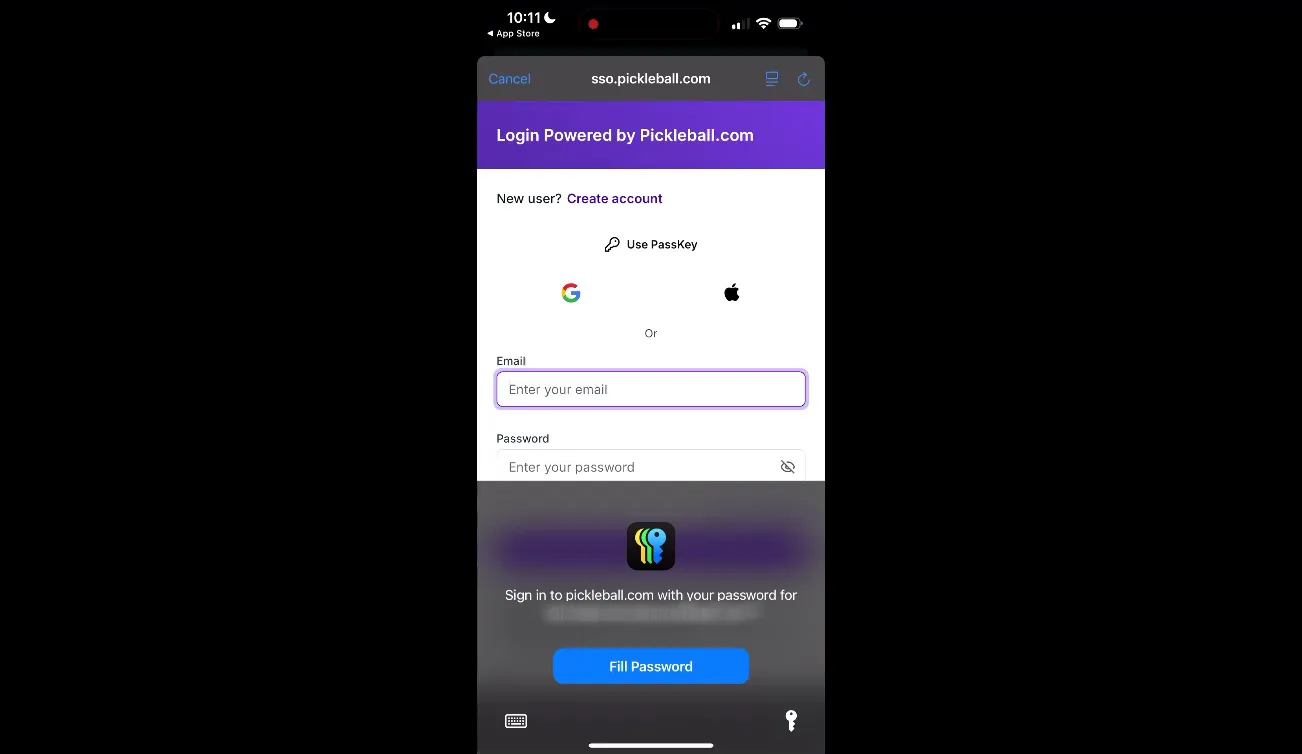
No. The app uses the same credentials as pickleball.com. There is no separate referee login.
In this help document you will learn step-by-step through the Referee App based on the training in the video (link above) and present practical instructions you can share with your officiating team. As the tournament director, you control access and settings. We will guide you through download, setup, training mode, pre-match procedures, live scoring, and finalizing matches so your referees can track scoring easily — and viewers can follow along live on your tournament site.
The app streamlines in-person officiating and integrates live scoring with your tournament’s site. Referees keep score with confidence, admins and viewers get accurate live updates, and the built-in training mode helps new referees practice different scoring formats. In short: less score confusion, better spectator experience, and faster match finalization.
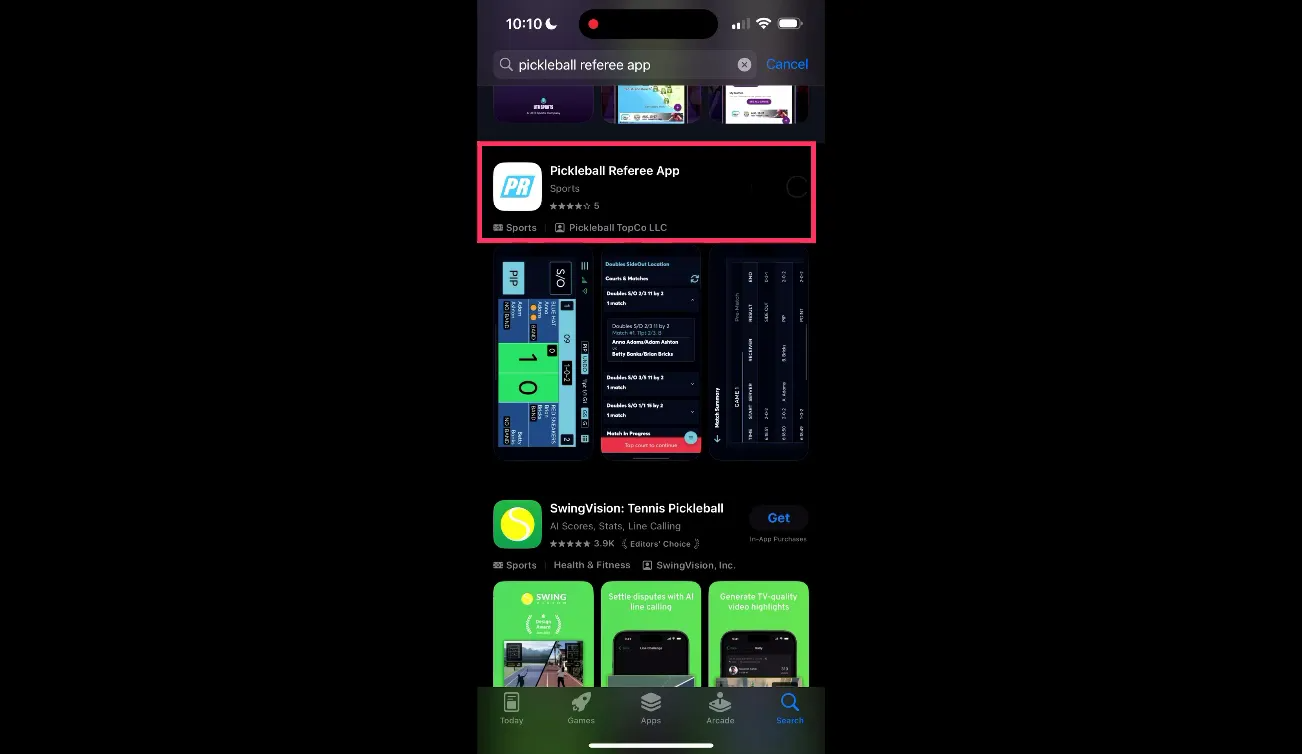
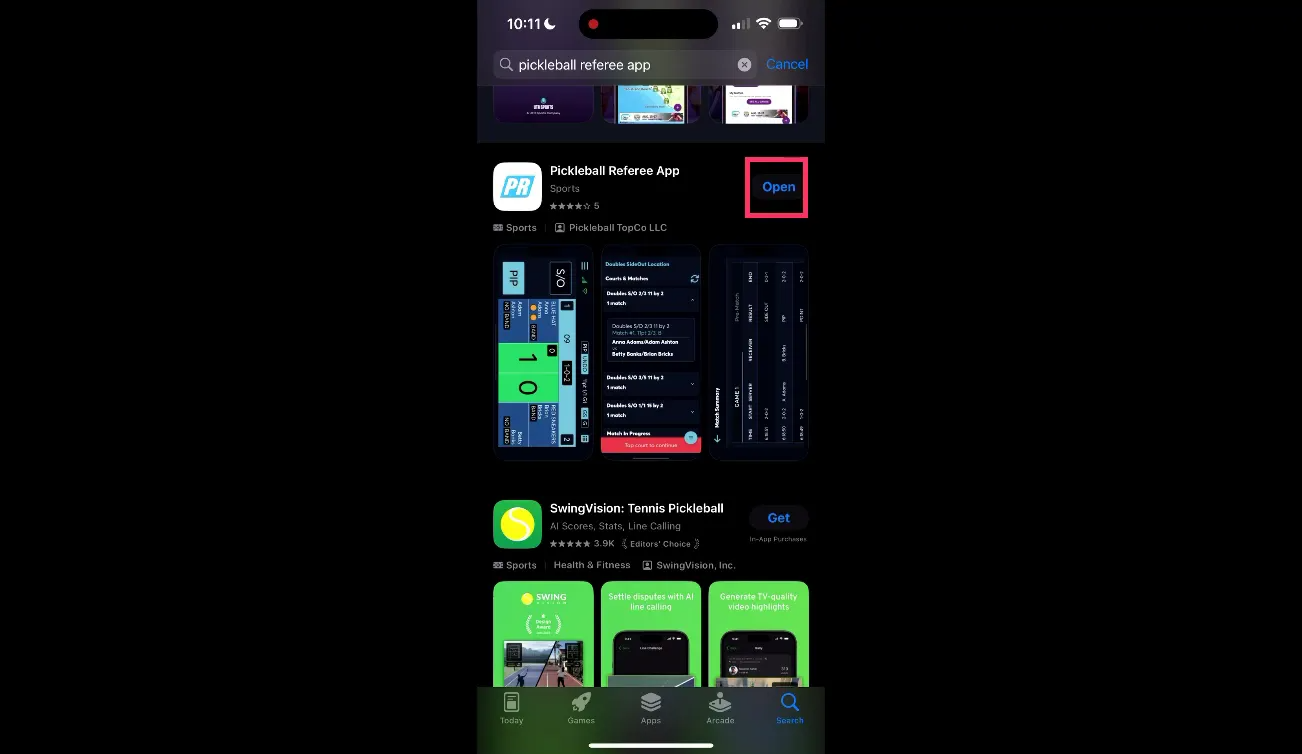
Step 1: Head to the App Store on your smart device and search for "pickleball referee app." Follow the store instructions to download and install the app.
Step 2: Open the app and log in. Important: you will use the same login information used for pickleball.com — there is no separate referee login. That means your tournament staff and referees should have valid accounts tied to your organization or event.
As tournament director you must provide referees with two codes:
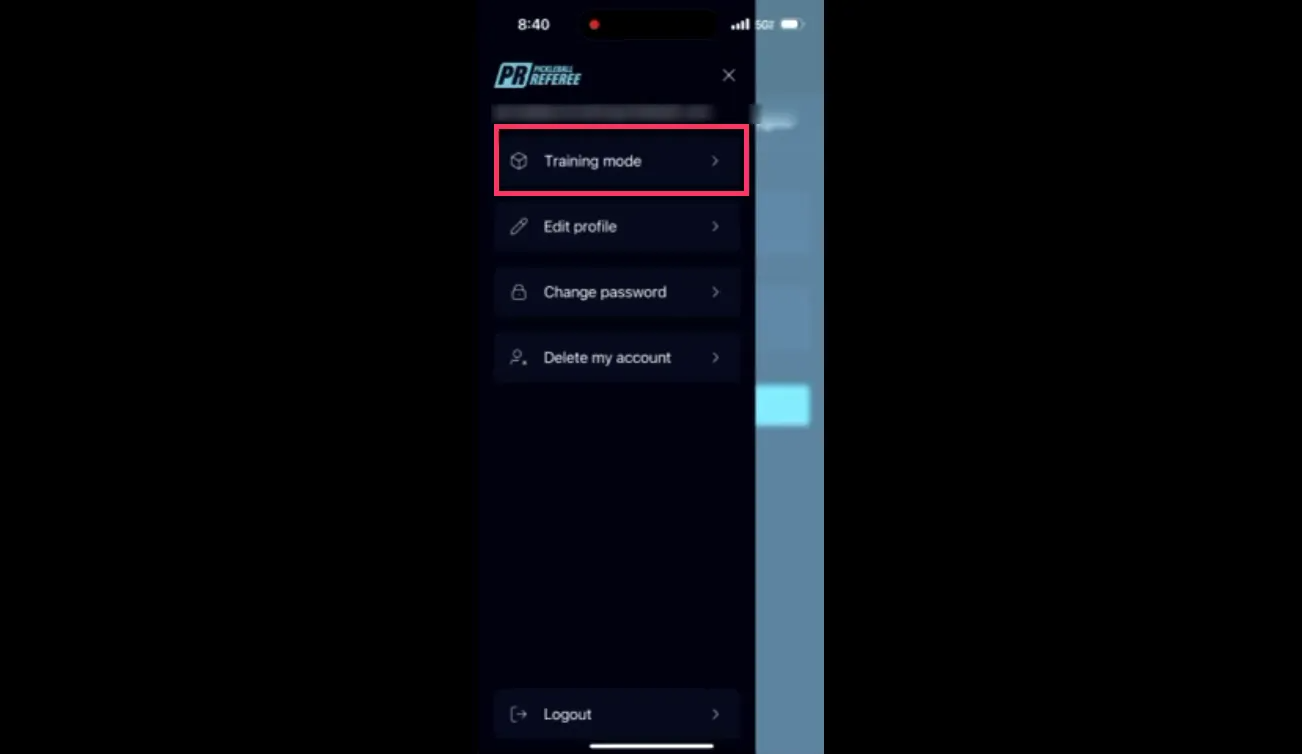
One of the best features is training built right into the app. Tell your referees to click the three-line menu and choose Training Mode. Training supports different event types and scoring styles so refs can practice the exact formats they'll see at your tournament.
When entering training, referees choose:
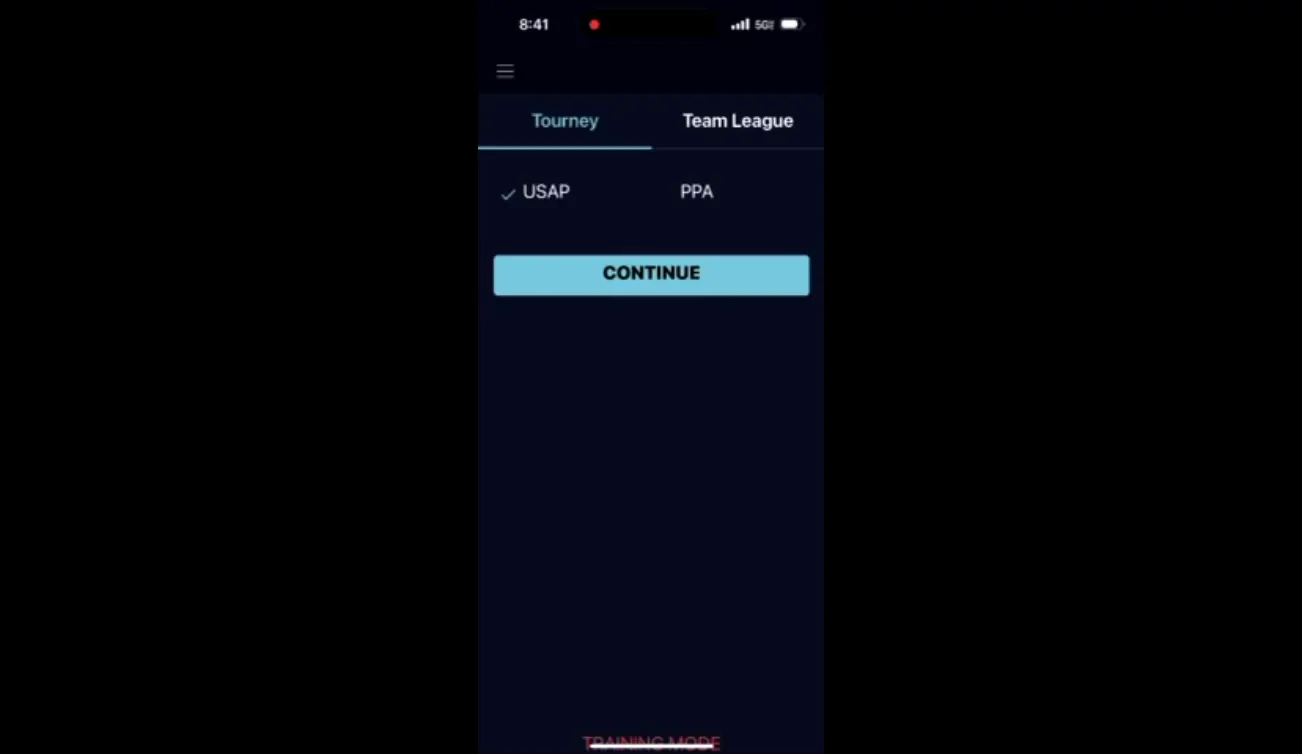
Example: for this guide, we demonstrate a PPA-style regular tournament, doubles format with regular side outs, one game to 15, and win-by-two enabled. Training lets referees simulate everything from warm-up to match finalization without affecting real tournaments.
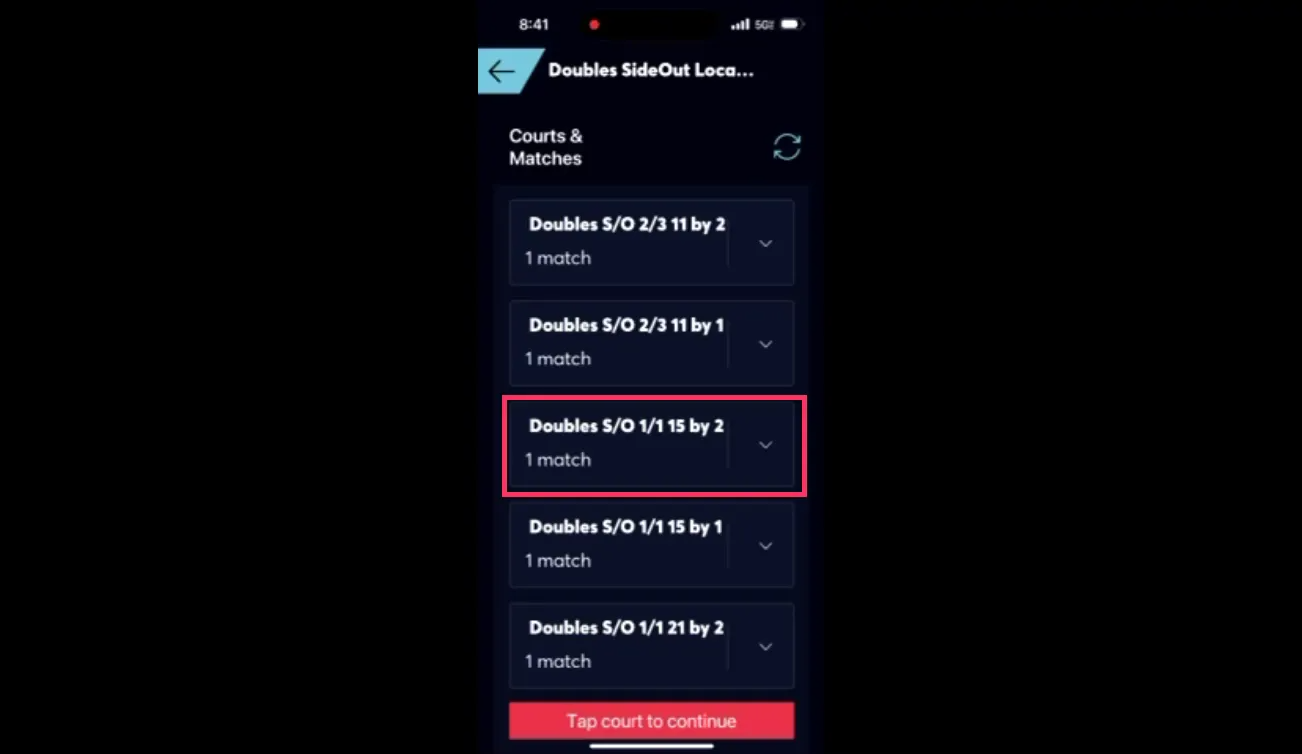
Once a match simulation or a live match is selected, the device typically flips to horizontal orientation for a clearer court layout. Here’s the pre-match sequence referees will follow:
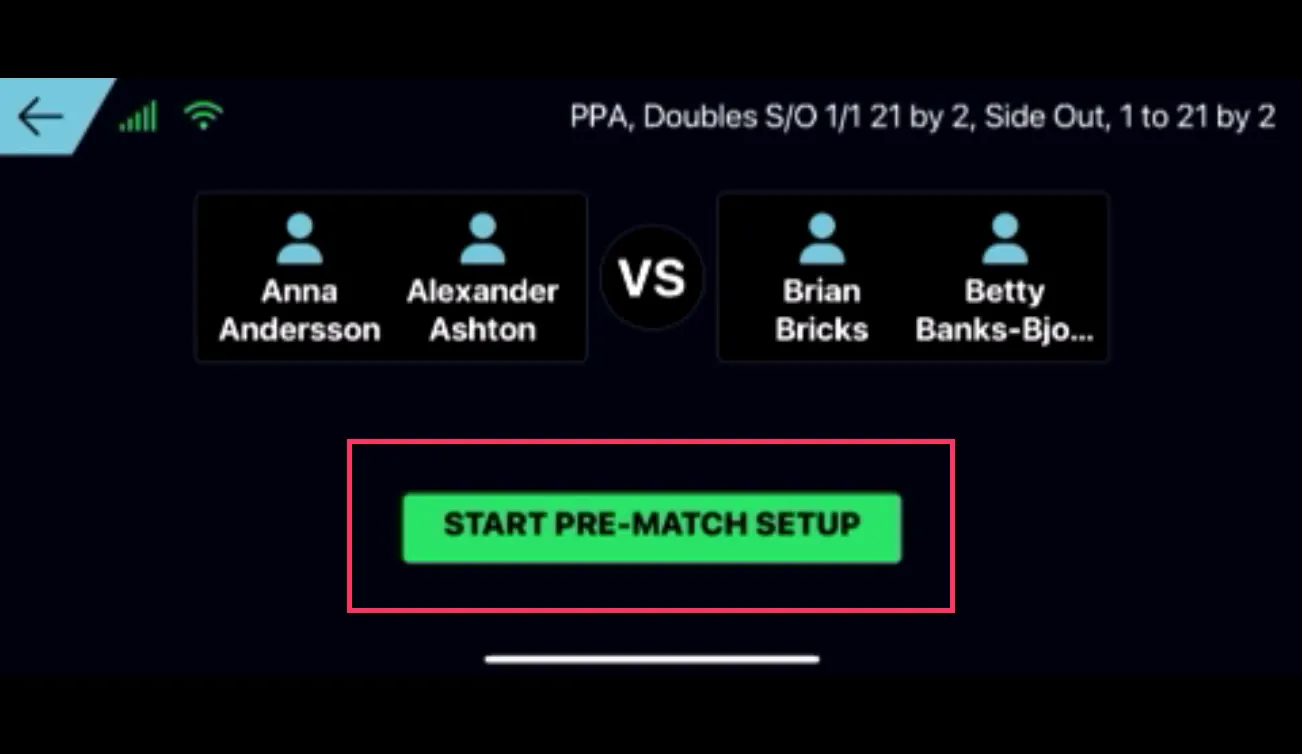
Make sure referees double-check the starting servers and the coin toss choices before moving to live scoring. The app’s summary is a final verification step: "The court layout should match exactly what the ref would see in front of them."
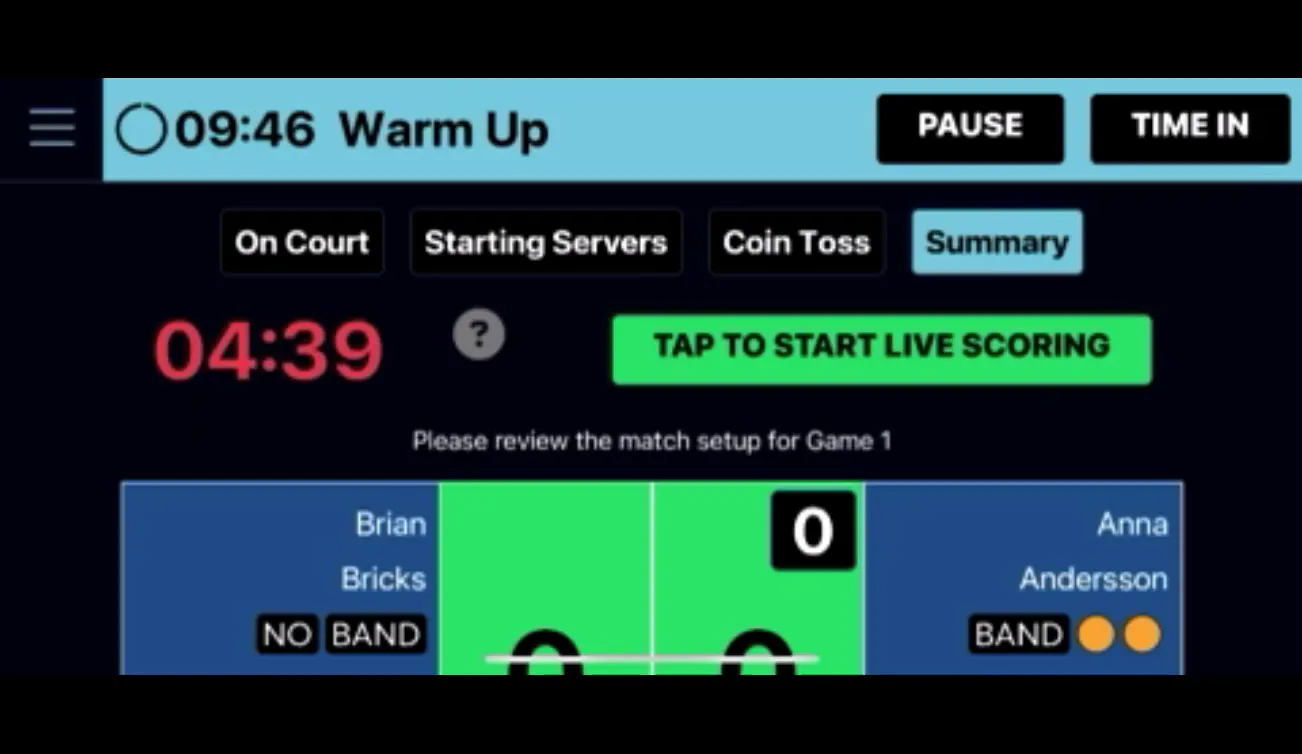
Tap the summary to “start live scoring” and you’ll arrive at the main scoring interface. This screen is designed to mimic the on-court view with players positioned correctly and starting servers clearly indicated. At the top you’ll always see the starting score and which team serves first.
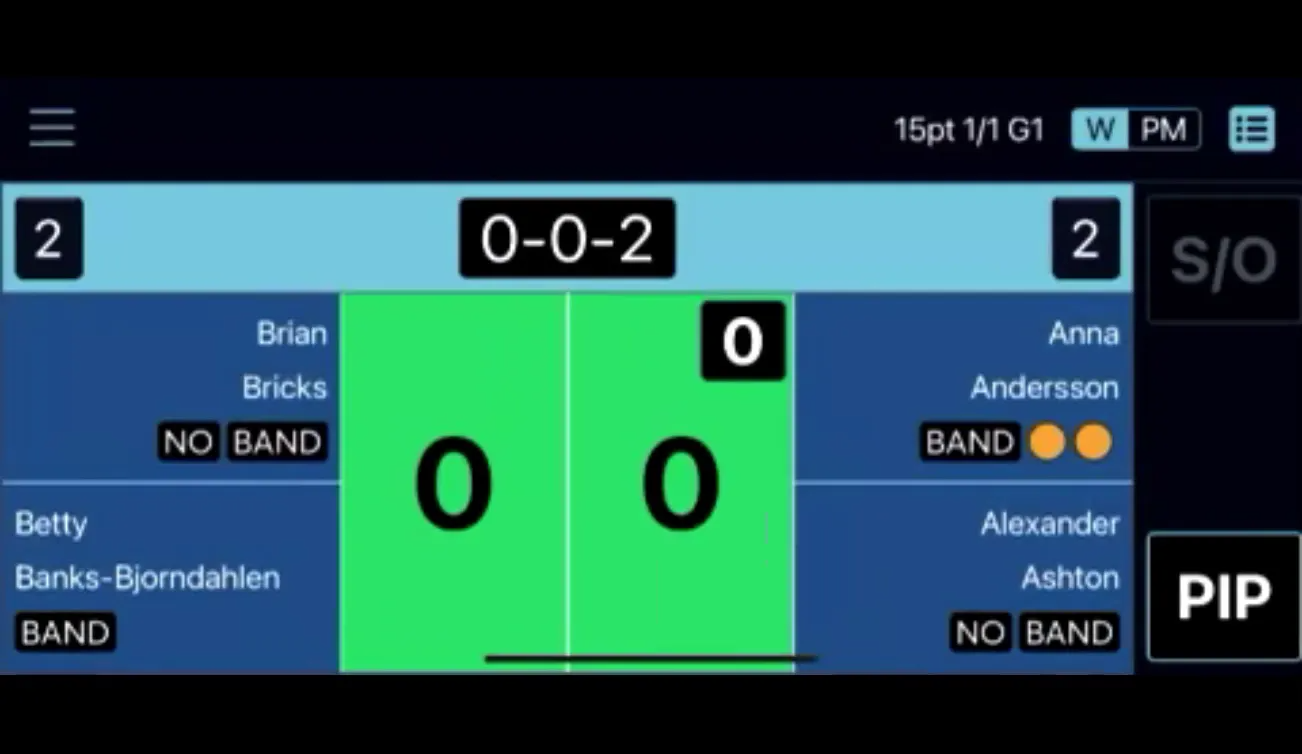
Key controls and conventions referees must memorize:
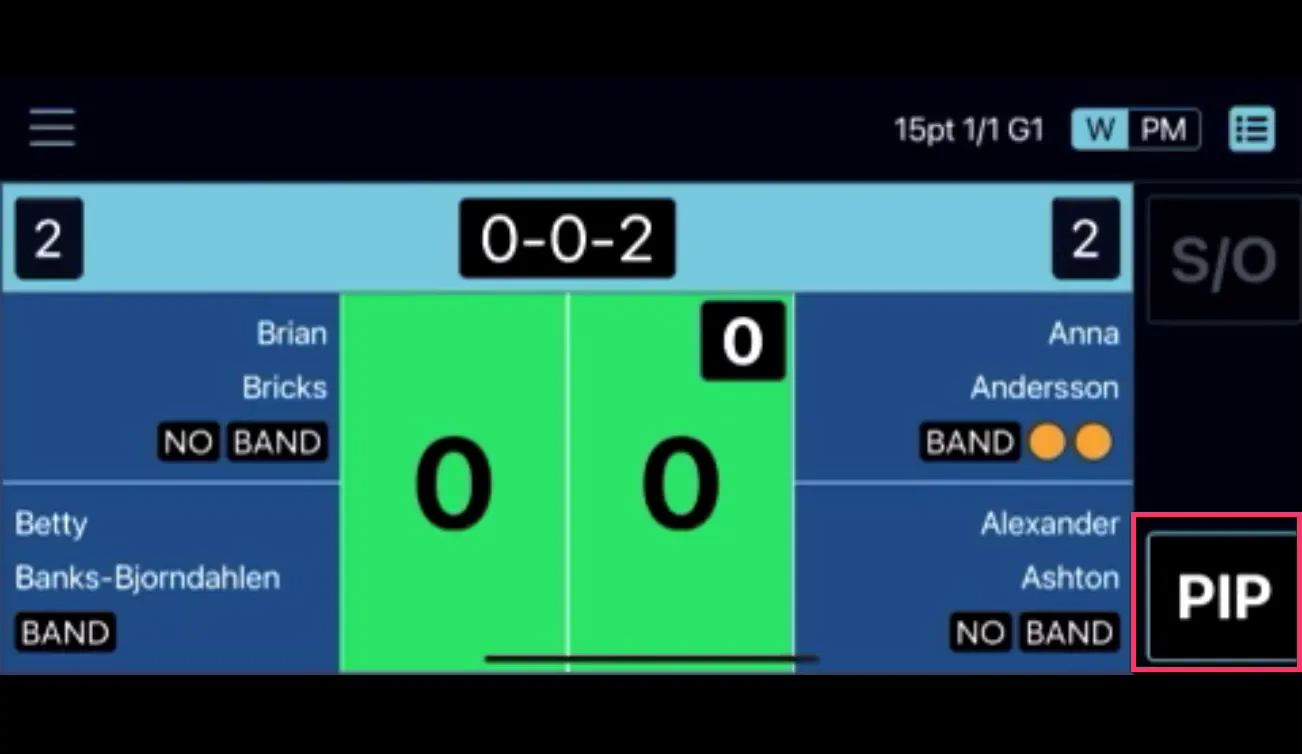
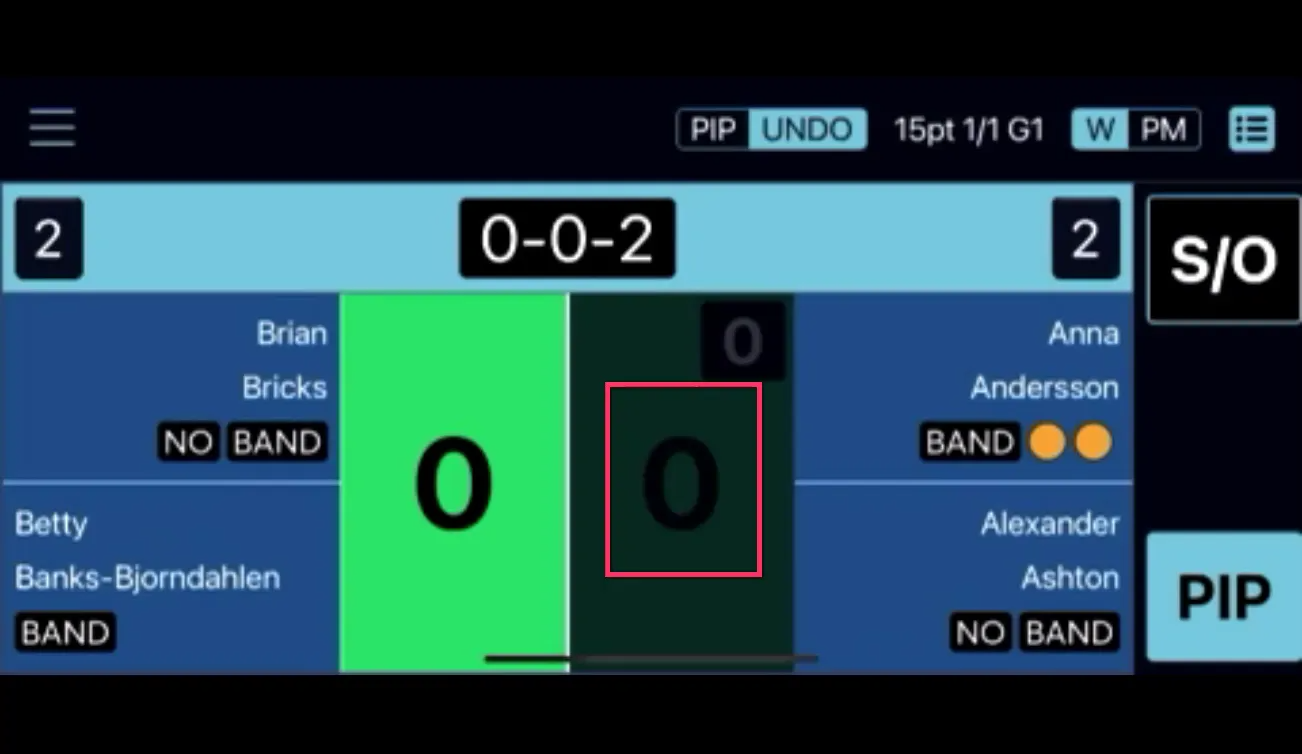
Example flow for a point:
Repeat until the match reaches the mid-match switch-sides prompt (if applicable) and then continue until match completion.
The app will prompt referees to change ends at the appropriate midpoint of the match based on the scoring format. Always follow the prompt and confirm the side change in the app before continuing scoring. This ensures both the physical court and the app remain synchronized.
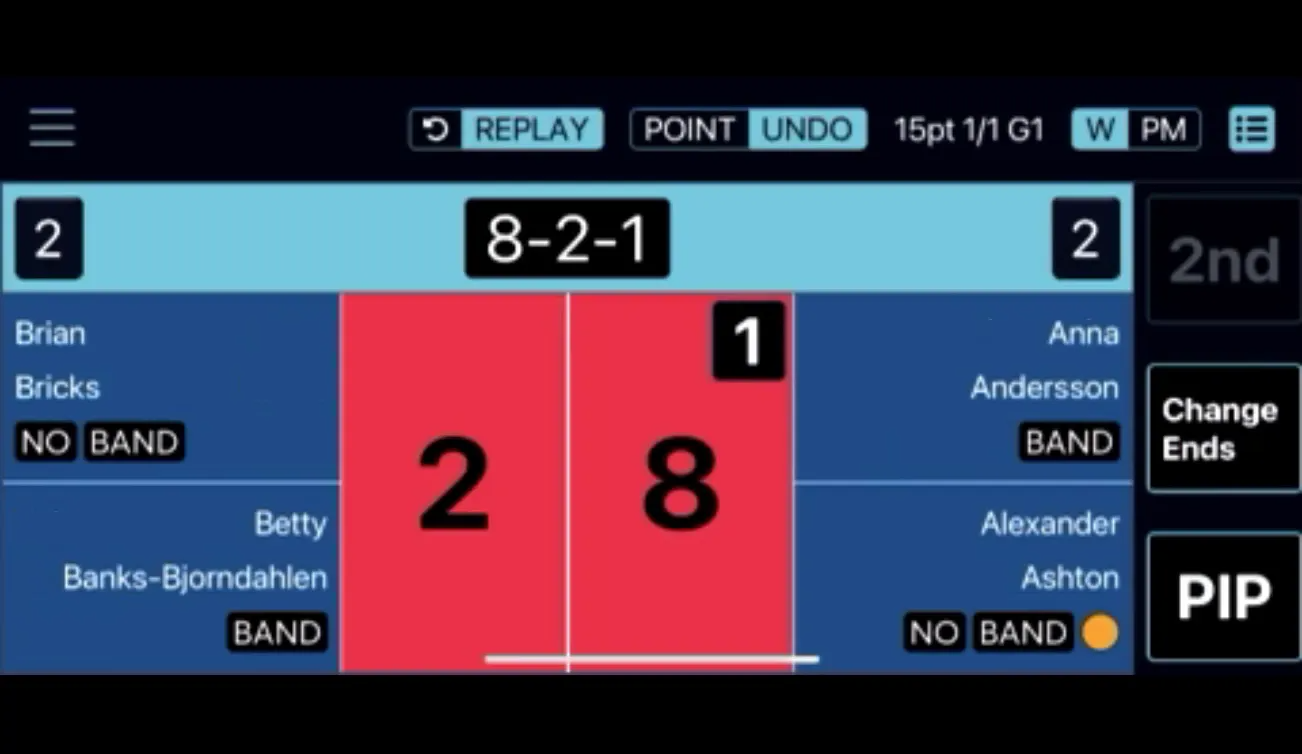
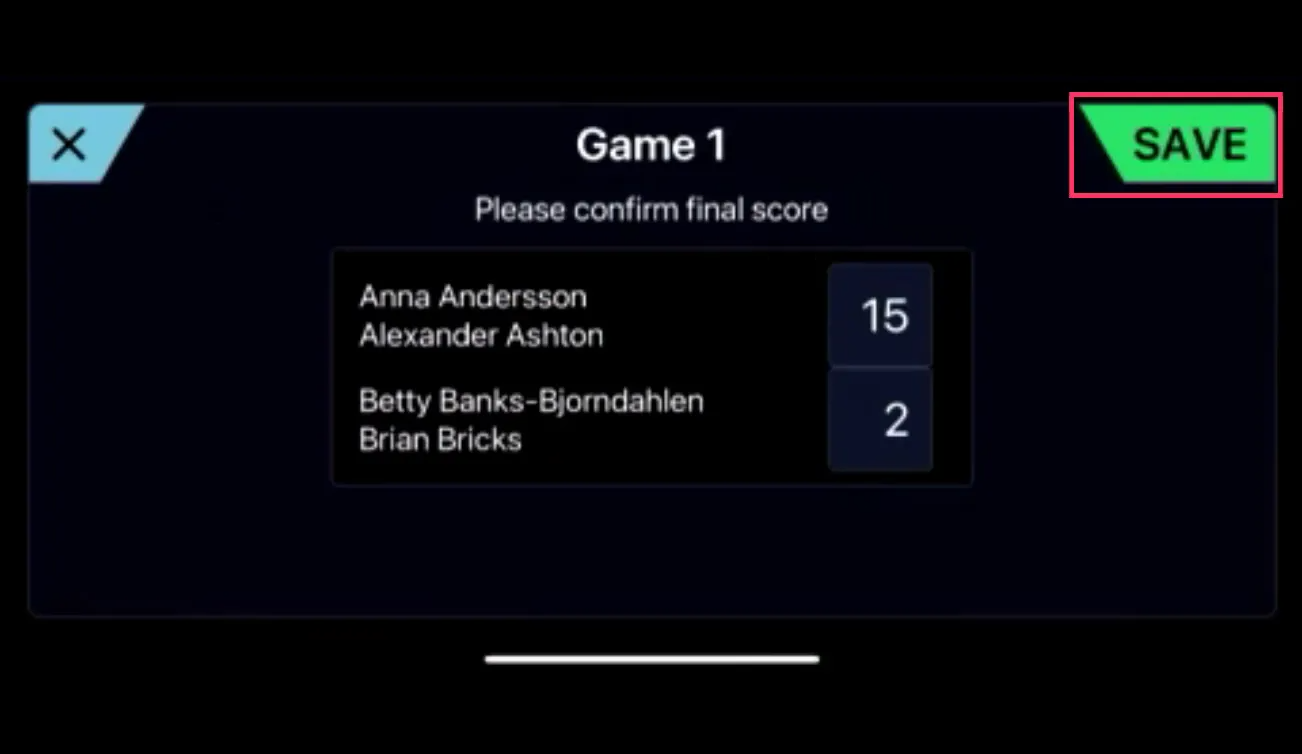
When the match concludes, the app guides the referee through finalization steps. Confirm the final score, record winner information if prompted, and accept any final actions such as confirming completed match data. Once finalized, the results are ready to publish to your tournament site.
Once done with the training section, you can log directly into your Tournament/Team League:
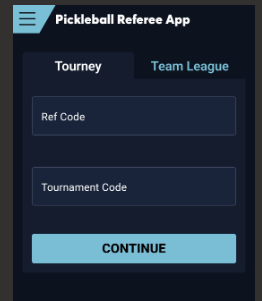
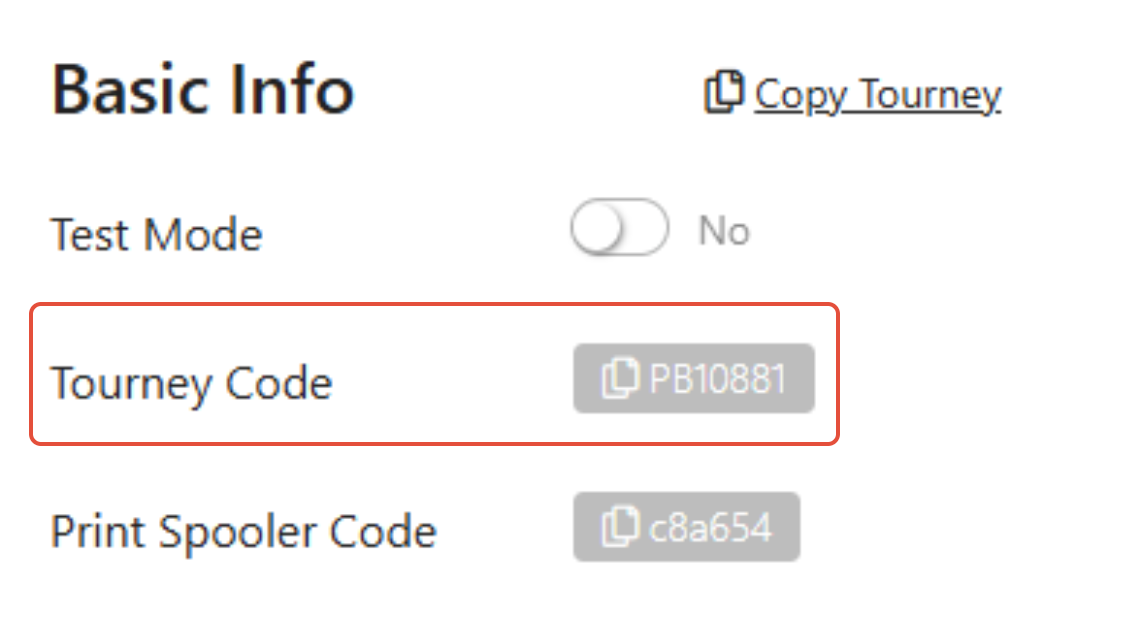
The Tournament Code can be found under the "Edit Tourney" options Basic Info section. This presents as a number following the initial PB. The entirety of this needs to be added (PB10881) or the app will not locate the tournament:
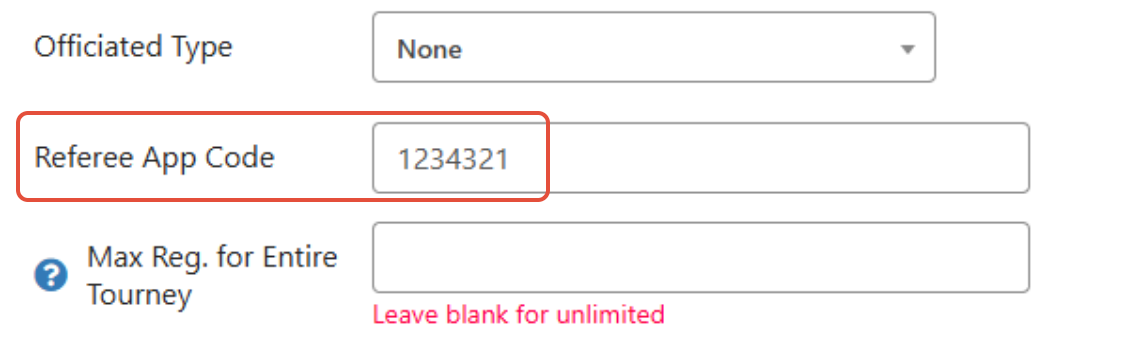
The second box for the Ref Code for a tournament will need to be created by the Tournament Owner. This can be whatever you want it to be, it just needs to be first added into the tournament setup before it can be used to log into the app:
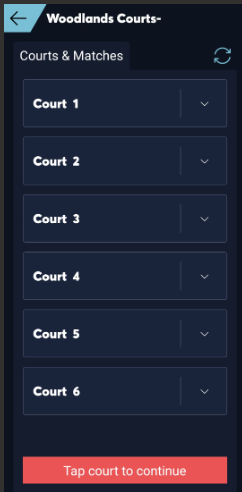
When the codes are added and you log in, you should see the courts for the tournament and the tournament name listed. Keep in mind this section communicates with the Court Desk feature in the Live Console. If you DON'T place a team on a court, it will not show up for the referee in the referee app.
Problem: Referee can’t log in.
Problem: Ref cannot access tournament in app.
Problem: Scores on tournament site don’t update.
No. The app uses the same credentials as pickleball.com. There is no separate referee login.
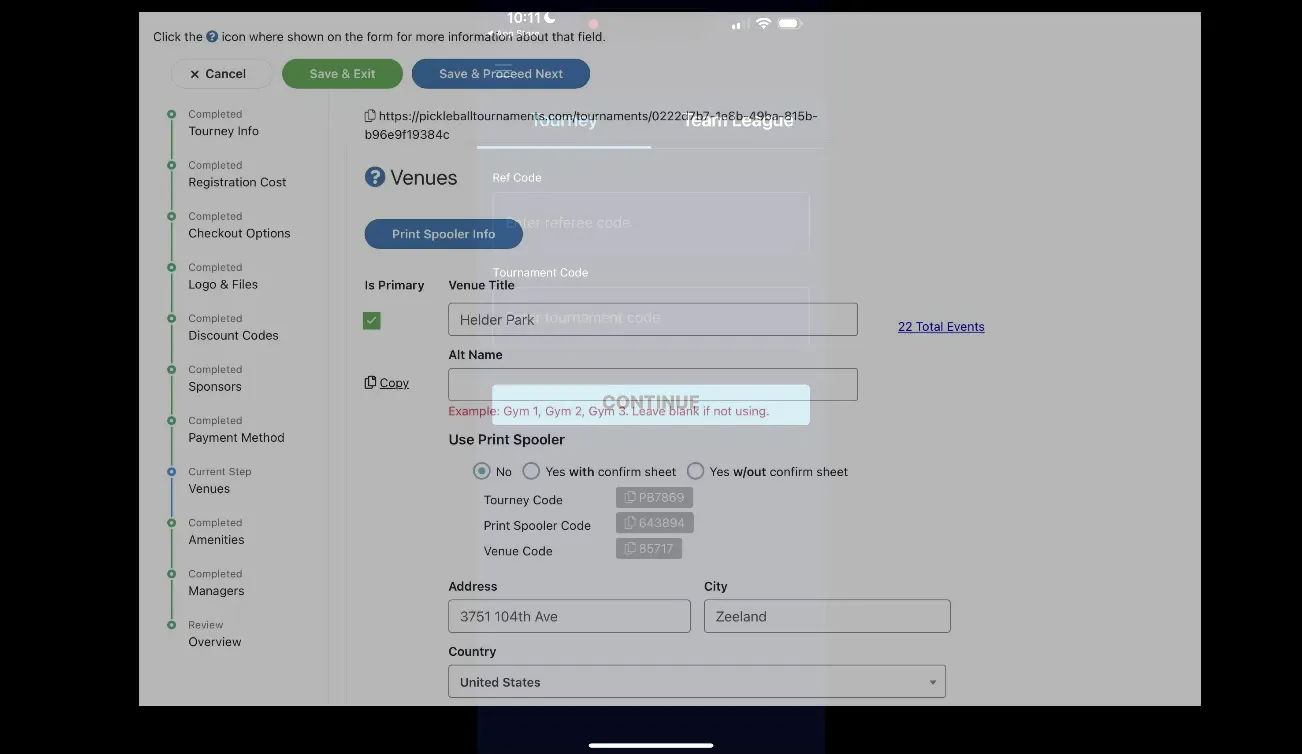
The tourney code is in your venue setup. The ref code is created in the Edit Tourney menu and acts as a password to enter your tournament.
In most cases, this means the tournament doesn't have a primary venue set. Go to Edit Tourney → Venues and confirm one venue is checked as the primary venue — until a primary venue is marked, the Referee App can't identify which courts belong to your tournament, even when the tourney code and ref code are entered correctly. If courts still don't show up after setting a primary venue, confirm a team has been placed on that court from the Court Desk in the Live Console — the app only displays courts that currently have a team assigned. This isn't a manager-permission issue: referees only need the tourney code and ref code to sign in, not a manager role on the tournament.
Yes. Training Mode allows them to simulate a variety of match types and scoring rules (USAP or PPA style) so they’re prepared before officiating live matches.
The Referee App is designed to make your officiating team more efficient, accurate, and consistent. As TD, your role is to set up the tournament correctly (tourney code, ref code), encourage training, and verify that referees know the PIP/SO flow and finalization steps. With some practice and a short checklist, referees will be ready to manage live scoring confidently — and your spectators will appreciate accurate, real-time updates during every match.
For further demos and additional scoring format simulations, point your referees back to the app’s Training section where they can explore more scenarios and practice until they’re comfortable. You can also check out our in depth walkthrough tutorial below.