Ask the player to check their spam folder first. If the invite still wasn't received, confirm the email address on their account. You can also add them directly via Add Players in the Team Dashboard.
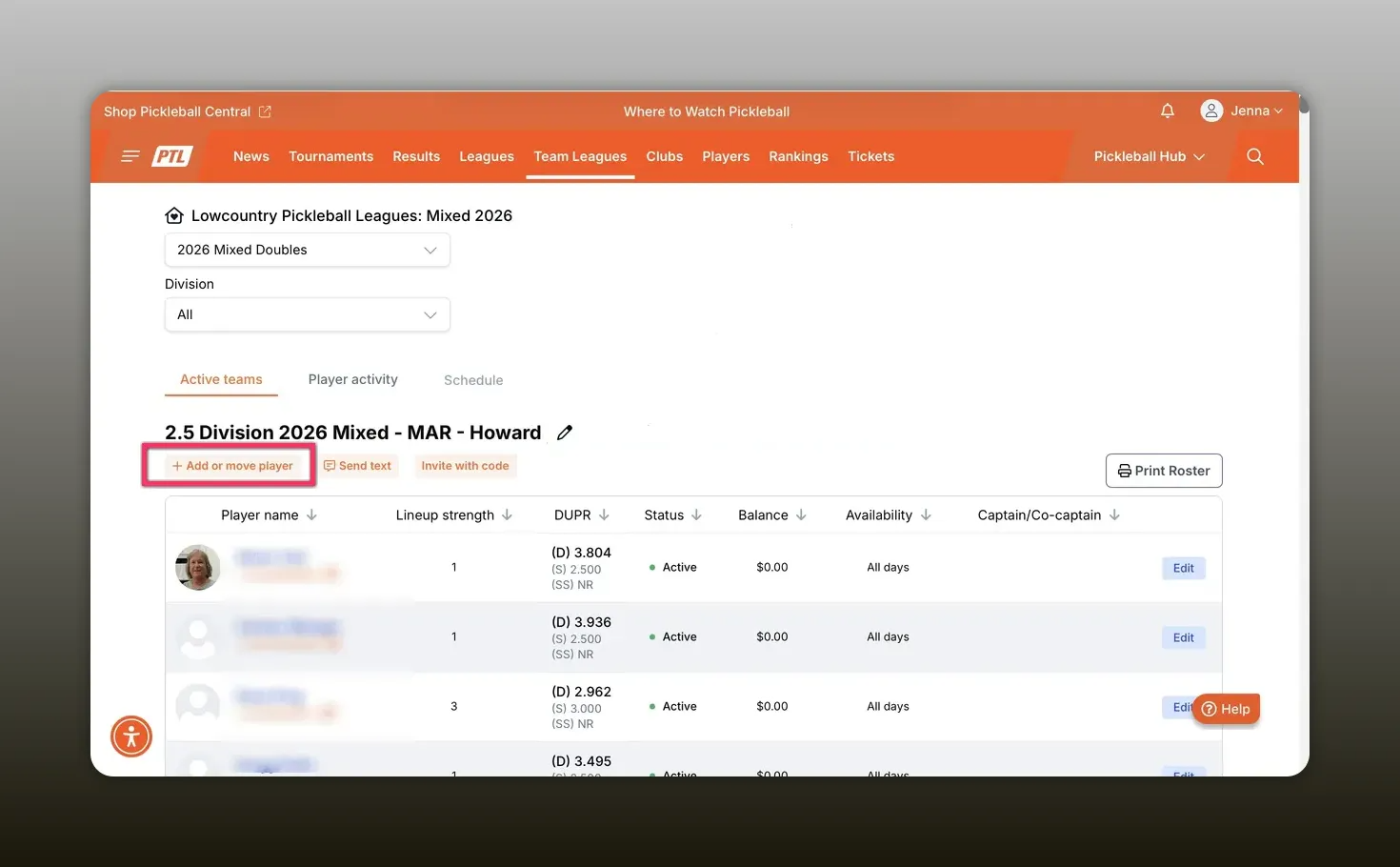
As a team captain in Pickleball Team Leagues (PTL), you have three ways to add players to your roster: during initial team registration, directly from the Team Dashboard, or via an invite code. Use whichever method fits your situation.
Use this method when forming a new team or registering for a season for the first time.
This page is also where individuals can sign up using an invite code and where free agents can self-register. Team registration is most convenient when you know your full roster at signup.
Use this method to add known players after your team is already registered.
When you add someone, the system sends them an email invitation they can accept or decline. This gives both you and the player a record of the invitation.
Use invite codes when recruiting broadly, sharing on social channels, or letting multiple players join without manually searching for each one.
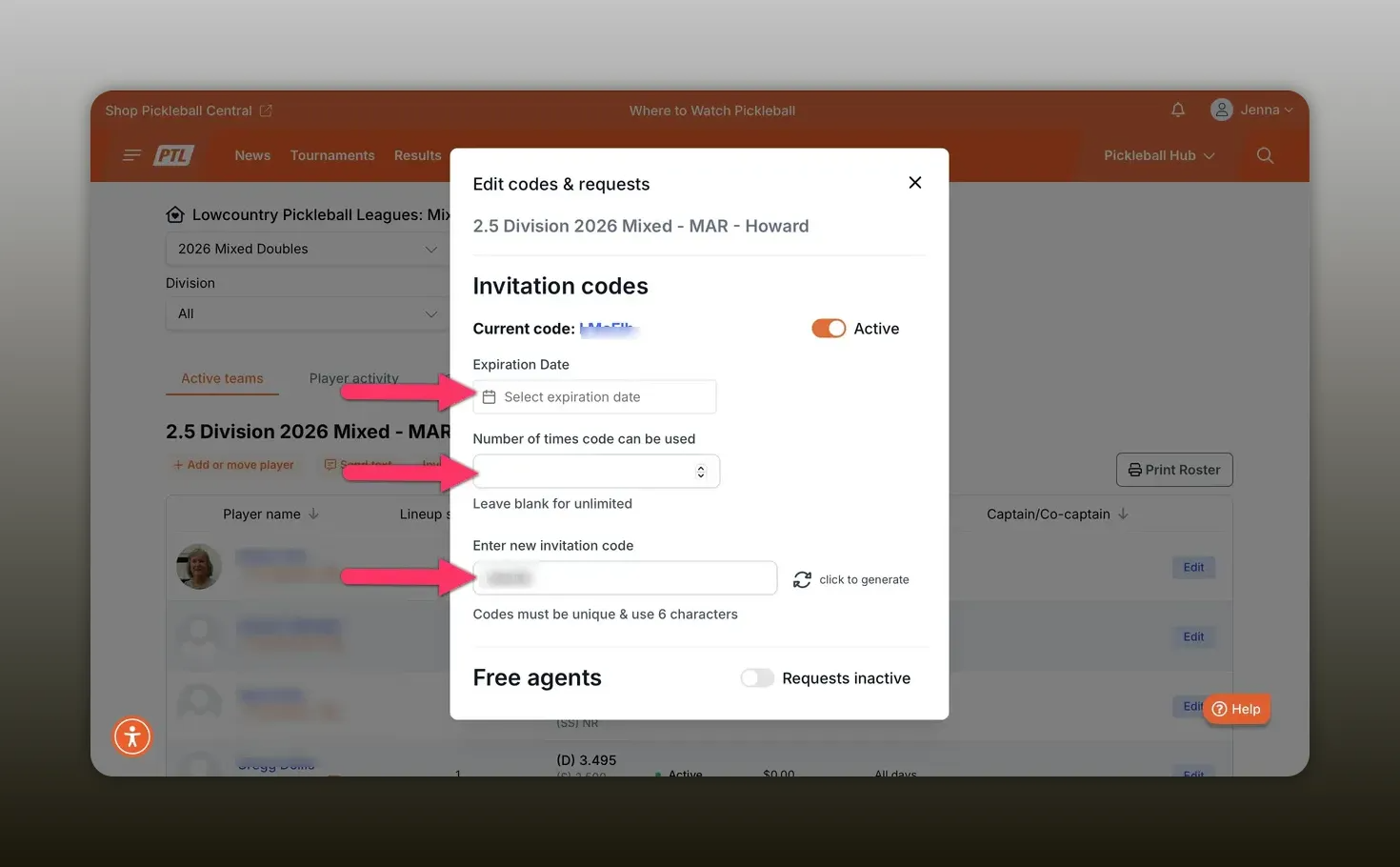
When free agents request to join, you receive an email with a direct link to the Player Activities section of your Team Dashboard where you can approve or deny requests.
Ask the player to check their spam folder first. If the invite still wasn't received, confirm the email address on their account. You can also add them directly via Add Players in the Team Dashboard.
Check that the code is set to Active and hasn't expired. Both settings are in the team edit screen accessible via the pencil icon next to your team name.
Go to Player Activities in your Team Dashboard. Free agent requests appear there for you to approve or deny. If you're not seeing requests, confirm the Requests toggle is set to active in your invite code settings.
Confirm the player has a Pickleball.com account. If they do, try adding them directly via Add Players using their last name. If the issue persists, contact [email protected].
Questions about adding players? Email [email protected].