Yes — finding courts, creating games, and inviting friends are all free. Premium organized-play formats are available with a subscription.
Game Maker takes the chaos out of organizing recreational pickleball. Instead of chasing RSVPs in a group text, you can set up a game in under a minute — pick the time, add a court, invite your players, and let the app handle invites and RSVPs. Here's how to create your first game.
You'll need the Game Maker app installed and signed in — see How to Download Game Maker app. If you already have a Pickleball.com account, you're automatically in: open the app and go.
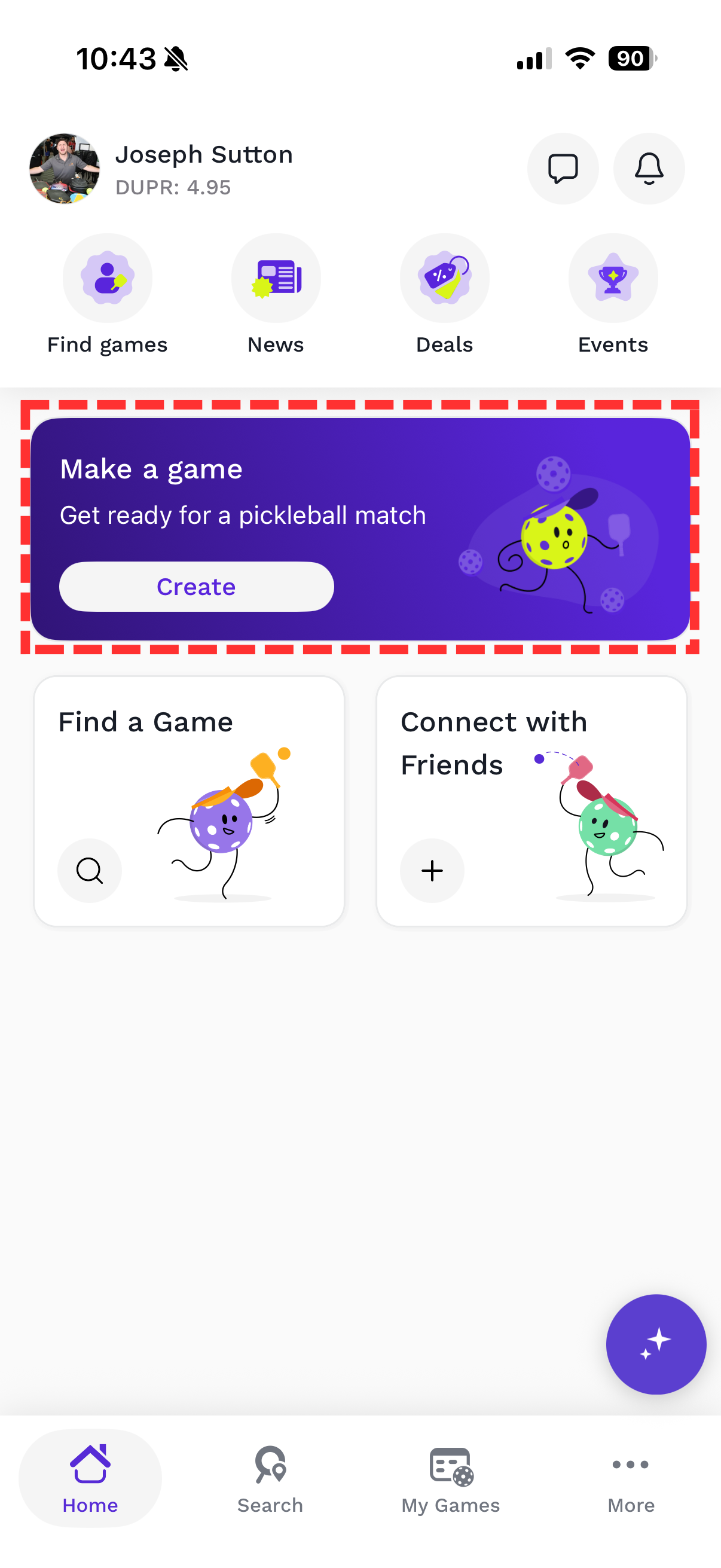
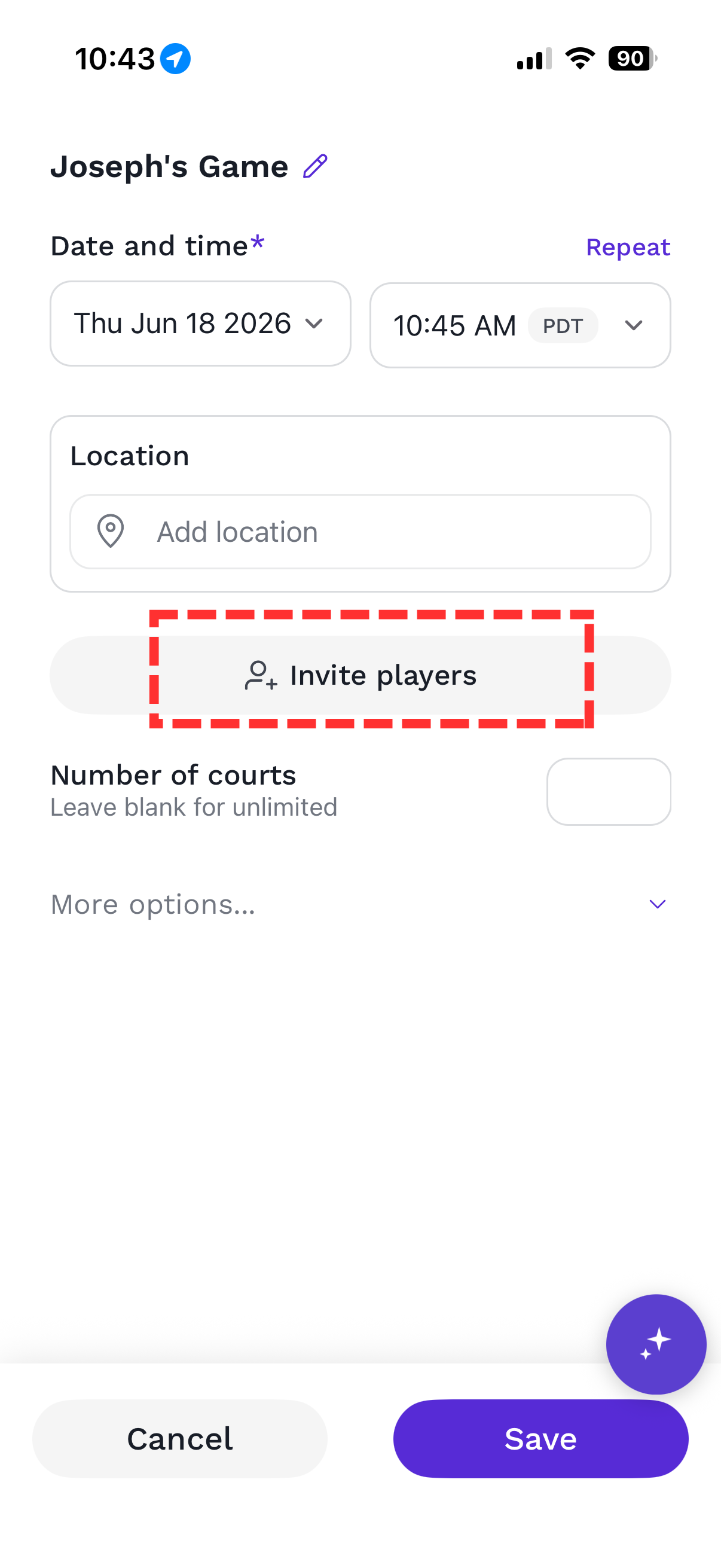
From the Home screen, tap Create on the “Make a game” card. Game Maker opens a new game and gives it a default name (for example, “Joseph's Game”). Tap the pencil icon next to the name to rename it.
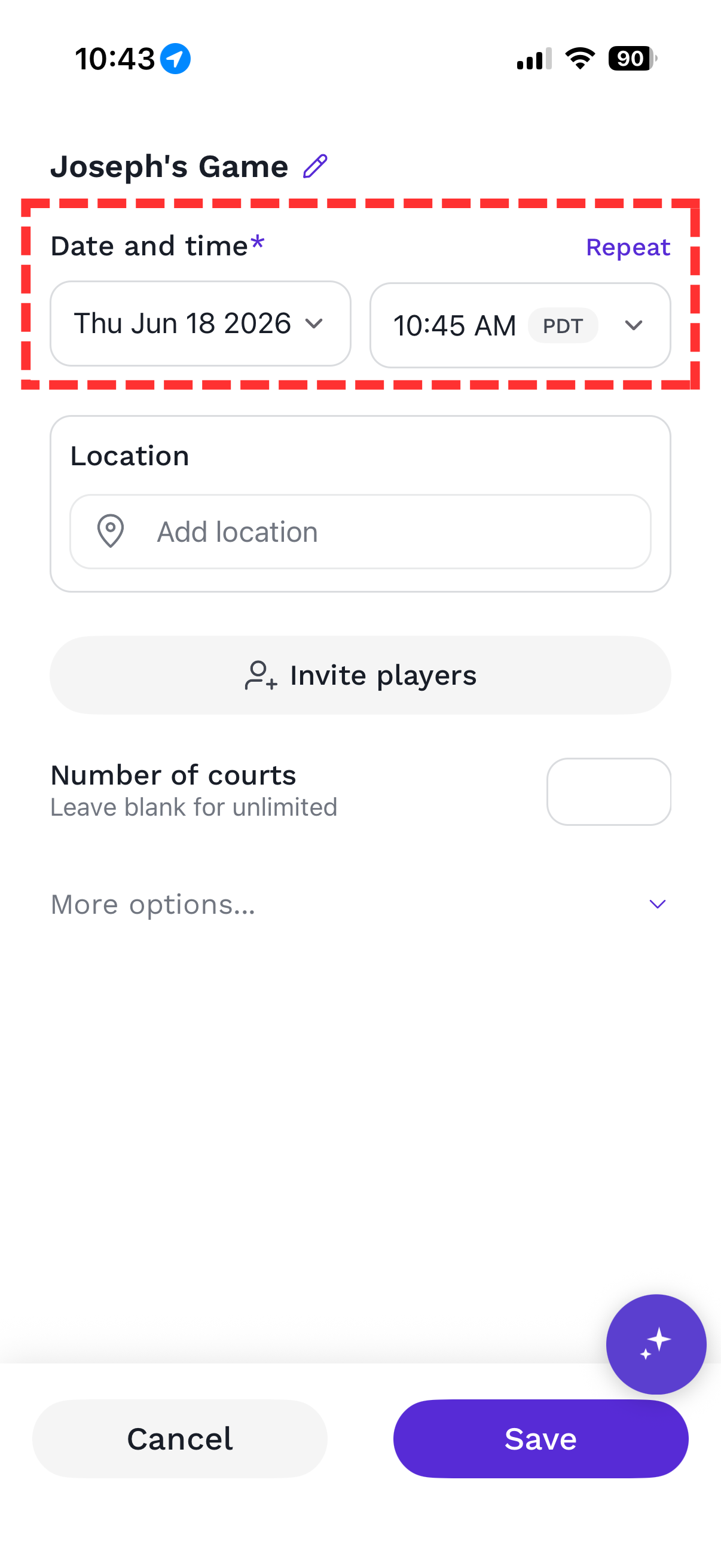
Under Date and time, tap the date and time fields to choose when you'll play — your time zone is shown automatically. Playing on a regular schedule? Tap Repeat in the top right to make it a recurring game so you don't have to recreate it each week.
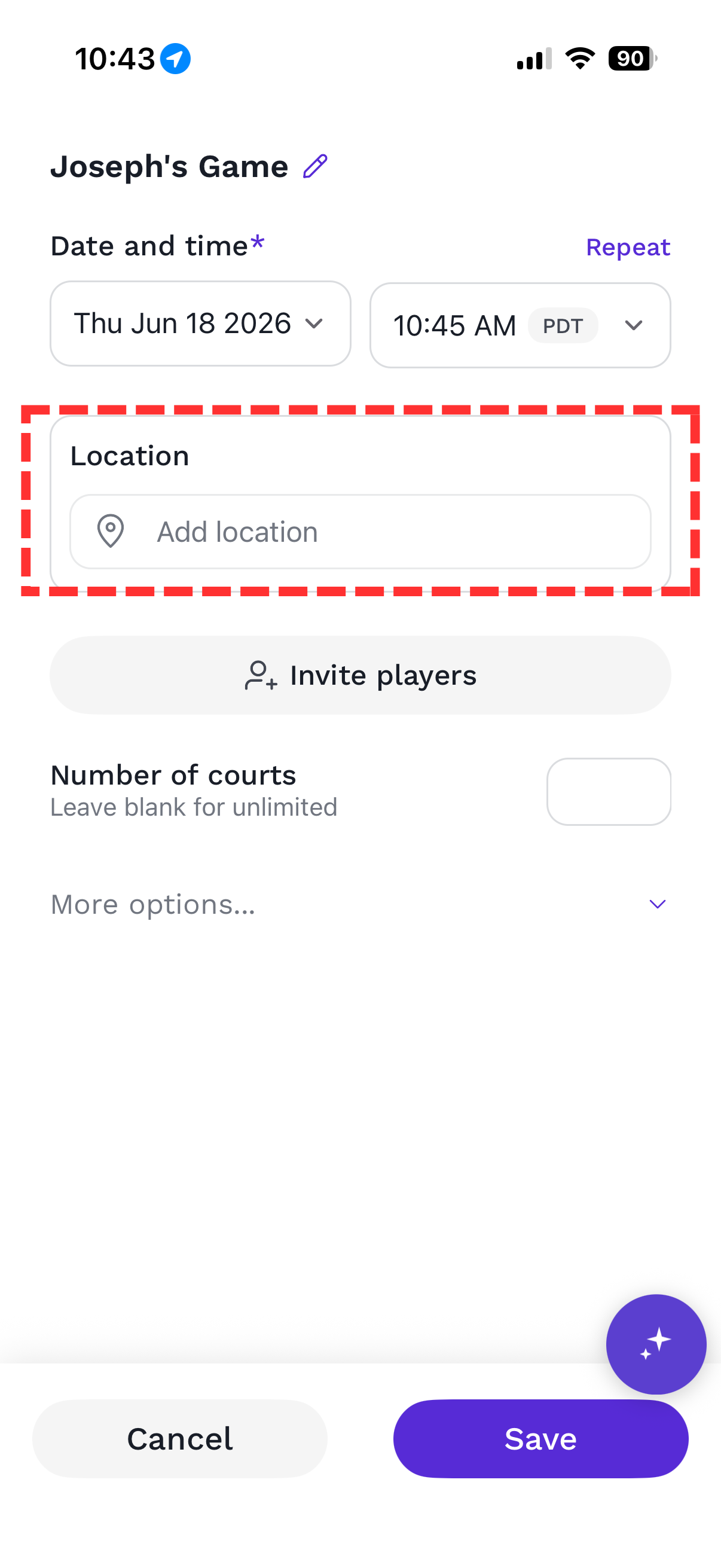
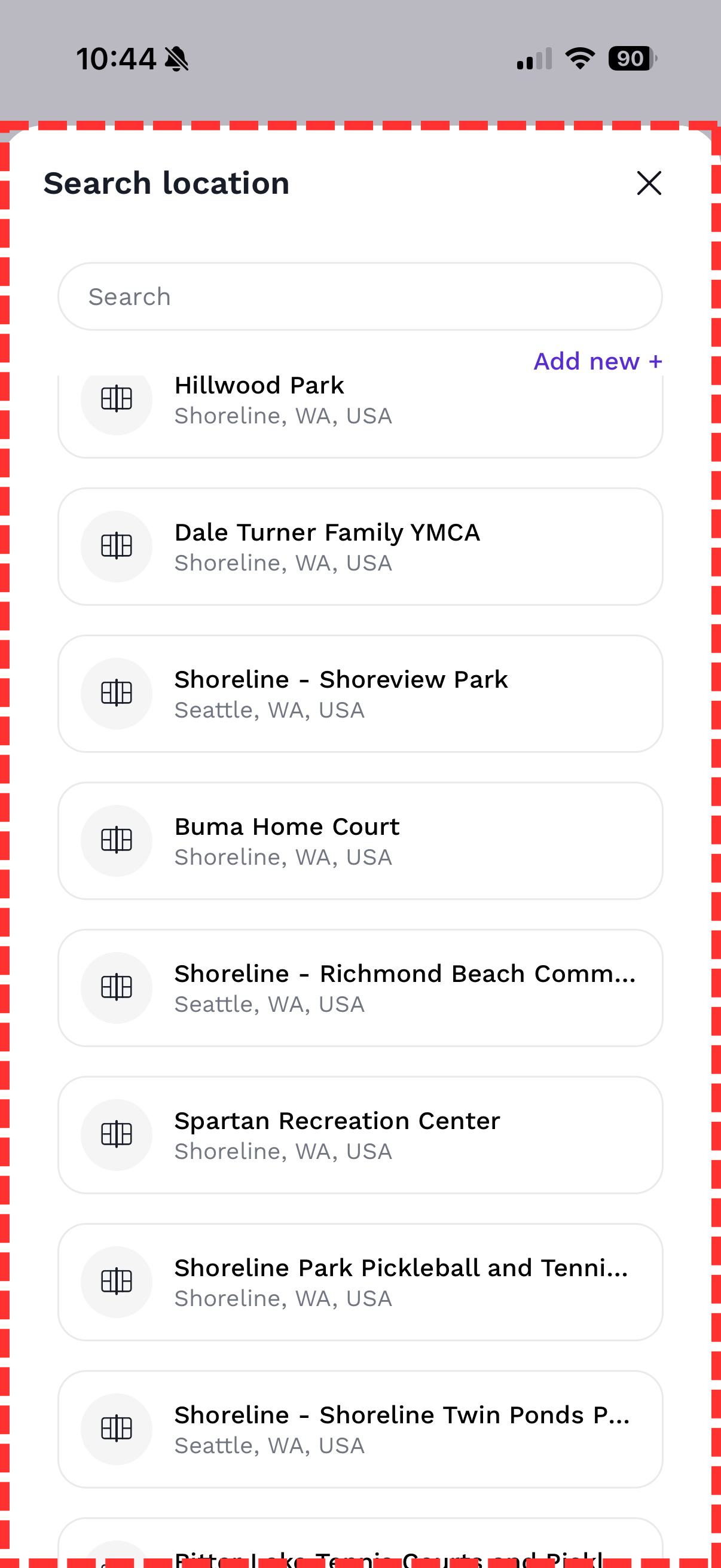
Tap Add location. Search for your court by name, pick one from your saved and nearby list, or tap Add new + to enter a court that isn't listed yet. Once selected, the full address appears — use Clear or the pencil icon if you need to change it.
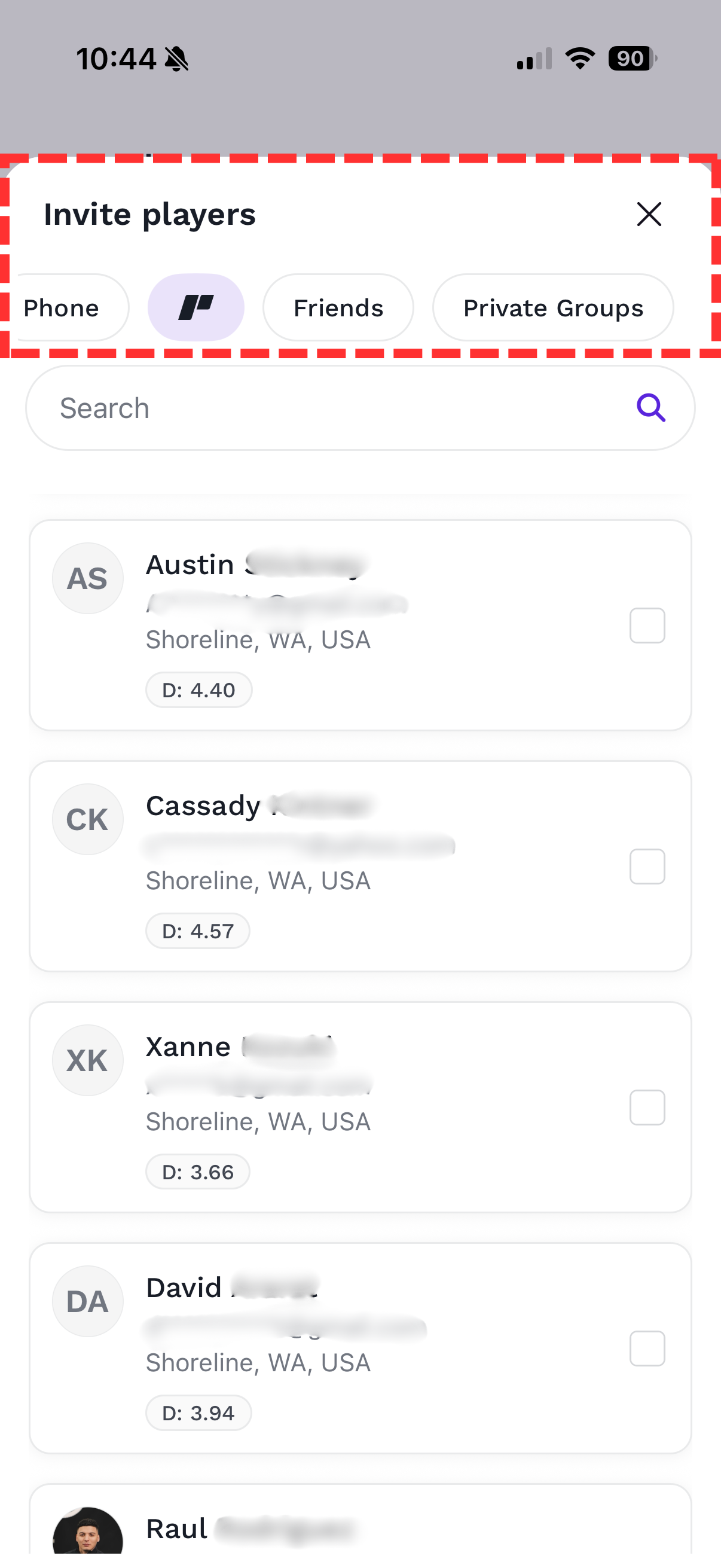
Tap Invite players, then find people from any of these tabs:
Use the search bar to look someone up, then tap the checkbox on each player to add them. Each player's DUPR rating is shown so you can build a balanced game.
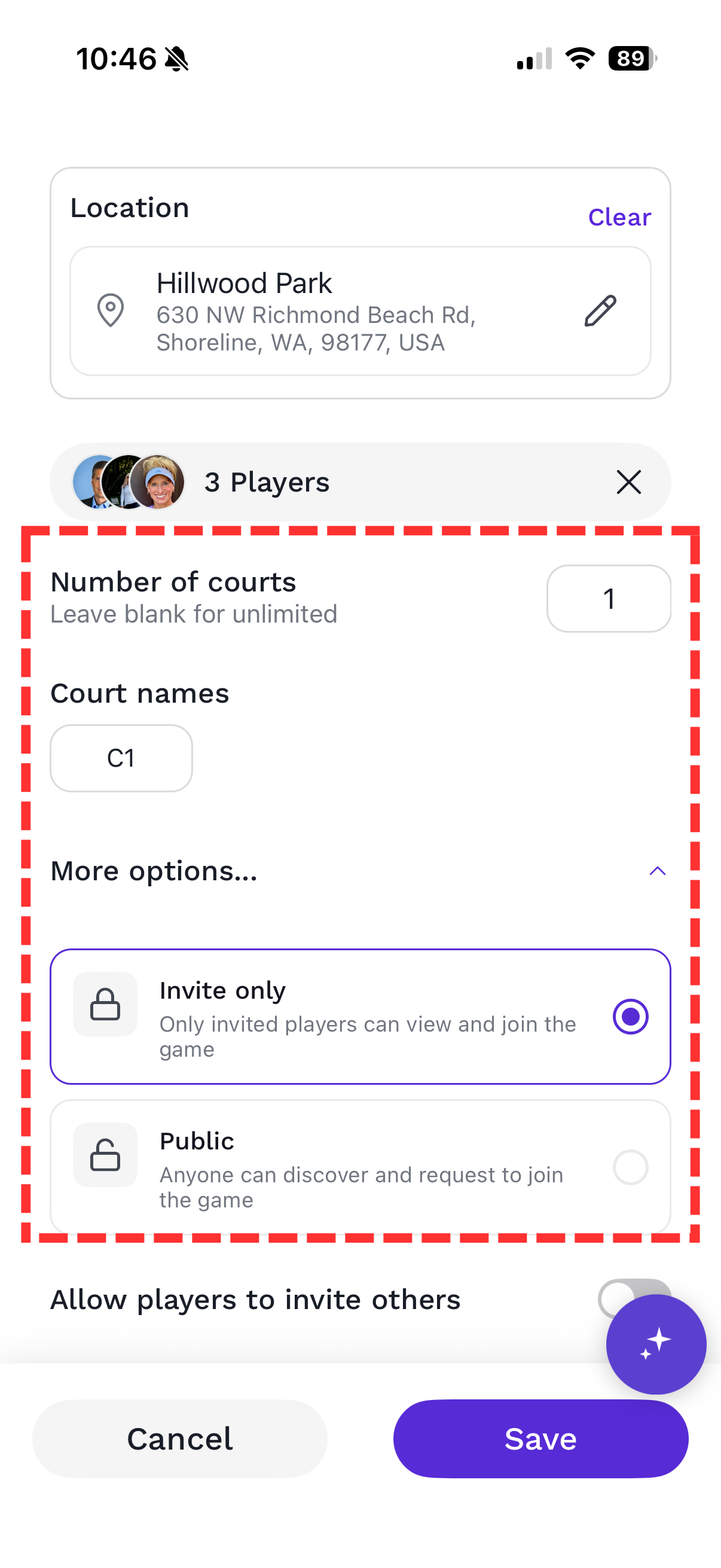
Enter a number under Number of courts, or leave it blank for unlimited. Once you set a count, you can name each court (for example, “C1”) — handy later when you're assigning matches.
Tap More options… to expand the privacy settings:
There's also an Allow players to invite others toggle if you'd like your invitees to be able to bring people along.
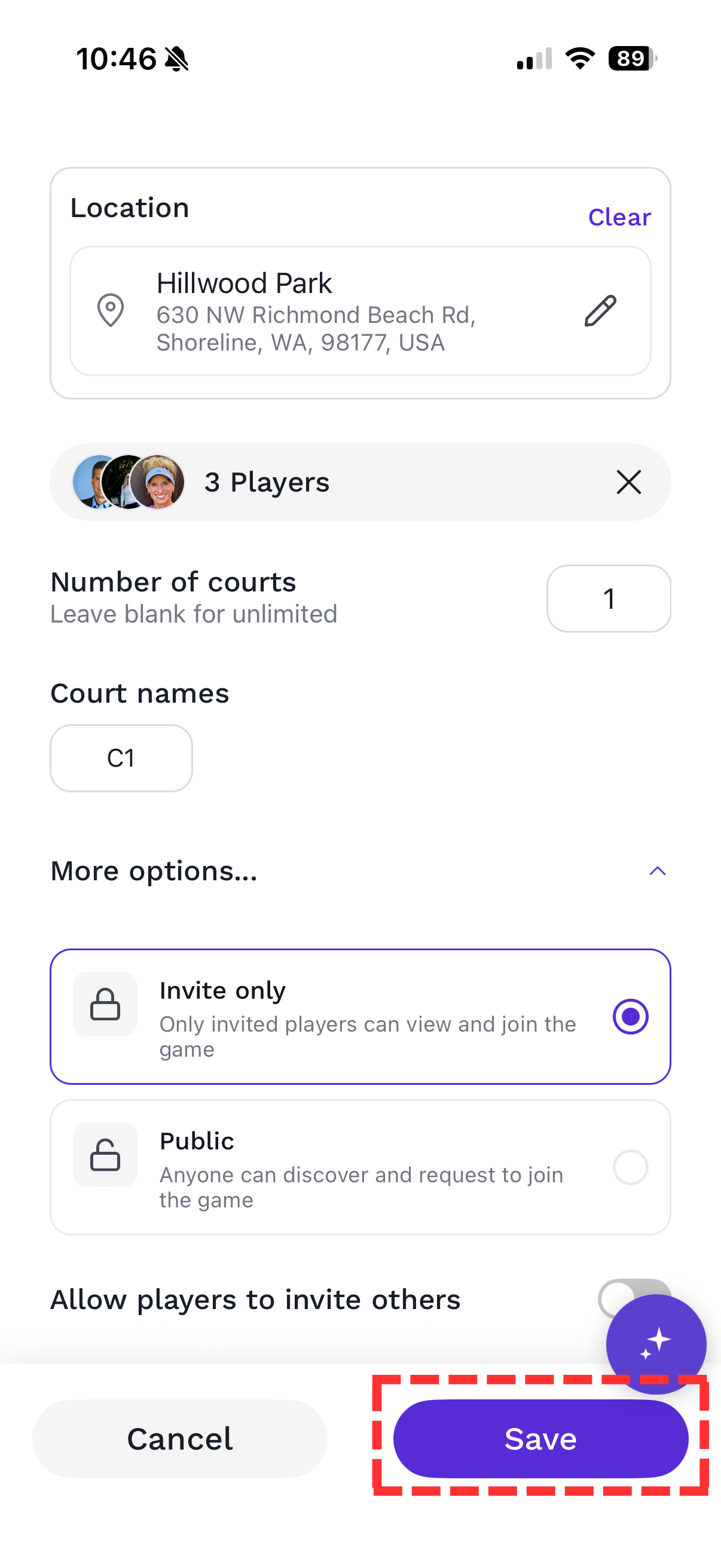
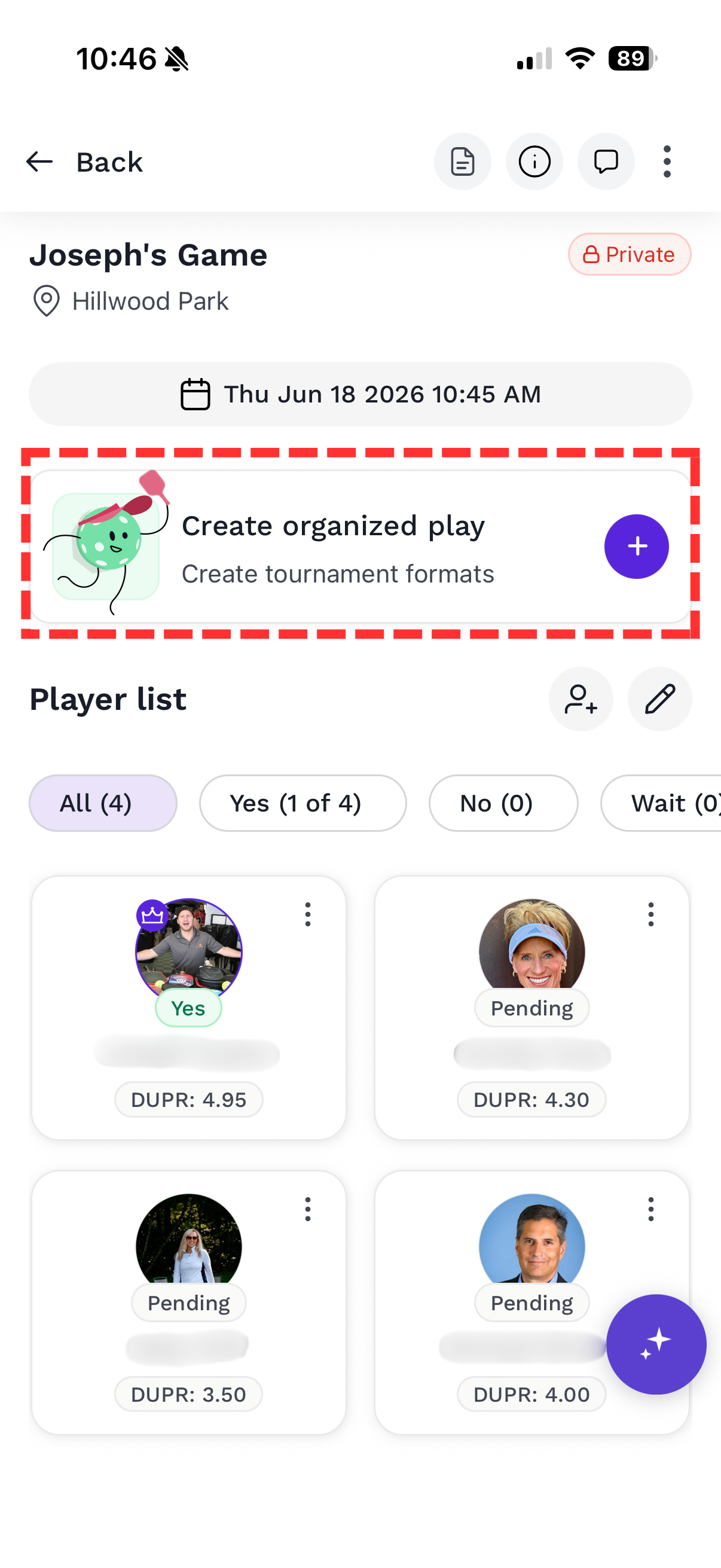
Tap Save. Your game is created and invites go out. From the game screen you can see your player list filtered by All / Yes / No / Wait, watch RSVPs come in, message players, and edit any detail with the pencil icon.
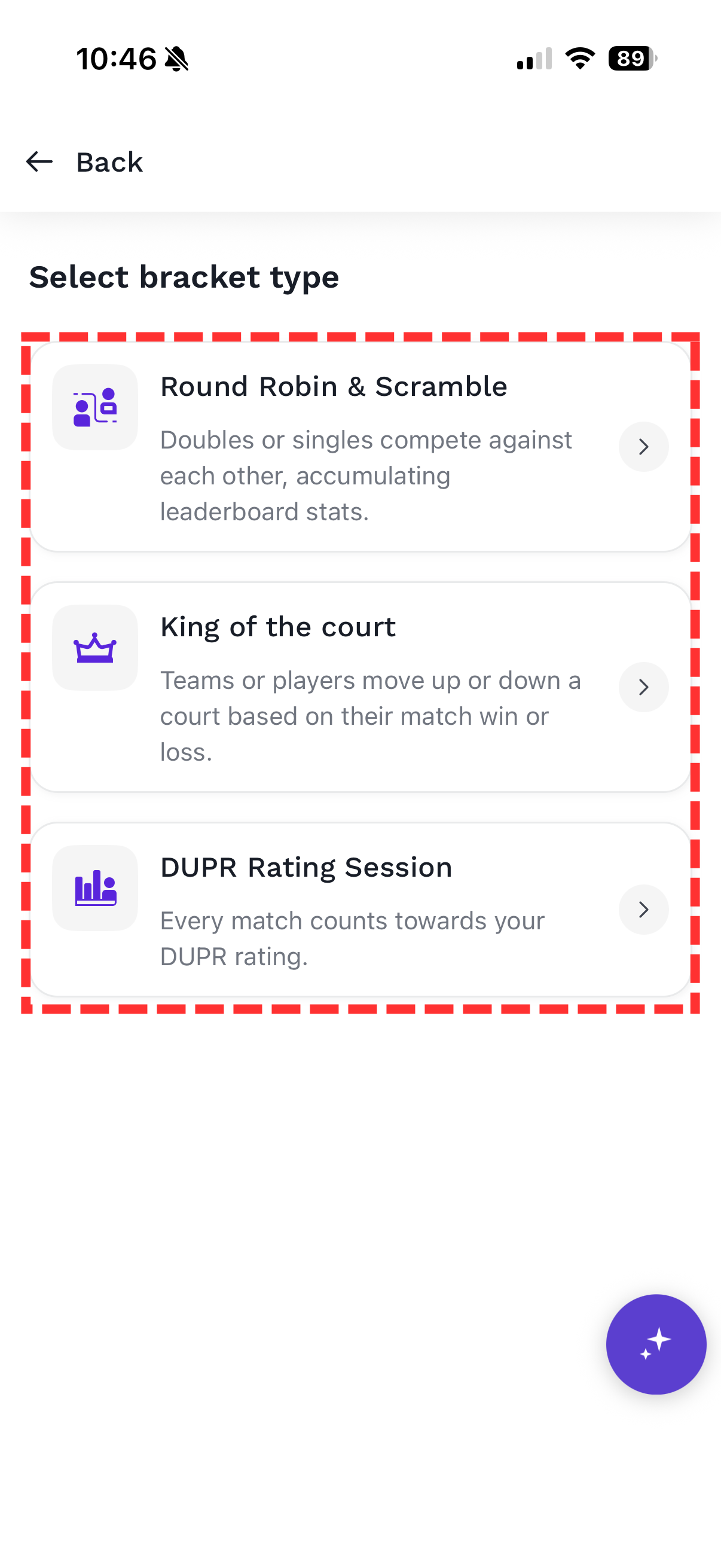
Want brackets and scorekeeping? Only the organizer will need a premium subscription to set brackets and keep scores in app. On the game screen, tap Create organized play and choose a format:
| Format | What it does |
|---|---|
| Round Robin & Scramble | Doubles or singles compete against each other, accumulating leaderboard stats. |
| King of the Court | Teams or players move up or down a court based on their match win or loss. |
| DUPR Rating Session | Every match counts toward your DUPR rating. |
Choosing Scramble or Round Robin and turning on Report Scores to DUPR gets you the same result as picking DUPR Rating Session directly — DUPR Rating Session is a separate menu option because of Pickleball.com's agreement with DUPR, not because the matches play out any differently.
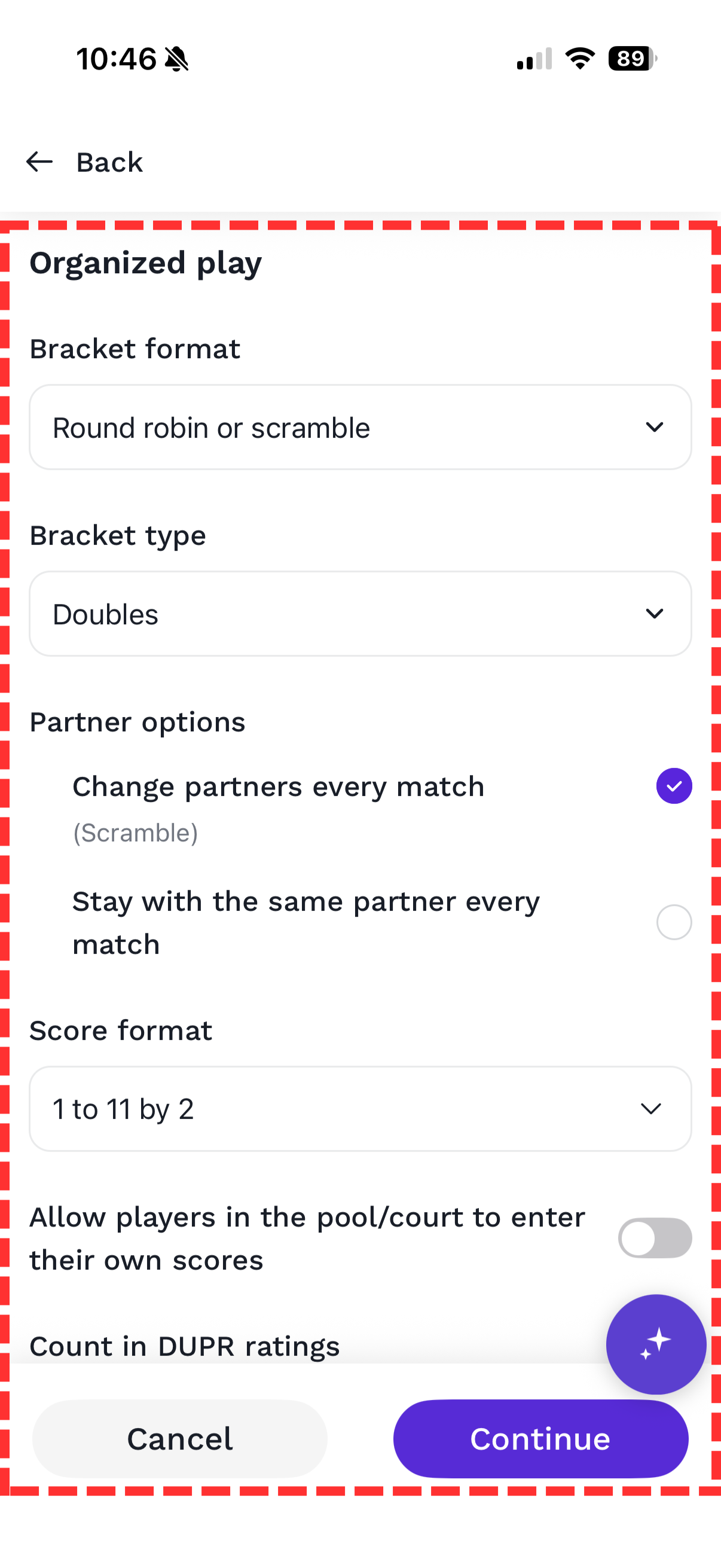
From there you'll set the bracket type (Doubles or Singles), partner options (Change partners every match for a scramble, or Stay with the same partner), and a score format (for example, 1 to 11, win by 2). You can also let players enter their own scores. Game Maker then builds the matchups and assigns courts — enter scores as you play, then tap Complete all matches, or use Start over to redraw the pools.
NoteTap the sparkle button on any screen to use Game Maker's AI assistant. Say something like “Create a private game Wednesday at 6pm at Hillwood Park with my regulars group” and it sets everything up for you.
Yes — finding courts, creating games, and inviting friends are all free. Premium organized-play formats are available with a subscription.
Yes. Tap Repeat when you set the date and time, and Game Maker will repeat the same game on your schedule so you don't have to recreate it each week.
An Invite only game is visible only to the players you invite. A Public game can be discovered by anyone, who can then request to join.
Players get the full experience in the Game Maker app, and anyone with a Pickleball.com account is already part of the network you can invite from.
No — invited players can join as a Guest by entering just their name and phone number. This works whether you send a manual invite (typing in their name and phone) or a generic share link. They're only prompted to create a full Pickleball.com account if they try to use a feature that requires one.
This almost always means they're on an outdated version of the Game Maker app. Older versions required extra fields on the guest join form that newer versions don't, which can cause Save to silently do nothing. Have them update to the latest version from the App Store or Google Play, then try joining again.
Yes. As the owner, you can add other players as managers so they can help edit game details, manage the roster, and enter scores. Only the owner can add or remove managers, or transfer ownership to someone else.
Yes. Everyone in the game — including players on the waitlist — can see the full waitlist along with the Yes and No lists.
Yes. When a spot opens up, Game Maker automatically promotes the next person on the waitlist to Yes..
Still need help? Contact support@pickleball.com.