Up to 10. You can use them for any combination of Early Bird, Standard, Late Registration, Day-of, or other tiers your event needs — just make sure each window has a different start date and time so they cascade cleanly.
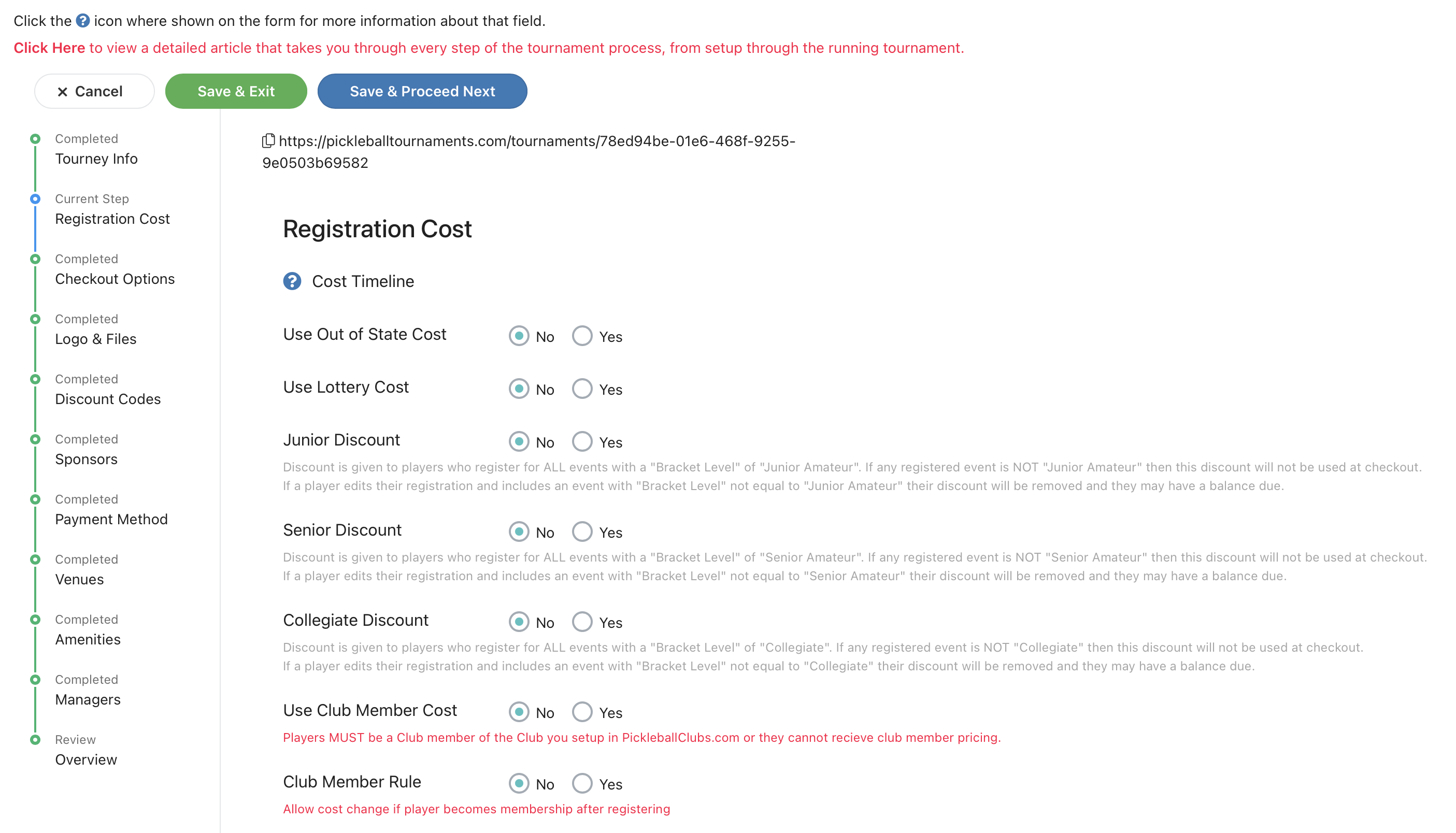
Registration costs in Pickleball Tournaments (PT) control how much players pay to enter your tournament, when each price takes effect, and what discounts are available. This article walks you through the discount options at the top of the Registration Cost page, then shows you how to set up tiered registration windows (like Early Bird, Standard, and Late Registration) that automatically take over based on dates you choose. Watch the short video below or follow the step-by-step sections for full detail.
At the top of the Registration Cost page, you'll find discount options for various scenarios — partner-style registrations, repeat players, and other tournament-specific situations. Read the description next to each option and enable the ones that fit your event. For one-off codes used at checkout (for sponsors, comps, friends and family, etc.), see How to Create and Apply a Discount Code.
The Registration Cost page includes two different discount options that are both based on club membership, but they check membership in very different ways:
 Note
NoteIf a player expects a membership discount but isn't receiving it, check which type is enabled. The sanctioning discount depends on a real-time API check with the sanctioning body, while the member discount depends only on the tournament's own club roster in Pickleball.com — the player must be listed as a member of the specific club that created the tournament.
In the lower part of the Registration Cost page, you'll see the cost windows. PT lets you set up to 10 different registration price points that activate automatically based on the dates you set. Each window has a start date and time — it stays active until the next window's start date kicks in. Only one cost window is active at any given moment.
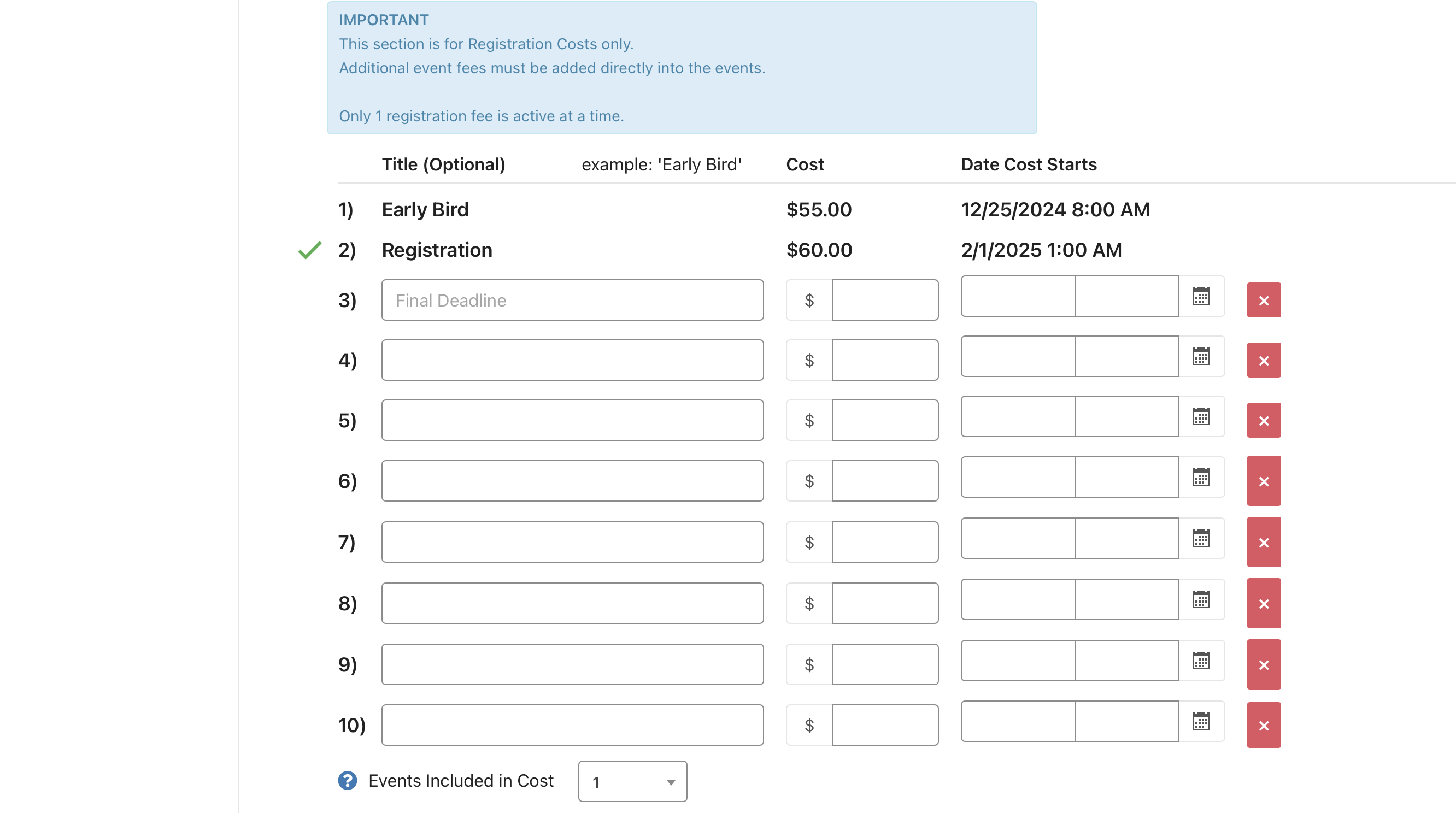
In the example above, the Early Bird window begins on 12/25/2024 at 8:00 AM and stays active until 2/1/2025 at 1:00 AM, when the $60 Standard Registration window takes over. You can add a Late Registration window with a later start date if you want to charge more closer to your event.
The amounts you enter here are for the base registration only. If you want to charge additional fees per event — for example, a $10 add-on for a Moneyball event — those are configured on the individual event under Edit Event → Event Fee, not on this page. See How to Include Events with Your Registration Cost in PT for how the registration cost and event fees work together.
WarningOnce a player has registered under a specific cost window, that window cannot be edited or deleted — PT preserves it so historical records stay accurate. Double-check your dates, times, and amounts before opening registration. If you spot an error after registration opens, you can still adjust future windows that haven't taken effect yet, but anything tied to existing registrations is locked.
Players want to know what they're getting for their entry fee. You can list the number of guaranteed games each player will get, and it appears on your tournament page in the Registration Cost section, right alongside your entry fees. This is optional. If you don't set a number, nothing is shown.
Players see Guaranteed games per player in the Registration Cost section of your tournament page, below your entry fees. This makes it easier for players to compare tournaments and plan their weekend before they register.
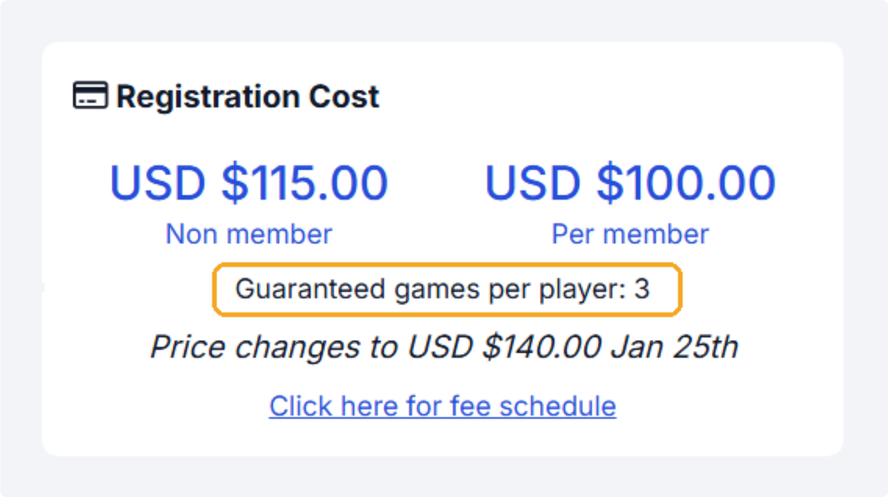
The number you enter applies to your whole tournament. Make sure each event can actually deliver it. For example, if you run both round robin and double elimination events, choose a number every event can fulfill. If you don't set a number, players won't see one and can use the Contact Tournament button to ask you directly.
Up to 10. You can use them for any combination of Early Bird, Standard, Late Registration, Day-of, or other tiers your event needs — just make sure each window has a different start date and time so they cascade cleanly.
Only if no one has registered under that specific window yet. Once even one player registers under a cost, that window becomes locked. You can still create new windows that activate at future dates, but you can't change or remove ones that have collected registrations.
Per-event fees aren't set on the Registration Cost page — they're set on each event itself under Edit Event → Event Fee. The Registration Cost page handles only the base registration price. See How to Include Events with Your Registration Cost in PT for the full picture of how the two settings interact.
Cost windows are designed to overlap exactly — one ends as the next begins. There shouldn't be a gap. If there is one (for example, the Early Bird ends at 1 AM but the Standard window doesn't start until noon), no cost is active during that gap and players can't complete registration. Make sure each window's start date and time pick up cleanly from the previous one.
Yes. The active registration cost window sets the base price, and any discount code the player enters at checkout is applied on top of that. If a player uses a 10% off code during Early Bird, they pay 10% off the Early Bird price, not the standard price.
If you set a member price on the Registration Cost page, your tournament listing shows both the Non-Member cost and the Member cost directly, so players don't need to click View More to see the difference. This helps encourage players to join your club. If you don't set a member price, the listing shows the standard per-player cost as usual.
Go to Edit Tourney and use the Num. Guaranteed Games dropdown, located below Max Reg. for Entire Tourney and above the Is Private Tourney toggle. The number you choose appears on your tournament page in the Registration Cost section.
If no guaranteed games number is set, nothing appears in the Registration Cost section. Players who want to know can use the Contact Tournament button to ask you directly.
Need more help? Email us at support@pickleball.com.