How to Set Up a Tournament Team Event
This guide walks tournament directors through the main steps to create and customize a team event in Pickleball Tournaments (PT). It breaks the process into clear sections — basic event info, team signup rules, match structure, scoring and tiebreakers, player requirements, standings, and lineup and score permissions — so you can use it as a practical checklist while building your next team event. Watch the training video below or follow the step-by-step instructions to set everything up correctly before verification.
Basic Info tab
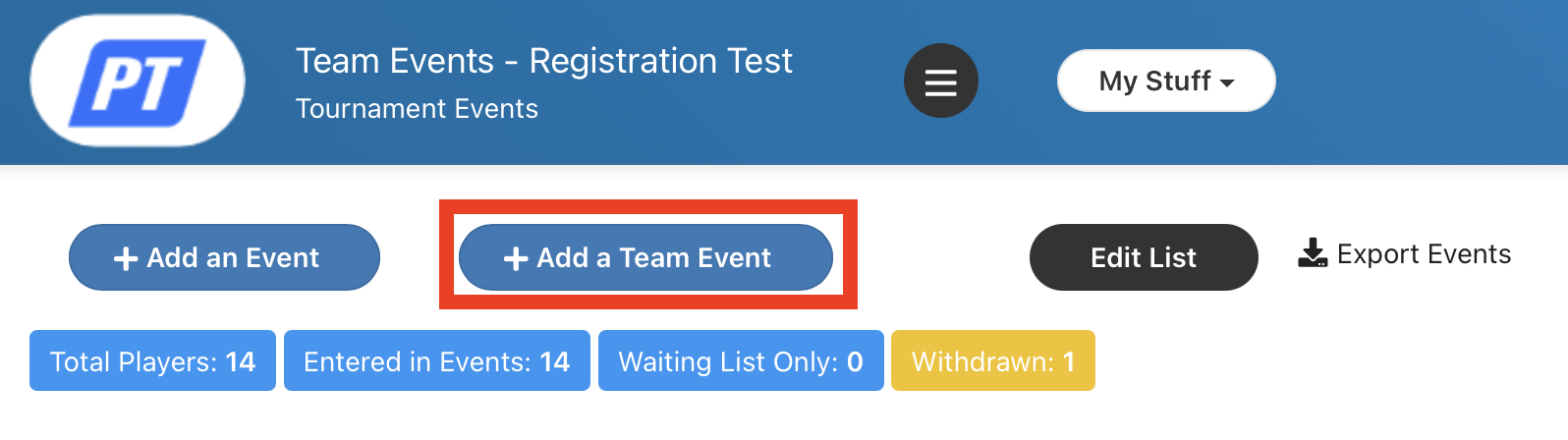
From the tournament menu, open Events and click Add a Team Event.
Toggle the event Active.
Choose whether results count toward DUPR and ranking points (for sanctioned events), and whether the system should manage the waitlist automatically.
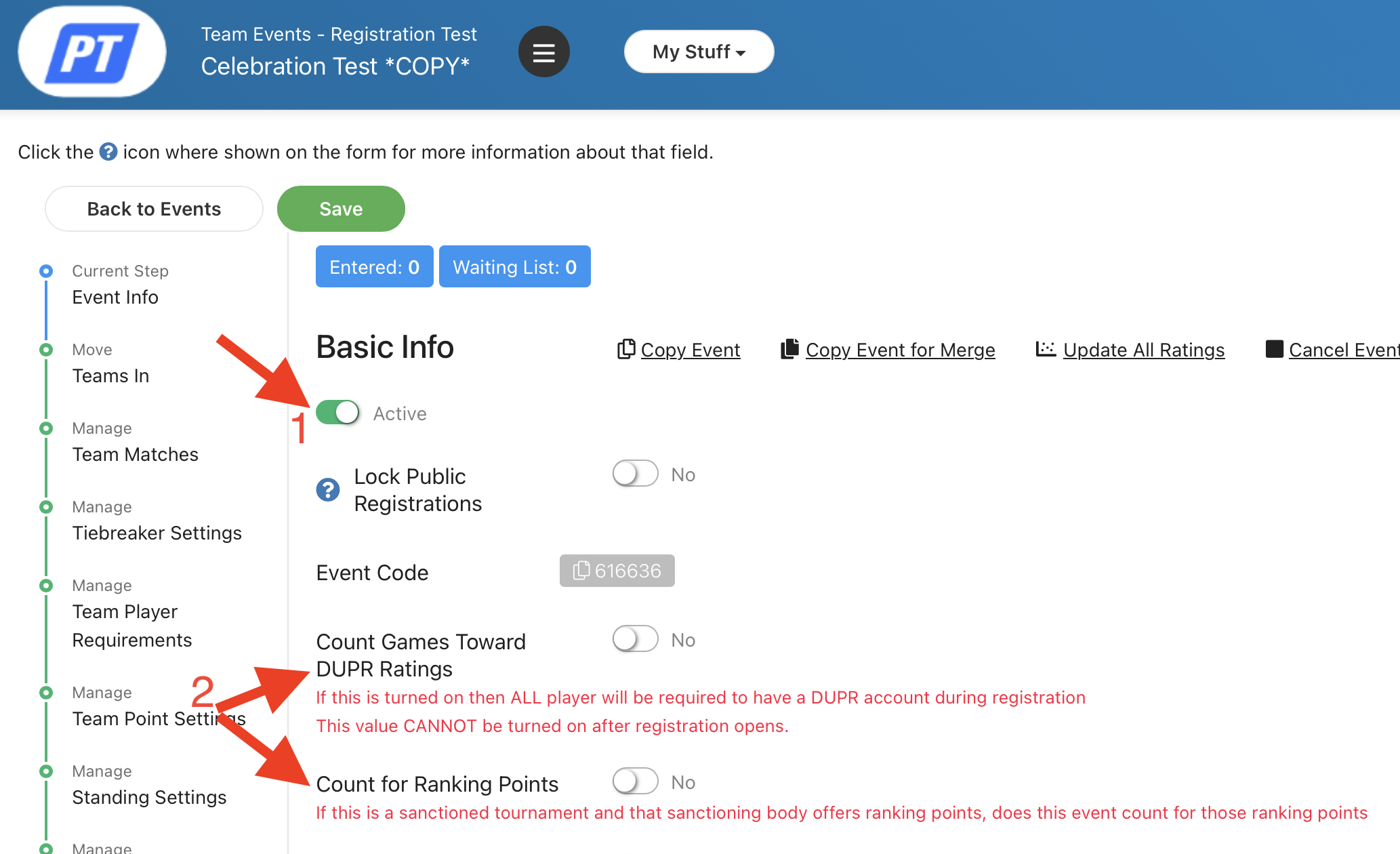
These toggles are for USA Pickleball-sanctioned events.

Select the playing level and the bracket format (round robin or elimination).

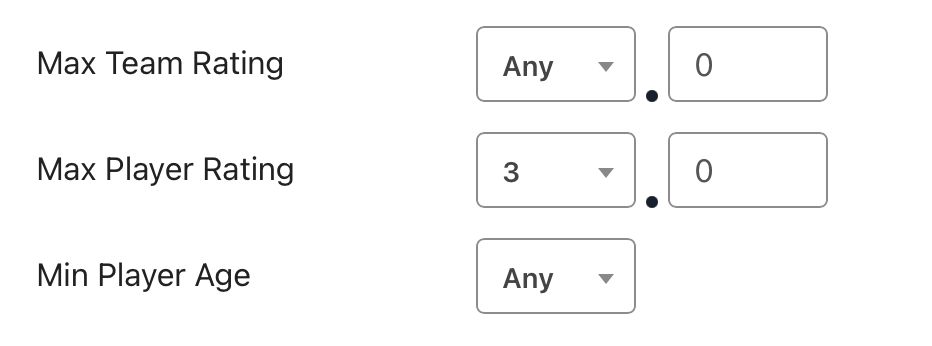
Set the event type — for example, a DUPR 16 event with a maximum combined team rating of 16 at registration. Set any per-player rating caps (example: no player over 4.5) and the minimum age for participation.
Title your event as desired. Scroll down to decide whether teams can register together, whether you allow free agents (people without a designated team in hopes of getting picked up), and the maximum number of teams. Review the other settings too, such as the minimum players required before a team is waitlisted and the date of your event.
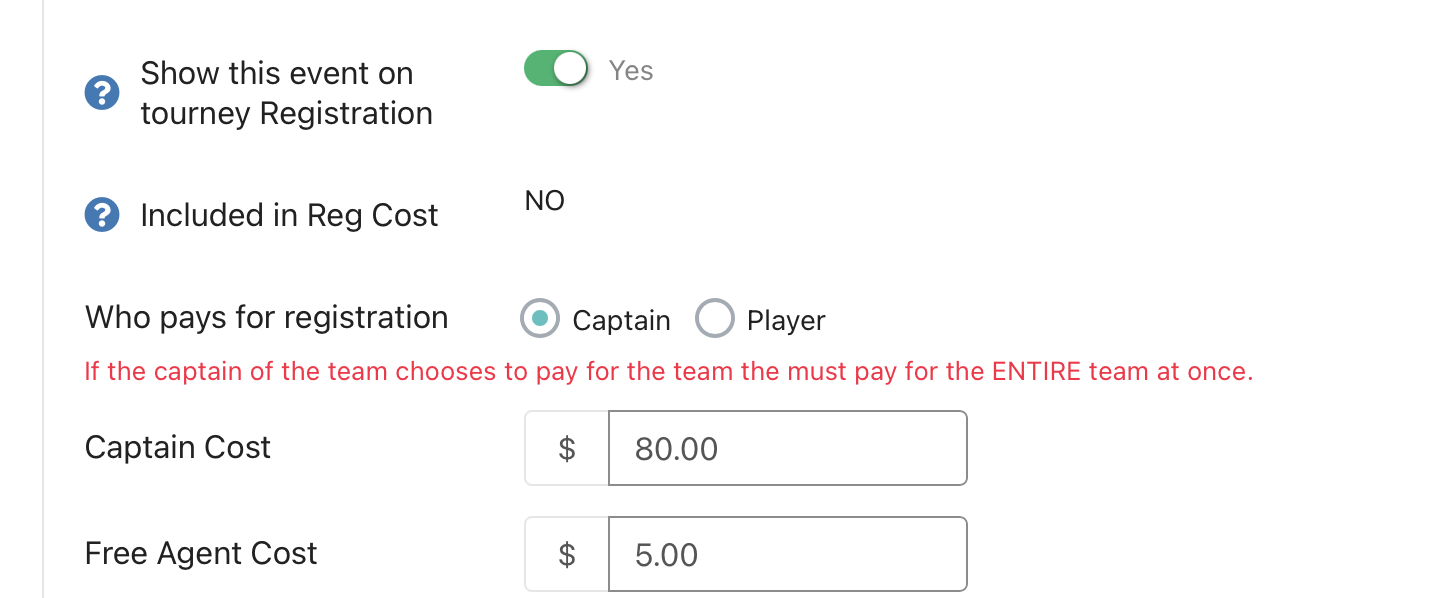
Scroll further down to set registration deadlines and cost information. Decide whether the captain or individual players pay registration fees, and whether free agents pay a fee.
The Allow team signup option lets individuals or captains register teams. If disabled, the tournament director performs signups manually. Configure:
- Maximum number of teams
- Whether free agent signup is allowed and if free agents are capped
- Minimum players required before a team moves to the waitlist
- Final registration deadline for all rostered players (example: 5 days)
Save the page once the basic info is complete.
Manage Team Matches tab
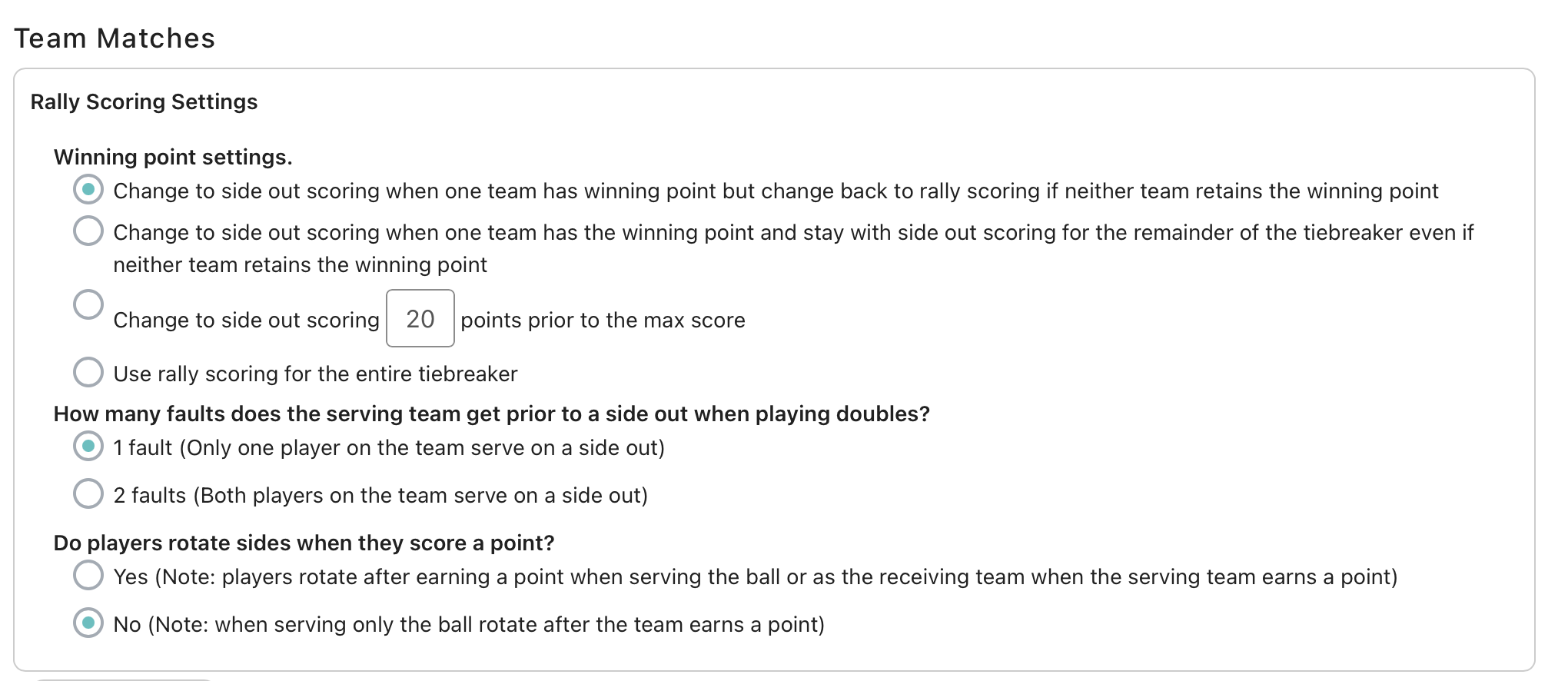
Use Manage Team Matches to define how each team matchup plays out. This first panel matters most if your event uses rally scoring. If you are only using rally scoring for tiebreakers, that will be set up later. Review each setting in detail if you are using rally scoring for all of your matches.
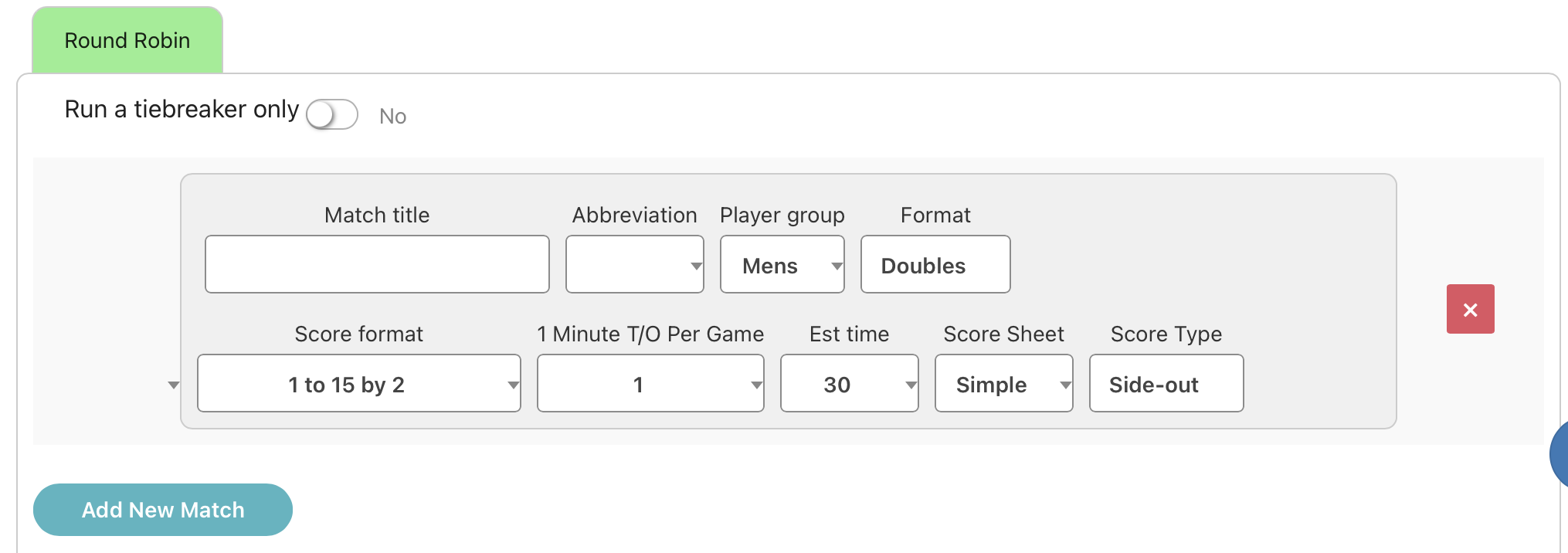
Next, set up how each match will play. For example, will you have a men's doubles, women's doubles, and mixed event? If so, add a match for each so PT knows how the teams play. Click Add New Match to begin entering your match details.
- For a Major League Pickleball (MLP) format, create four matches per team dual: one women's, one men's, and two mixed matches.
- The scoring configuration defined here transfers automatically to the live console upon event verification.
If you're wanting a standard MLP or MiLP formats with 2 men and 2 women and your roster is exactly that, PT automatically populates the women's doubles and men's doubles lineups for you. Captains only need to set the mixed doubles lineup yourself — one less step on match day.
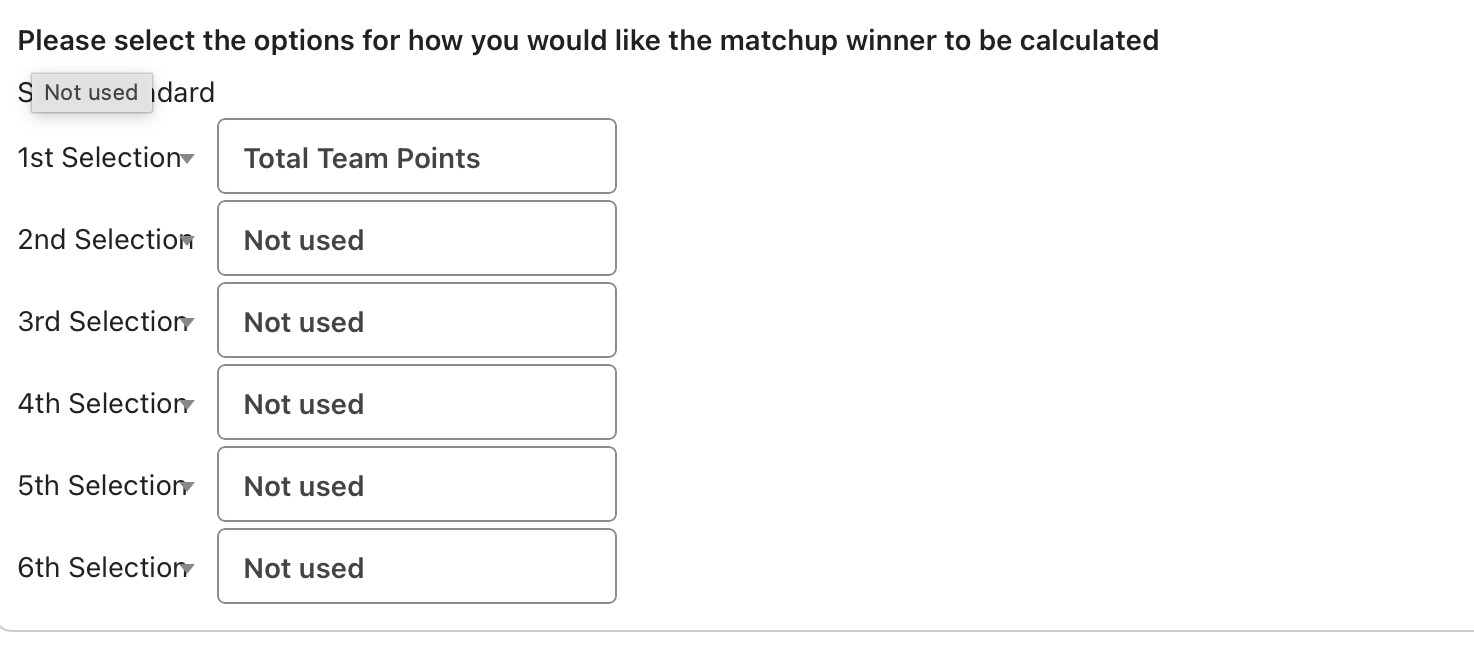
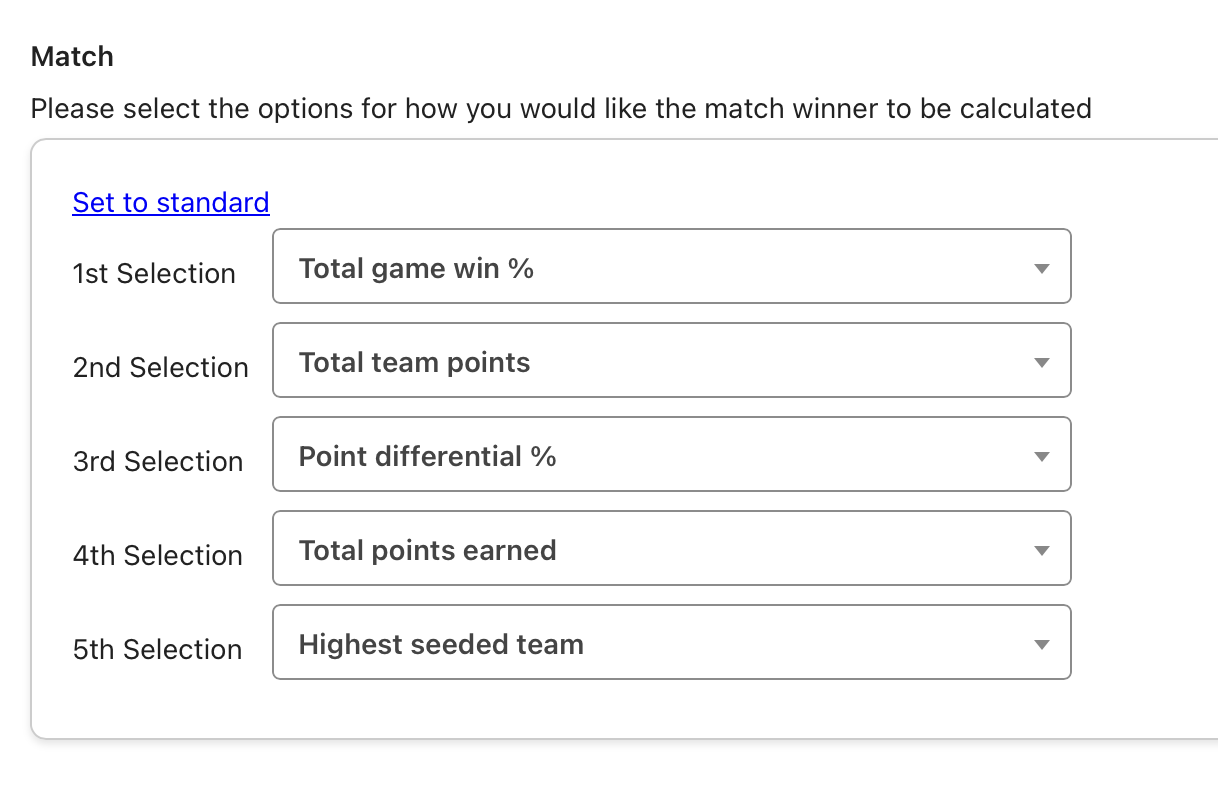
Once all matches are added, choose how results are calculated. A common approach:
- Primary result metric: Total team points
- Secondary metric (tie breaker): Point differential
Communicate clearly with teams about which metrics determine standings so expectations are set.
Manage Tiebreaker Settings tab
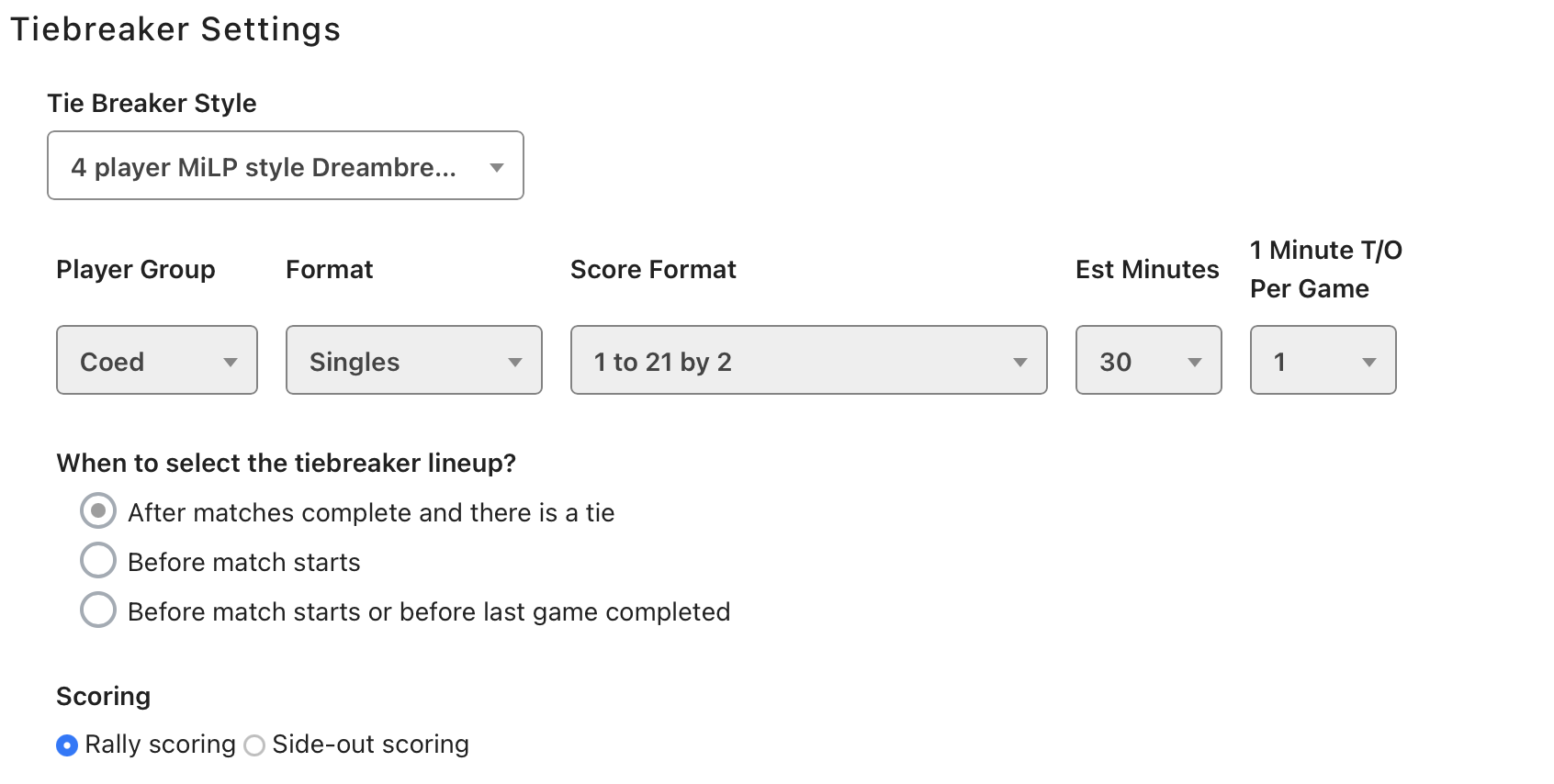
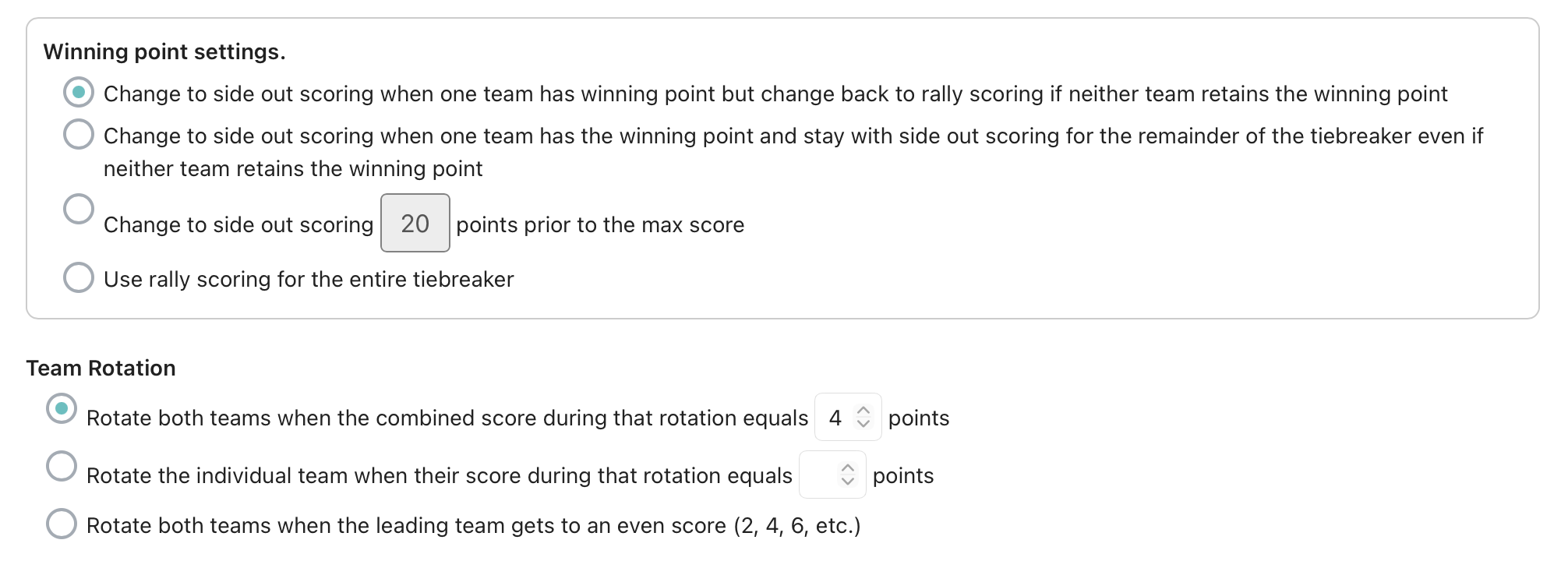
The tiebreaker menu includes presets like the standard MLP format and a Custom option. If you use a preset, the rules are locked and non-editable. To edit the format options, choose Custom from the dropdown.
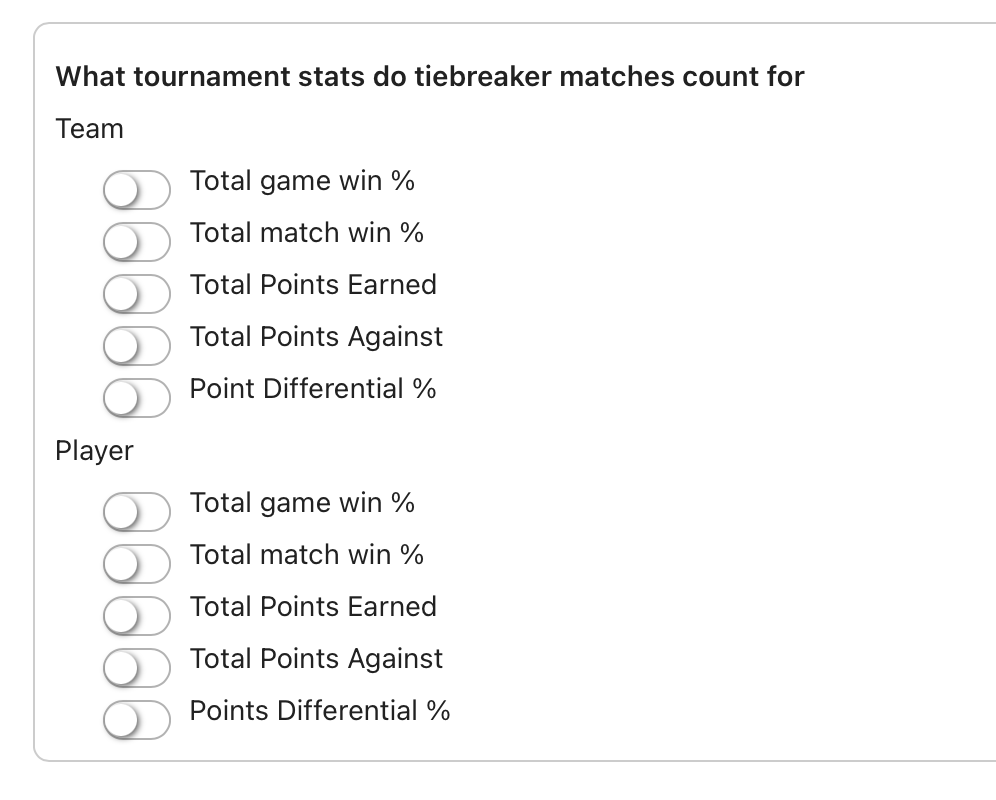
If you need to tweak which tiebreaker matches count toward standings, set that with the toggle switches in the What tournament stats do tiebreaker matches count for section. Otherwise, save and move on.
V3 (3-Player) Team Events Don't Need a Tiebreaker
V3 team events (3-player team formats, such as MiLP) don't require a tiebreaker. Make sure the tiebreaker setting is turned off for every match type in the event — round robin, winner's bracket, bronze medal, and gold medal matches. This is easy to miss if the event was set up by copying a template from a different format, since a copied tiebreaker setting can carry over even though it isn't needed for V3.
WarningIf tiebreaker is left on for a V3 event, the event cannot be verified. Double-check all four match types — round robin, winner's, bronze, and gold — before verifying.
Manage Team Player Requirements tab
Use this tab to control roster quality and balance. You can override a player's self-rating if they enter without an official rating, set a minimum rating for rostered players (example: minimum 3.00 for DUPR 16), require specific minimum ratings for certain roster spots (example: at least two players at 3.5), or use the Required toggle to force specific spots to be filled before a team can be verified (example: require four players but allow up to six on the roster).
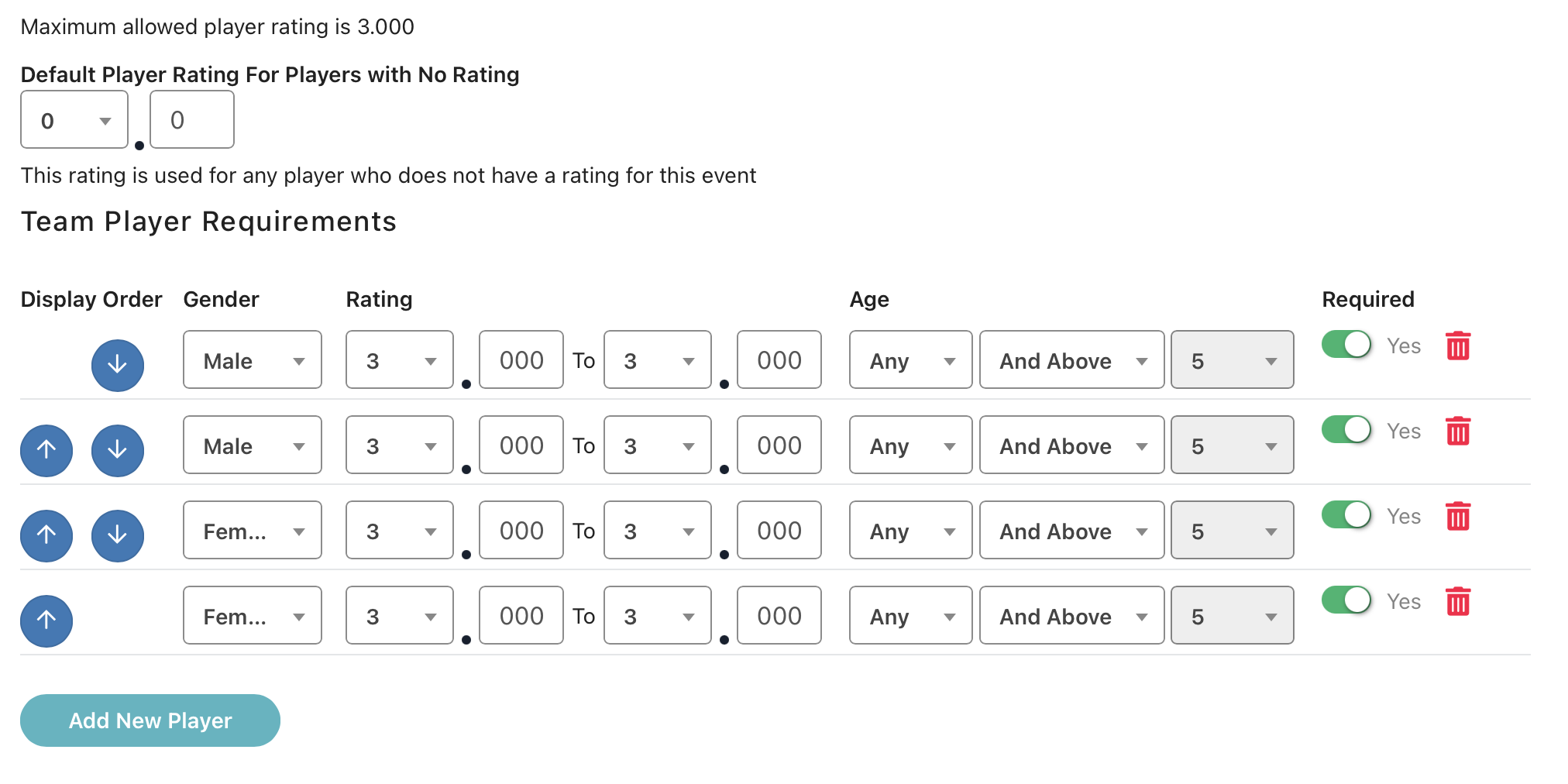
Click Save at the top once these settings are configured for each event.
How the team rating cap is calculated and checked
The maximum combined team rating is stored to 3 decimals and checked as a strict "team rating greater than max" — there's no rounding. A max of 11.3 means 11.300, so a team at 11.301 is over. Don't assume a max of 11.3 allows anything up to 11.399, or that a rating like 11.328 rounds down to 11.3 — that is not how the system evaluates it.
- Which rating counts: each player's Doubles rating — even in singles matchups — from the event's 1st-choice rating system (for example, DUPR). A player without an account on that system gets the event's default rating, then falls back to their self-rating. Only players in required roster slots count toward the cap, unless "Use highest player ratings" is enabled — in that case, the top N ratings count, where N is the number of required slots.
- When it's checked: when the captain saves the team, when someone joins or validates a team code, when an invite or request is accepted, and when a team is moved or merged.
- When it is NOT checked: a teammate's own checkout, players added by the tournament director, the TD's "Update ratings to current" tool, and any later rating change from the rating provider.
- Frozen, not live: each player's rating is saved at the moment they check out and is never re-evaluated afterward. The team events screen shows the sum of those saved ratings — not each player's current rating.
Because ratings freeze at checkout and the cap is only checked at the moments listed above, a team can pass the cap when the captain first saves it, then end up stored over the cap later: if a named teammate's rating rises before they check out, their new rating is written onto the team without re-checking the max. This is expected behavior, not a bug. If you need to verify a team's true current combined rating (for a dispute, for example), don't rely on the stored total shown on the team events screen — pull each player's current rating from the rating provider and add it up yourself.
Manage Team Point Settings tab
Decide whether team match outcomes are recorded as a single win or broken into point allocations.
Assign points per individual matchup (example: each matchup = 1 point).
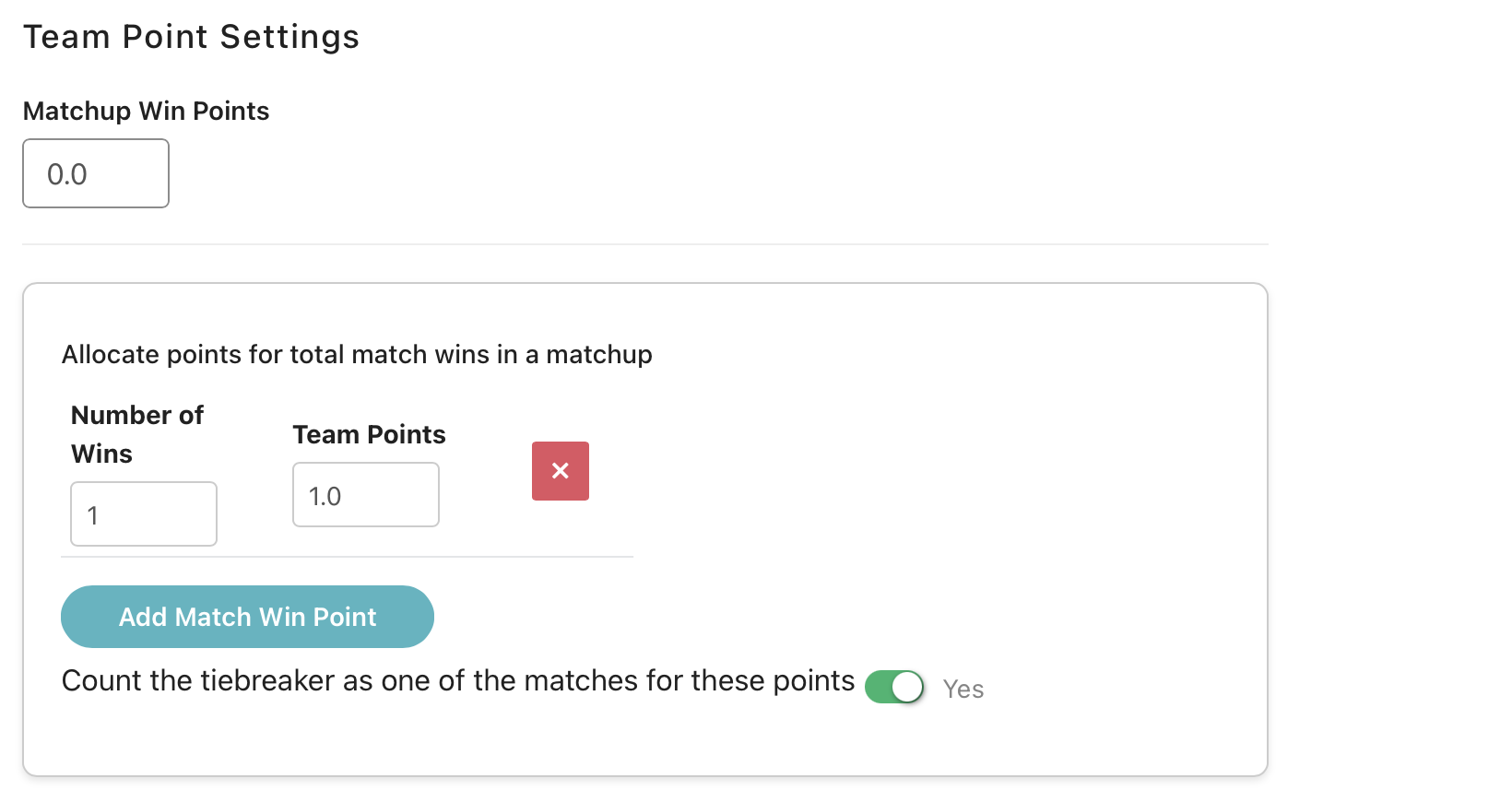
Give partial points for close losses (example: losing but scoring more than 8 points = 0.5 points).
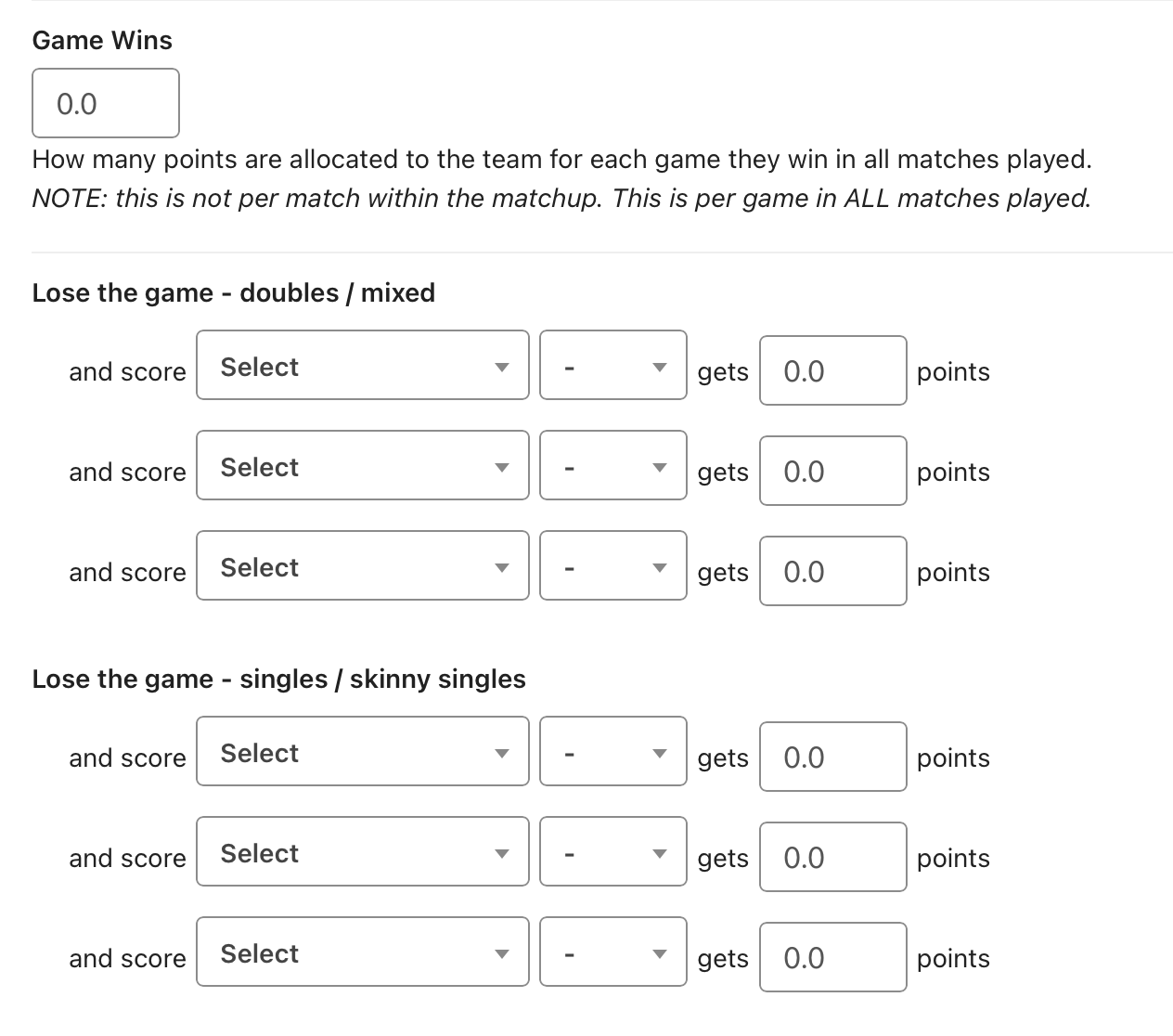
Optionally assign points for tiebreakers.
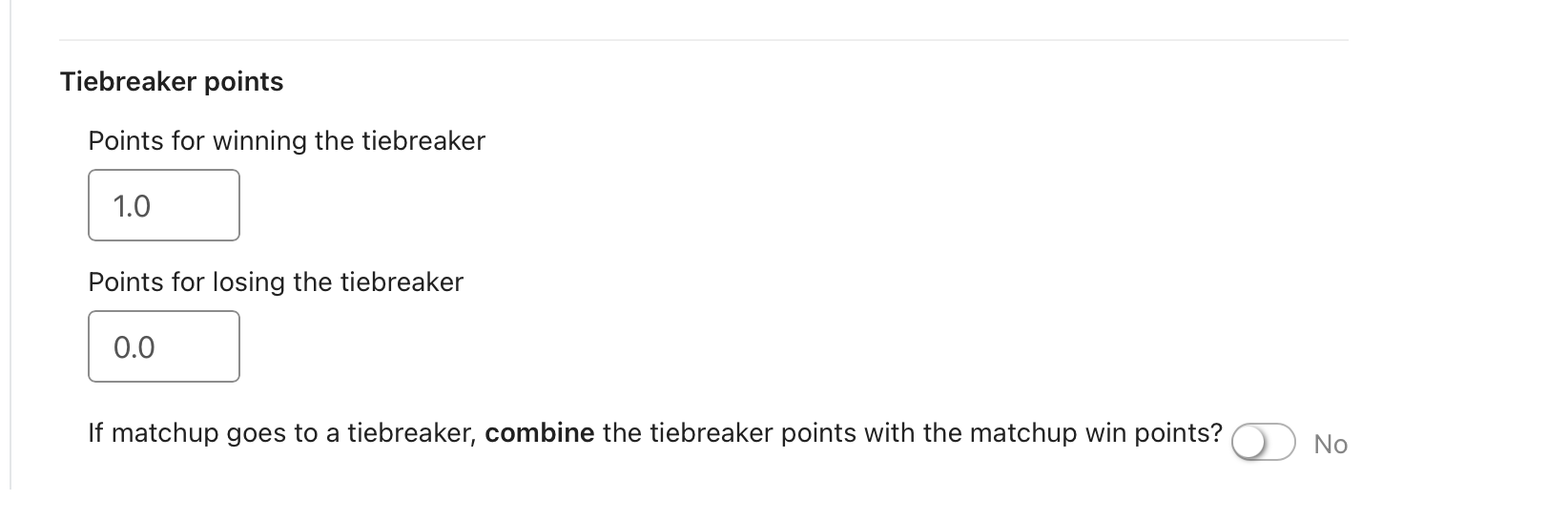
Save the configuration once your point model is finalized.
Manage Standings Settings tab
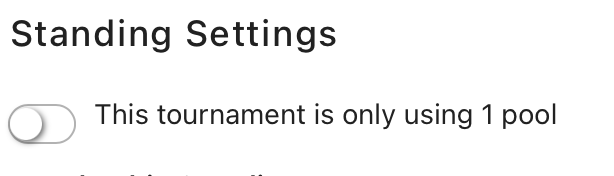
Configure how standings are calculated. If your event uses a single pool round robin, toggle to indicate one pool.
Choose the primary metric for ranking winners (total points, wins, differential, etc.).
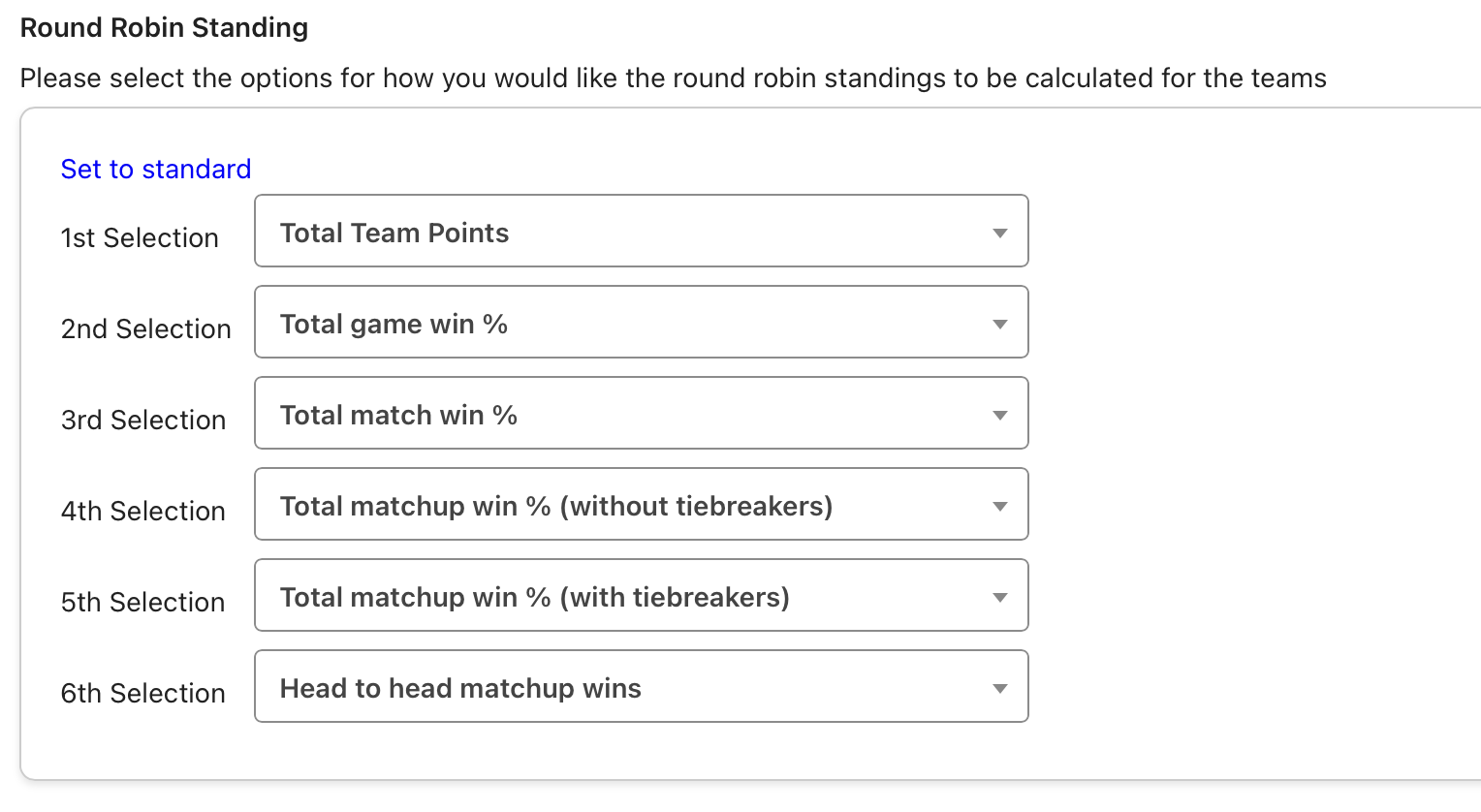
Adjust separate rules for playoffs or final standings as needed.
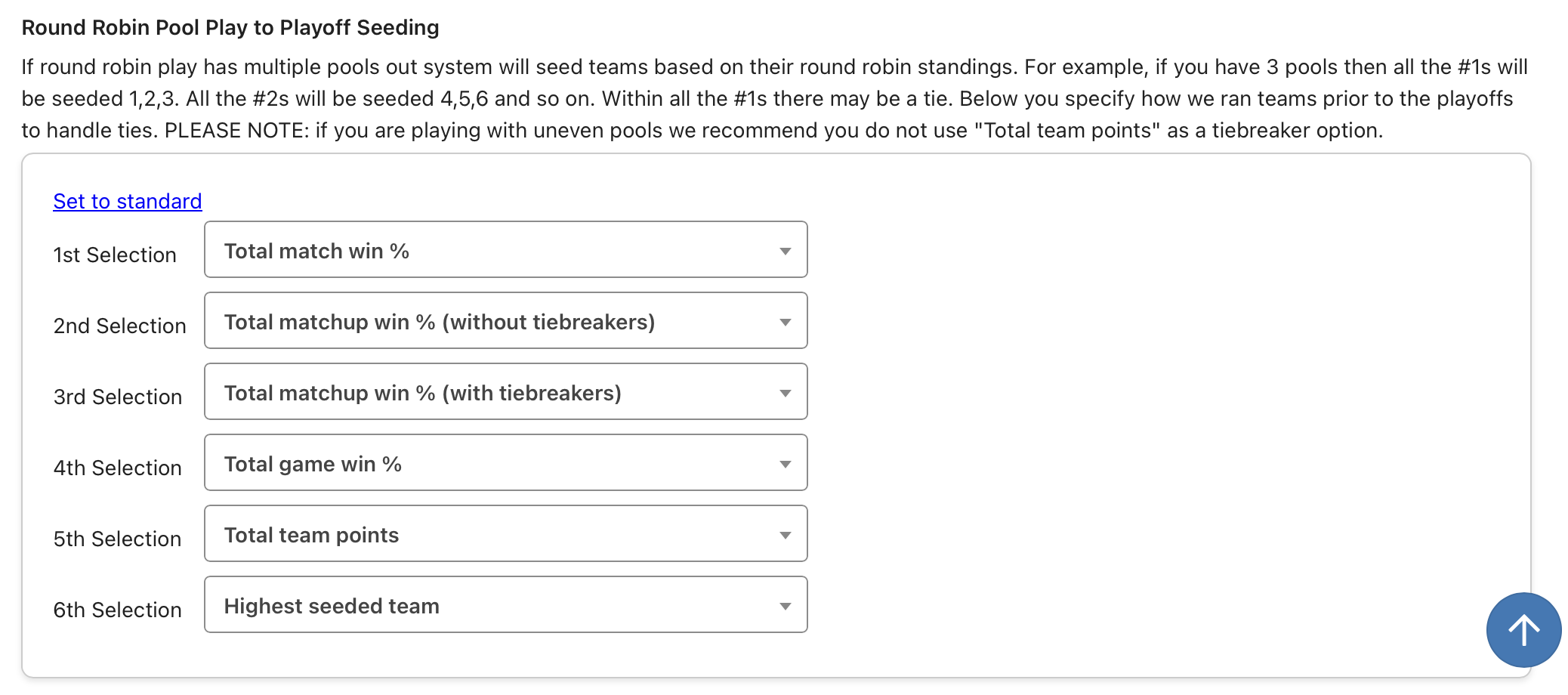
Finally, select how you want the final standings to be calculated.
Lineup and Score Permissions tab
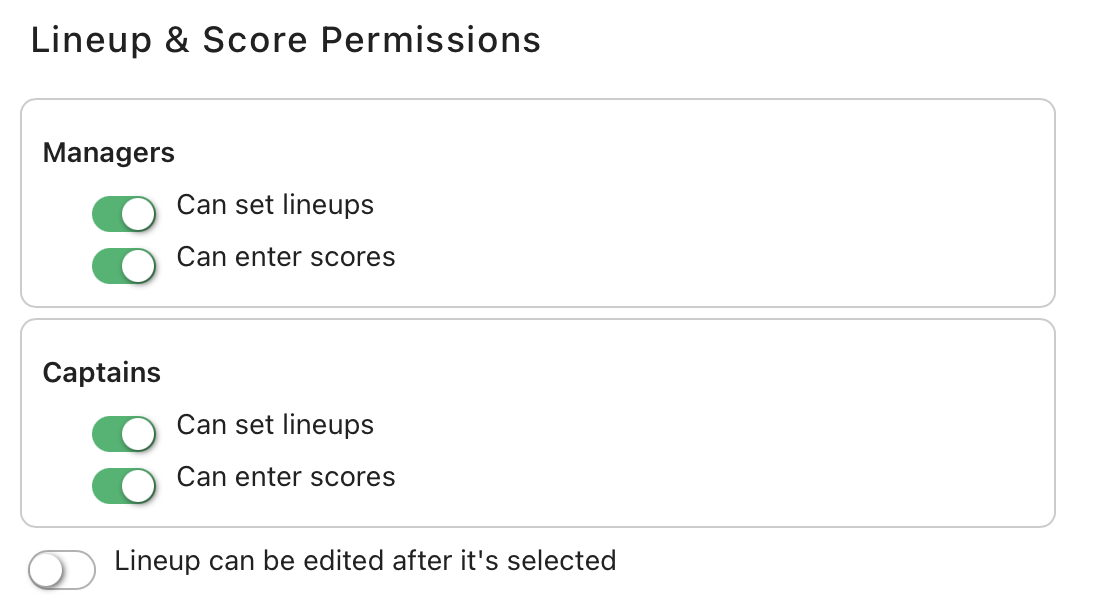
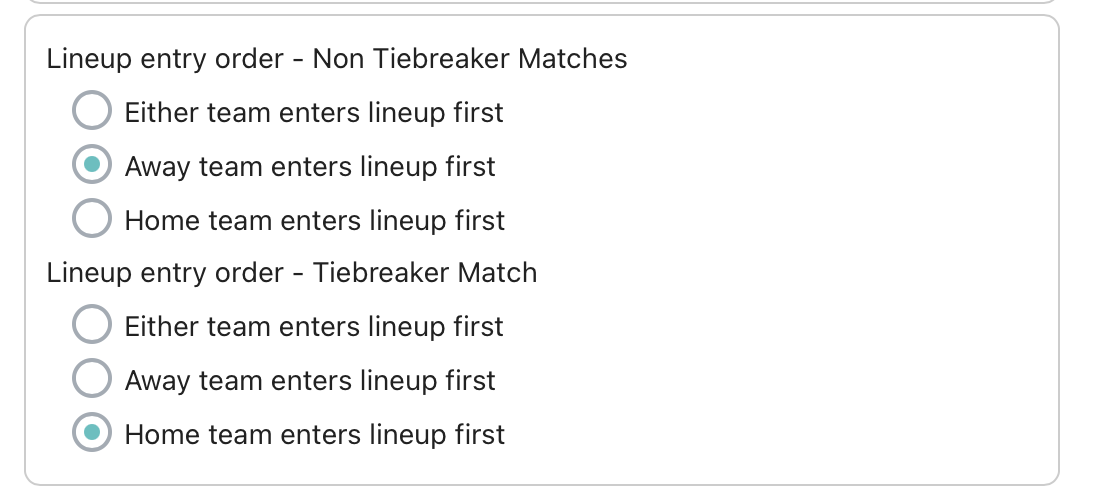
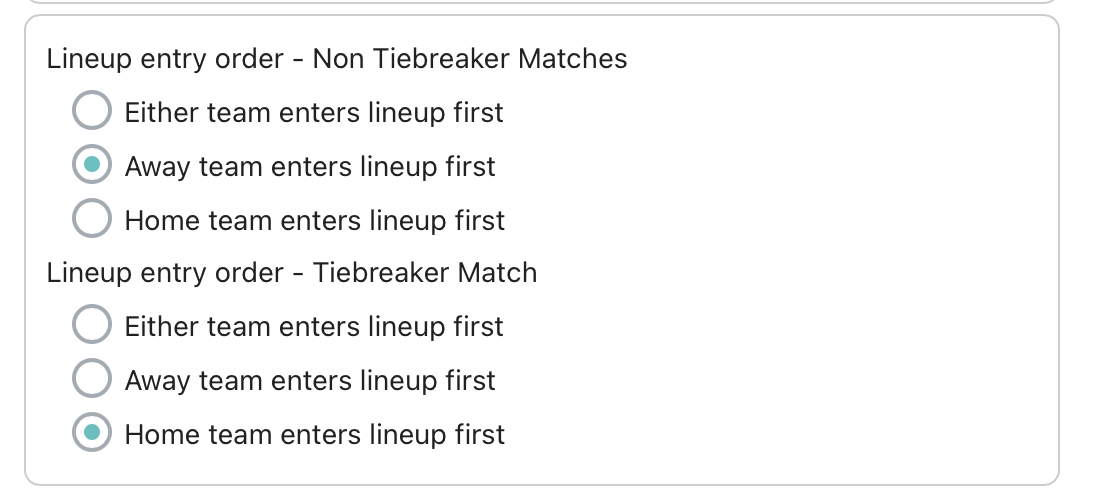
The Lineup and Score Permissions area controls who can set lineups and enter scores. It also controls whether captains or individuals can set lineups within a specified time window before matches. Start by reviewing the toggle switches for managers and captains, and adjust them to fit your event.
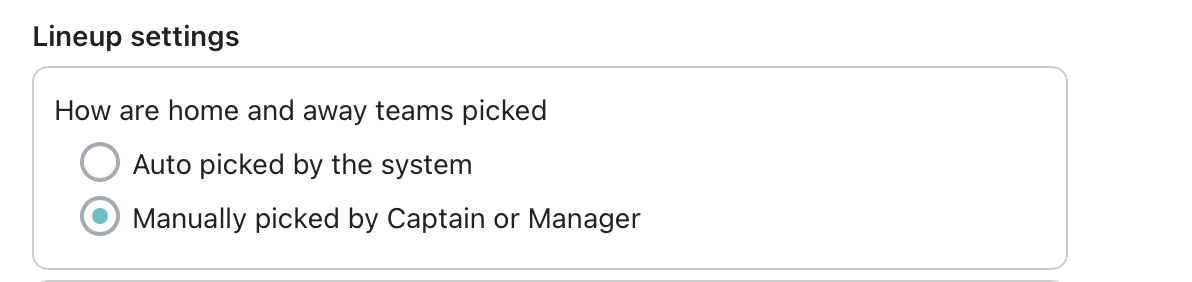
Determine your lineup settings. Read each option carefully to decide how you want to run your event.
Tips for smooth execution
- Communicate rules clearly with teams before play — especially scoring and tie rules.
- Use required roster spots to prevent incomplete teams from moving forward into competition brackets.
- Consider rewards for close losses to keep matches competitive and maintain engagement.
Save each tab as you go. Settings won't carry over to event verification until they've been saved on the tab where they were configured.
Frequently Asked Questions
What's the difference between a tiebreaker preset and Custom?
Presets (like the standard MLP format) have rules locked in and cannot be edited. Choose Custom from the dropdown if you need to change tiebreaker format details — for example, point thresholds, rotation rules, or which matches count toward standings.
Do I have to use rally scoring for all matches?
No. You can use traditional scoring for regular matches and reserve rally scoring just for tiebreakers, or use rally scoring throughout. The Manage Team Matches tab is where you configure rally scoring for regular matches; tiebreaker scoring is handled separately under Manage Tiebreaker Settings.
What happens to a team that doesn't meet the minimum roster requirement?
Teams that don't meet the required roster spots (set under Manage Team Player Requirements) cannot be verified for competition brackets. Either fill the missing spots before the registration deadline or contact the team captain so they know what's still needed.
Can I change tournament settings after teams have registered?
Most settings can still be adjusted before event verification, but changes after teams have signed up can affect what players have already agreed to. Communicate any meaningful changes (especially scoring, format, or rating caps) to teams as soon as possible so expectations stay aligned.
A team shows over the rating cap even though it passed when it registered — how?
Player ratings are frozen onto the team at checkout and never re-evaluated. If a teammate's rating rose between when the captain first saved the team and when that teammate checked out, their higher rating gets written onto the team without re-checking the cap — so the stored total can end up over the max even though the team was valid when it was first saved. The team events screen shows this frozen total, not each player's current rating, so it won't update on its own even if ratings later drop back down.
Related Resources
- How to Manage Your Team as a Captain for PT Team Events
- How to Set Your Lineup (Captains) | Team Event
Need a hand setting up your team event? Reach out to support@pickleball.com and we'll help you finish strong before verification.