How to Use the AI Assistant in Game Maker: Meet Pickles
Pickles is Game Maker's built-in AI assistant. Instead of tapping through menus to set up a game, move players around, or check who's coming, you can describe what you want in plain language and Pickles does it.
It works across the whole app — creating games, managing your roster, setting up organized play, messaging your group, finding courts, and answering questions about your games.
Finding Pickles
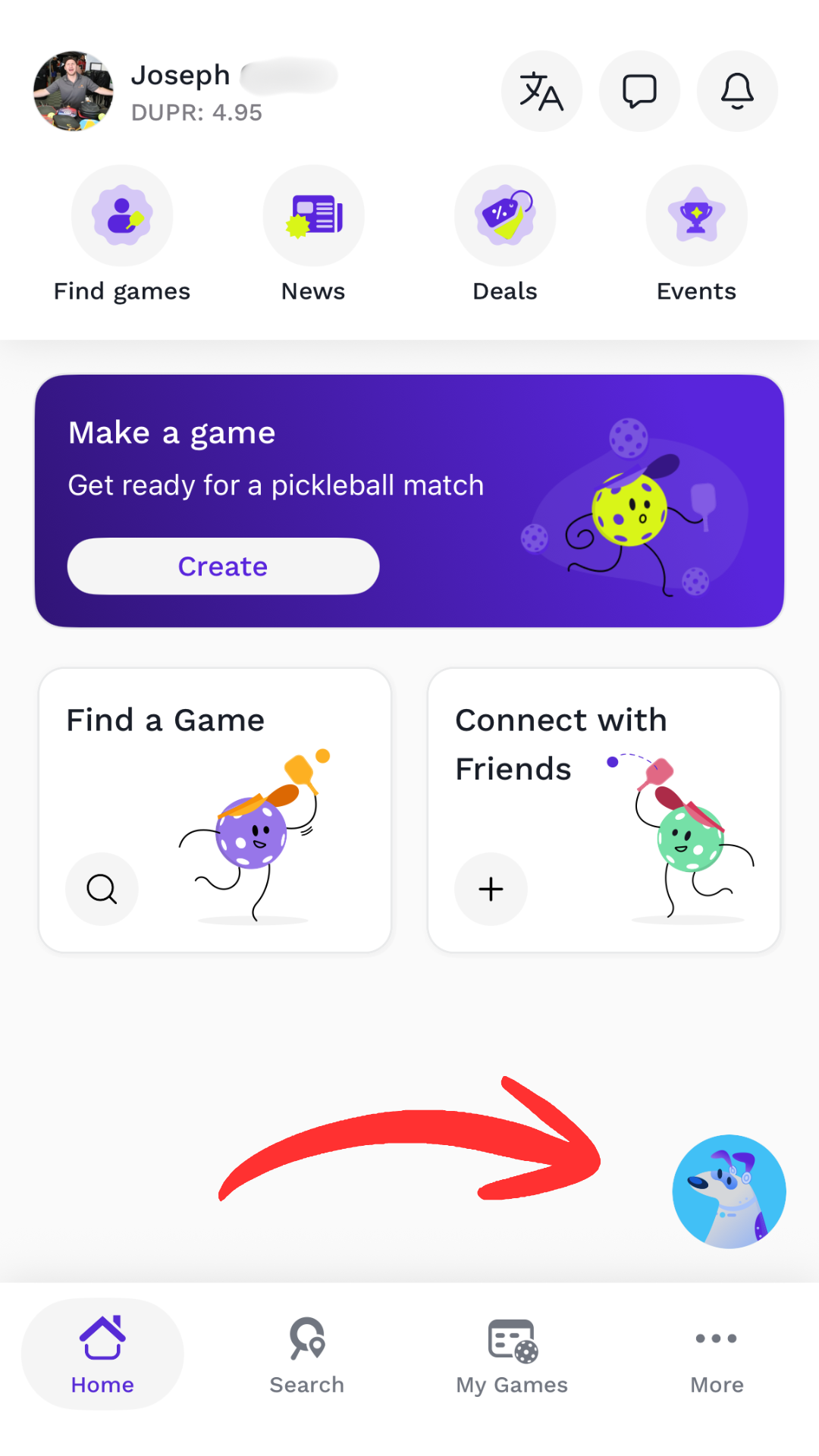
Tap it and the Pickles panel slides up. From there you can:
- Type your request in the "Ask the assistant" field
- Tap the microphone and speak it out loud instead
Tap the X to close the panel, or the refresh icon to start a fresh conversation.
How to Talk to Pickles
There are no commands to memorize. Talk to Pickles the way you'd text a friend who happens to run your games.
All of these work:
- "Create a game for Saturday at 9am"
- "Add Sarah and Mike to my Wednesday game"
- "Who's on Pending for my Friday scramble?"
- "Move everyone to Yes"
- "Set up a doubles scramble with random pools"
- "Tell my game I'm running 10 minutes late"
If you have a game open, Pickles knows which one you mean — you can say "this game." If you're somewhere else in the app, name it instead: "the Wednesday game," "next week's scramble," "my Thursday night game."
Creating and Editing Games
Describe the game you want and Pickles fills in the details.
- "Create a private game this Wednesday at 5pm with my advanced players group using 2 courts at the ball ground courts."
- "Create a public game next Saturday at 9am at Memorial Park with 4 courts."
- "Create a weekly recurring game every Tuesday at 6pm for 8 weeks with my regulars group."
- "Create a game tomorrow at 7pm for 16 players, invite-only."
For a new game, Pickles drafts it and you tap Save to confirm. Nothing gets created behind your back.
To change a game that already exists:
- "Change the Wednesday game's start time to 6:30pm."
- "Rename next week's game to 'Thursday Night Drills.'"
- "Move this game to next Thursday, same time."
Pickles can update the name, date and time, location, courts, format, skill maximum, map, and description.
Inviting and Adding Players
Pickles searches across your frequent players, friends, contacts, and saved lists to find real people — or adds placeholders when you need bodies to test a format.
- "Invite Sarah, Mike, and Jenna to this game."
- "Add my advanced players group to the invite list."
- "Invite everyone from last week's game to this one."
- "Add 4 virtual players to this game so I can test the format."
Pickles can also add players to your priority invite lists.
Managing Your Roster
Moving players between the Yes, Pending, Waitlist, and Not Playing lists works exactly like doing it by hand, only faster.
- "Move all pending players to Yes."
- "Move everyone on the waitlist into the Yes list."
- "Move John and Amanda to Not Playing."
- "Put all pending invites on the waitlist."
Setting Up and Starting Matches
Pickles can build your whole organized play setup — format, pools, scoring, and court placement — in a single request.
- "Create a doubles scramble; place players randomly into pools with 1 game to 15."
- "Set this up as a doubles scramble to 11 win by 2."
- "Make this a round robin doubles with change partners, 1 game to 21."
- "Generate optimal pools and get me ready to start matches."
It handles all four formats: doubles scramble, round robin, king of the court, and DUPR rating sessions.
Messaging Your Game
You can text the whole game or just one status list, which is handy when you only need to reach the people actually playing.
- "Let everyone on the Yes list for next week's game know I'll bring balls."
- "Tell the Waitlist for the Saturday game that two spots just opened."
- "Message the Not Playing list of my Wednesday game; hope to see you next time."
- "Message this game's group chat; running 10 minutes late."
- "Tell everyone in next week's game to bring water."
Finding and Responding to Games
- "Do I have any pending game invites this week?"
- "What games am I playing in this weekend?"
- "Accept the invite to next week's game."
- "Decline the Wednesday scramble."
- "Open my Thursday night game."
Finding Courts and Players
Pickles opens the result directly when there's one obvious match, or gives you a tappable list to pick from.
- "Find the Ball Ground pickleball courts."
- "Show me courts within 20 miles."
- "Find players in my area with a doubles rating of 4.5 or higher."
- "Look up Sarah Gomez."
- "What's the weather at Ball Ground courts?"
It can also pull court schedules and directions, and favorite a court for you.
Checking Status and Troubleshooting
Answers here come straight from your game data — Pickles reads the actual roster and pool state rather than guessing.
- "Who's on the Pending list for next week's game?"
- "Who has confirmed they're playing?"
- "Am I the organizer of the Saturday scramble?"
- "How many players are in each pool?"
- "What phase is this game in?"
- "Are there any players assigned to pools but missing from the roster?"
That last one is worth asking right before you start matches — it catches roster and pool mismatches you'd otherwise discover mid-event.
Getting Around the App
- "Take me to my games."
- "Show me my groups."
- "Open my calendar."
- "Go back to the previous screen."
Fixing Things and Starting Over
If you need to undo your setup before matches begin:
- "Unlock the pools so I can add more players."
- "Reset all the matches and re-draw the pools."
- "Start this game over from scratch."
To call off a game:
- "Cancel this game."
- "Cancel next week's Wednesday game."
- "Cancel just the July 4th game in my weekly series."
- "Un-cancel the Saturday game."
- "Delete the Thursday scramble."
Cancelling calls off a game and can be undone — you can un-cancel it. Deleting removes the game for good.
Tips for Better Results
- Include the details you already know. "Create a game Saturday at 9am at Memorial Park with 4 courts" gets you further in one step than "create a game."
- Name the game if it isn't open. "The Wednesday game" or "next week's scramble" is enough for Pickles to find it.
- Use voice when your hands are full. The microphone is faster than typing when you're courtside with a paddle in one hand.
- Ask before you start matches. A quick "what phase is this game in?" or "who has confirmed they're playing?" catches problems while they're still easy to fix.
Frequently Asked Questions
Does Pickles create things without asking me?
No. For a new game, Pickles drafts it and you tap Save to confirm.
Can Pickles do anything I can't do by hand?
Pickles uses the same flows you'd use manually. It's a faster way in, not a separate set of powers.
Can I use Pickles on someone else's game?
You can accept or decline invites and view details for any game you're part of. Changing the setup requires being the organizer.
Does Pickles work by voice?
Yes. Tap the microphone in the Pickles panel and speak your request.