How to Configure Venues for Your Tournament in PT
The Venues section of your tournament setup lets you confirm and manage the location(s) where your tournament will be held. PT automatically pulls in the primary venue from your Club — verify it's correct and add any additional venues if your event spans multiple locations.
How to Configure Your Venue
- From your tournament, open the 3-line menu and select Edit Tourney.
- In the left-hand menu, select Venues.
- Your Club's primary venue is pre-filled. Verify the venue title, address, and all location details are correct.
- Optionally add details about net type, surface type, and parking information for players.
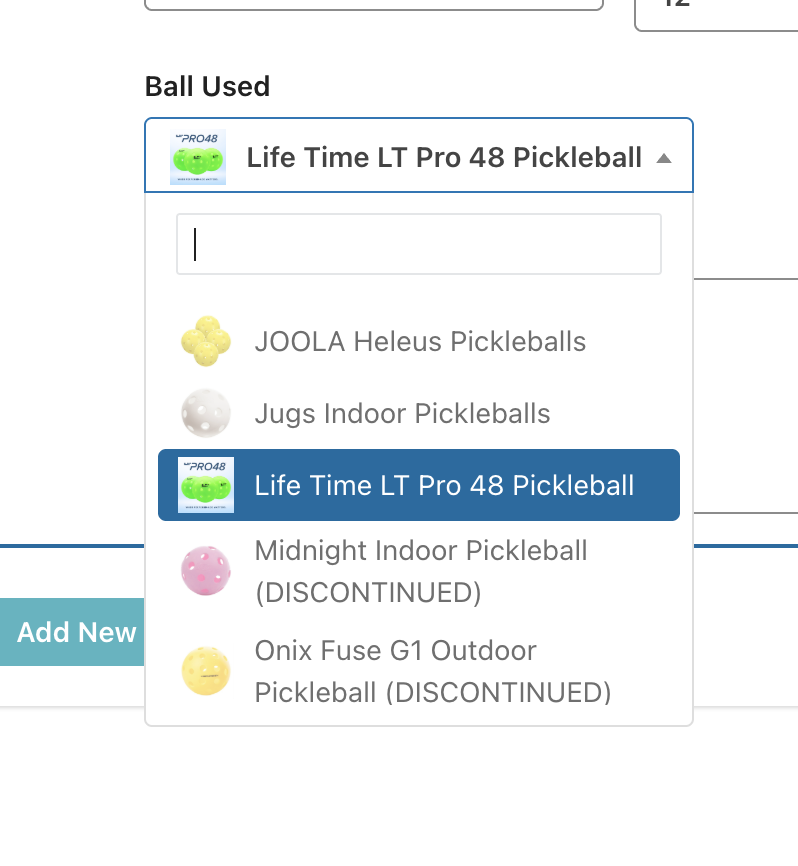
- Select the ball your tournament uses from the Ball Used dropdown. You can start typing the ball's name to find it instead of scrolling. Players see the ball you choose with a link to buy it (see Showing Your Tournament Ball to Players below). If you see text boxes instead of a dropdown, follow the steps in If Your Tournament Already Has a Ball Entered below.
- Click Save.
Showing Your Tournament Ball to Players
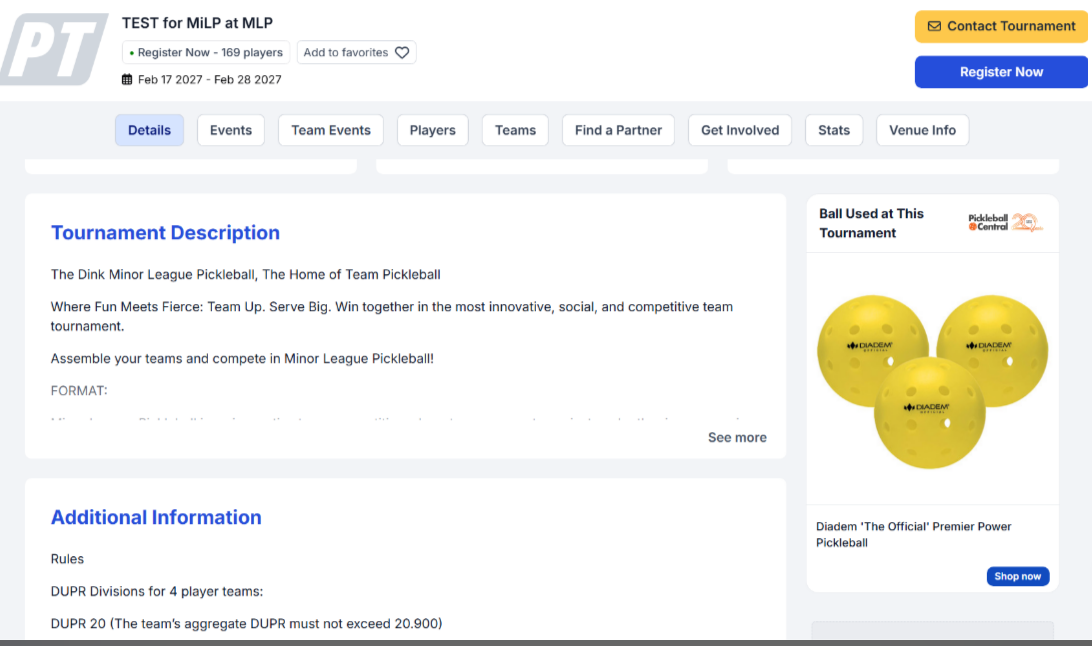
When you add the ball used at your tournament, players can see it on your tournament's main page (the Details tab), in a Ball Used at This Tournament card. The card shows the ball and a Shop now button that links players to Pickleball Central, so they can buy the same ball they will play with at your event.

If Your Tournament Already Has a Ball Entered
If you already typed a ball into the Ball Used and Ball URL text boxes with the old formatting, the Venues page keeps showing those text boxes instead of the ball dropdown. To switch to the dropdown, clear the old entry first:
- From your tournament, open the 3-line menu, select Edit Tourney, then select Venues.
- Clear both the Ball Used and Ball URL fields so they are empty.
- Click Save and Proceed Next with both fields empty.
- Go back to the Venues tab and scroll down to the ball section. The ball dropdown now appears.
- Select your ball from the Ball Used dropdown. You can start typing the ball's name to find it.
- Click Save.
If you haven't entered a ball yet, you'll see the dropdown right away and don't need to clear anything. If the old text is still there after you save, email support@pickleball.com and we'll help you clear it.
Where Players See This Information
On the Main Tournament Page
The venue details you enter here appear on your tournament's main page (the Details tab), so players see them as soon as they open your listing. This is also where the Ball Used at This Tournament card appears.
On the Venue Info Tab
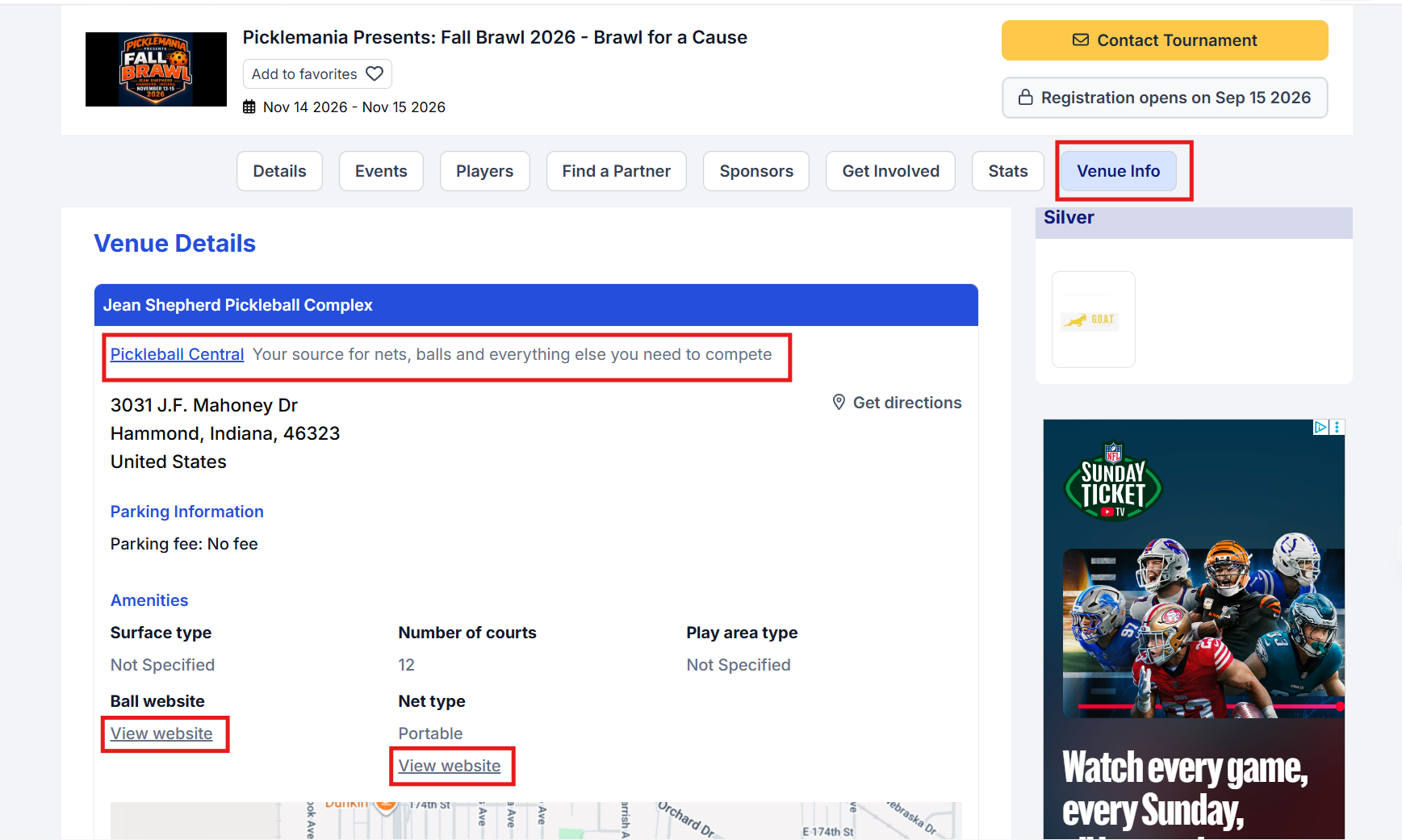
Your venue details also appear in a dedicated Venue Info tab on your public tournament listing, replacing the venue summary that used to run along the bottom of the page. This tab also includes direct links to Pickleball Central so players can purchase the same balls and nets used at your venue.
Adding a Second Venue
If your tournament uses more than one location, click Add New at the bottom of the Venues page and fill in the details for the additional venue. Each venue can then be assigned to specific events in your event setup.
NoteIf you are using a Print Spooler and add a second venue, you will need a secondary computer running the Print Spooler program configured with the additional venue's information. Contact support@pickleball.com for help with multi-venue Print Spooler setup.
Frequently Asked Questions
Can I change the venue after my Club's location is pre-filled?
Yes. PT pre-fills your Club's primary venue, but you can update the name, address, and all other details directly in the Venues section of your tournament setup.
Can my tournament have more than one venue?
Yes. Use the Add New button to add additional venues. Once added, you can assign each event to a specific venue from the event settings.
Where do players see the venue details I add here?
They appear on your tournament's main page (the Details tab) and in the Venue Info tab on your public tournament listing. The Venue Info tab replaced the venue summary that used to appear at the bottom of the page.
Can players buy balls or nets for my venue from the tournament page?
Yes. The Venue Info tab includes links to Pickleball Central so players can purchase the same balls and nets used at your venue directly from our distributor.
Can players see which ball is used at my tournament?
Yes. The ball you add in the Venues section appears in the Ball Used at This Tournament card on the Details tab of your public tournament listing, with a Shop now button so players can buy it from Pickleball Central.
Why do I see text boxes for my ball instead of a dropdown?
Your tournament already has a ball typed in as text, and the Venues page keeps showing the text boxes whenever text is already there. Clear both the Ball Used and Ball URL fields and click Save and Proceed Next with both empty. Then go back to the Venues tab and scroll down to the ball section, where the dropdown now appears. Select your ball and click Save. See If Your Tournament Already Has a Ball Entered above for the full steps.
Related Resources
Need more help? Email us at support@pickleball.com.