How to Configure Basic Tournament Info in PT
To configure your tournament's basic information in Pickleball Tournaments (PT), go to Edit Tourney and select the Basic Info tab. This is where you set your tournament name, public visibility, short URL, timezone, privacy settings, and registration limits.
Before You Begin
- Your tournament must already be created. If you haven't created a tournament yet, see Getting Started with Pickleball Tournaments (PT): Complete Setup Overview.
- You must be the Primary Manager to edit Basic Info settings.
Fee Plan
At the top of the Basic Info tab you'll see the Fee Plan section. This is informational — it shows the fees that apply to your tournament and cannot be edited here. For tournaments that opened for registration on or after August 3, 2026, the current fee plan applies (see Tournament Pricing and Fees in PT for full details):
- Setup Fee: A one-time $25 fee paid by the tournament director. It must be paid before your tournament can go live.
- Amateur Player Service Fee: $5 + 7.99% of each player's total registration checkout (base registration fee plus event fees). It is non-refundable, and when Stripe is connected it is added to the player's checkout total and collected at registration.
- Pro Player Service Fee: $25 per event, applied when a tournament offers a professional bracket with $10,000 or more in prize money.
Tournaments that opened for registration before August 3, 2026 remain on the legacy fee plan. See Legacy Tournament Fee Plan in PT for those details.

Tournament Title, Short URL, and Website
- Title: The public name of your tournament as it appears on Pickleball.com.
- Short URL: Creates a clean, memorable link for your tournament (e.g., pickleball.com/t/your-tournament-name). A shortened version of your tournament name works well. Avoid special characters.
- Website: Adds a button to your tournament listing that links to your external website. Leave blank if you don't have one.
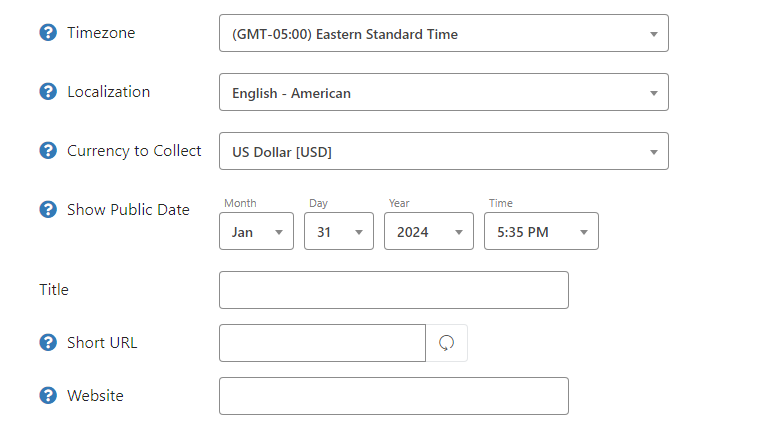
Timezone and Show to Public Date
- Timezone: Set this to the timezone of your tournament venue. This affects all scheduled times shown to players.
- Show to Public Date: The date your tournament appears on the public Pickleball.com listing. You can change this at any time before or after the date.
Always confirm your timezone before opening registration. If your timezone is set incorrectly, all start times and registration deadlines will display incorrectly to players.
Privacy Settings
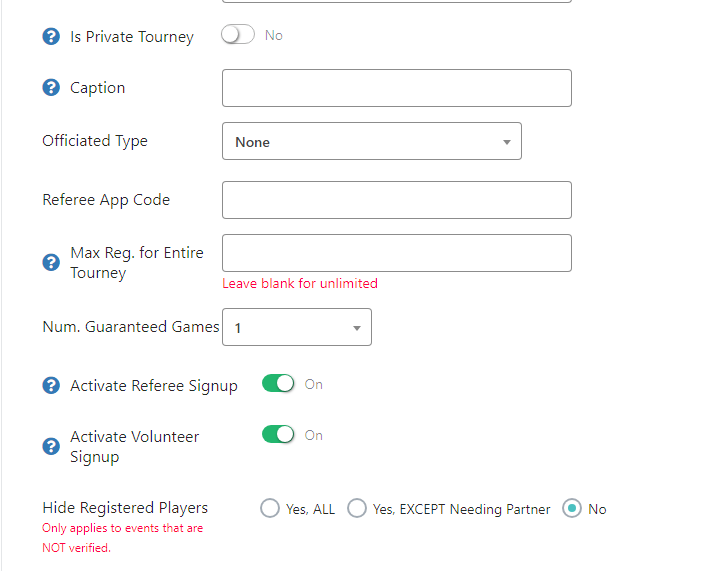
By default, your tournament is publicly visible to all players on Pickleball.com. To restrict registration to specific players only:
- Toggle Private Tournament to On.
- Create a registration code. Players will be required to enter this code to complete registration.
- Share the code only with players you want to invite.
Registration Limits and Player Options
- Max Reg. for Entire Tourney: Sets a hard cap on total tournament registrations. Leave blank if you prefer to manage capacity at the event level (recommended for most tournaments).
- Num. Guaranteed Games: Lets you list the number of games each player is guaranteed. It appears in the Registration Cost section of your tournament page, next to your entry fees. If you don't set a number, nothing is shown. See Guaranteed Games Per Player in How to Set Up Registration Costs for Your Tournament in PT.
- Referee and Volunteer Signup: Displays opt-in checkboxes during registration. Player names are collected into a report you can download once registration closes.
- Hide Registered Players: Hides the registered player list from public view. Not commonly used — most players want to see who is competing.
 Note
NoteIf you want to control registration capacity by skill division or event format, manage capacity at the event level rather than using Max Reg. for Entire Tourney. Event-level caps give you more precise control.
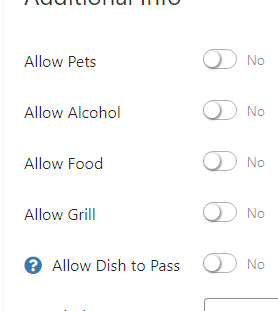
On-Site Amenity Toggles
At the bottom of Basic Info, toggle yes for any amenities available at your tournament venue. These display on your public tournament listing so players know what to expect on event day.
Tournament Description
The text boxes at the bottom of Basic Info appear on your public tournament listing directly below your logo. Use these to share anything players need to know before registering — venue details, parking instructions, schedule overview, or special rules.
Frequently Asked Questions
Can I change Basic Info settings after my tournament is published?
Yes. You can change the Show to Public Date, title, short URL, privacy settings, and all other Basic Info fields at any time before or after registration opens. Changes take effect immediately.
Should I use Max Reg. for Entire Tourney or manage capacity at the event level?
Leave Max Reg. for Entire Tourney blank and manage capacity at the individual event level instead. Each event has its own capacity setting that gives you more precise control by skill division and format.
How do I restrict my tournament to invited players only?
Toggle Private Tournament to On and create a registration code. Only players who have the code can complete registration. You can change or disable the code at any time from the Basic Info tab.
Related Resources
- How to Configure Tournament Registration Settings in PT — registration dates, age deadlines, event limits
- How to Configure Tournament Communication and Contacts in PT — player text, email notifications, billing emails
- How to Set Up Registration Costs for Your Tournament in PT — entry fees, discounts, and guaranteed games
- Getting Started with Pickleball Tournaments (PT): Complete Setup Overview — the full tournament setup workflow
Need more help? Email us at support@pickleball.com.