How to Use the Kiosk to Check In Players in PT
The Kiosk Check-In feature lets you check players in on tournament day using any device with a browser. Once checked in, a green icon appears next to the player's name in the Live Console bracket — giving the tournament desk a real-time view of who has arrived without needing to contact the check-in station. You can also review check-in by event and text players who haven't arrived yet.
Before You Begin
- Your tournament is set up and players are registered.
- To text players from the check-in screens, texting must be enabled for your tournament. It's an optional service with a per-player fee. See How to Send a Text or Email to a Specific Tournament Player.
How to Check In a Player
- From your tournament, open the 3-line menu and select Kiosk Pages.
- Select Checkin Desk from the menu.
- Search for the player by name.
- Once located, click the downward arrow next to their name and select Check In.
- If your tournament uses the optional texting service, verify the player's phone number and confirm that Yes, I want texts is turned on.
- All events the player is registered for will show. Check them in for the event(s) taking place that day only.
- Click Save Check In.
The player is now checked in, and a green icon appears next to their name in the Live Console bracket.
NoteOnly check players in for the events happening that day. If a player is registered for multiple events across multiple days, check them in only for today's event to avoid confusion.
Review Check-In by Event and Text Players Who Haven't Arrived
To see who still needs to check in, open the Checkin Desk and select an event. From that event's page you can text the players who haven't checked in, so you don't have to track them down yourself.
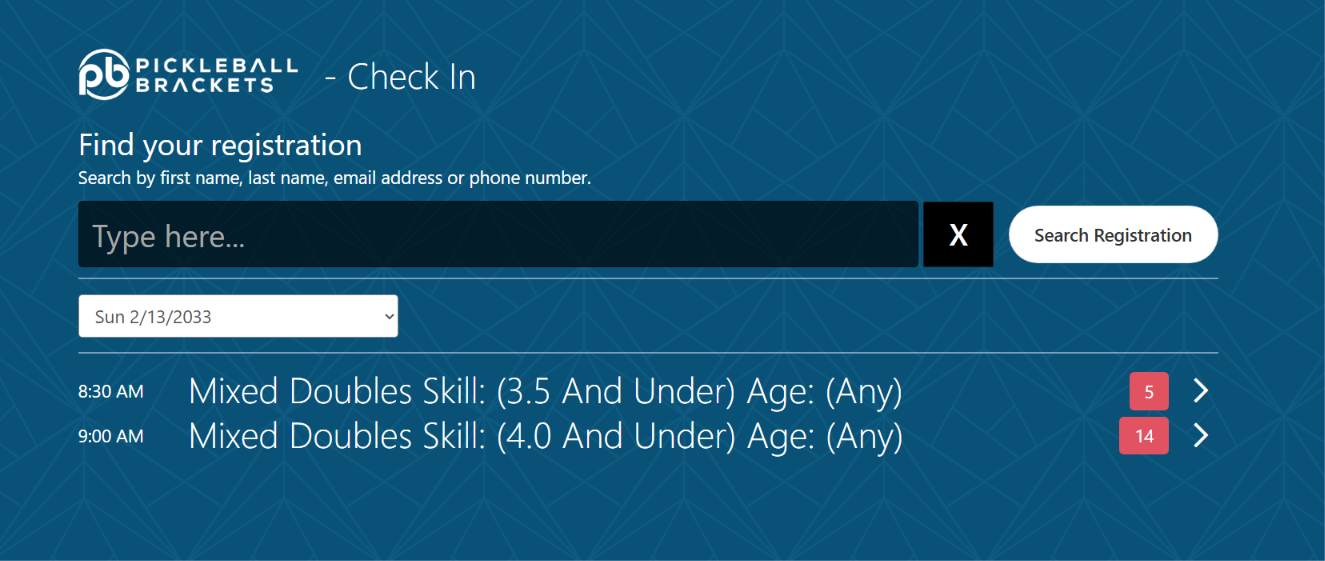
- From your tournament, open the 3-line menu, select Kiosk Pages, then select Checkin Desk.
- Use the date menu to choose the day you're checking in.
- Find the event in the list. Each event shows its start time and a red number for the players who still need to check in.
- Click the event. A page opens listing every player in that event.
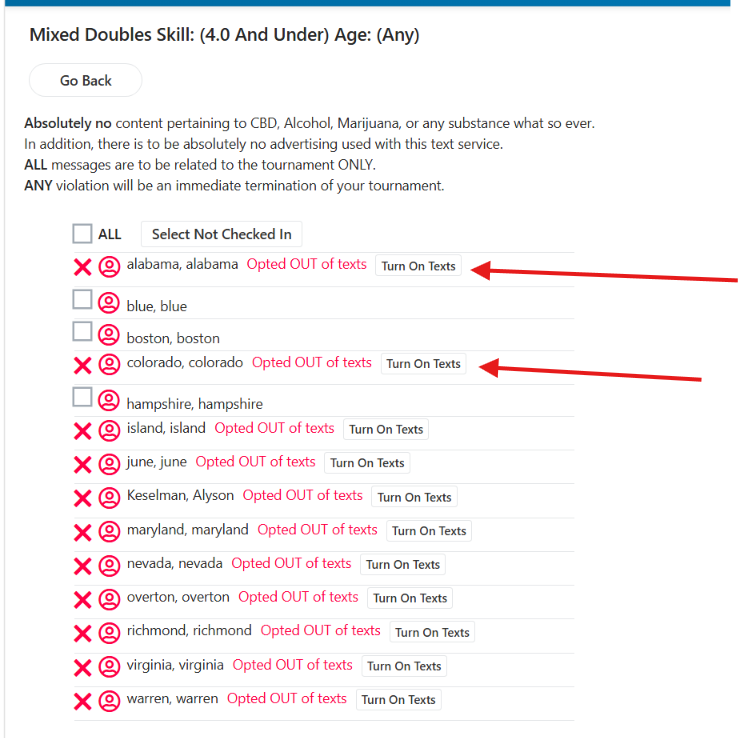
- Choose who to text: tick ALL, click Select Not Checked In to pick only the players who haven't checked in, or tick individual players.
- Type your message in the text box just below the player list. A character counter under the box counts down as you type, so you can see how many characters you have left.
- Click Send Text.
The selected players receive your message as a text.
WarningText messages must be about your tournament only. Don't include advertising or any content about CBD, alcohol, marijuana, or any other substance. Violations can result in immediate termination of your tournament.
Turn On Texts for a Player Who's Opted Out
Players who are opted out of texts show a red X and Opted OUT of texts next to their name instead of a checkbox, and they won't receive your message. To include them, click Turn On Texts next to their name. The player receives a text letting them know they've been opted in to texts. If they reply STOP, they won't receive any more texts from your tournament. You can also turn on texts from the text page in the Live Console:
Viewing Check-In Status in the Live Console
Once a player is checked in, a green icon appears next to their name in the bracket view in the Live Console. This allows the tournament desk to see at a glance when all players in an event have arrived — without needing to contact the check-in desk.
Frequently Asked Questions
Can I use a tablet or phone for check-in?
Yes. The Kiosk Pages are designed to work on any device with a browser, including tablets and phones. Using a dedicated tablet at the check-in desk is the most common setup.
How do I know when a player has been checked in?
A green icon appears next to their name in the bracket view in the Live Console. Events where all players have checked in show the green icon for every team.
How can I see a player's t-shirt size (or other custom question answers) during check-in?
Turn on the Show this item on the check-in screen? toggle for that question. Go to the 3-line menu, select User Defined, open the question, and enable the toggle under Basic Info. Once it's on, the player's answer (t-shirt size, dietary preference, etc.) displays on the Kiosk check-in screen when you check them in. See How to Create Custom Registration Questions (User Defined) in PT.
Can I still search for a player by name?
Yes. On the Check In screen, search by first name, last name, email address, or phone number to find a player's registration.
How do I see how many players still need to check in?
On the Check In screen, each event shows a red number for the players who still need to check in. Click the event to see exactly who they are.
Can I text only the players who haven't checked in?
Yes. Open the event from the Checkin Desk, click Select Not Checked In to choose just those players, type your message in the text box, and click Send Text.
Why does a player show Opted OUT of texts?
That player isn't currently set to receive texts from your tournament, so they won't get your message. Click Turn On Texts next to their name to include them. They'll receive a text letting them know they've been opted in, and they can reply STOP at any time to opt back out.
Related Resources
- Tournament Desk Day of Operations — Recommended Setup and Location
- How to Send a Text or Email to a Specific Tournament Player
- How to Print QR Codes for Your Tournament in PT
- How to Create Custom Registration Questions (User Defined) in PT
Need more help? Email us at support@pickleball.com.