Managing Weather Delays: A Guide for Tournament Directors
When weather threatens your tournament, your communication becomes as important as your schedule. Players who receive clear, timely updates stay calm and trust your leadership — players left in the dark get frustrated and overwhelmed. This guide covers how to use PT's Weather Alert feature and how to communicate effectively throughout a delay.
Table of Contents
- How to post a weather alert
- Communication best practices
- Using text messaging during a delay
- Frequently Asked Questions
- Related Resources
How to post a weather alert
- From your tournament, open the 3-line menu and select Edit Tourney.
- Go to the Basic Info section and scroll to the bottom.
- Toggle Show Weather Alert to on.
- Type your update message into the text box.
- Save. Your message immediately appears as a pop-up notification on your public tournament listing.
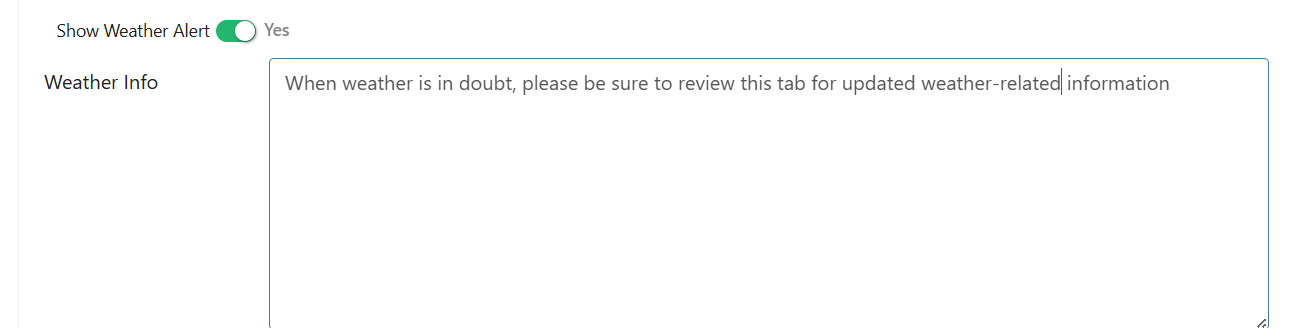
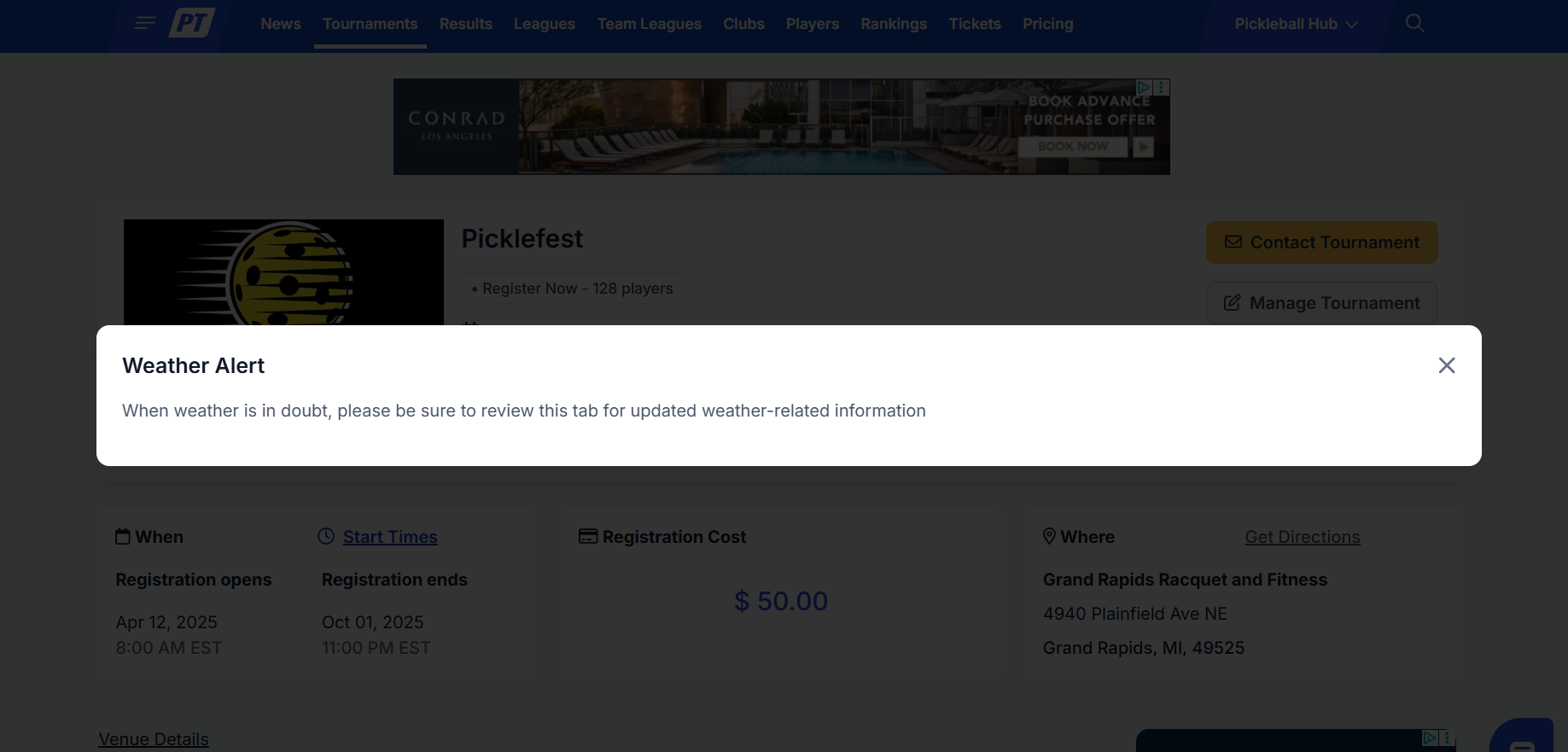
Update your weather alert message as conditions change — players always see the most current version when they visit your tournament page.
Communication best practices
Communicate early and often
Over-communication is always better than silence. Even if nothing has changed, a brief update confirming you're monitoring the situation reassures players. Recommended cadence:
- Night before (uncertain forecast): Acknowledge the forecast and give a specific time for your next update. Example: "Update (Tues 7:00 PM): We're monitoring tomorrow's forecast. Tournament is on schedule. Next update at 6:30 AM."
- First sign of delay: Post immediately when play is suspended. Example: "Update (Tues 8:15 AM CDT): Play suspended due to lightning. All players seek shelter. Next update at 8:45 AM CDT."
- During a prolonged delay: Update every 30–45 minutes even if nothing has changed. Example: "Update (Tues 9:15 AM CDT): Courts remain wet. Rain has lightened. Still hopeful to resume. Next update at 10:00 AM CDT."
- Cancellation: Make it clear and final. Include what happens next for scheduling, refunds, or credits.
The S.I.N. method — what every update needs
- S — Status: What is the current state of play? (e.g., "Play is suspended," "Delayed start," "All matches canceled")
- I — Instruction: What should players do right now? (e.g., "Seek shelter," "Stay near the tournament desk")
- N — Next update: When will you post again? Always give a specific time — this is the most important part.
Four rules to follow
- Be the single source of truth. Direct all players to your tournament webpage for official updates. This prevents rumors and gives players a consistent place to check.
- Set a realistic tone. Be optimistic but don't make promises you can't keep. Cautious and accurate beats confident and wrong.
- Don't go dark. Silence for hours is the worst thing you can do during a delay. Regular updates show players you're organized and in control.
- Give a final decision clearly. When you cancel events, make the announcement definitive and explain what happens next.
Using text messaging during a delay
If you have PT's texting service enabled, it's especially powerful during weather delays:
- From the Attendees tab, use the menu button next to a player's name to send a text to an individual player
- From Live Console, use the Options tab on a verified event to text all players in that event at once — ideal for venue changes or calling players back to courts
- Court Desk automatically texts players when assigned to a court or when their match is ready
- Players receive a confirmation text any time a match score is entered
Text messaging is available for US tournaments and select other countries for an additional per-player fee. See Tournament Pricing and Fees in PT for details.
Frequently Asked Questions
Can I update the weather alert after I've posted it?
Yes. Go to Edit Tourney → Basic Info, update the Weather Alert text field, and save. Players will see the updated message immediately.
How do I remove the alert once conditions improve?
Toggle Show Weather Alert off and save. The pop-up will stop appearing on your tournament listing.
What's the fastest way to reach all players during a delay?
Use the Live Console Options tab to text all players in an event instantly. This bypasses the campaign email queue and sends immediately.
Related Resources
- How to Send a Text or Email to a Specific Tournament Player
- How to Enable Player Scoring and Auto-Run Your Tournament
- Tournament Pricing and Fees in PT
Questions about weather delays or tournament communication? Email support@pickleball.com.