How to Enable Player Scoring and Auto-Run Your Tournament
Letting players enter their own scores transforms tournament day for Pickleball Tournaments (PT) directors — players record results from their phones, the system auto-assigns courts as matches finish, and you get to focus on supporting the event rather than tracking every match. Watch the step-by-step video below or follow the full guide for detail.
Enable player score entry and texting
To use this feature, first enable texting in your tournament setup. Texting is essential because players receive match assignments and score-entry links via text, making communication instant.
- Go to your Edit Tourney menu and scroll down to ensure texting is turned on. Note the extra cost per player (not per text).
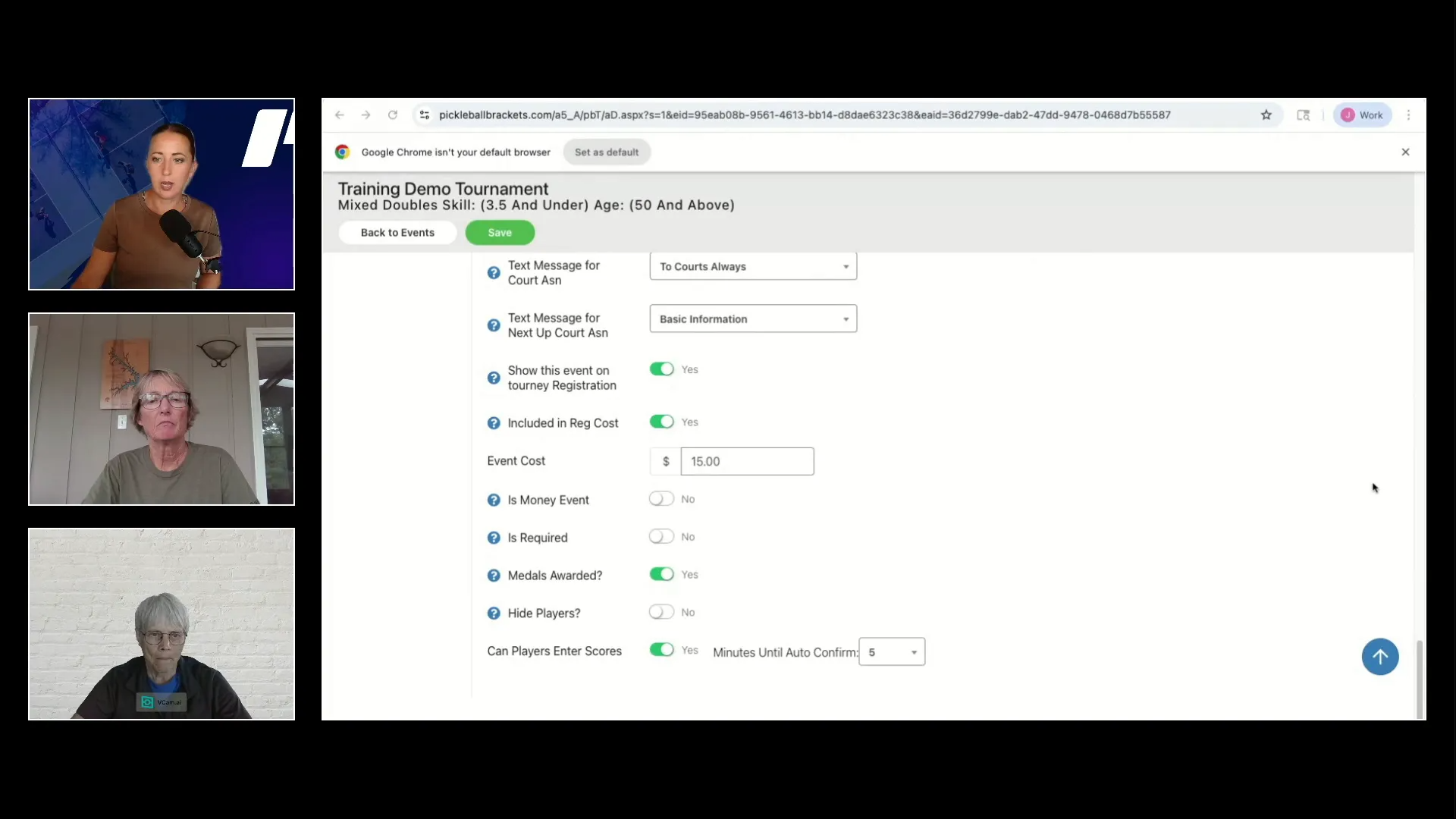
- Navigate to your Events screen and click the edit pencil next to the event you want to allow player score entry for.
- Scroll to the bottom and toggle on Can players enter scores? Set the Minutes until auto confirm — a three-minute confirmation window is a good starting point, though some directors run instant or one-minute confirmation for faster flow.
- If your event has a playoff scheduled, you'll see an additional toggle to allow player score entry for playoff matches.
- Save your changes.
Once enabled, verify your event in the Live Console to confirm it is ready for tournament day. You will see an icon indicating that players can enter scores for that event.
Use Court Desk and Auto-Run
The Court Desk interface supports an Auto-Run mode that pairs with player-entered scoring. The system automatically assigns courts and sends out matches as players finish and submit their scores.
- Start your events from the Live Console: open Options, then Start from the menu.
- Go to the Waiting tab in the Live Console once you have started matches.
- Use the Fill Empty Court button to assign matches to available courts automatically.
- Navigate to the Court Desk to view courts and refresh as needed.
- As scores are entered and confirmed, the system assigns the next matches to freed-up courts without manual intervention.
- If you run tournaments on designated courts or pods, exclude courts from certain events to control where matches are played.
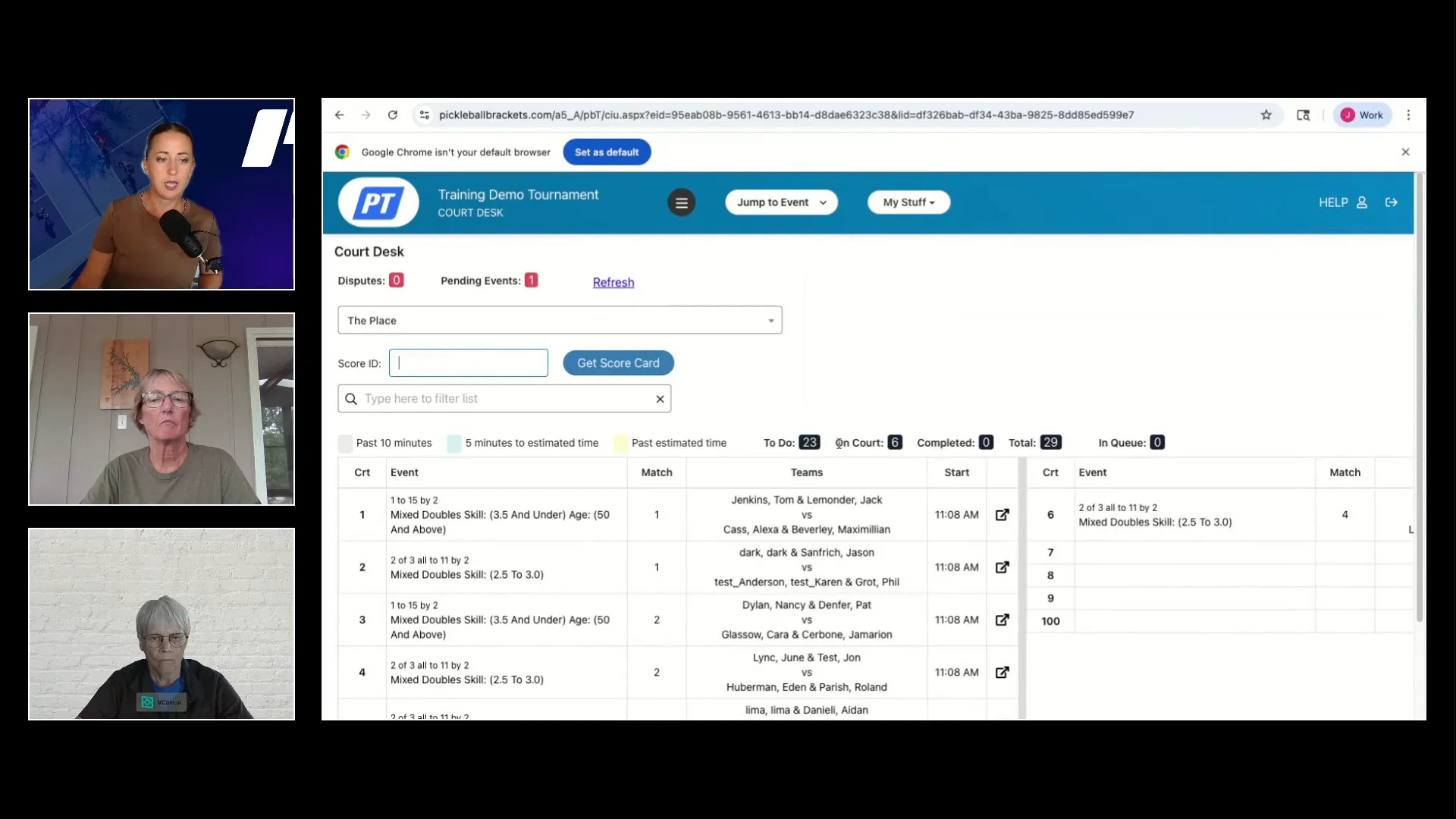
This auto-run setup frees tournament directors from manually tracking and assigning matches, allowing you to focus on helping players and keeping the day running smoothly.
Player experience: how players enter scores
Players receive text messages with match assignments and a direct link to enter their scores after finishing a match. The process is straightforward:
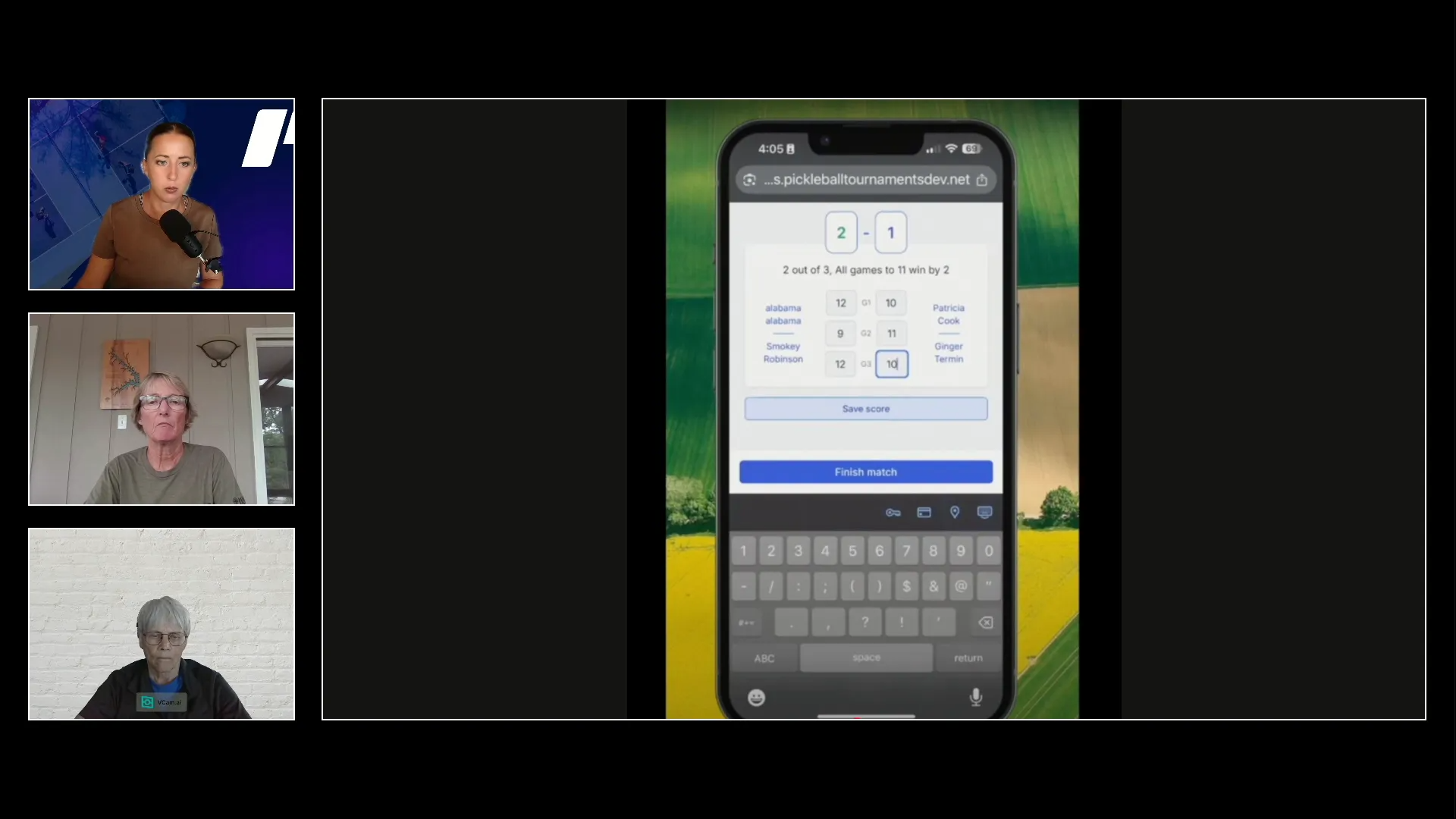
- Players tap the link from their phone, or go to the tournament page and click View Current Matches.
- They enter the score on their phone and tap Save.
- One player then clicks Finish Match to submit the score for opponent confirmation.
- The opposing team receives a prompt to either Confirm or Dispute the score.
- If disputed, both teams are directed to the tournament desk to resolve the issue.
To ensure smooth operation, let players know in advance to:
- Be logged into their Pickleball.com account on their phone before tournament day.
- Have texting enabled in their player profile, making sure their phone number and country code are both correct.
- Bring reading glasses or other aids if needed to comfortably enter scores on their device.
Want a quick tutorial to send to your players? Share the video below — it's a short walkthrough of how to enter scores from their phone, perfect for a pre-tournament email or a day-of reminder.
Best practices from tournament directors
Experienced tournament directors who have tested this feature in the field share these tips:
- Instant confirmation vs. time delay — Instant confirmation speeds up play but can cause issues in single or double elimination brackets if a mistake is made. A 1 minute confirmation window is ideal for elimination rounds.
- Player education — Hold a brief meeting before the event to explain score entry. Having a dedicated person to assist players during the first round helps ease anxiety and ensures everyone understands the process.
- Score entry responsibility — Assign the winning team to enter the score to avoid conflicts or duplicate entries.
- Monitoring — Walk around with a tablet showing the Live Court Desk or bracket view to monitor score entry and court assignments, rather than staying tied to the tournament desk.
- Managing courts and pods — Use the Manage Event Court Counts and Start Times screen to exclude courts and assign pods for better control over where matches are played.
- Handling disputes — Disputes are rare and usually resolved quickly at the tournament desk.
- Mixed use — You can enable player score entry for some events and use traditional paper score sheets for others within the same tournament.
How to know scores are entered and verified
You can confirm score entry by:
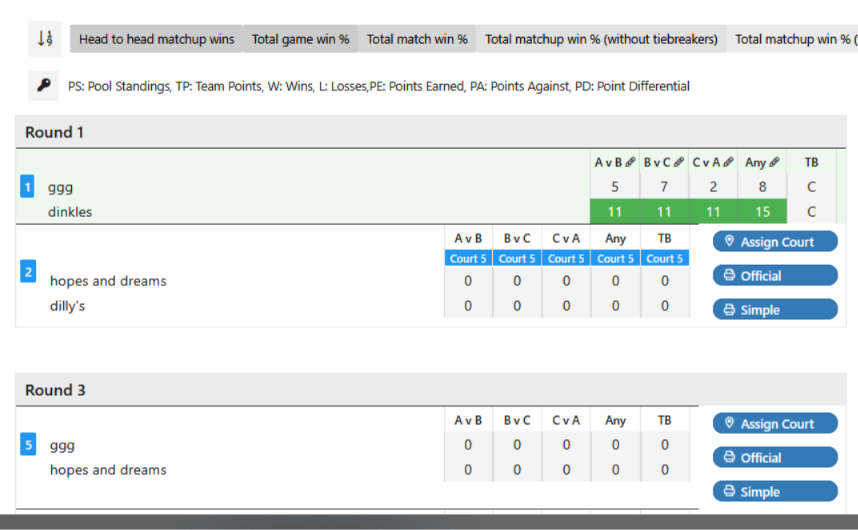
- Watching the Live Console bracket view to see scores populate in real time.
- Monitoring the Court Desk to track court assignments and match progress.
- Checking for matches that have been on a court too long without score entry, then contacting players directly.
- Relying on opponent confirmation — if a score is disputed or unconfirmed, players will be prompted to visit the tournament desk.
- Checking the shading in the Live Console bracket view. A match (or matchup, in a Team Event) shaded light green hasn't been marked completed yet; completed matches turn blue.
Additional considerations
- If referees are using the official referee app, score sheets may not be necessary — referees can enter scores in their app, or turn in the score sheet manually.
- Printed score sheets are generally not needed with player score entry enabled, but you can still print them if desired.
- Auto-fill court assignments only work when player score entry is enabled, but you can mix events: some on auto-fill with paper score sheets, others using phone entry.
- Player texts come from two numbers depending on which platform sent them: 844-525-8822 for court assignments, score-entry links, and confirmations from the Pickleball.com platform, and 844-999-0071 for bracket start alerts, pre-tourney huddles, match results, and check-in messages from the PickleballBrackets platform. Encourage players to save both numbers as contacts so no messages get filtered as spam.
Frequently Asked Questions
Players aren't receiving texts. What can they try?
A few common fixes solve this most of the time:
- Save both system numbers as contacts. Player texts from PT come from two numbers depending on which platform sent them: 844-525-8822 and 844-999-0071. Save both to your phone's contacts (a common shortcut is to label them both as pickleballtournaments.com) to keep messages from being filtered as spam.
- iPhone users — check Messages spam and junk folders. Open the Messages app, tap the three-line menu in the top-left, and look at the Unknown Senders, Spam, and Junk folders. iPhones sometimes route texts from unknown senders into these folders automatically.
- Confirm phone number and country code. The mobile number and country code on the player's Pickleball.com profile both need to be correct.
- Check opt-in status. If a player previously replied STOP to a PT text, they'll need to text START to the same number to begin receiving messages again.
What confirmation window should I use?
A 1 minute window is the sweet spot for most events — fast enough to keep play moving but long enough to catch a mistake before it locks in. Use instant confirmation only for round robins where small errors are easy to correct. Consider avoiding instant confirmation for elimination brackets.
Can I mix player score entry with paper score sheets in the same tournament?
Yes. Player score entry is enabled at the event level, so you can turn it on for some events (for example, a mixed 3.5, 10-49 event) and keep paper score sheets for others (for example, mixed 3.5, 50+). Auto-fill court assignments still work in this mixed setup, but you will have to manually assign the courts that use paper score sheets in Court Desk.
Who should enter the score?
Assign the winning team to enter the score by default. This avoids duplicate entries and conflicts between the two sides. The opposing team will get a prompt to confirm or dispute, so both sides still see the result.
What happens if a player disputes a score?
Both teams are directed to the tournament desk to resolve the issue. Disputes are rare in practice and usually settled quickly. Once the dispute is resolved, the score can be entered correctly and the bracket continues.
Do I still need referees if player score entry is enabled?
Not necessarily. If referees are using the official referee app, they can enter scores directly. If referees use paper score sheets, those can still be turned in and entered manually. Additionally, if a court has a referee, the player still enters the score but the ref must oversee it. Player score entry doesn't replace referees — it gives you another way to capture results when referees aren't assigned.
Want a deeper dive?
For a full webinar walkthrough covering setup, day-of operations, and troubleshooting in detail, watch the recording below from the Pickleball Play Solutions YouTube channel.
Related Resources
- How to Verify Your Brackets in Live Console
- How to Use the Manage Event Court Counts and Start Times Tab
- Managing Weather Delays: A Guide for Tournament Directors
Need a hand with player score entry or auto-run? Reach out to support@pickleball.com and we'll help you get set up before tournament day.