Yes. The Team Dashboard supports managing multiple teams across seasons. Use the season and division filters to switch between them.
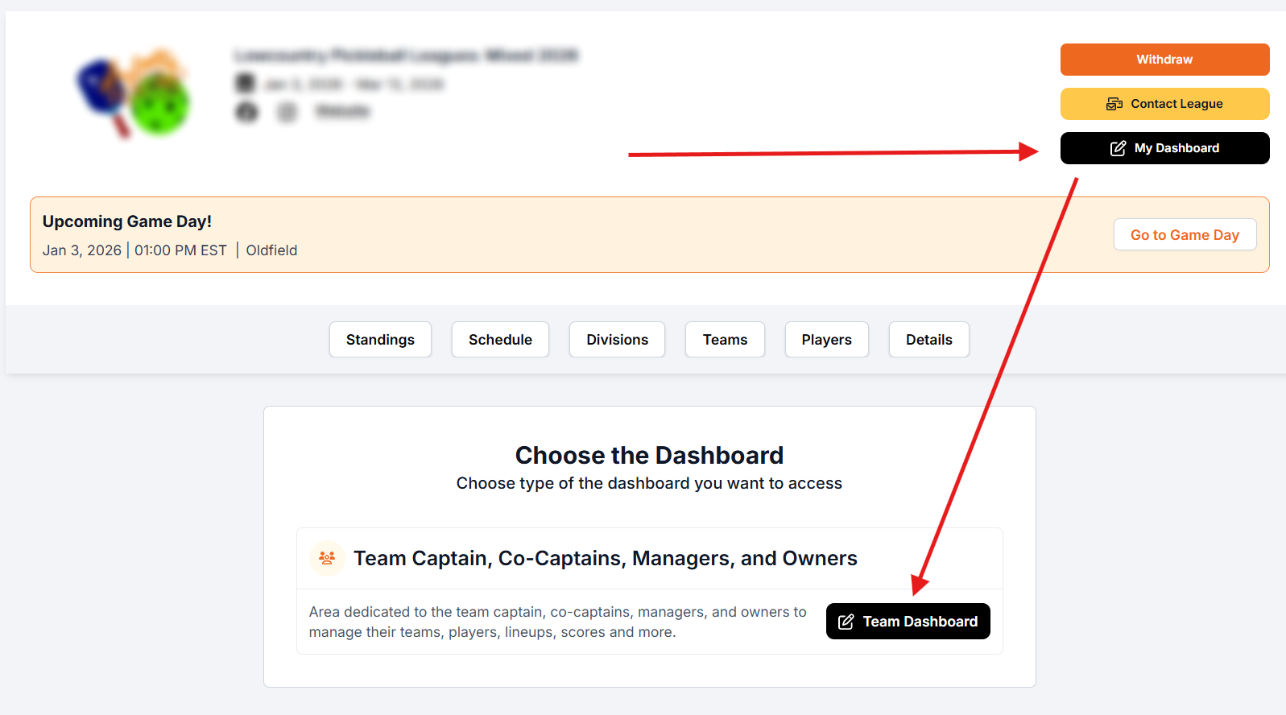
If you are a Captain, Co-Captain, or Manager in Pickleball Team Leagues (PTL), you have access to a Team Dashboard where you manage your roster, invite players, set lineups, view your schedule, and enter scores. This article explains how to access the dashboard and what each section does.
The dashboard shows all of your teams across seasons. If you captain more than one team, all will appear here — use the dropdown filters to narrow the view.
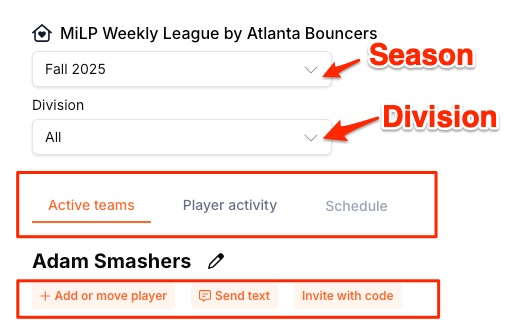
| Element | What it does |
|---|---|
| Season filter | Sort by season — defaults to current season |
| Division filter | Filter by division — defaults to all divisions |
| Active teams tab | Shows rostered players with DUPR, balance, and role information |
| Player activity tab | Shows invited players and their status and payment updates |
| Schedule tab | Shows your team's published schedule for the season |
| +Add or move player | Add, drop, move, replace, and trade players |
| Send text | Send a text message to selected rostered players (cannot be replied to) |
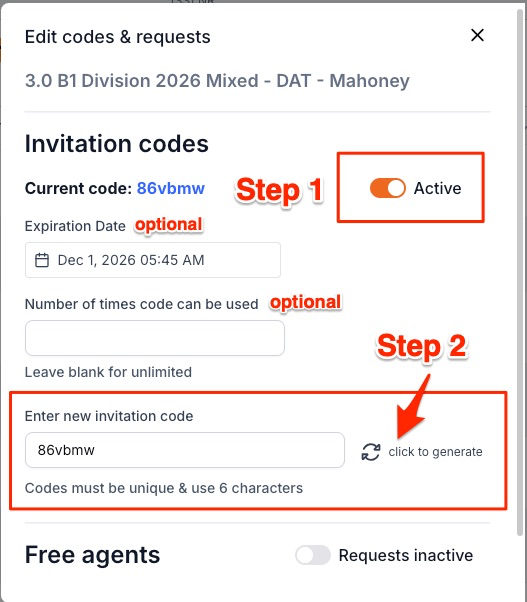
| Invite with Code | Create a team-specific invite code for players to join |
In the Active teams tab, click the Edit button next to any player to change their role. The default role is Player unless they created the team. You can promote a player to Co-Captain or Captain from this screen.
The Player activity tab shows the status of all invited or rostered players:
| Status | What it means |
|---|---|
| Done — Added | Player was invited via +Add Player and completed registration |
| Done — Joined | Player was invited when the team was created and completed registration |
| Pending — Player must approve Add | Player was invited via +Add Player but has not yet accepted |
| Pending — Player must approve Join | Player was invited at team creation but has not yet accepted |
| Done — Dropped | Player was removed using the +Add or move player button |
You must select a division from the division dropdown before the Schedule tab becomes active. If the tab appears grayed out, set the division filter first.
Yes. The Team Dashboard supports managing multiple teams across seasons. Use the season and division filters to switch between them.
Captains have full team management capabilities. Co-Captains can enter scores and set lineups on game day but cannot add or drop players or manage invite codes.
Make sure you've selected a division from the division dropdown filter in the Team Dashboard. The Schedule tab only activates once a division is selected.
Questions about the Team Dashboard? Email support@pickleball.com.