How to Set Team Lineups in PTL (Captains)
This guide walks team captains through setting lineups in Pickleball Team Leagues (PTL) using the mobile interface. The process covers navigating to your team, selecting the right division, setting match lineups, configuring tiebreakers, and accessing scorecards.
Step 1 — Open your Team Leagues
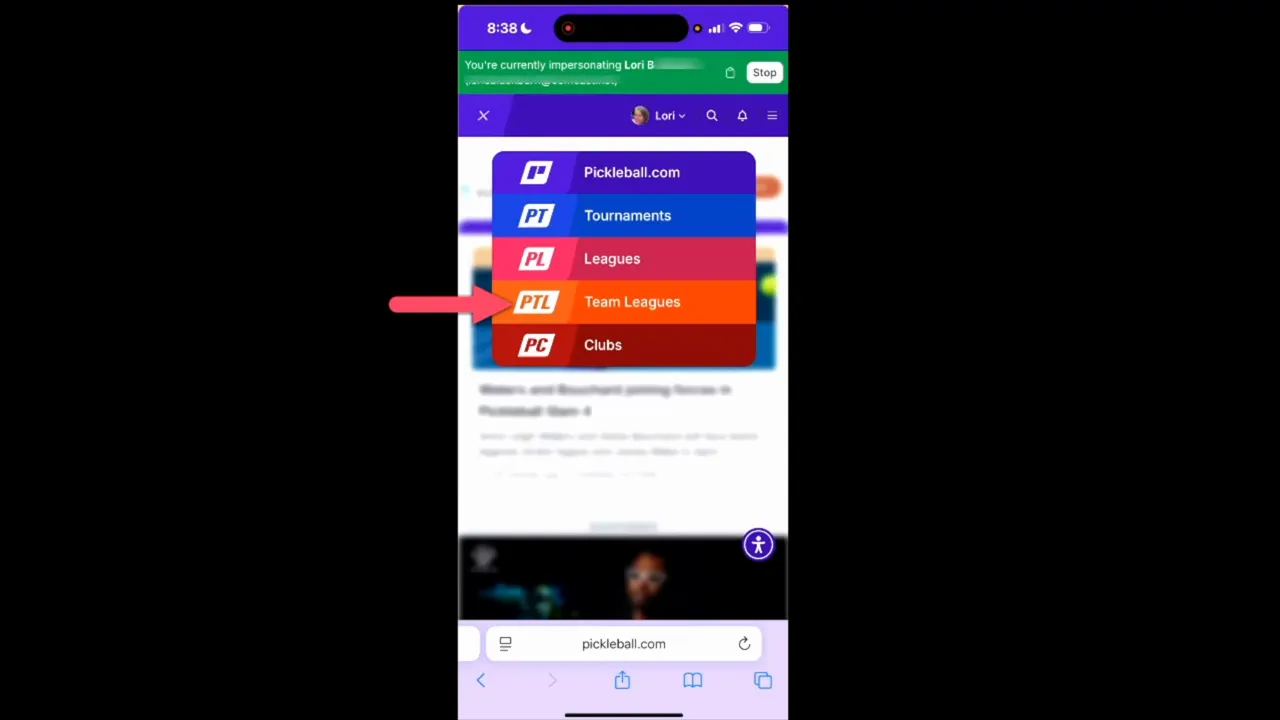
- From the app home screen, tap the P icon in the upper left to open the main menu.
- Choose Team Leagues or go to My Team Leagues under your name.
- Tap the heart icon on any league to mark it as a favorite for quick access.
Step 2 — Enter the Team Dashboard
- Select your league and tap My Dashboard.
- Choose Team Dashboard to access lineup tools, your player roster, game days, and player communication.
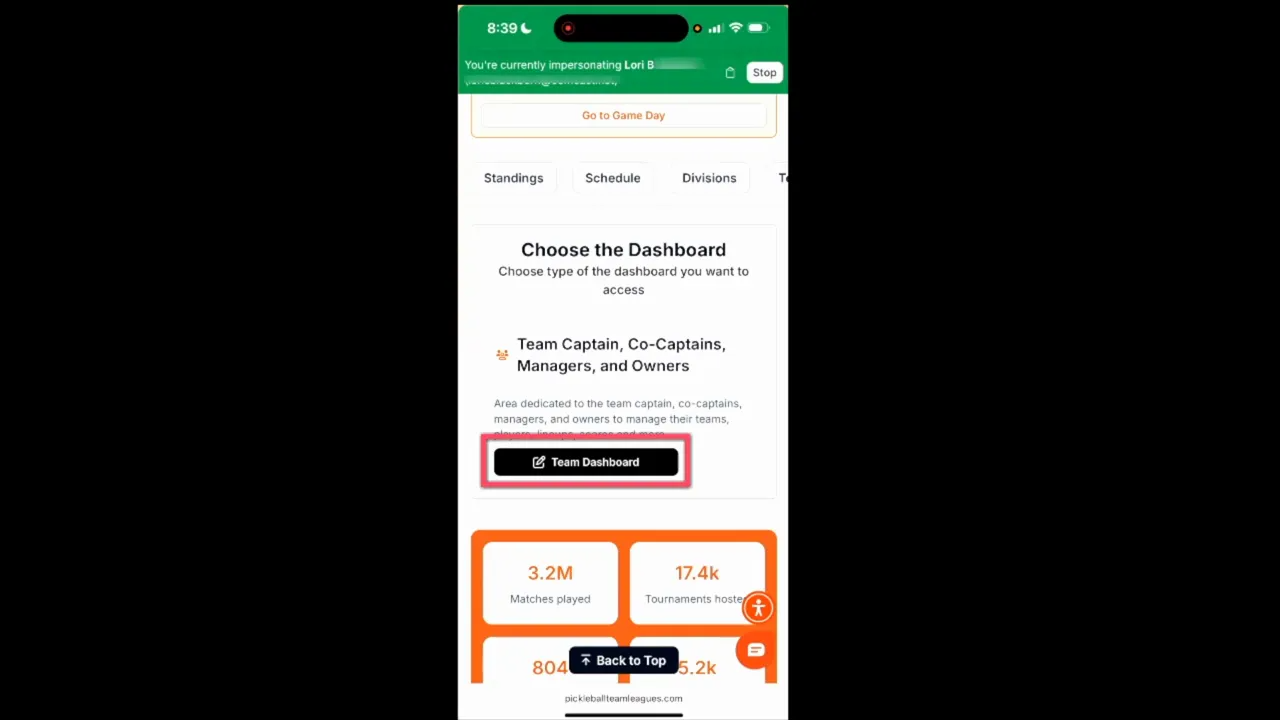
Commissioners and managers may see additional admin dashboards not relevant to captain duties.
Step 3 — Select the correct division
If you manage multiple teams or are eligible for more than one division, use the division dropdown to select the correct division before setting lineups. Once selected, the roster and Schedule button become available.
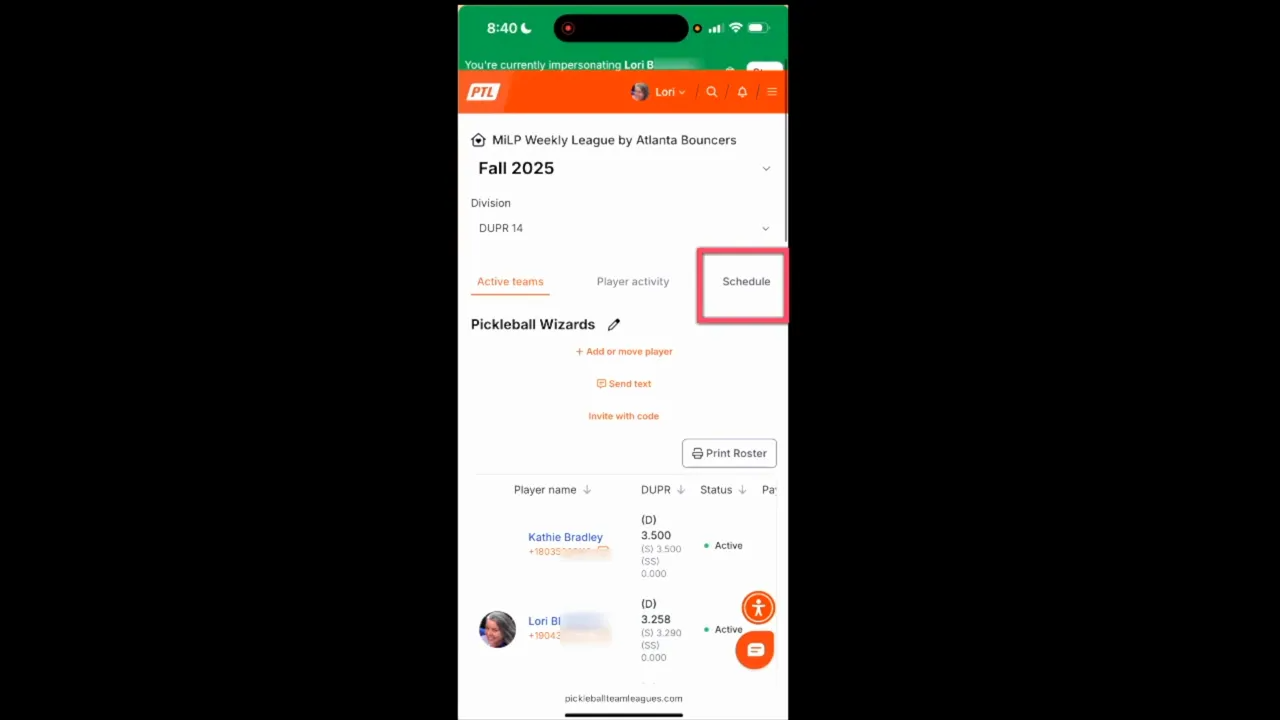
Completed game days appear grayed out. Upcoming game days are highlighted and selectable.
Step 4 — Set your lineup
- On the game day page, tap Set Lineups.
- Choose players from the dropdown menus for each match.
- Tap Save Lineup in the corner of each card as you complete it.
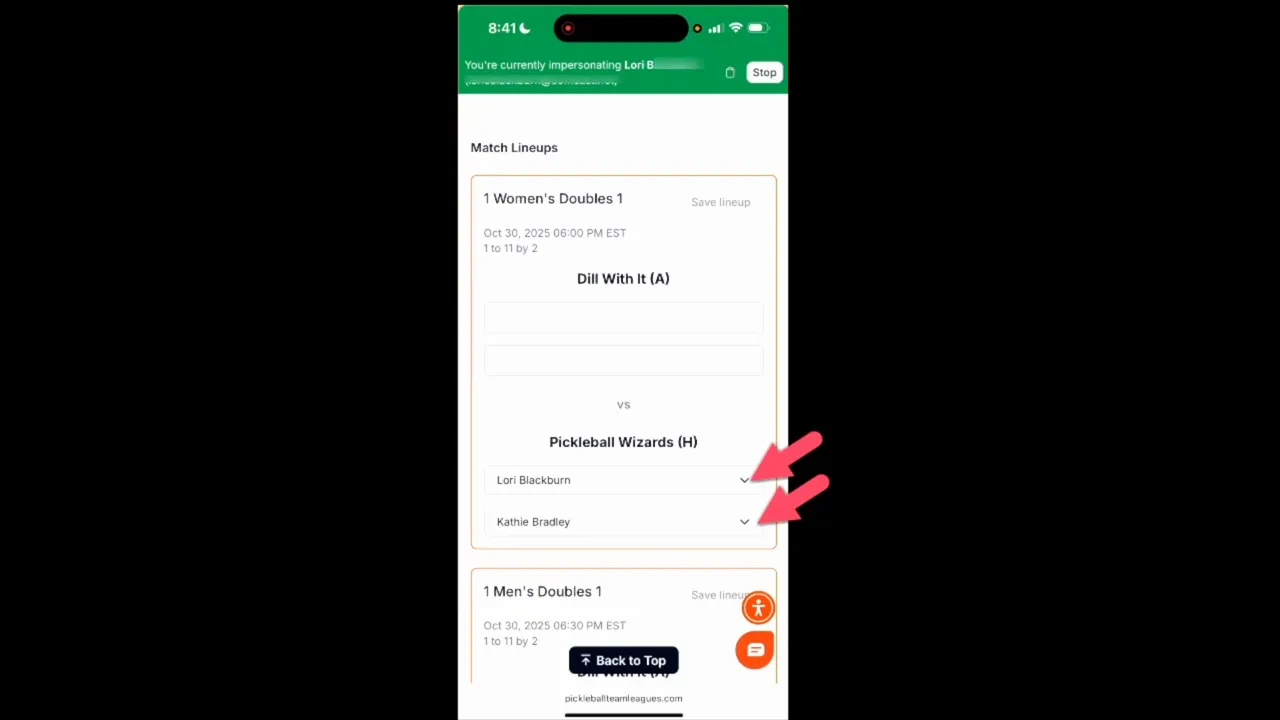
If you cannot set or save your lineup, contact your League Commissioner. Lineup permissions and visibility settings are controlled at the league administration level.
Step 5 — Configure tiebreaker matchups
- Scroll to the bottom of the lineup page and tap the tiebreaker button.
- Confirm the players who would participate by checking each name, or tap Select All Players.
- Tap Next to set the player order. Adjust the sequence as needed and tap Next again.
- Review the tiebreaker lineup and tap Save if final, or Edit to make changes.
After saving — matchups and scorecards
Once lineups are saved, tap Go to Matchup to view all scorecards for scheduled matches.
- Wait until opponent lineups are entered before printing scorecards so their player names appear on the cards
- Use Set Lineups at the top of the page to return and make adjustments if needed
- Enter final scores from the Go to Game Day screen when the match concludes
Frequently asked questions
Can I change my lineup after saving it?
Return to the game day page and tap Set Lineups at the top. You can edit or remove your lineup as long as the matchup hasn't been finalized.
The opponent's lineup is grayed out — is that normal?
Lineup permissions are set by the League Commissioner. Contact them directly — they control whether captains can view, edit, or save lineups.
I can't save my lineup — what should I do?
Contact your League Commissioner. Lineup visibility and save permissions are controlled at the league administration level and cannot be changed from the captain's view.
Related articles
Questions about setting lineups? Email [email protected].