Understanding the Team Dashboard in PTL
If you are a Captain, Co-Captain, or Manager in Pickleball Team Leagues (PTL), you have access to a Team Dashboard where you manage your roster, invite players, set lineups, view your schedule, and enter scores. This article explains how to access the dashboard and what each section does.
How to access the Team Dashboard
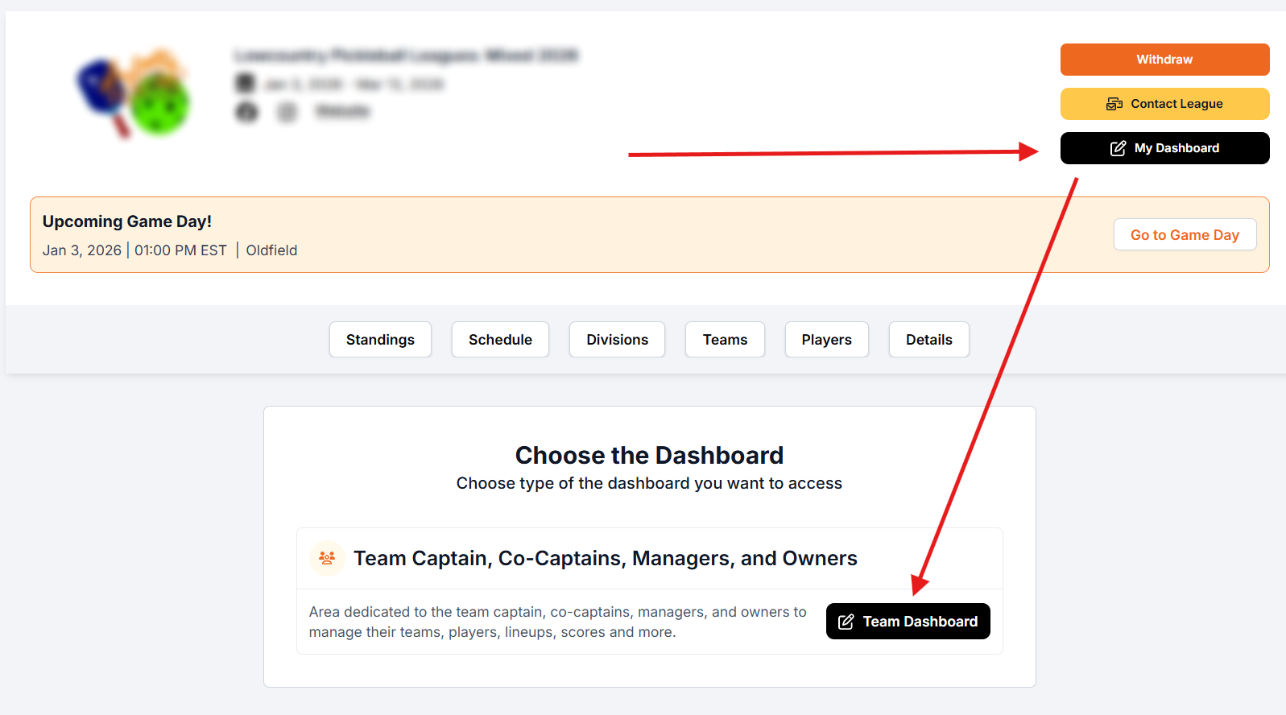
- Log in to your Pickleball.com account and navigate to your Team League.
- From the main league page, click the black My Dashboard button.
- Select Team Dashboard.
What Captains, Co-Captains, and Managers can do
- Add and invite players to the team
- Create a team invite code
- View team roster information
- Assign co-captains and player strength
- Submit online lineups for matches
- Enter match scores
- View and manage the Team Dashboard
Team Dashboard components
The dashboard shows all of your teams across seasons. If you captain more than one team, all will appear here — use the dropdown filters to narrow the view.
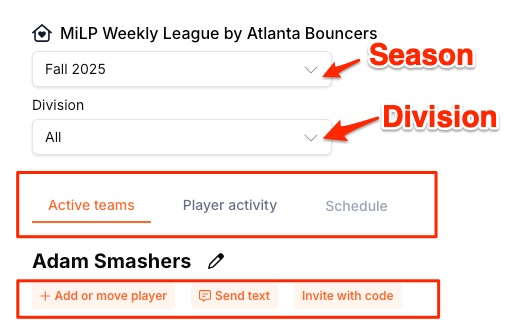
| Element | What it does |
|---|---|
| Season filter | Sort by season — defaults to current season |
| Division filter | Filter by division — defaults to all divisions |
| Active teams tab | Shows rostered players with DUPR, balance, and role information |
| Player activity tab | Shows invited players and their status and payment updates |
| Schedule tab | Shows your team's published schedule for the season |
| +Add or move player | Add, drop, move, replace, and trade players |
| Send text | Send a text message to selected rostered players (cannot be replied to) |
| Invite with Code | Create a team-specific invite code for players to join |
How to create an invite code
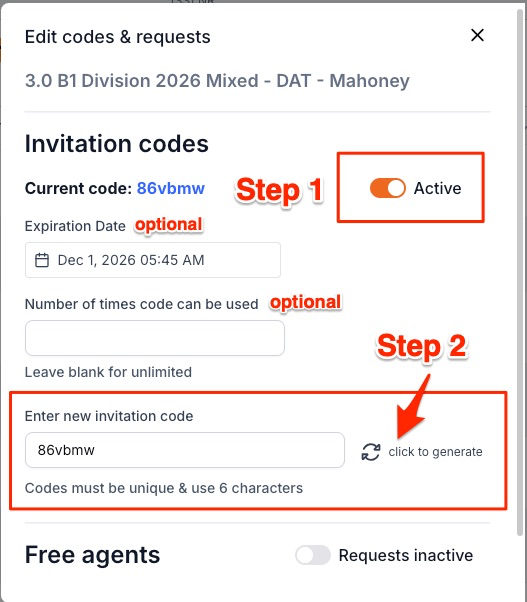
- Click the pencil icon next to your team name.
- Toggle the code from Inactive to Active.
- Type your own 6-character code or click Click to generate to have the system create one.
- Save the code.
- Use the Invite with Code button to copy the code and share it with players.
How to assign a co-captain
In the Active teams tab, click the Edit button next to any player to change their role. The default role is Player unless they created the team. You can promote a player to Co-Captain or Captain from this screen.
Understanding player activity statuses
The Player activity tab shows the status of all invited or rostered players:
| Status | What it means |
|---|---|
| Done — Added | Player was invited via +Add Player and completed registration |
| Done — Joined | Player was invited when the team was created and completed registration |
| Pending — Player must approve Add | Player was invited via +Add Player but has not yet accepted |
| Pending — Player must approve Join | Player was invited at team creation but has not yet accepted |
| Done — Dropped | Player was removed using the +Add or move player button |
How to access your team schedule
- In the Team Dashboard, select your division from the division dropdown — the Schedule tab only becomes active once a division is selected.
- Click the Schedule tab.
- Select the month from the dropdown, then filter by week if needed.
- Click on any match to set your lineup, print the scorecard, enter scores, or complete the matchup.
You must select a division from the division dropdown before the Schedule tab becomes active. If the tab appears grayed out, set the division filter first.
Frequently asked questions
Can I manage more than one team from the same dashboard?
Yes. The Team Dashboard supports managing multiple teams across seasons. Use the season and division filters to switch between them.
What's the difference between a Captain and a Co-Captain?
Captains have full team management capabilities. Co-Captains can enter scores and set lineups on game day but cannot add or drop players or manage invite codes.
My Schedule tab is grayed out — why?
Make sure you've selected a division from the division dropdown filter in the Team Dashboard. The Schedule tab only activates once a division is selected.
Related articles
- How to Add Players to Your Team League Roster
- How to Set Up Lineups from Your Phone in PTL
- How to Enter Scores for Team League Game Days
- Pickleball Team Leagues FAQ
Questions about the Team Dashboard? Email support@pickleball.com.