How to Add a Manager to Your Tournament
To add or remove a manager to your tournament in Pickleball Tournaments (PT), go to Edit Tourney, select the Managers tab. You can Add New to search for the person, configure their permissions, and save. Managers are additional staff members who can help you run your tournament — from managing registrations to entering scores on event day. Watch the short video below or follow the step-by-step instructions for full detail.
Table of Contents
Before you begin
- You must be the Primary Manager of the tournament to add, configure, or disable managers. Secondary managers cannot modify the manager list.
- The person you want to add must have an existing Pickleball.com player account. If they don't have one, ask them to create one at pickleball.com before you proceed.
How to add a manager
1. Open Edit Tourney
Log in to your tournament and open the 3-line menu. Select Edit Tourney.
2. Open the Managers tab
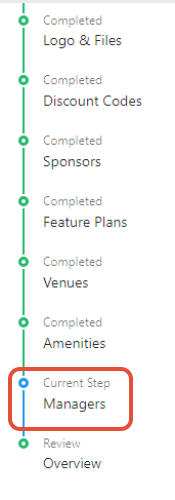
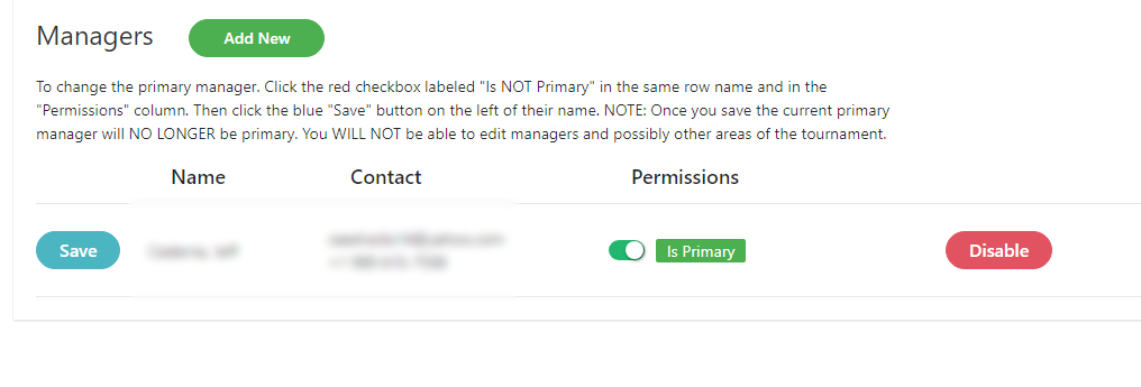
In the left-hand menu, select the Managers tab, then click Add New to open the manager search.
3. Find the right person
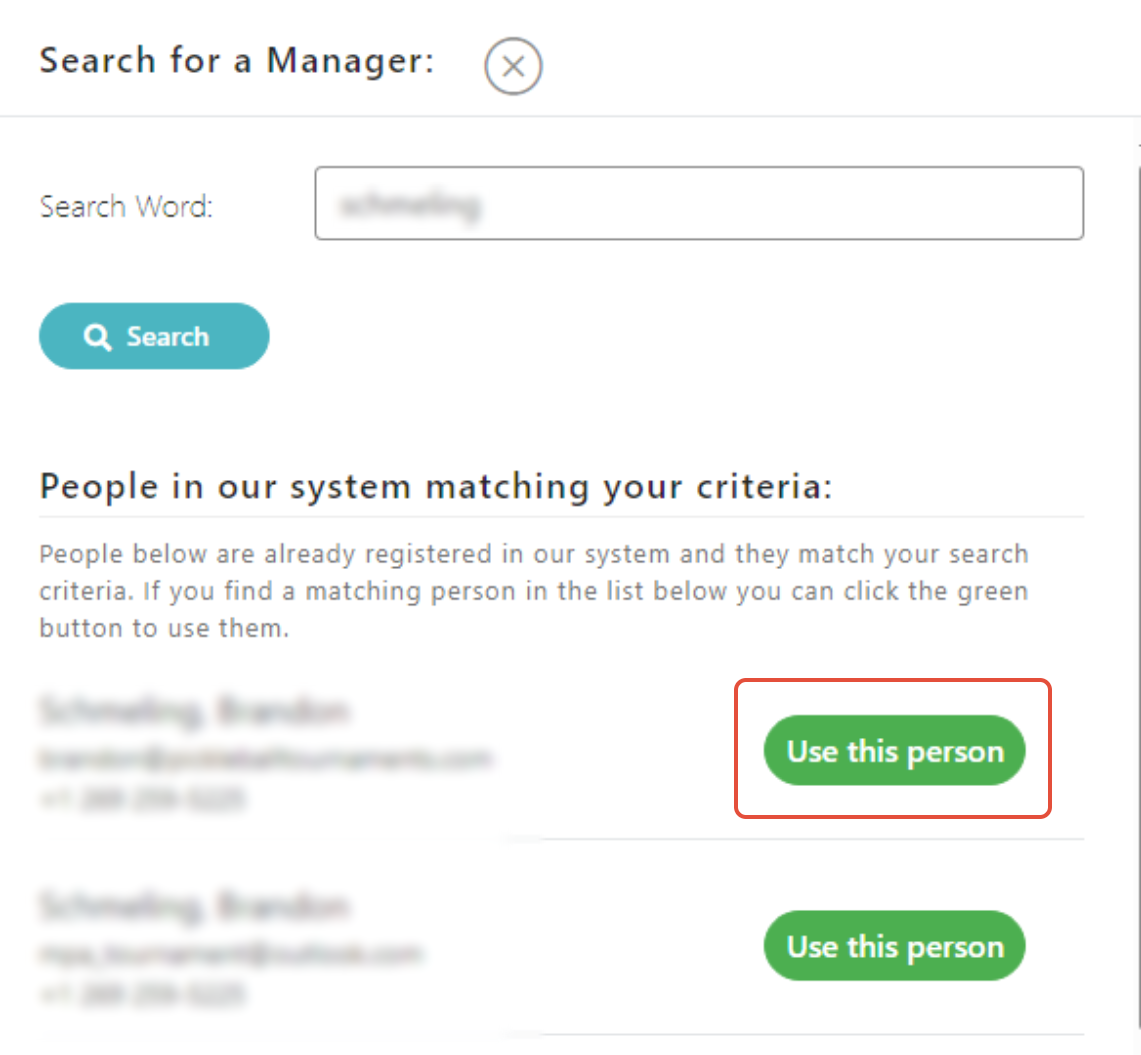
Search for the person by their Pickleball.com profile name. When you find the correct profile, click Use this Person.
4. Set permissions
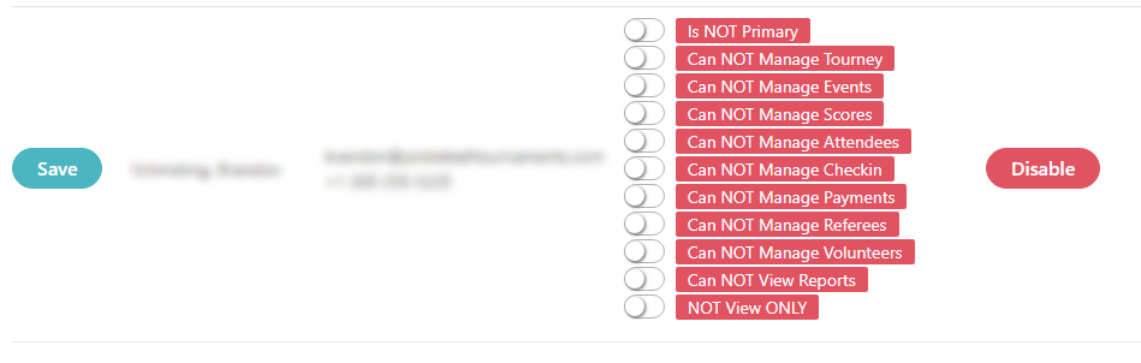
Select the permissions you want to grant this manager. To give them full access (same as the Primary Manager), select all options except Is NOT Primary and NOT View Only. This is also where you can remove all permissions or disable/remove a manager. See the reference table below for a breakdown of what each permission unlocks.
| Permission | What it unlocks |
|---|---|
| Is Primary | Full access to every part of the tournament. Every tournament has exactly one Primary Manager — usually the person overseeing the entire event. To give another manager the same broad access without making them Primary, enable every permission below except Is Primary and View Only. |
| Can Manage Tourney | Full "manage the tournament" access. Includes Edit Tourney settings, event editing, Live Console, refunds, reports, score edits, simulator, ratings, and user-defined fields. This is the broadest access short of being the Primary Manager. |
| Manage Events | Manages events within the tournament: edit events and settings, run the simulator, view and move players between events on the Attendees screen, access the Manage Event screen, message players, and access Live Console. |
| Manage Scoring | Access to Live Console, player messaging, court and location management, court counts and start times, and the Daily Planner. |
| Can Manage Attendees | Attendee screen access (including players in multiple events), player messaging, Reports section, and Kiosk (check-in) pages. |
| Manage Check-In | Kiosk page access — for checking players in on tournament day. |
| Can Manage Payments | Attendee screen access including being able to process refunds and the ability to see which players are registered in multiple events. |
| Can Manage Referees | Access to the Referees tab only. |
| Manage Volunteers | Access to the Volunteers tab only. |
| Is a Court Manager | Tracks players on court via the public "Players on Court" feature. This role only unlocks the tournament dashboard — assigning it isn't strictly required to use the on-court tracking feature, since Court Managers can track players from the public side of the site. |
| Can View Reports | Access to the Reports section only. |
| View Only | Read-only access to the tournament and its settings (Edit Tourney, Events, Attendees, User-Defined Questions, Rating setup). Save buttons are hidden. Live Console, court management, and the Simulator are not accessible. |
Every permission level includes access to the tournament dashboard, regardless of which specific toggles you enable.
5. Save the new manager
Click the blue Save button next to the manager's name to save their permissions.
WarningUse the blue Save button next to the manager's name — not the green Save button at the top of the page. The green Save button does not save manager permissions.
The new manager will now appear in your Managers list and can access your tournament based on the permissions you selected.
Frequently Asked Questions
Can a secondary manager add other managers?
No. Only the Primary Manager has the ability to add, configure, or disable other managers. Secondary managers cannot modify the manager list.
What if I can't find the person I'm trying to add?
The person you're adding must have an existing Pickleball.com player account. If you search for them and they don't appear, ask them to create a player account at pickleball.com first, then try again.
Can I change a manager's permissions after adding them?
Yes. Return to the Managers tab in Edit Tourney, update their permission checkboxes, and click the blue Save button next to their name.
How many managers can I add to a tournament?
There is no set limit. However, only one person can be the Primary Manager. All others are secondary managers with customizable permission levels.
Related Resources
- Getting Started with PT: Complete Setup Overview — the full tournament setup workflow
- How to Find Your Managed Tournament in PT
Need help with manager access? Contact our support team at support@pickleball.com.