No. Captains and players don't have an option to cancel a match or matchup. Only a tournament director or staff with Live Console access can do this, using Edit Status → Cancel Matchup from the bracket admin view.
As a tournament director (TD) or staff member with Live Console access in Pickleball Tournaments (PT), you can manage Team Event court assignments, canceled matchups, lineup changes, player substitutions, team removals, and matchup completion status on tournament day. Team captains and players don't have access to these actions, which are separate from initial event configuration (see How to Set Up a Tournament Team Event) and from what captains can do themselves (see How to Manage Your Team as a Captain for PT Team Events).
NoteThis article is a placeholder that will grow as more Team Event TD operations are identified and confirmed. If you run into a Team Event admin task that isn't covered here, let us know at support@pickleball.com so it can be added.
You can be as hands-on or hands-off as you want once a Team Event is underway. Two common approaches:
After you verify the events and assign the first round of courts, teams can run the rest themselves — captains set lineups and enter scores from their own phones. You step in only to make changes as needed and to verify medal rounds.
You can also run a Team Event fully manually: print score sheets and hand them out to teams, who bring them back after playing. You then set lineups and enter scores directly, rather than captains doing it themselves.
NoteMost TDs land somewhere in between — for example, letting captains handle day-to-day lineups and scores while you manually verify medal-round results.
Team Events work with Court Desk, so you can use it to assign courts and send teams to them. You can also assign courts manually: enter a court number directly on the matchup, or send a text to the team from Live Console. To learn how Court Desk works, see How to Use Court Desk in PT.
NoteOnce a team is sent to a court, they "roll" themselves — staying on that same court for every match within the matchup. You only need to assign a new court between matchups, not between the individual matches inside one.
To cancel a full matchup in PT, open the matchup from the bracket admin view and use Edit Status → Cancel Matchup. Use this when both teams agree to skip a bronze match, or when later-round matchups in a Major League Pickleball (MLP)-style format won't be played. Don't cancel each individual match one by one, because canceling matches individually can hold up the bracket.
Prefer to watch? See the video walkthrough of canceling a full matchup, showing you how to cancel a full bronze medal matchup.
Every match within that matchup is now canceled and the tiebreaker requirement is turned off, so you can complete and lock the bracket.
NoteThis is a TD/admin-only action, reachable by anyone with Live Console access for the tournament. Team captains and players do not have an option to cancel a match or matchup themselves — direct them to contact you instead.
In the Team Event bracket view in Live Console, a matchup shaded light green hasn't been marked completed yet. Once the matchup is completed, it turns blue. Matches in other events are shaded the same way.
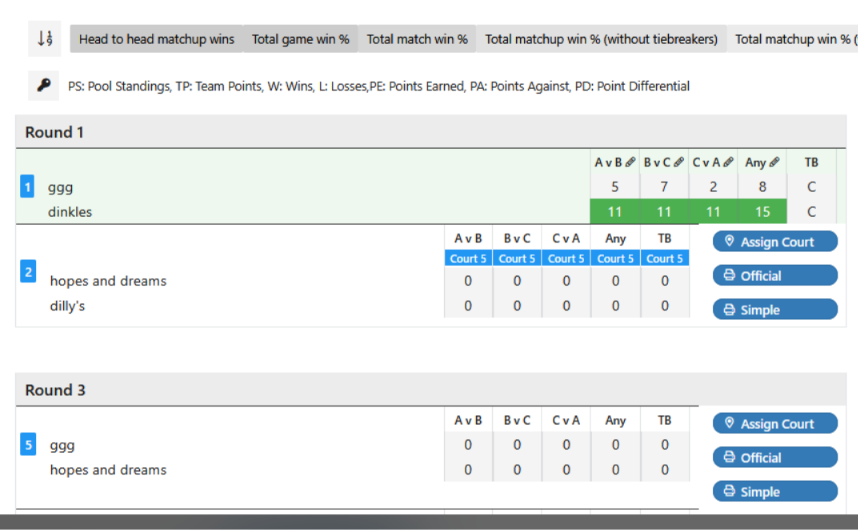
If a captain or player tells you a Team Event isn't showing results, check for light green matchups first. When a matchup is still light green, open it and confirm every match has been completed. Captains finalize a matchup by clicking Complete Matches (see How to Enter Scores for a Team Event in PT (Captains)).
By default, once a captain saves a lineup for a matchup, it's locked. An Edit Lineup option can appear on the score-entry screen (you may need to scroll to see it), but whether captains can use it depends on a setting that controls whether lineups can be edited after saving.
WarningThe exact setting name and location for controlling post-save lineup edits is still being confirmed — this section will be updated once verified. In the meantime, if a captain needs a lineup changed after saving, contact support or your account team.
If a rostered player can't play a matchup, the substitute function lets you swap in a different player — without going through the roster Drop/Add process. This is a TD-only action; team captains cannot substitute players themselves.
When choosing a substitute, you can search either players already registered for the tournament, or all players in the system — the substitute does not need to already be registered for your event.
WarningThe player picker doesn't show email address or DUPR rating, only names — so if there are multiple players with the same name (for example, two "David Smith"s), it can be hard to tell them apart. If you're not sure you've selected the right player, contact support@pickleball.com for help confirming their identity before saving the substitution.
A team can't be permanently deleted once it has players attached — instead, remove the players and then deactivate the team:
Don't use the trash can icon next to a player's name on the Edit Team screen to remove them — that only unlinks the player from the team, it does not withdraw them from the tournament. If your event allows free agents, removing a player this way also turns them into a free agent, which makes it hard to tell whether they meant to register as a free agent or were bumped from a team. Always withdraw players from the Attendees tab first.
Tiebreaker match results are not recorded to DUPR. Keep this in mind when communicating results to teams or answering questions about how a tiebreaker affected their rating.
No. Captains and players don't have an option to cancel a match or matchup. Only a tournament director or staff with Live Console access can do this, using Edit Status → Cancel Matchup from the bracket admin view.
Yes. Canceling a matchup turns off the tiebreaker requirement for that matchup, so you can complete and lock the bracket without it.
No. Tiebreaker matches are not recorded to DUPR at all.
No. When substituting, you can choose from players already registered for the tournament or search all players in the system — the substitute doesn't need to be registered beforehand.
Only the tournament director can substitute a player in a matchup. Captains should contact their TD if a substitution is needed.
No. Teams can't be permanently deleted while they have players attached. Withdraw all players from the Attendees tab first, then set the team to Inactive from the Teams menu's Edit Team screen.
Look at the shading behind the matchup in the Live Console bracket view. A matchup shaded light green hasn't been marked completed yet, and a completed matchup turns blue. If a captain reports that results aren't showing and the matchup is still light green, at least one match in it hasn't been marked completed.
Need more help? Email us at support@pickleball.com.