How to Manage Your Team as a Captain for PT Team Events
Once your team has been created for a tournament team event, the next step is making sure it is organized, accurate, and easy to manage. As team captain in Pickleball Tournaments (PT), you have several tools available to handle roster changes, communicate with players, assign another captain, and customize your team details. This guide walks through the key team management features — finding your team, using invite codes, updating your roster, and personalizing your team page — so you can step into match day confident your team is ready.
Table of Contents
- Before you start
- How to find your team in a tournament
- Where team management happens
- How to send a text message to team members
- How invite codes work
- How to add a captain or remove a player
- How to customize your team
- Quick team captain checklist
- Frequently Asked Questions
- Related Resources
Before you start
This process applies after your team is already set up. If the team has not been created yet, that needs to be completed first before any of the management options below are available.
RecommendedIf your team has not been created yet, start with your tournament director. They can walk you through the registration process or set your team up directly. Once your team exists in PT, return to this guide to manage it.
How to find your team in a tournament
To manage your team, start from the tournament main page.
- Go to the tournament main page.
- Click the Teams link.
- Scroll through the list to find your team.
- If needed, use Ctrl + F and search for your team name to jump to it more quickly.
- Click your team name to open the team page.
When you open the team, you will land on the roster area. From there, you may also see a link to the team schedule if one has been created for the event.
 Recommended
If your team does not appear in the list, confirm that you are logged in to the correct account and that you are on the correct tournament’s main page. If the team still does not appear, contact your tournament director to verify the team was successfully created and linked to your account.
Where team management happens
Inside your team page, the main area to focus on is the management section. This is where captains handle communication, roster updates, invite code settings, and team customization.
| Management Feature | What It Does |
|---|---|
| Send Text | Send a direct message to selected team members without leaving the platform. |
| Invite Codes | Generate a code that allows replacement players to join your specific team. |
| Edit (next to player) | Assign that player as an additional captain. |
| Drop (next to player) | Remove a player from the team roster. |
| Home – Edit | Update your team name and abbreviation. |
| Logos | Upload a team logo to personalize your team page. |
| Manager | Add a team manager to help coordinate the team. |
| Move Team | Transfer your team to a different event without rebuilding from scratch. |
How to send a text message to team members
If you need to contact players quickly, you can send a text directly from the team management area.
- Click Send Text.
- Choose who should receive the message.
- Type your message.
- Click Send.
This is a quick way to communicate schedule updates, roster changes, or other team-related information without leaving the platform.
RecommendedUse the text feature to notify players of match times, lineup decisions, court locations, or last-minute changes. Sending updates through PT keeps all communication in one place and ensures players receive information tied directly to the event.
How invite codes work
Invite codes can be useful when someone needs to join your existing team, especially if a player drops and you need a replacement to find your specific roster.
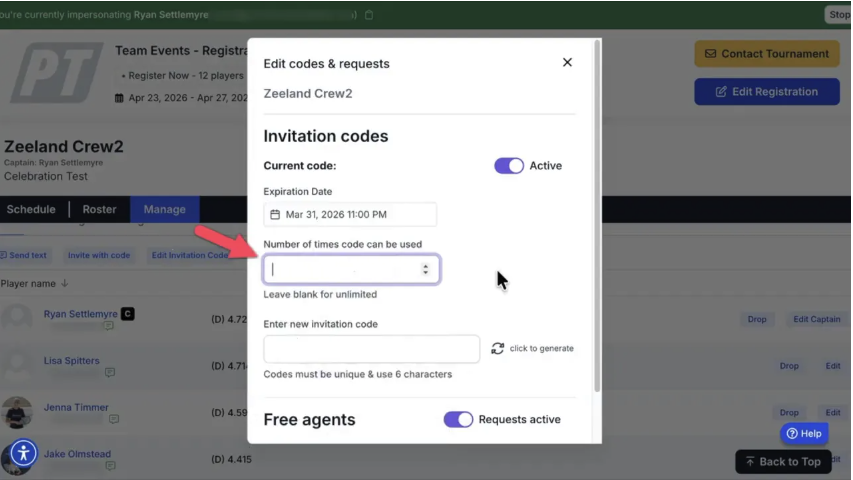
To set up an invite code
- Open the invite code setup option in team management.
- Set the expiration date.
- Choose how many times the code can be used.
- Enter a custom code if you want to use your own.
- If the tournament director allows it, decide whether your team will accept free agents.
- Click Save.
Once the code is saved, use the Invite with Code link to copy it to your clipboard. You can also return at any time to edit the code.
When you do not need an invite code
If your team was added during the registration process, you typically do not need to create or use an invite code. In that case, the team has already been built.
The main purpose of the invite code is to help a replacement player join the correct team later if needed.
RecommendedEven if you do not expect to need a replacement, setting up an invite code before the event begins saves time if a player drops unexpectedly. Set a short expiration window and a limited use count to keep control over who can join your team.
How to add a captain or remove a player
Roster management is handled directly from the team page.
- Use the Edit button next to a player to make that player a captain.
- Use the Drop button to remove a player from the team.
This gives you flexibility if leadership needs to be shared or if your roster changes before the event.
WarningWhen you click Drop next to a player’s name, they are removed from your roster right away. Make sure you intend to remove the player before confirming. If a player was dropped by mistake, contact your tournament director to see whether they can be re-added before the roster deadline.
How to customize your team
Beyond roster management, you can also update your team’s identity and presentation.
Edit your team name and abbreviation
In the Home section, click Edit to update your team name and your team abbreviation. This is helpful if you want your team listed more clearly or consistently within the tournament.
Add a team logo
In the Logos section, you can upload a team logo. Follow the listed requirements for accepted file formats, image dimensions in pixels, and maximum upload size. Adding a logo can make your team page look more polished and easier to identify.
RecommendedCheck the upload requirements shown on the Logos page before preparing your image. Uploading a file that does not meet the size or format requirements may result in an error. Common accepted formats include PNG and JPG. Resize your image to the listed pixel dimensions before uploading for the best result.
Add a team manager
If someone else helps coordinate the team, you can assign them as a manager.
- Click the Manager button.
- Select Add Manager.
- Search by last name.
- Add that person to the team.
Move your team to a different event
If your team decides to compete in a different event, use the Move Team button. This allows you to change your team’s event without rebuilding everything from scratch.
 Warning
Moving your team to a different event may affect registration status, roster eligibility, and any fees already paid. Check with your tournament director before using the Move Team option to understand any implications for your team’s registration.
Quick team captain checklist
Use this checklist to make sure your team is fully set up and managed before the event begins.
- Find and open your team from the tournament page.
- Review the roster and schedule link.
- Send any needed text updates to players.
- Create or update an invite code if replacements may be needed.
- Assign an additional captain if appropriate.
- Drop players who are no longer participating.
- Update the team name or abbreviation if needed.
- Upload a team logo following the listed requirements.
- Add a team manager if someone else is helping coordinate.
- Move the team if you need to switch events.
- On game day, click on “my matches” at the top to begin setting your lineups and/or entering scores.
Frequently Asked Questions
Can I have more than one captain on my team?
Yes. You can assign additional captains by clicking the Edit button next to any player on your roster and granting them captain access. Sharing captain responsibilities is useful for larger teams or when multiple people are coordinating logistics. All captains will have access to the same team management tools.
What is the difference between a captain and a team manager?
A captain is a rostered player on the team who has management permissions within PT. A team manager is someone who helps coordinate the team but may not be a rostered player. Managers are added separately through the Manager button in the team page. Both roles help keep the team organized, but they serve different purposes depending on how your event is structured.
Can I edit my invite code after saving it?
Yes. You can return to the invite code section at any time to update the expiration date, usage limit, or the code itself. Use the Invite with Code link to copy the updated code to your clipboard and share it with any players who need it.
What happens if I drop a player by mistake?
Dropping a player removes them from your roster immediately. If this happens by mistake, contact your tournament director as soon as possible. They may be able to re-add the player on the backend depending on where the event stands and whether the roster deadline has passed.
Do I need an invite code if my full team registered together?
No. If all of your players joined during the initial team registration, you do not need to create an invite code. Invite codes are primarily for situations where a player drops after registration and a replacement needs a way to find and join your specific team.
Who should I contact if something is not working as expected?
Start with your tournament director. Most team management settings are configured at the event level, so they will have the best understanding of what is available for your specific event. If the issue cannot be resolved through your tournament director, contact the Pickleball.com support team at support@pickleball.com for further assistance.
Can I delete or recall a text after I've sent it?
No. Once you click Send, the text goes out immediately and can't be recalled or deleted from the recipient's phone. Double-check your message before sending, especially if it includes lineup decisions or schedule changes.
Related Resources
- How to Set Up a Tournament Team Event
- How to Set Lineups for a Team Event in PT (Captains)
- How to Enter Scores for a Team Event in PT (Captains)
Need a hand managing your team? Reach out to support@pickleball.com and we’ll help you get everything ready before match day.