How to Set Lineups for a Team Event in PT (Captains)
To set your lineup for a Pickleball Tournaments (PT) team event, log in as team captain, navigate to your matchup via the My Matches tab, assign home/away for the matchup, and use the dropdown menus to enter players into each lineup section — clicking Save Lineup in every section before leaving the page.
Here’s the full process at a glance — detailed guidance for each step follows in the sections below.
- Go to the tournament homepage.
- Click My Matches.
- Use the circular arrow icons on your scorecard to flip it if needed, then click Go to Matchup.
- Scroll down to assign home/away for the matchup (an in-app coin flip is available).
- Choose Set Lineups if it is your turn.
- Enter players into each lineup section.
- Click Save Lineup in every box before leaving.
- Refresh the screen if needed to confirm all sections saved.
- Once lineups are set, return to the matchup to enter scores as each match finishes.
This video covers the full match management workflow for team captains. Lineup setup starts at 0:56. For score entry instructions, see How to Enter Scores for a Team Event in PT (Captains).
Before You Begin
Make sure you are logged in to the correct captain account for your team. It is also helpful to know whether your team is expected to enter its lineup first or second for the match.
If that is not clear, check with your tournament director. Event setups vary, and the tournament director decides how the lineup process works for a specific event.
NoteCheck that all players you plan to roster are already added to your team. If a player is missing from your roster, you will not be able to enter them in the lineup. Contact your tournament director if a player needs to be added before the lineup window closes.
How to find your matchup
Start from the tournament homepage and follow these steps to reach your match details page.
- Go to your tournament homepage.
- Click My Matches at the top.
- Locate your upcoming matchup. Use the circular arrow icons to flip the scorecard if needed, then click Go to Matchup.
- Scroll down on the matchup screen — this is where you’ll assign home/away and set your lineup.
This takes you to the match details page, where you can begin entering your lineup if it is your team’s turn.
 Note
NoteIf your upcoming match does not appear under the Schedule tab, it may not have been published yet by the tournament director, or the lineup window may not be open. Check back closer to your match time or reach out to your tournament director to confirm when lineup entry opens.
Assign home/away for the matchup
Home/away must be assigned for the matchup before you can select your lineup. In some events, the tournament director sets home/away when configuring the event — in that case, you’ll go straight to Set Lineups and either wait for your opponent to set their line up or set yours depending on if you are home or away. If home/away hasn’t been set yet, you’ll be prompted to assign it on the matchup screen before you can enter your lineup.
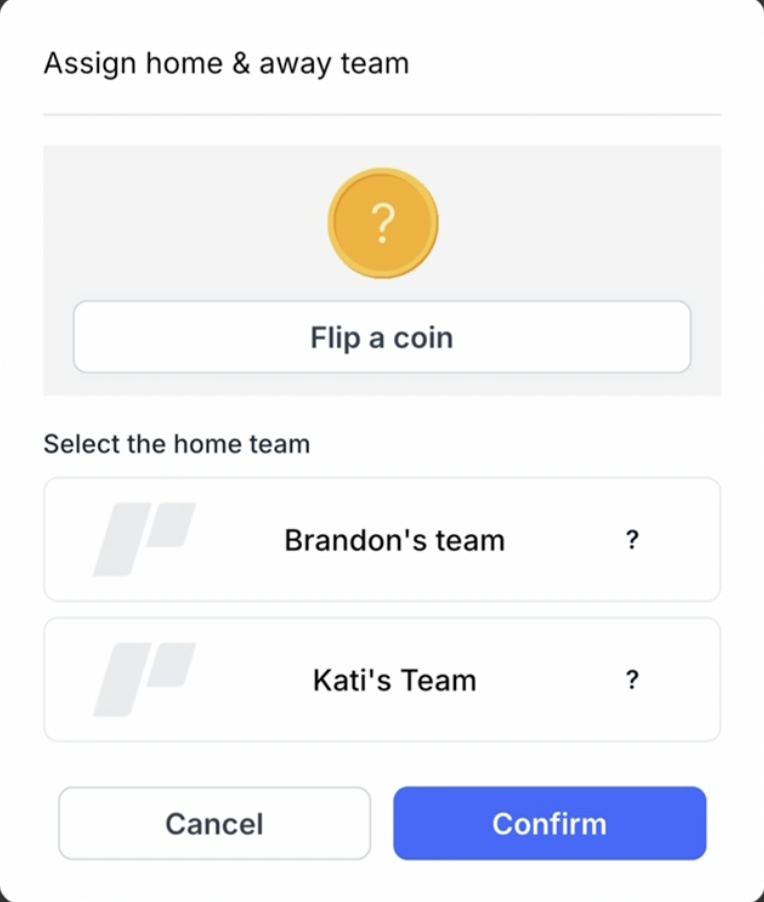
- Use the in-app coin flip. PT includes a built-in coin flip tool to make the call. Whoever wins the flip can decide if they are home or away and set the match accordingly.
- Use your own method. If both teams agree on another way to decide, that works too — just make sure the correct team is assigned in the system.
- Confirm the assignment. Once home/away is set, the Set Lineups option becomes available to the away team first and if you are the home team, you can enter your team’s lineup when the away team is finished.
Home/away assignment happens per matchup, so if the tournament director hasn’t pre-set it, you’ll repeat this step at the start of every new round. If your opposing captain hasn’t opened the matchup yet, one team can still initiate the coin flip — the assignment will be visible to both sides once saved.
WarningIf the titles do not make it obvious which players belong in each section, ask the tournament director for clarification before submitting anything. Entering players in the wrong section could affect your matchup results and may not be reversible after submission.
How to enter players in each lineup section
As you work through the page, fill in the appropriate team members for each section.
NoteIf you’re using a standard Major League Pickleball (MLP) or MiLP format with 2 men and 2 women and your roster is exactly that, PT automatically populates the women’s doubles and men’s doubles lineups for you when you only have four players (two male and two female). Captains only need to set the mixed doubles lineup — one less step on match day.
You have two ways to save your progress:
- Save as you go after entering names in a section.
- Finish all sections first and then save each one before leaving the page.
- Pull the page down to refresh the screen if it appears not to be saving.
 Warning
The most important part of this process is saving. Each lineup box requires its own save action — clicking Save Lineup inside that specific section. Entering player names and navigating away without saving will result in your entries not being kept. Before leaving the page, scroll through every section and confirm each one has been saved.
NoteEven if you are the second team entering, the save requirement is identical. Do not assume that because the first team has already submitted, your entries are automatically locked in. Every section still needs to be saved individually before you leave the page.
What you may or may not be able to see
Depending on the event setup, you may not always be able to view the full matchup right away. Some tournaments allow more visibility during lineup entry, while others reveal details only after both teams have submitted their lineups.
This is controlled by the tournament director, so if something looks different than expected, that is usually the reason.
| Visibility Setting | What You Will See |
|---|---|
| Full visibility enabled | You can view opponent lineup sections and matchup details during lineup entry. |
| Restricted visibility | Matchup details are hidden until both teams have submitted their lineups. |
| Custom configuration | Varies by event — check with your tournament director if you are unsure what to expect. |
Once every section shows as saved, your lineup is submitted. The opposing captain can then proceed with their side, and the full matchup details will be visible to both teams once both lineups are in.
Next steps: Playing your match and entering Scores: How to Enter Scores for a Team Event in PT (Captains)
Frequently Asked Questions
Who enters the lineup first?
This depends on the specific event setup configured by the tournament director. If it is not clear which team goes first, contact your tournament director before the lineup window opens. Do not wait until the last minute — lineup windows can close, and missing the deadline may result in a default lineup being assigned.
The lineup section titles are confusing. What should I do?
Section names are set by the tournament director and can vary significantly from event to event. If you are unsure which players belong in which section, ask the tournament director directly before submitting. Entering the wrong players in the wrong sections can affect match outcomes and may be difficult to correct after submission.
I entered names but I am not sure they were saved. What should I do?
Return to the lineup page and review each section. If your entries are still visible, click Save Lineup inside each box to confirm. If the entries are gone, you will need to re-enter them and save. Saving is required within each individual section — there is no single global save button that covers all sections at once. You can also pull down your screen to refresh to see what matchups have saved, and re-save any remaining ones.
Why can’t I see the full matchup?
Some events limit what is visible until both teams have submitted their lineups. This is a setting controlled by the tournament director. If you need to see the full matchup before both lineups are in, contact your tournament director and ask them to adjust the visibility setting for your event.
What happens if I submit the wrong players in a section?
If you realize a mistake was made after saving, return to the lineup page and check whether the section is still editable. Some events allow captains to update their lineup up until a certain deadline. If the window has closed or the lineup is locked, contact your tournament director immediately — they may be able to make corrections on the backend before the match begins.
Do we have to assign home/away before setting the lineup?
Yes. Home/away must be assigned for the matchup before the Set Lineups option becomes available. PT includes a built-in coin flip tool if you don’t have your own method for deciding. This step repeats for every new round, so you’ll assign home/away, set your lineup, and enter scores each time you begin a new matchup.
What if a player on my roster is unavailable the day of the match?
Contact your tournament director as soon as possible. Depending on the event rules, you may be able to substitute a rostered player into the lineup before the match begins. Last-minute substitutions and forfeit rules vary by event, so confirming the policy with your tournament director in advance is strongly recommended.
Related Resources
- How to Set Up a Tournament Team Event
- How to Manage Your Team as a Captain for PT Team Events
- How to Enter Scores for a Team Event in PT (Captains)
Need a hand with lineups? Reach out to support@pickleball.com and we’ll help you get your team ready for match day.