.jpg?width=1320&height=528&optimizer=image)
How to Customize Your Club: Edit Organization
How to Customize Your Club: Edit Organization
Customizing your club through the Edit Organization settings ensures your club is visible, organized, and ready to accept members, payments, and events. By configuring visibility, billing, ratings, branding, locations, and Stripe payments correctly, you create a smooth experience for members and reduce administrative issues later.
What Is the Edit Organization Section?
The Edit Organization section is the central control panel for managing your club’s global settings, visibility, payment configuration, branding, and administrative roles.
These settings control:
• Whether your club is publicly visible
• How members find and contact you
• How ratings and memberships are managed
• Where invoices are sent
• How payments are processed
• Who has management access
Proper setup ensures your club operates efficiently from day one.
For example, enabling public visibility allows players to discover your club, while accurate billing emails ensure invoices reach the correct financial contact.
How Does Customizing Your Club Work?
Customizing your club involves accessing your organization settings and configuring each major section carefully.
Step 1: Locate Your Club Settings
You can access your club in multiple ways:
• Click your name in the top-right corner and select My Clubs
• Or visit your profile, scroll to Clubs, and select Managing
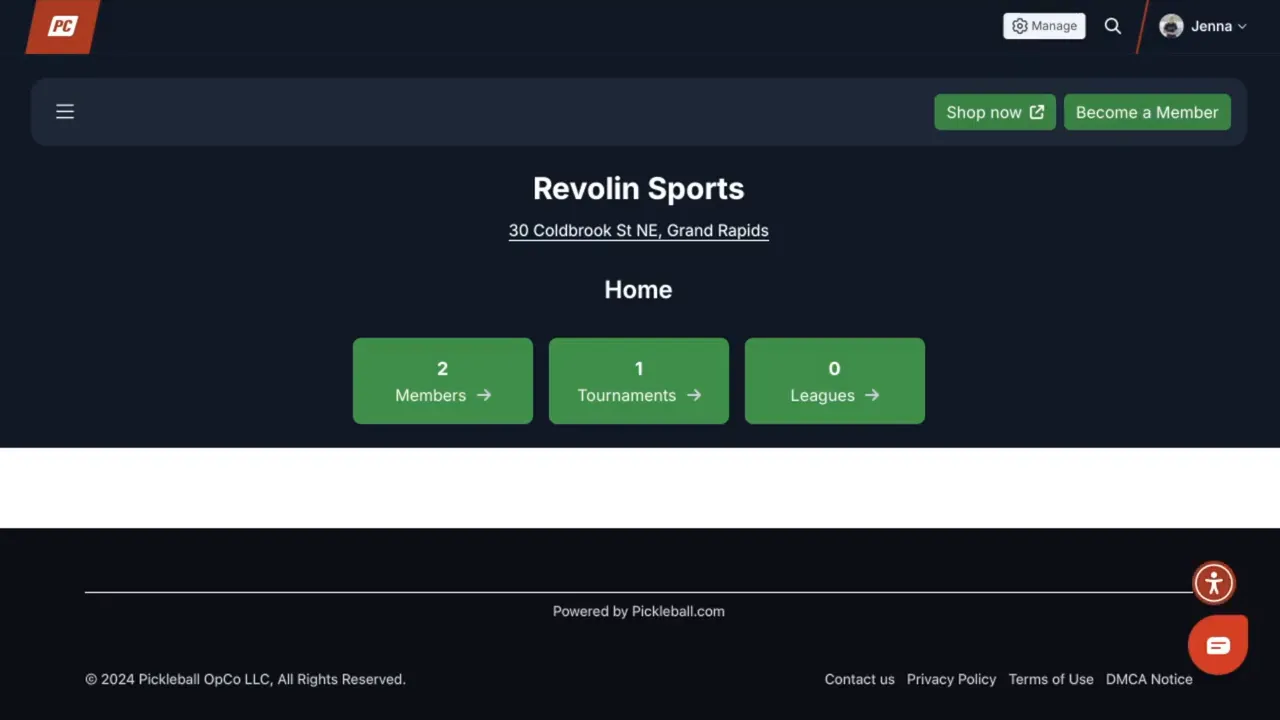
• Open your club page
• Click Manage to enter Edit Organization
This opens the core configuration dashboard.
Step 2: Configure Core Visibility and Global Settings
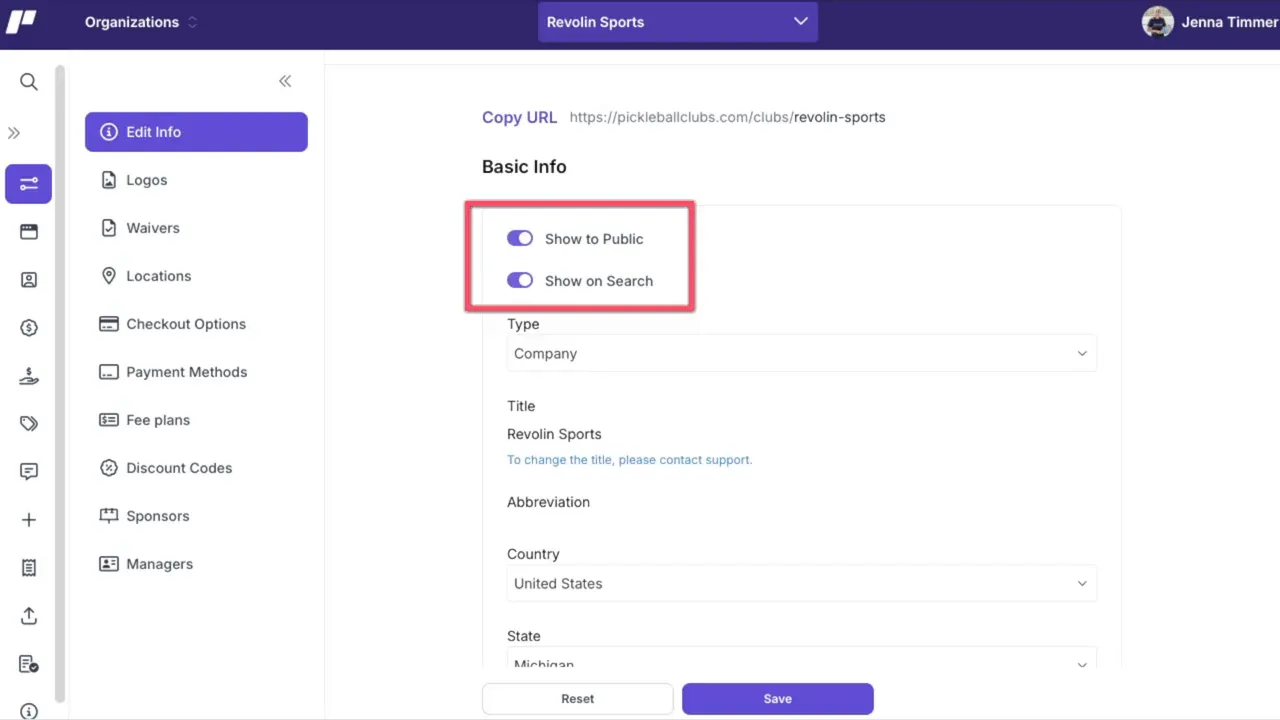
The first screen contains your most important global options.
Show to Public
• Keep this enabled unless you are finishing setup
• As noted: “Show to public is used to allow club managers to finish the customization of their club before it's available to the public to view.”
Club Type and Name
• Choose the correct organization type (club, company, etc.)
• If changing the club name, contact support to prevent duplicate listings
Location and Regional Settings
• Set country, state, time zone, language, and currency
• These settings control how dates, times, and payments display
Billing Emails
• Ensure invoices route to the correct financial contact
Emergency Contact Requirement
• Decide whether members must provide emergency contact information
Step 3: Configure Membership and Ratings
Set rules for how members join and how ratings apply.
You can:
• Enable or disable club memberships
• Require approval for free memberships
• Set minimum score requirements for club matches
• Toggle whether games count toward club ratings only if all four players are members
• Include or exclude co-ed games
• Choose the rating system new members enter under
The platform defaults to Duper rating as the primary system, but these toggles allow you to align match eligibility and rating calculations with your club’s competitive standards.
Step 4: Set Contact Routing and External Links
Scroll down to configure contact routing.
• Enter specific emails for registration, purchasing, or general questions
• If fields are left blank, emails route to the primary club contact
• Add links to your club store or social pages for easy access
Clear routing prevents delays and ensures questions reach the correct person.
Step 5: Upload Logos and Branding
Professional branding builds trust and credibility.
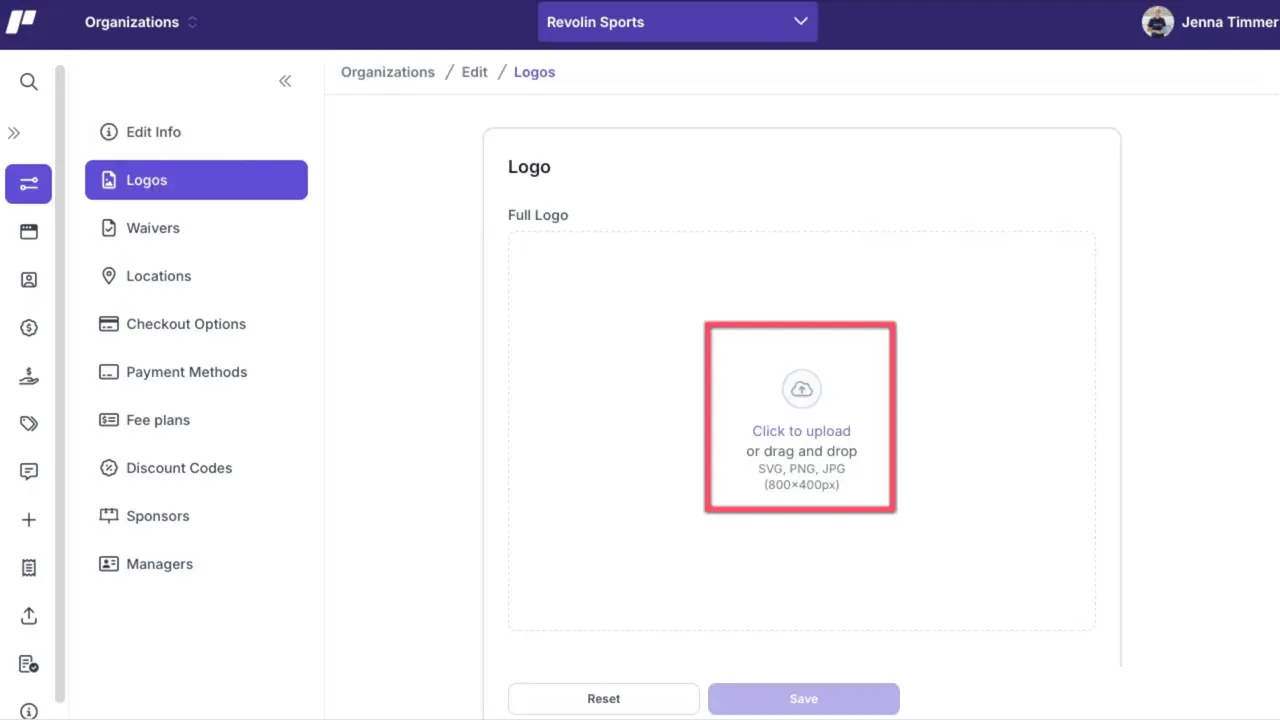
On the Logo page:
• Upload a full logo
• Upload an abbreviated logo
• Follow file size and pixel requirements
After uploading:
• Preview your public club page
• Adjust images if necessary
Strong branding improves discoverability and professionalism.
Step 6: Add Locations, Waivers, and Equipment Details
Accurate venue information supports members and event organizers.
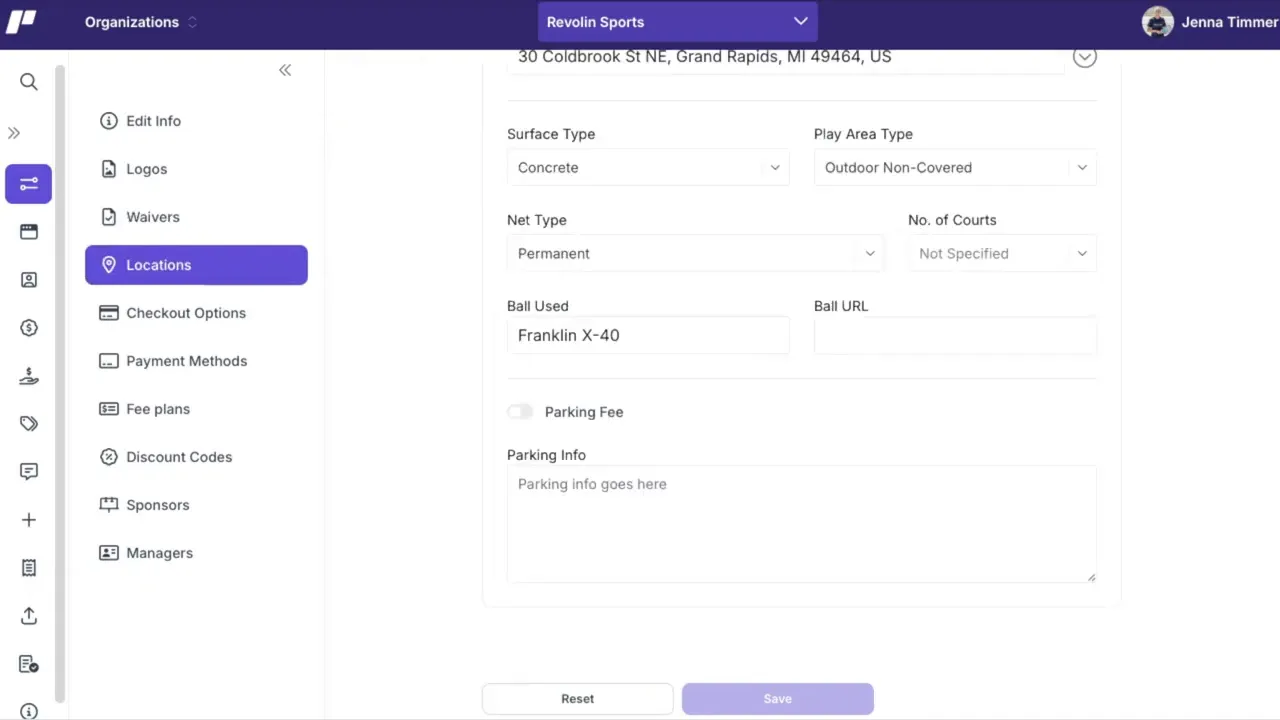
For each club location, include:
• Address and directions
• Number of courts
• Preferred ball type
You may also:
• Attach a club waiver for members to sign
A clear waiver establishes expectations and addresses liability before events or leagues begin.
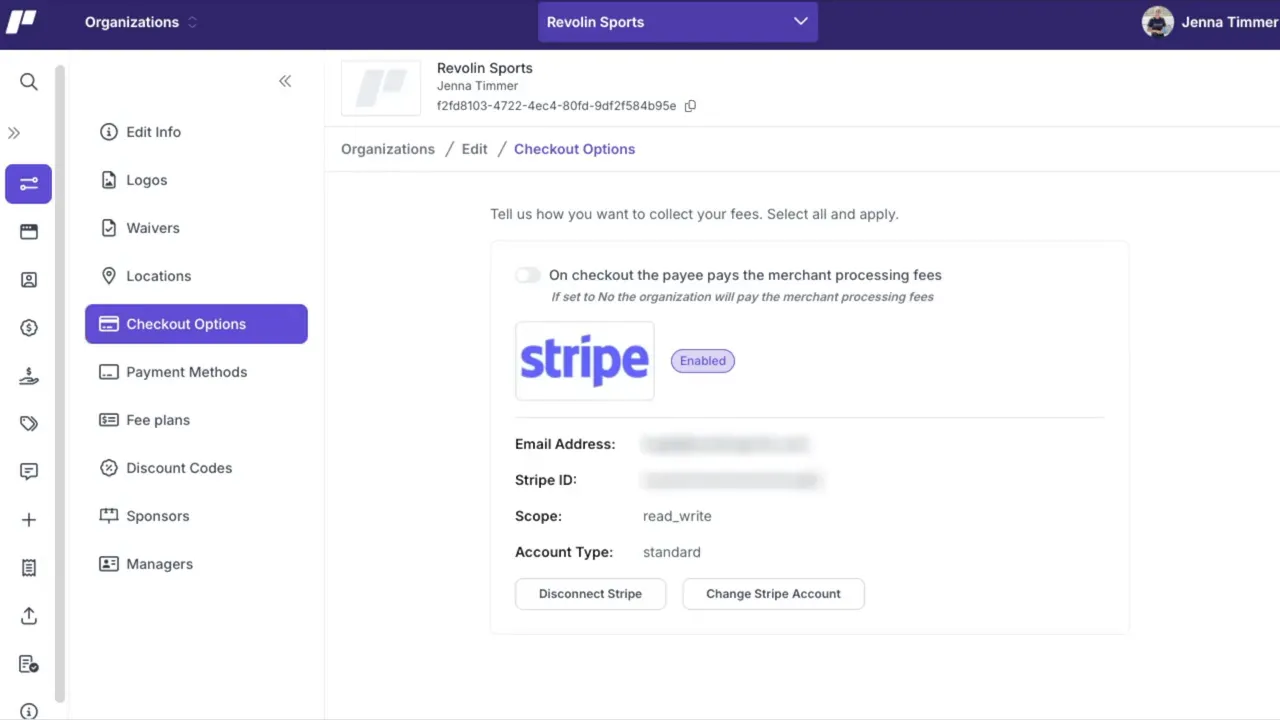
Step 7: Configure Payments and Checkout (Stripe)
To accept payments for memberships, leagues, or tournaments:
• Connect a Stripe account
• Enable seamless online transactions
Additionally:
• Store a backup payment method
• Clubs are charged automatically if the club balance exceeds $250
Future customizable fee plans and pricing models are expected to expand flexibility for club products.
-
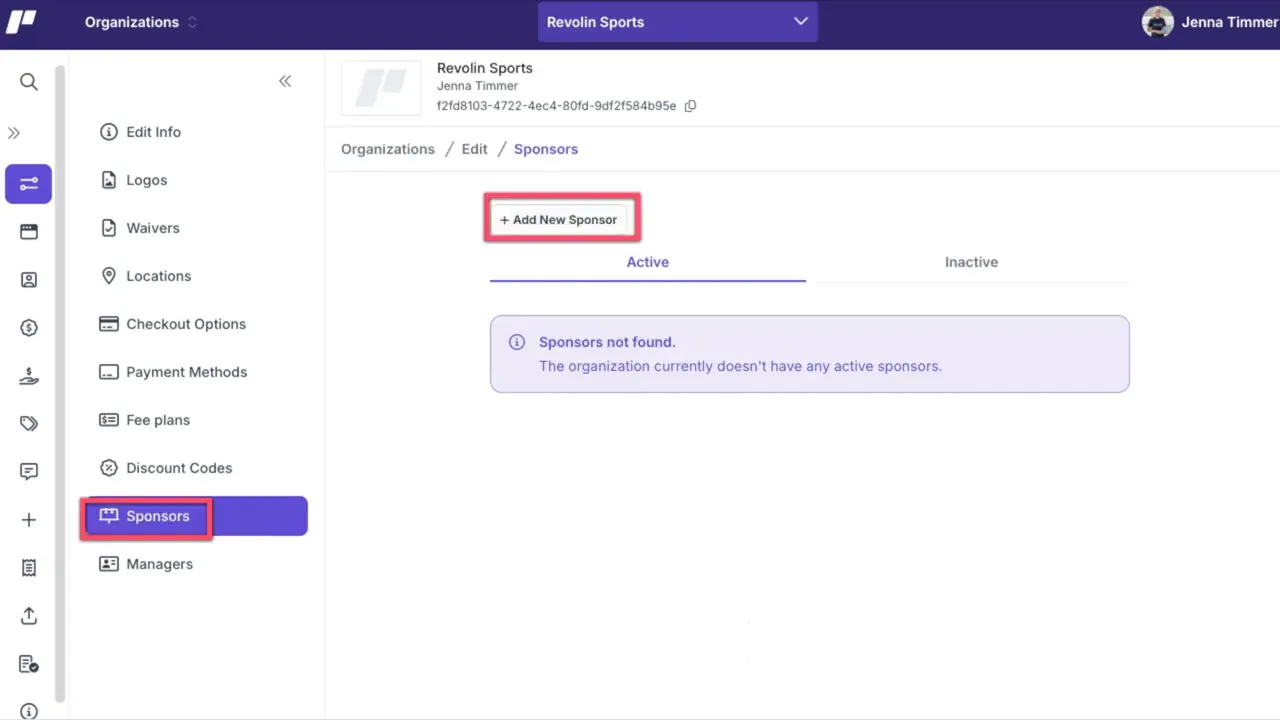
Step 8: Create Discount Codes, Add Sponsors, and Assign Managers
Discount Codes
• Create manual codes or auto-generate them
• Always set usage limits
• Set start and end datesSponsors
• Add sponsor logo, title, website link, and sponsorship level
• No limit on sponsor entries
• Sponsors increase credibility and event supportClub Managers and Roles
• Add additional managers
• Assign specific privileges
• Edit permissions anytimeProper role assignment reduces administrative overload and improves collaboration.
Why Is Proper Club Customization Important?
Thoughtful configuration reduces future administrative issues and improves member experience.
Without proper setup, clubs may experience:
• Misrouted emails
• Incorrect time zones or currencies
• Payment disruptions
• Rating inconsistencies
• Confusion around membership eligibility
Up-front configuration ensures:
• Accurate payment processing
• Clear communication
• Fair match eligibility
• Professional public presentation
• Efficient event and league management
Small decisions—like rating rules or contact routing—directly impact workload and member satisfaction.
What Are the Key Benefits of Configuring Edit Organization Properly?
Benefit #1: Operational Efficiency
Correct settings prevent billing errors, contact confusion, and payment issues.
Benefit #2: Professional Branding
Logos, sponsor listings, and visibility settings build trust and credibility.
Benefit #3: Scalable Growth
Clear membership rules, Stripe integration, and assigned managers allow your club to grow without administrative breakdown.
Common Questions About Customizing Your Club
How long does it take to configure Edit Organization settings?
Most clubs can complete setup in under an hour if all information (logos, billing emails, Stripe account, locations) is ready.
What tools are required to accept payments?
You must connect a Stripe account and store a backup payment method to ensure uninterrupted transactions.
Can I change visibility settings later?
Yes. You can toggle “Show to Public” at any time if you need to temporarily hide or relaunch your club.
Do I need to require emergency contact information?
This is optional, but requiring emergency contacts can improve safety and event preparedness.
Practical Setup Checklist
-
Confirm Show to Public is enabled when ready for discovery
-
Verify country, time zone, language, and currency
-
Set correct billing and support emails
-
Configure membership rules and rating options
-
Upload full and abbreviated logos
-
Add locations, court counts, and ball types
-
Connect Stripe and store a backup payment method
-
Create discount codes and add sponsors
-
Add managers and assign privileges
-
Click Save on each page before moving on
Key Takeaways
• Edit Organization is the control center for your club’s visibility and operations
• Accurate regional and billing settings prevent payment and communication issues
• Stripe integration enables smooth online checkout
• Membership and rating rules shape competitive integrity
• Proper branding and sponsorships enhance credibility
Where to Get More Help
For a step-by-step, in-depth tutorial, check out the full video below.
Related articles

Five pickleball tips to improve your game from beginner to 4.0
Coach Jess breaks down concepts that can help players win more points, improve consistency, and avoid common mistakes on the court.
6 hours ago
-Pickleball.com Staff
.png?width=592&height=237&optimizer=image)
Five ways to elevate your dink game like a pro
These strategies can help you make smarter decisions and gain the upper hand in kitchen line battles.
6 days ago
-Pickleball.com Staff

Five mindset shifts every pickleball player should know
Michael Lloyd shares lessons that changed the way he approaches the game, from redefining aggression to letting the ball dictate every shot.
7 days ago
-Pickleball.com Staff
Want to improve fast? Start with these 5 priorities
Build a smarter game with these must-practice fundamentals alongside coach Jordan Briones.
11 days ago
-Pickleball.com Staff