Court Desk is the live tournament-day control center in Pickleball Tournaments (PT). You'll spend a lot of your event day here — it shows every match in progress, every court's status, and the queue of matches waiting to go on. Its primary purpose is to give tournament directors a one-stop view to assign matches to courts, track how long matches have been running, enter scores as they come in, and keep the day flowing without juggling separate windows. This guide walks through where to find Court Desk, what every area of the screen means, and how to assign matches, enter scores, and use the print queue.
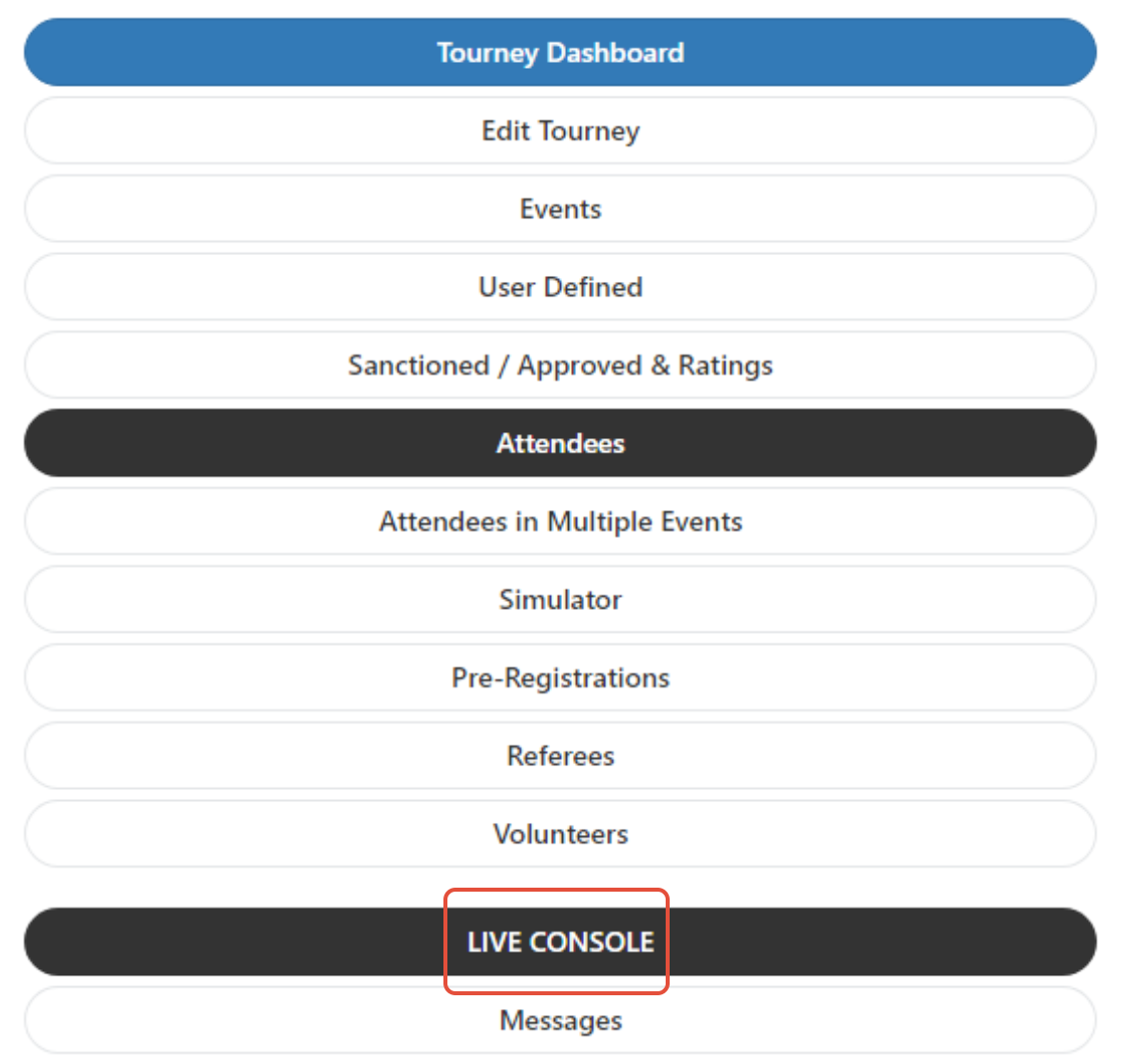
Once you're logged in to your tournament, open the 3-line menu and select Live Console.
Open Live Console from the 3-line menu.
At the top of the Live Console, click Court Desk.
Court Desk lives at the top of the Live Console screen.
What you see in Court Desk
Court Desk is divided into a few key areas. Here's what each does:
Top toolbar
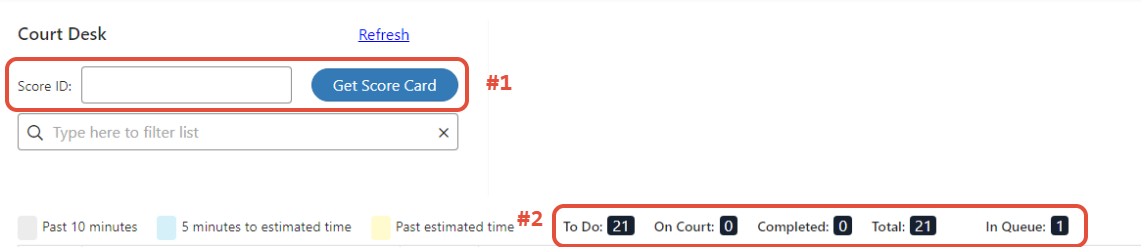
Refresh — reloads the screen to show the most recent matches and court assignments.
Venue — if your tournament uses multiple venues, select the one you're managing.
Score ID — type the ID printed under the QR code on a returned score sheet to pull that match's scorecard immediately.
Filter List — for large tournaments, narrow the visible event names so the screen isn't crowded.
Court Assignment Key — the color legend for match status (see below).
Match status counts
This area summarizes where every match in the running events currently stands:
To Do — matches not yet on a court.
On Court — matches currently being played.
Completed — matches finished and scored.
Total — To Do plus On Court (the day's remaining workload).
In Queue — matches available to put on a court right now (printed and ready).
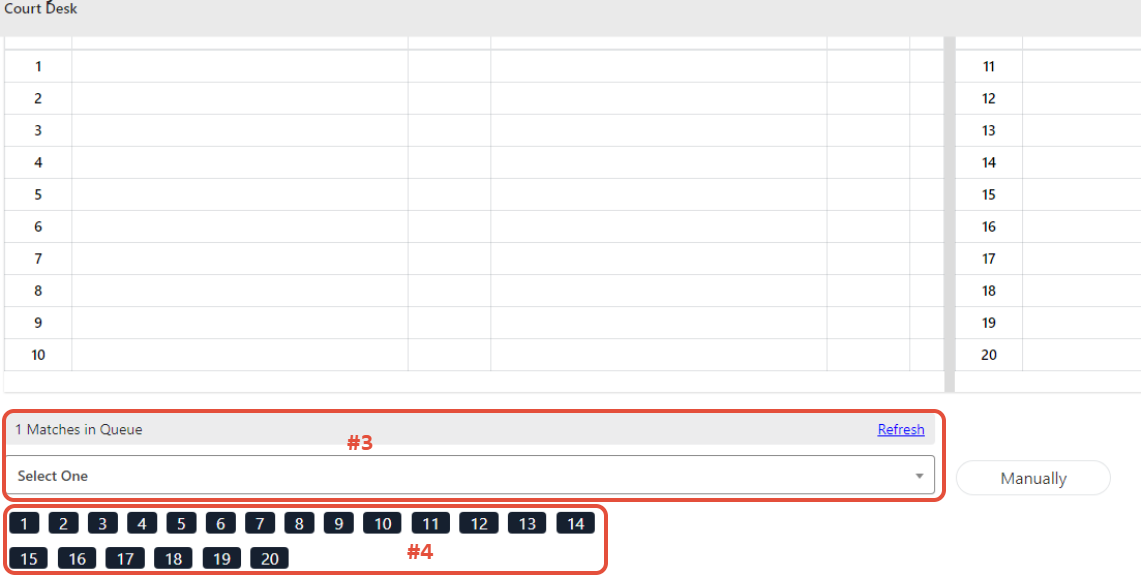
Game Queue
Shows every match that's ready to be placed on a court. Matches only appear here once they've been printed.
Warning
If a match hasn't been printed, it will not show as ready to add to a court. Either print the score sheet manually or set up the Print Spooler to auto-print as matches become available.
Courts
Every available court for the selected venue shows in this section. Court colors indicate match status:
Greyed out — match has been on the court for more than 10 minutes past the estimated match time.
Yellow — match is on the court past its estimated finish time but under 10 minutes over.
Default (no color) — match is in progress within the expected window.
Court Desk overview: toolbar at the top, match status counts in the middle, Game Queue and Courts below.Use the dropdown to pick a match, then choose the court number to assign.
Court Desk layout depends on whether you have Team Events
Court Desk's on-screen layout adjusts automatically depending on whether your tournament includes Team Events alongside regular (non-team) events. The queue and per-match information you saw above are all still there either way — only the arrangement of the screen changes.
No Team Events
The regular event queue is still at the bottom; the layout just looks different than before.
With Team Events
The Team Event queue appears at the top of the screen.
With Both Team Events and Regular Events
Both queues appear together.
Assign a match to a court
From the Game Queue, click the dropdown to pick the match you want to assign. Matches are listed in the order they entered the queue.
Choose the court number where the match should play.
The match is now assigned and on court.
Recommended
If you're using PT's texting feature, assigning a match to a court automatically sends a text to all four players letting them know which court to head to. If you want assignment itself to happen automatically as courts free up, see Auto-Run mode below.
Need to assign a match that isn't in the Game Queue (for example, a make-up or a re-do)? Use the Manually option in the court assignment area to pick any match by event.
Enter a score from Court Desk
You have two ways to pull up a match's scorecard once it's done:
Click the match on its court to open the scorecard.
Type the Score ID in the top toolbar. Each printed score sheet has a unique ID under the QR code — typing it pulls up that match instantly, even if you don't know which court it was on.
Enter the score and save. The match automatically moves off the court and into the Completed count, and the next match in the queue is ready to be assigned.
Move a match back to the queue
If you assigned a match to the wrong court — or play needs to pause and the court needs to free up — you can put the match back in the queue.
Click the match on its current court.
Use the Court dropdown menu to select Move Back to Queue.
Click the blue Assign and Start button to confirm.
Auto-Run mode for hands-off court assignment
Auto-Run is a Court Desk mode that automates court assignment end-to-end. When enabled, PT automatically pushes the next matches from the Game Queue onto available courts as soon as previous matches finish and scores are entered — no manual dropdown clicks required. Combined with player score entry (so players submit results from their phones) and Print Spooler (so score sheets print automatically), Auto-Run lets the tournament desk step back from constant manual work and just monitor the day.
Recommended
Auto-Run requires player score entry to be enabled on the events you want it to manage. For the full setup walkthrough — turning on texting, enabling player score entry, setting the auto-confirm window, and using the Fill Empty Court button — see the Use Court Desk and Auto-Run section in How to Enable Player Scoring and Auto-Run Your Tournament.
Automatic printing with Print Spooler
If you want match score sheets to print automatically as new matches enter the queue, you'll need to download and set up Print Spooler, then enable Automatically Print Next Available Matches on each event. This saves the tournament desk from having to manually print between rounds.
Warning
Print Spooler only works on HP printers. It is not compatible with Mac computers or other printer brands.
Frequently Asked Questions
Why aren't matches showing up in the Game Queue?
Matches only appear in the Game Queue once they've been printed. Either print the score sheets manually from the Live Console, or set up Print Spooler to auto-print. If matches still don't appear after printing, click Refresh at the top of the screen.
What do the court colors mean?
Default (no color) means the match is within the expected match time. Yellow means the match is past its estimated finish time. Greyed out means the match has been on the court more than 10 minutes past the estimated time — typically a signal to check in on that court.
Can I assign a match that isn't in the queue?
Yes. Use the Manually option in the court assignment area to pick any match by event, even if it hasn't entered the standard queue. Useful for make-ups or re-dos.
Does assigning a match send a text to players?
Yes, if PT's texting feature is enabled for your tournament. Players assigned to a court receive a text with the court number. If texting isn't enabled, you'll need to call players to court manually.
What's the difference between Live Console and Court Desk?
Live Console is the overall event-management interface — verifying brackets, starting events, monitoring overall progress. Court Desk is one tab within the Live Console, focused specifically on the day-of court assignment and score entry workflow. You'll typically open Live Console first thing on tournament day and then spend most of your time on the Court Desk tab.
Why does a match on the bracket show as "DELAYED"?
This happens when a division's Go Live status gets switched back to Waiting after its matches already have a court assigned and haven't finished yet — for example, if the division was live and running, courts were assigned, and then someone switched it back to Waiting. The matches will keep showing DELAYED until the division is set back to Live, or those matches are completed.