How to Start an Event in PT
Starting an event in Pickleball Tournaments (PT) moves it from the Waiting tab to the Running tab in the Live Console. Once an event is running, you can assign matches to courts, enter scores, and use Court Desk to manage play. Brackets must be verified before they can be started. This guide walks through how to start a single event and explains the text-notification options that affect when and how players hear about court assignments.
Table of Contents
- Before you begin
- How to start an event
- Text notification options
- What happens after you start an event
- Frequently Asked Questions
- Related Resources
Before you begin
Your brackets must be verified before any event can be started. If you haven't verified yet, see How to Verify Your Brackets in Live Console. Once an event is verified, it appears under the Waiting tab in the Live Console, ready to be started.
How to start an event
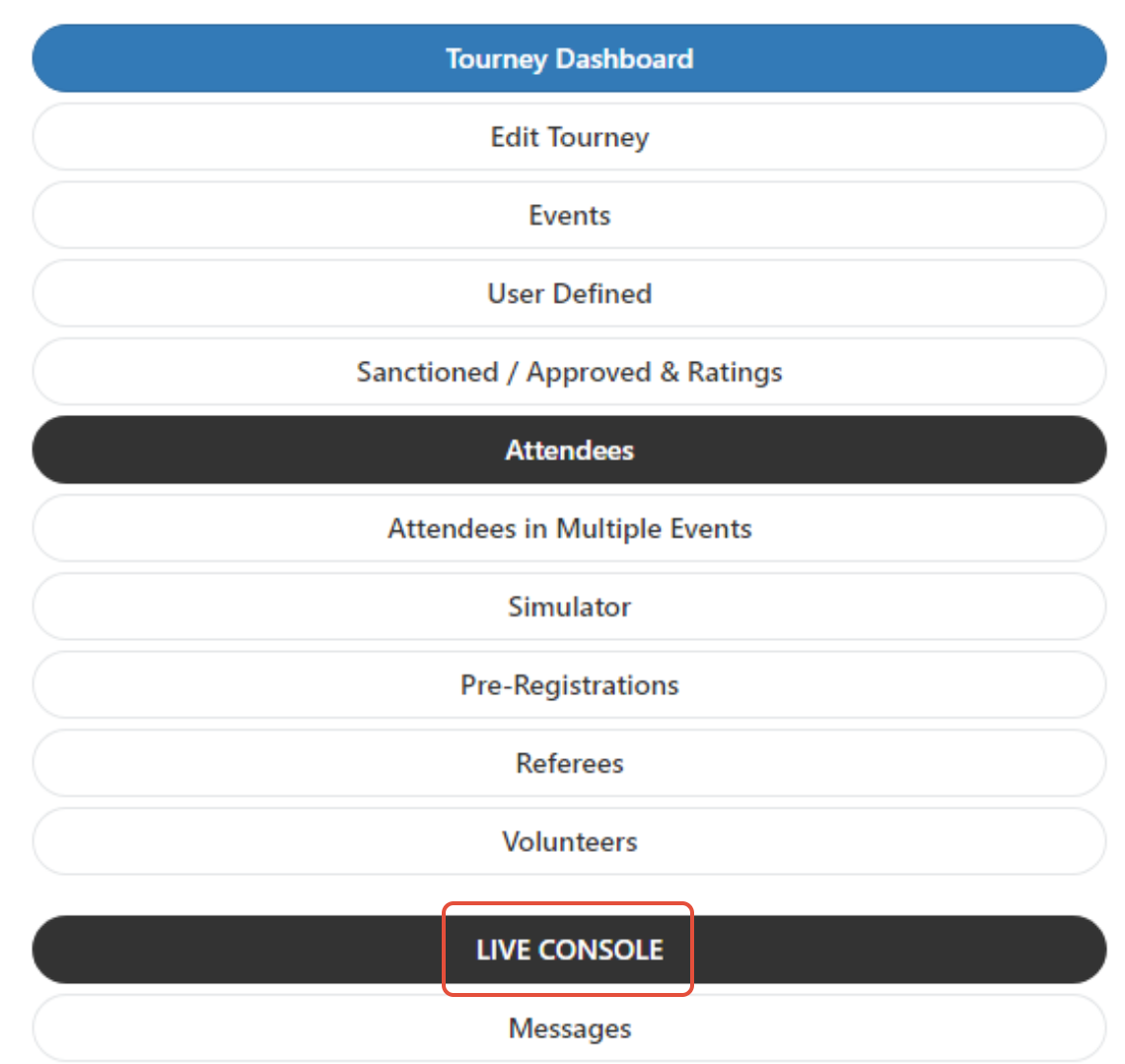
- Open the 3-line menu and select Live Console.
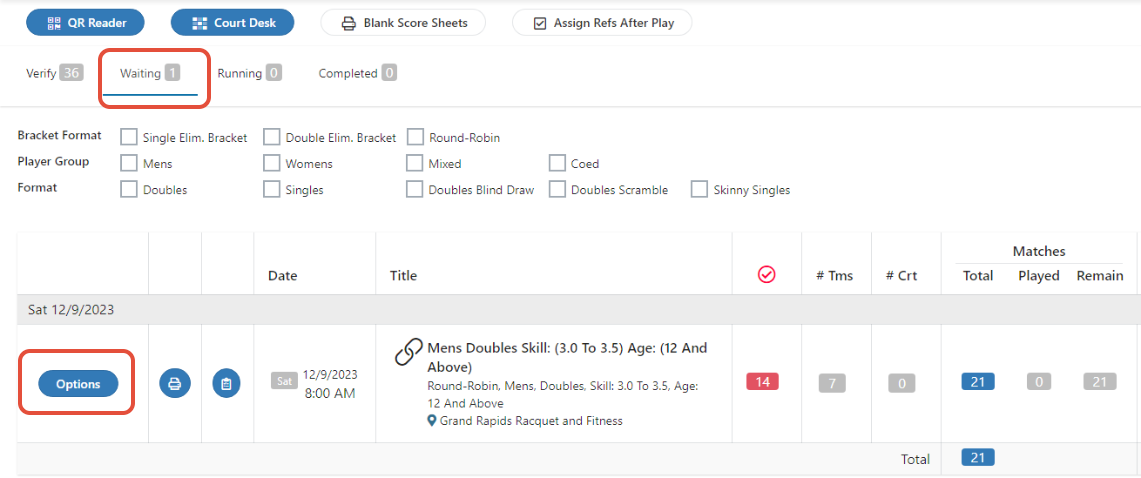
- Find the event under the Waiting tab.
- Click the Options button next to the event.
- Select the appropriate start option (see the next section if you're using texting).
Text notification options
If texting is enabled for your tournament, the Options menu gives you two start choices:
- Start Matches w/o Text Notice — starts the event quietly without notifying players. Use this when you want to print score sheets and get organized before players head to courts.
- Start Matches and Send Text Notice — starts the event and texts players to pay attention for court assignments. Use this right before you actually assign matches to courts.
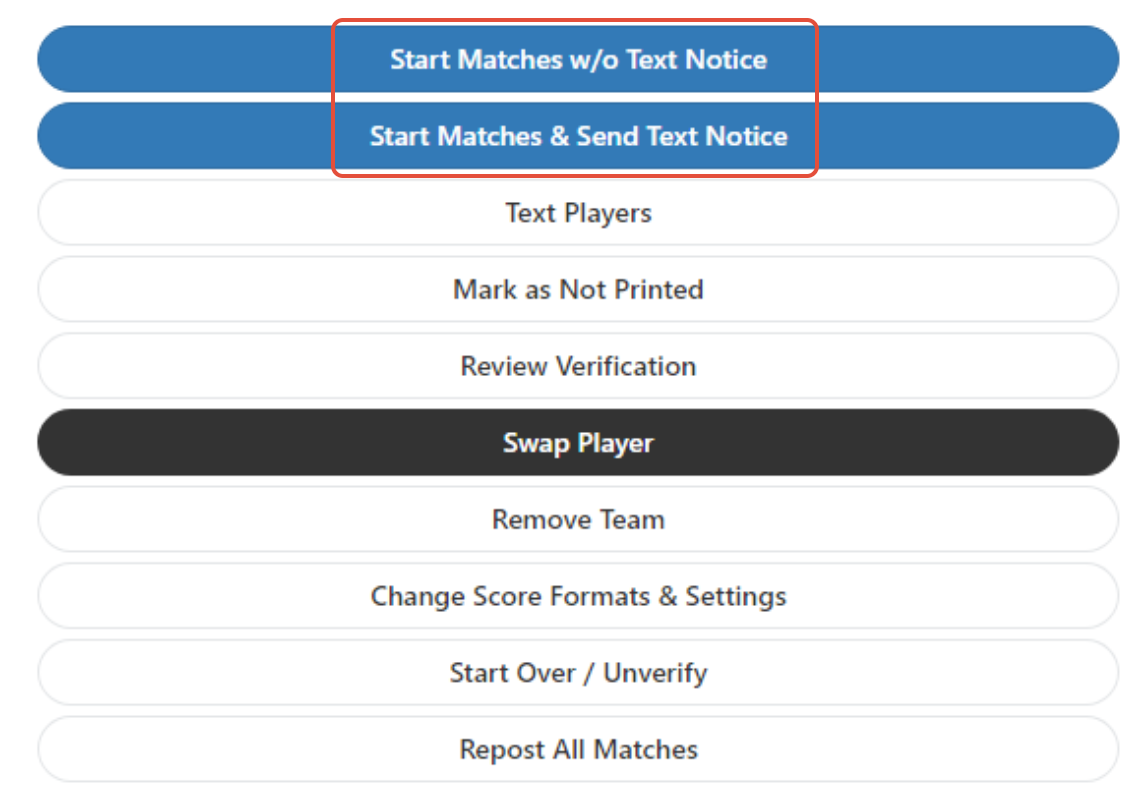
If you don't use the text feature, you'll see only one blue option labeled Start Matches.
What happens after you start an event
Once started, the event moves from the Waiting tab to the Running tab in the Live Console. From there you can assign matches to courts using Court Desk, print score sheets, and enter scores as matches finish.
Frequently Asked Questions
Why don't I see my event under the Waiting tab?
Events appear under Waiting only after they're verified. If your event is still under the Verify tab, you need to complete verification first. See How to Verify Your Brackets in Live Console in Related Resources.
What's the difference between starting with and without text notice?
Without text notice quietly moves the event to Running so you can prep score sheets and organize before players show up to courts. With text notice does the same thing but also messages players to watch for court assignments. The first is best when you're starting an event in advance; the second is best when you're starting and assigning right away.
Can I start multiple events at once?
Each event is started individually. For a multi-event tournament day, plan the order of starts so events that share courts don't all flood the queue at the same time.
What if I started an event by mistake?
Use "move back to waiting" from the event's Options menu to send it back to the "waiting" tab.
Related Resources
- How to Verify Your Brackets in Live Console
- How to Use Court Desk in PT
- How to Enter Scores and See Bracket Status in Live Console
- How to Print Score Sheets in PT
Questions about starting events? Email support@pickleball.com.