How to Enter Scores and See Bracket Status in Live Console
To enter scores in Pickleball Tournaments (PT), open your event in Live Console, click directly on the player names for the match, enter the results, and click Save — a green checkmark confirms the winner. To check overall bracket progress without opening the full view, click At a Glance next to any running bracket in Live Console.
Table of Contents
How to enter scores
Before You Begin
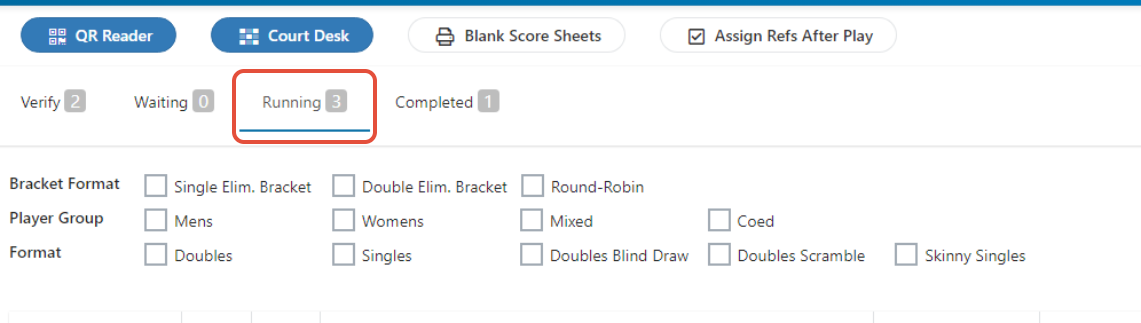
- Once in Live Console, your event must be listed on the Running tab before you can enter scores.
1. Open the event
Scroll to the event you want to enter scores on and click the link next to the event name.
2. Click directly on the player names
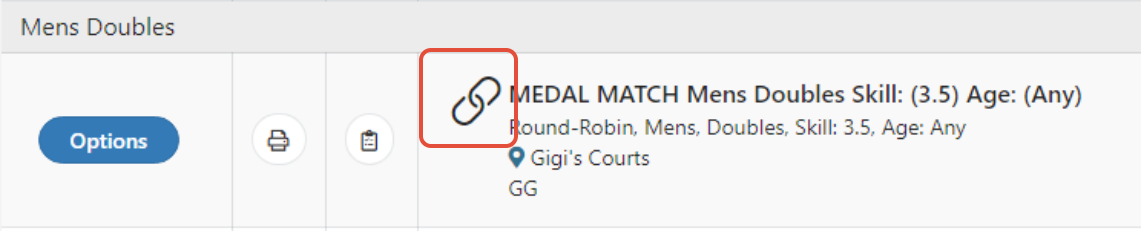
Scroll down to the match you want to enter results for and click directly on the names of the players.

3. Enter the score and save
A score box appears. In the fields below the player names, enter the score each team had, then click Save.
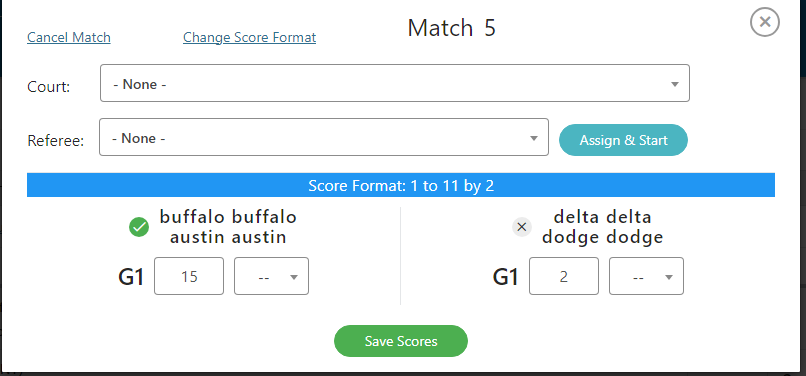
A green checkmark appears next to the winner's name as a built-in sanity check. If the checkmark lands on the wrong team, the score is reversed — swap the values and save again.
The score is now recorded and appears in the bracket.
See bracket status at a glance
While a bracket is running, click At a Glance next to any running bracket in the Live Console to see a live snapshot of where the event stands. It's a quick read on bracket progress without needing to open the full bracket view — ideal when you're juggling several events at once, moving between courts, or fielding questions from players and captains.

The At a Glance view gives you a quick read on where the event stands so you can confirm play is progressing as expected, spot bottlenecks, and know which matches are still in the queue.
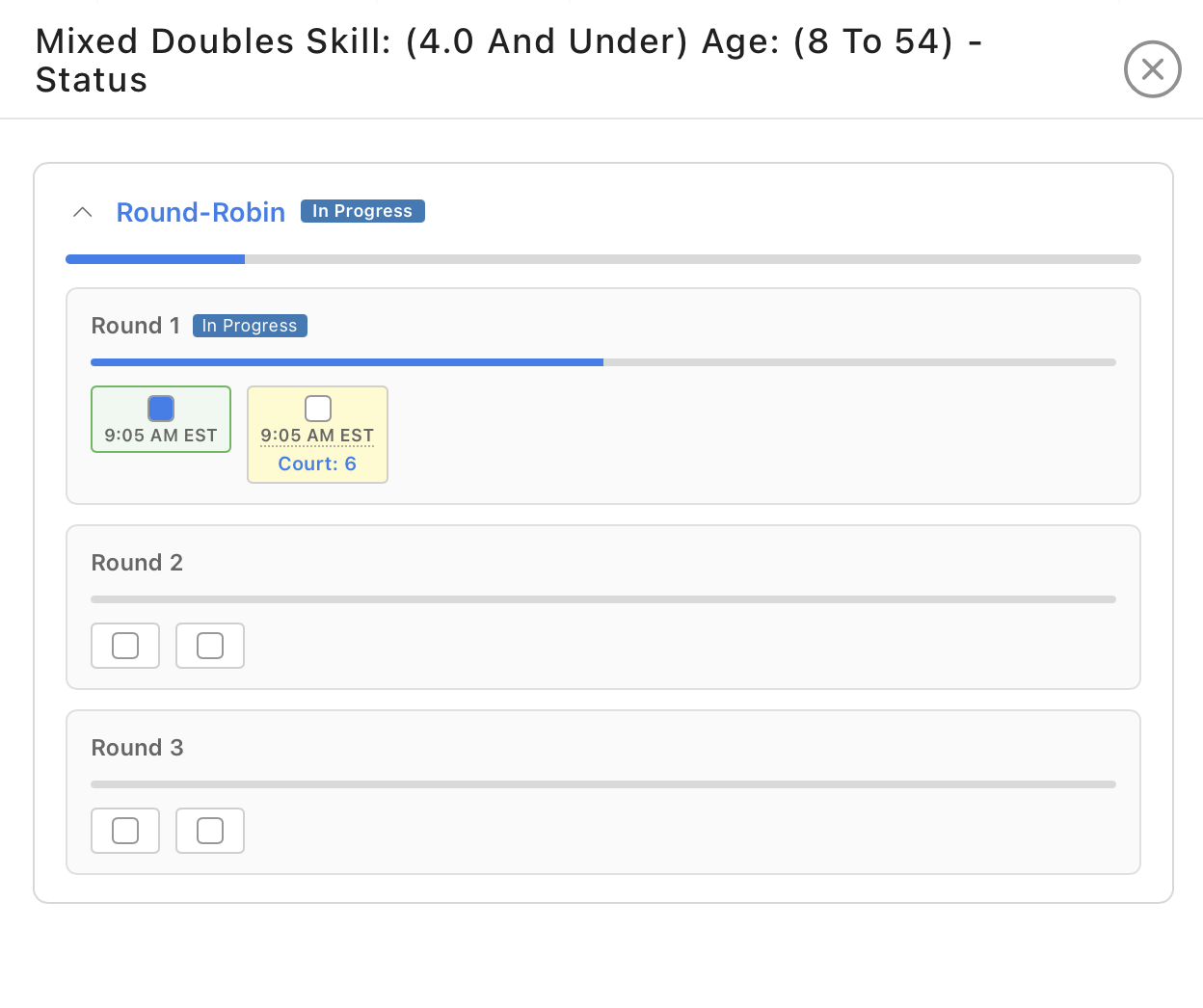
Use At a Glance for a fast status check across multiple running brackets. Open the full event view when you need to enter scores, edit a match, or review bracket details in depth.
NoteCan't mark a match completed? In the bracket view in Live Console, a match shaded light green hasn't been marked completed yet, and completed matches turn blue. If an event isn't showing results, look for matches that are still light green. In a Team Event, the whole matchup is shaded the same way — see Managing Team Events on Tournament Day (Tournament Directors).
Frequently Asked Questions
What does the green checkmark mean when entering a score?
The green checkmark appears next to the player or team with the higher score — so it acts as a quick sanity check that you entered the scores on the correct sides. If the checkmark lands on the wrong team, you've likely reversed the scores. Swap the values and save.
Why can't I enter scores for my event?
Scores can only be entered once an event is on the Running tab in Live Console. If your event is on Pending or Setup, you'll need to start it before scoring is available. See How to Verify Your Brackets in Live Console for details on getting an event ready to run.
Can I edit a score after saving it?
Yes. Click directly on the player names for that match again to reopen the score box, adjust the values, and save. As long as the bracket isn't locked, you can correct scores at any time.
What's the difference between At a Glance and opening the full bracket?
At a Glance is a snapshot view — great for a fast status check on a running bracket without leaving the Live Console screen. Opening the full bracket gives you full control: entering and editing scores, reviewing details match by match, and managing the bracket directly. Use At a Glance for monitoring and the full view for action.
Can players or captains see the At a Glance view?
At a Glance is a tournament-director view inside the Live Console. Players and captains see bracket progression through the public bracket page on the tournament's listing — they don't access Live Console directly.
Related Resources
- How to Verify Your Brackets in Live Console
- How to Close and Lock a Bracket in PT
- How to Print Score Sheets in PT
- How to Enable Player Scoring and Auto-Run Your Tournament
Need a hand with score entry or monitoring brackets? Reach out to support@pickleball.com and we'll get you sorted before the next round starts.