How to Configure Tournament Display and Scoring Settings in PT
To configure how your tournament displays schedules, scores, and court information to players in Pickleball Tournaments (PT), go to Edit Tourney and select the Basic Info tab. These settings control when players can see draws, how starting times are managed, waitlist behavior, digital scorecards, and registration goal tracking.
Before You Begin
- You must be the Primary Manager to edit display and scoring settings.
- Starting Times settings are typically configured after registration closes. Leave on Daily Planner during initial setup.
Starting Times Method
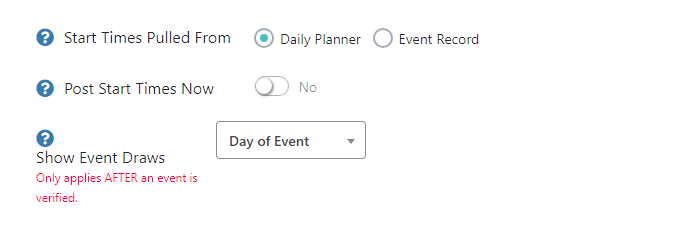
Starting Times controls how match schedules are generated and distributed to players. Leave this set to Daily Planner during tournament setup. After registration closes, you can switch methods based on how you want to build your schedule.
For a full walkthrough of building your schedule after registration closes, see How to Set Starting Times Using Daily Planner.
Show Event Draws
Show Event Draws controls how far in advance players can see the full bracket draw for each event, rather than just seeing the list of registered players.
- Set this to a time window before your event starts (e.g., 7 days, 3 days, 1 day, or day-of).
- Before the draw is visible, players can see who is registered but not their bracket position.
- Once the draw is visible, players can see their pool assignments, bracket position, and scheduled opponents.
Waiting List Service
When enabled, the Waiting List Service automatically moves fully registered and paid teams from the waitlist into the main draw when space becomes available. Turn this off if you want to review and approve waitlist movement manually.
NoteLeave the Waiting List Service on unless you have a specific reason to manage waitlist movement manually. Automatic movement ensures spots fill quickly when withdrawals happen, without requiring your intervention.
Digital Scorecard Settings
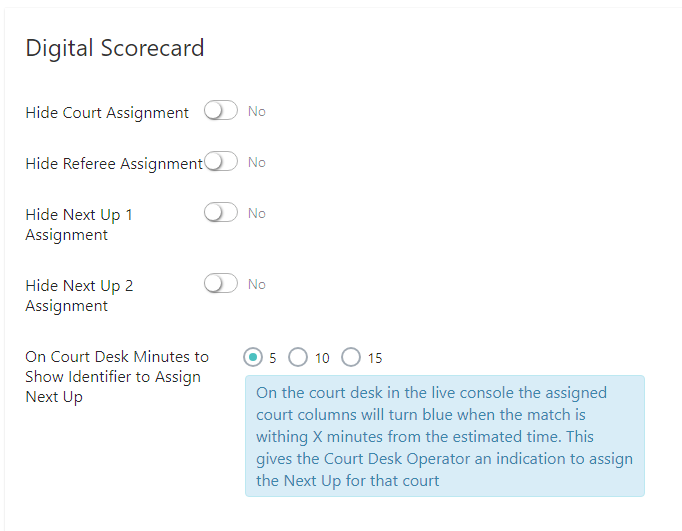
Digital Scorecard settings control what information is visible to players and spectators when you use the Court Desk feature during your tournament.
- You can choose to show or hide court assignments, match times, opponent names, and scores.
- These settings affect the player-facing Court Desk view, not the tournament director's Live Console view.
- Leave all options visible unless you have a specific reason to restrict player access to court information.
Registration Goals
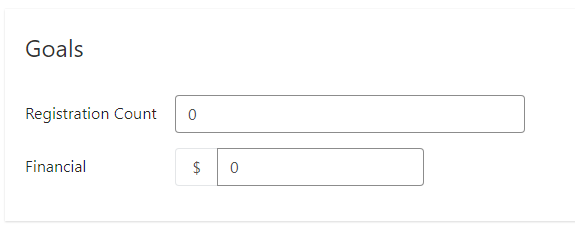
The Goals section lets you set a registration target for your tournament. Once set, a progress graph appears on your Tournament Dashboard showing how close you are to your goal as registrations come in. This is informational only — it doesn't affect registration or capacity settings.
Lottery Settings
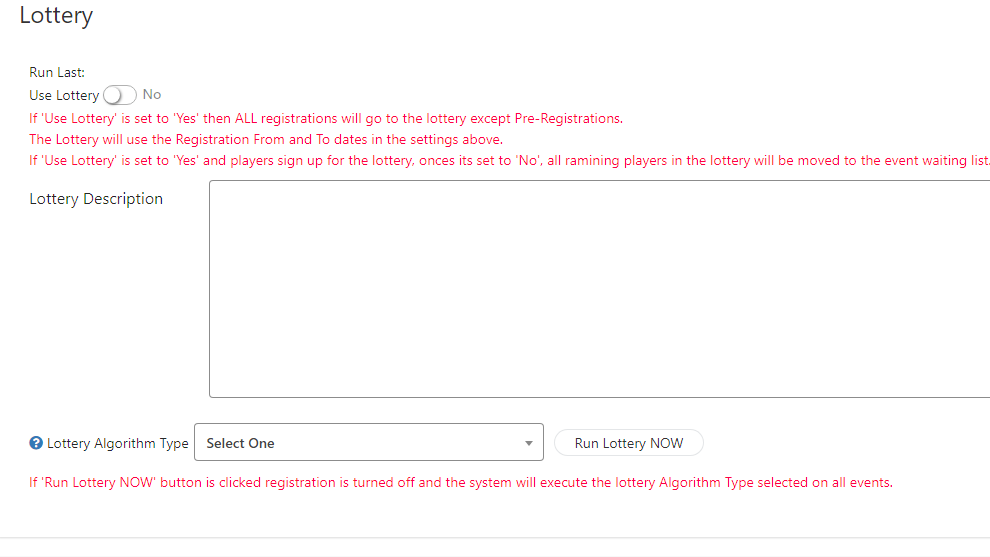
The Lottery feature is for tournaments that expect significantly more registration demand than available spots. When enabled, registration opens as an application period — players submit interest but are not guaranteed a spot. At the close of the lottery period, PT randomly selects registrants up to your event capacity.
 Note
NoteOnly enable the Lottery feature if you genuinely expect oversubscription. Lottery registration creates more friction for players than standard registration. For most tournaments, standard registration with a waitlist is a better experience.
Frequently Asked Questions
When can players see their bracket draw?
Set Show Event Draws to your preferred visibility window (e.g., 7 days before the event). Players will see their bracket position and scheduled opponents once that window opens. Before then, they can see who is registered but not the draw itself.
When should I change Starting Times from Daily Planner?
Leave Starting Times on Daily Planner during initial setup. After registration closes, use the Daily Planner tool to assign courts and times. For a full walkthrough, see How to Set Starting Times Using Daily Planner.
Does setting a registration goal limit signups?
No. The Goals section is purely informational — it creates a progress graph on your Dashboard but does not affect registration capacity or waitlist behavior. To set hard registration limits, use Max Reg. for Entire Tourney in Basic Info or individual event capacity settings.
Related Resources
- How to Set Starting Times Using Daily Planner — building your match schedule after registration closes
- How to Use Court Desk — assigning players to courts on tournament day
- How to Configure Basic Tournament Info in PT — title, visibility, timezone, privacy settings
- Understanding Your Tournament Dashboard in PT — reading your registration progress and financials
Need help with display or scoring settings? Contact our support team at support@pickleball.com.