How to Create Membership Plans for Your Club
Membership plans let you charge members directly through your Pickleball Clubs (PC) club. You can create as many plans as you need, choosing from three plan types and setting your own pricing, visibility, and renewal rules for each.
Before You Begin
You must be signed in as the primary manager, an Owner, or a manager with Can Edit Club permission.
Membership plans must be turned on for your club, which depends on your fee plan. Membership plans are available on Business, Enterprise, and custom fee plans. If your club is on Digital or Basic, see How to Choose a Fee Plan for Your Club to upgrade, then follow How to Turn On Membership Plans for Your Club.
Decide on your plan's type, pricing, and whether it should be publicly visible before you start. You'll enter all of this in one form.
Open the Membership Plans Page
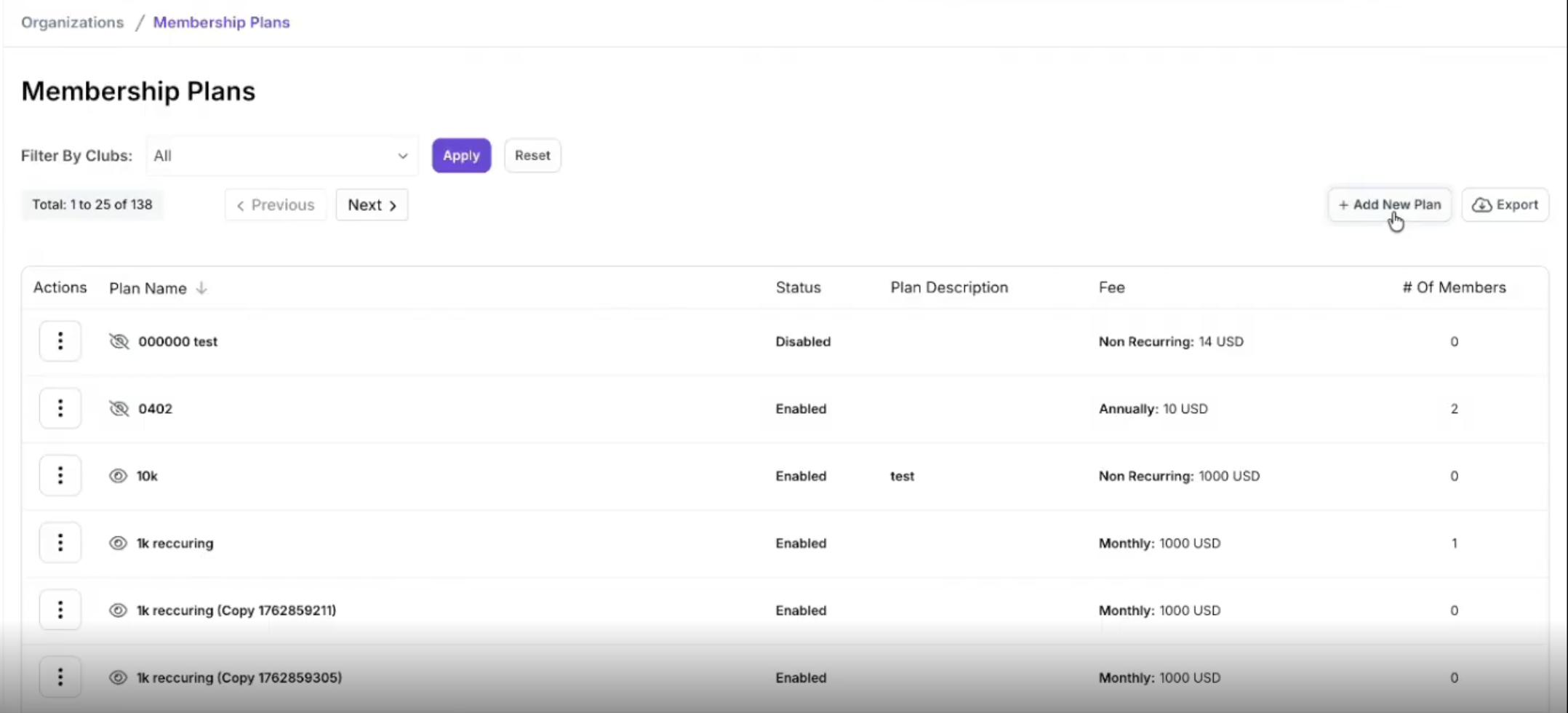
- From your club dashboard, go to Organizations in the left menu, then click Membership Plans.
- The Membership Plans table lists every existing plan with its Plan Name, Status, Plan Description, Fee, and # of Members. An eye icon next to the name shows the plan is public, and a crossed-out eye shows it's hidden.
- Click Export to download the list, or click the three dots in the Actions column to manage an existing plan.
Choose a Plan Type
- Click + Add New Plan.
- Select one of the three plan types: Recurring, Non-Recurring, or Day Pass.
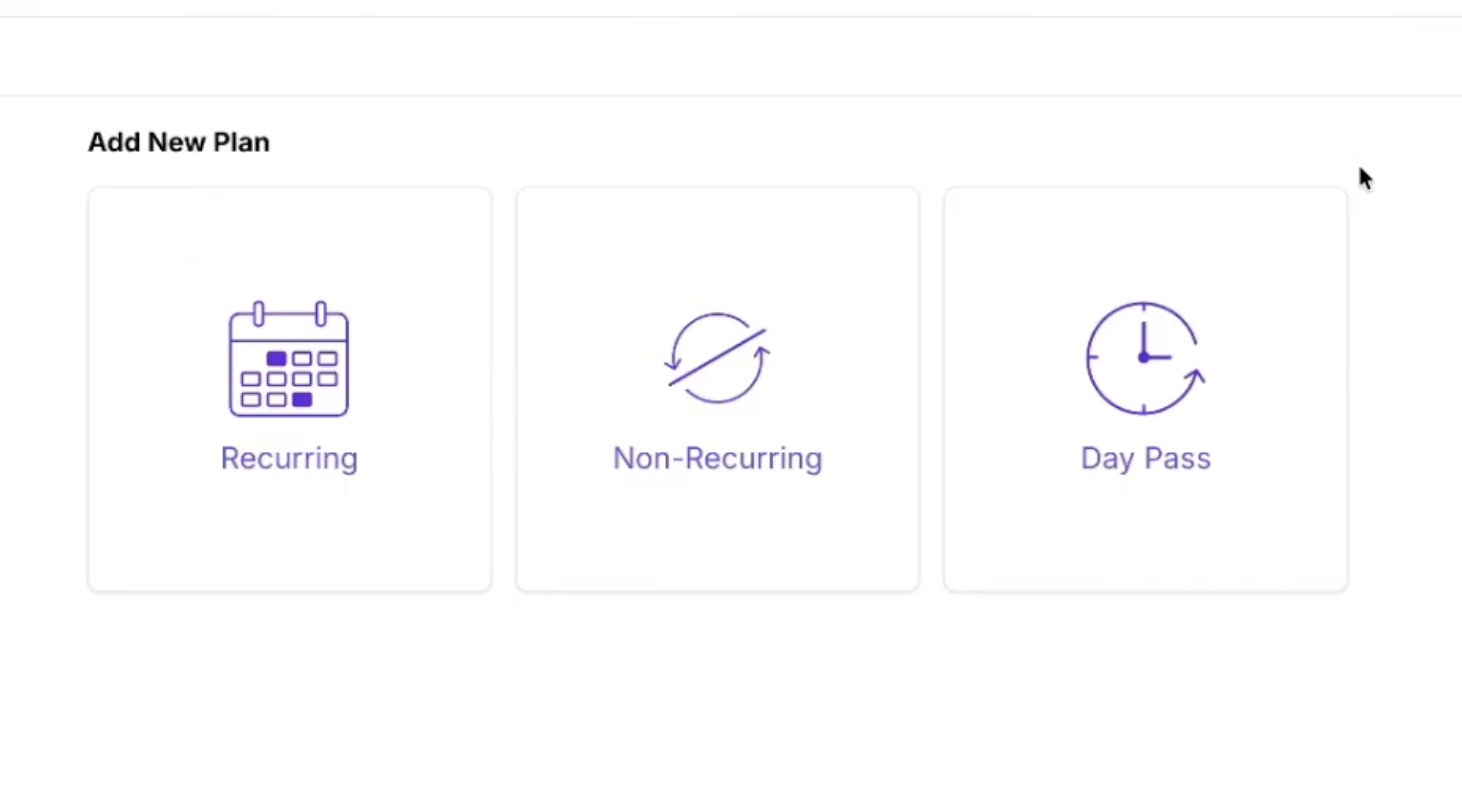
| Plan type | How it works |
|---|---|
| Recurring | A subscription that renews automatically. Offer a Monthly option, an Annual option, or both, each with its own setup fee and price. |
| Non-Recurring | A single payment that covers a set period. You choose a start date and, optionally, an end date. Leave the end date blank for a plan that never expires. |
| Day Pass | A single payment for 24 hours of access. The membership ends automatically and does not renew. |
Quarterly and bi-annual plans can no longer be created. Plans your club created earlier with those options keep working.
Fill In the Plan Info
These fields appear on every plan type:
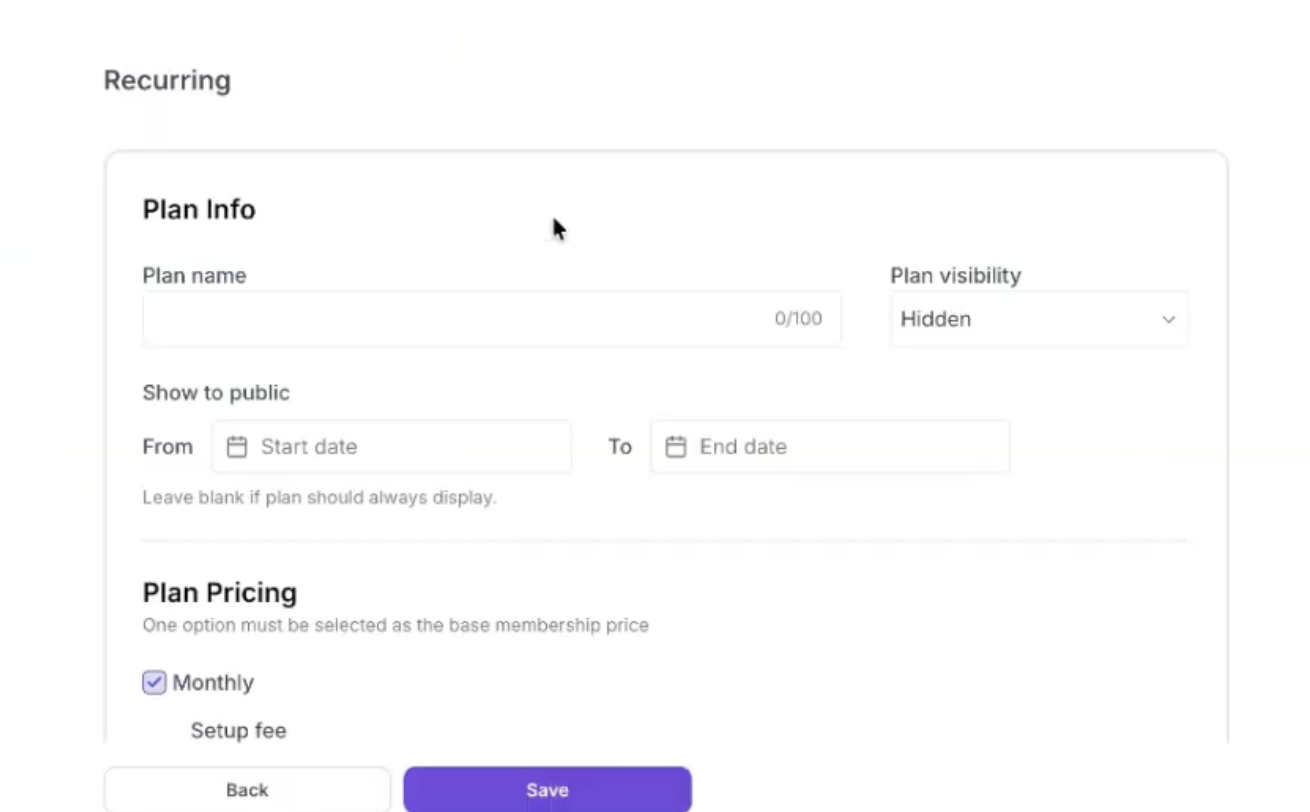
- Plan name: up to 100 characters. It must start with a letter or number.
- Plan visibility: Hidden or Public. New plans are set to Hidden until you change them. A hidden plan doesn't appear on your public club page, but anyone with its direct link can still purchase it, and you can still add players to it yourself.
- Show to public (From and To): an optional date range for when the plan appears on your public club page. Leave both dates blank if the plan should always display.
Set Pricing and Renewal Options
The pricing section changes depending on the plan type you chose:
| Plan type | Pricing and renewal options |
|---|---|
| Recurring: Monthly | Check Monthly, then set a Setup fee and Regular price. Choose how many months to Bill a minimum of. Then pick First day of every month (all members renew on the same day) or Anniversary date (each member renews on the day they joined). Prorated billing is only available with the first-day option. |
| Recurring: Annual | Check Annual, then set a Setup fee and Regular price. Choose a fixed renewal date (everyone renews on the same date, set by month) or Anniversary date. Prorated billing is only available with the fixed date. |
| Non-Recurring | Set a Plan Duration with a start date and an optional end date, plus the Setup fee and Regular price. Turn on Prorated billing to charge a member who joins partway through only for the days left in the plan. |
| Day Pass | Set the Setup fee and Regular price. There are no renewal options. |
A Recurring plan can offer both Monthly and Annual options at once, and you must select at least one. Prorated billing charges new members only for the days left in the first billing period.
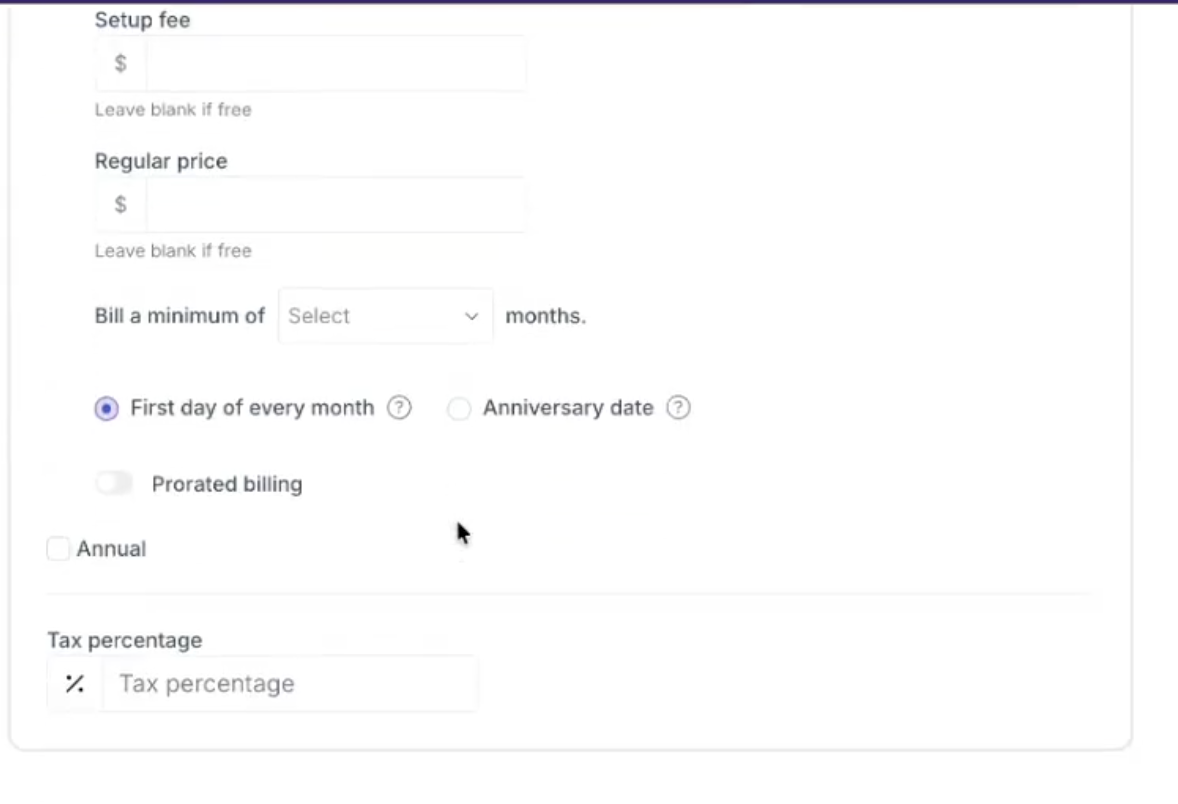
Leave Setup fee or Regular price blank if that part of the plan is free. Finally, enter a Tax percentage if you need to charge tax on the plan. Click Save to create the plan.
Your new plan appears in the Membership Plans table, and you see a confirmation that it was added.
WarningA plan's billing type and tax percentage can't be changed after you create it. If you need a different billing type, create a new plan.
Edit a Plan Later
Click the three dots in the Actions column next to a plan to open its settings:
- Plan Info: the plan name, description, visibility, public display dates, member limit, and plan highlights. You can also copy the plan, preview how it looks to players, or delete or disable it. See How to Delete or Disable a Membership Plan.
- Pricing: the plan's setup fee and price.
- Pre-registration and Discounts: benefits for members of this plan, such as early registration for events.
- Organizations Included: which clubs share this plan, for clubs that are affiliated with others.
Frequently Asked Questions
What's the difference between First day of every month and Anniversary date?
With a fixed date, such as the first day of every month, every member is billed on the same day. With Anniversary date, each member is billed on the day they joined.
If I change a plan's price, when does it take effect?
When you change a price on the Pricing page, you choose a start date. The earliest start date is tomorrow. Until that date, new members and renewals use the old price. After it, new members and the next renewals use the new price.
Can I edit a plan after members have joined?
Yes, but with limits. You can update the public display dates and pricing, but the billing type and tax percentage can't be changed, and on a non-recurring plan the plan dates lock after the first sale. Many other fields can't be changed once a plan has members because they affect members' active subscriptions.
How do I move my members to a different plan?
You can change a member's plan from their Membership page, or add them to a new plan, which cancels their current one. PC doesn't have a way to move many members at once, so for a large group you can export your member list and re-import the members onto the new plan with the member upload. Email support@pickleball.com if you need help.
Related Resources
- How to Turn On Membership Plans for Your Club
- How to Add or Invite a Member to a Membership Plan
- How to View and Manage a Member's Membership Plan
- How to Delete or Disable a Membership Plan
Need more help? Email us at support@pickleball.com.