.jpg?width=1320&height=528&optimizer=image)
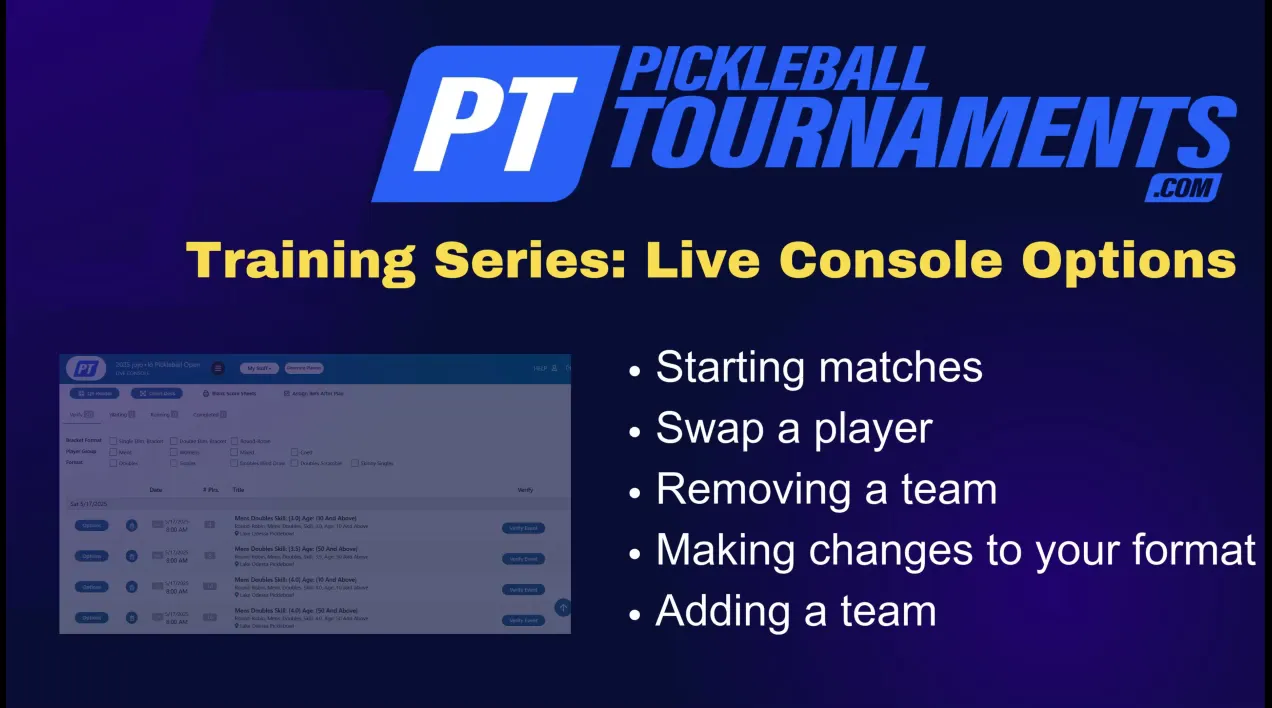
Understanding Live Console Options
Understanding Live Console Options: A Comprehensive Guide for Tournament Organizers
Running a successful pickleball tournament requires the right tools to manage matches, players, and schedules efficiently. The Live Console is one of the most powerful features available to tournament directors, providing a central place to manage match flow, update brackets, and handle last-minute changes on tournament day.
Whether you’re organizing your first event or managing large competitive tournaments, understanding how to use the Live Console can streamline operations and improve the overall player experience. This guide walks through the key features and functions so you can confidently manage your tournament from start to finish.
Getting Started: Verifying Events and the Waiting Section
Before using the Live Console, your events must be verified. Verification confirms that all players are properly registered and that the event setup is correct.
Once verified, events will appear in the Waiting section of the Live Console. Think of this section as a staging area where you can review the bracket structure and upcoming matches before play begins.
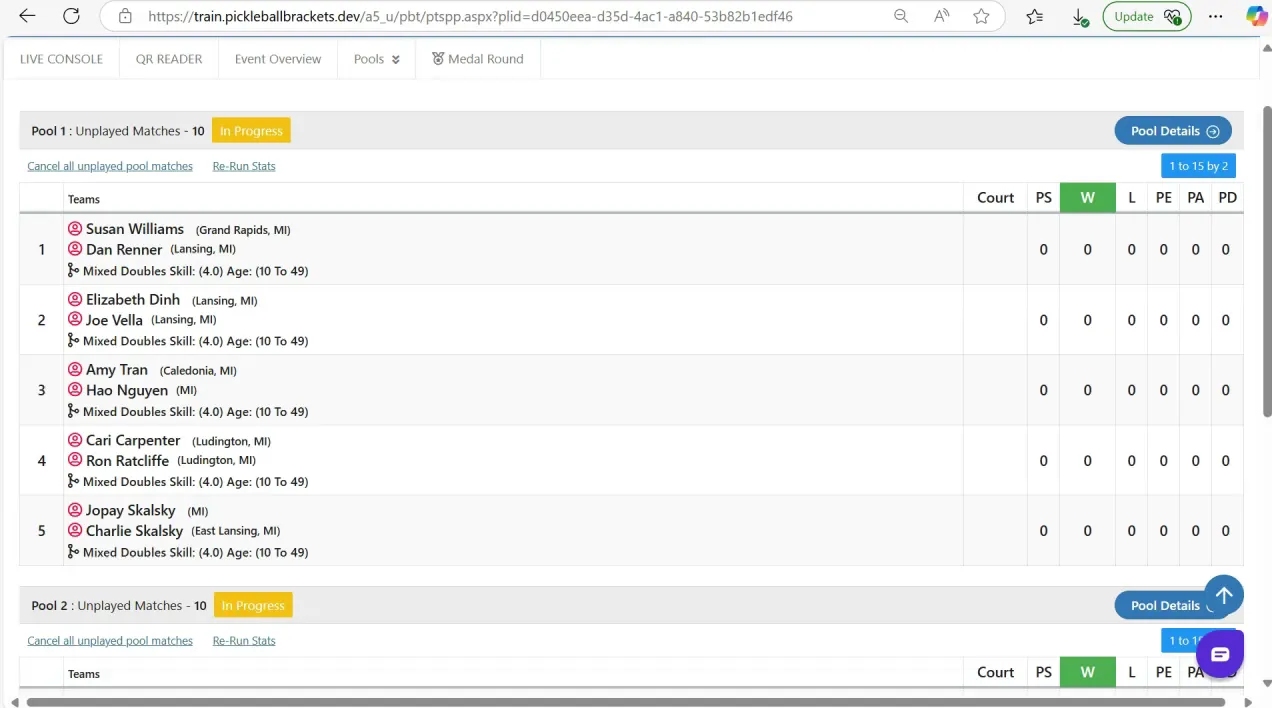
From here, you can easily access the event brackets by clicking on the event title. This allows you to see the entire tournament structure, including:
• Brackets
• Pools or groups
• Player matchups
If your event contains multiple pools, you can switch between them by selecting Pool Details and using the back button to navigate between views. This layout helps you track player progress and match flow in an organized way.
Printing Scorecards for Match Day
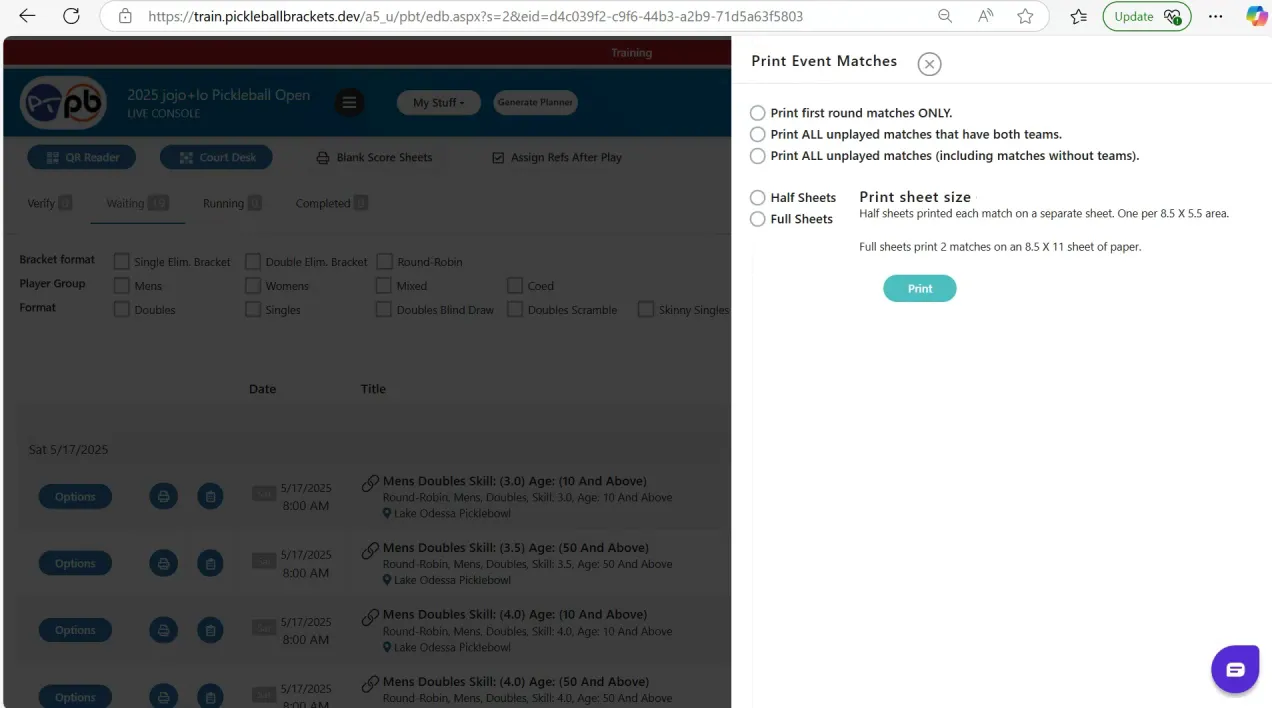
The Live Console also allows you to print scorecards, which are often used by referees or players to record match results.
Depending on your tournament setup, you can choose to print:
• Only the first matches
• All matches in the bracket
To print scorecards:
-
Click the print icon in the Live Console.
-
Choose your preferred print settings.
Having scorecards prepared ahead of time helps reduce delays during match play, especially when managing multiple courts or large divisions.
Starting Matches
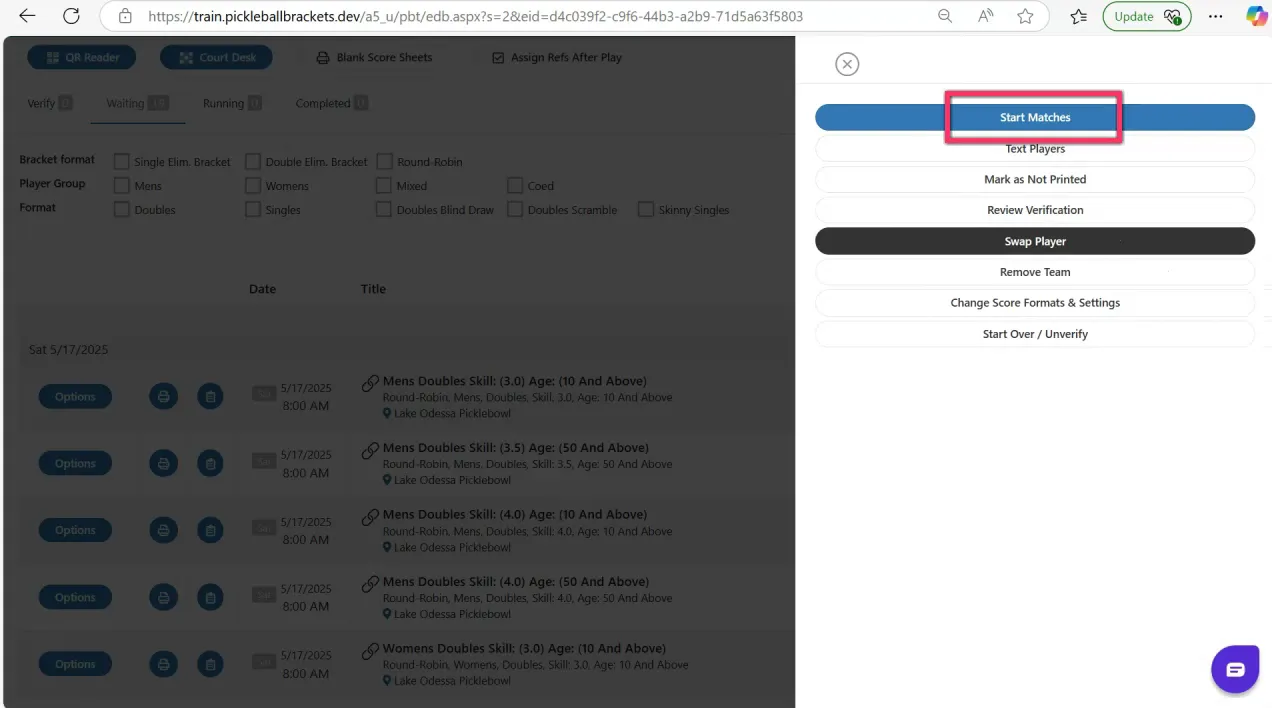
Once everything is ready, you can start your matches directly from the Live Console.
Next to the event name:
-
Click the options menu.
-
Select Start Matches.
If texting is enabled for your tournament, you will see two options:
• Start matches with text notification
• Start matches without text notification
Sending text notifications is highly recommended. It alerts players that their match is beginning and reduces confusion or missed matches.
After matches are started, the event moves from the Waiting section to the Running section, where you can monitor matches in real time.
Managing Players and Teams
Tournament days rarely go exactly as planned, which is why the Live Console includes tools for handling unexpected changes.
Swapping Players
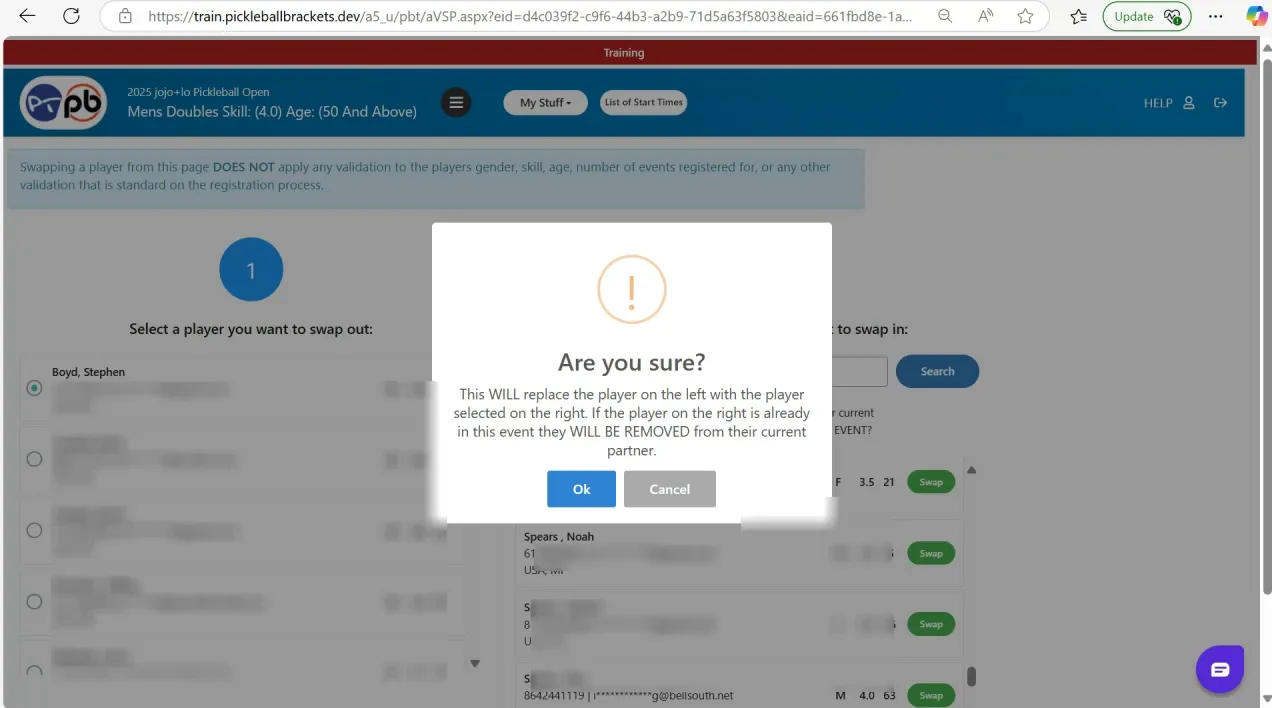
If a player needs to be replaced, the Live Console allows you to quickly swap them out.
Steps to swap a player:
-
Select the player who is leaving the event.
-
Enter the replacement player’s last name in the search field.
-
Select the correct player and click Swap.
The bracket will update automatically.
If the replacement player has a balance due, it will appear in their account. If your tournament allows free substitutions, you can manually mark the player as paid.
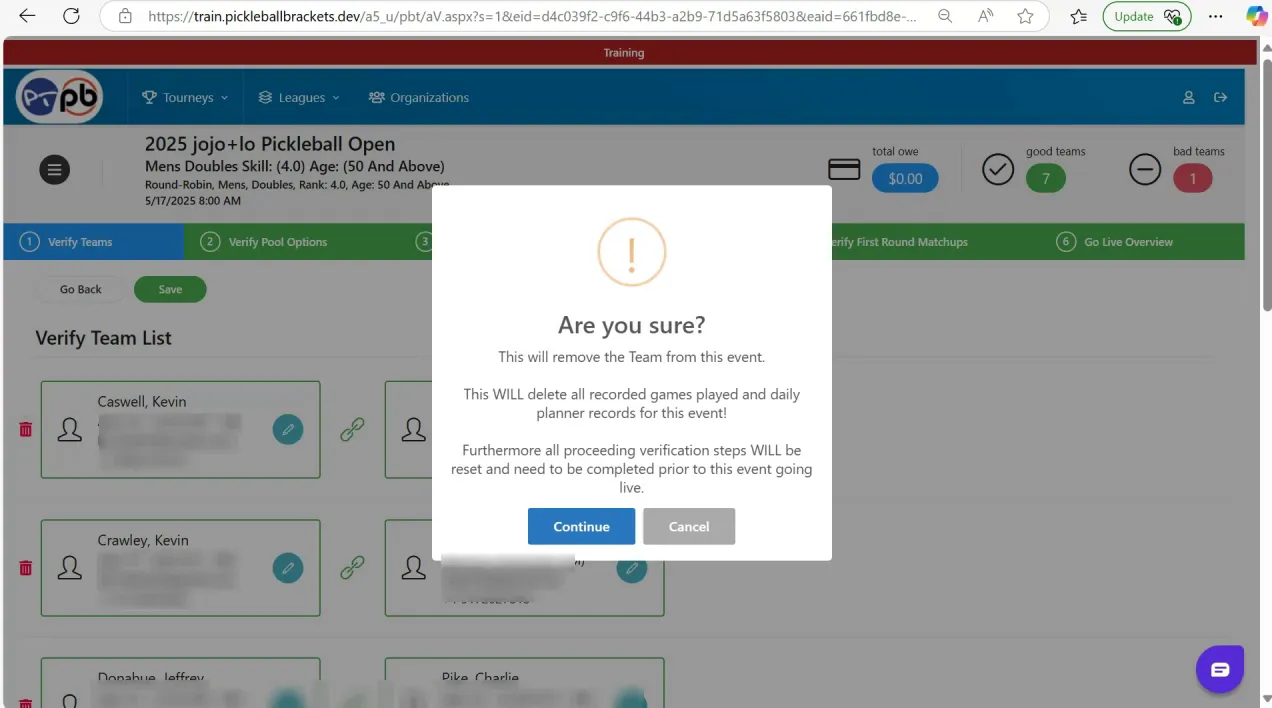
Removing Teams
If a team must withdraw from the event:
-
Click Options next to the event.
-
Select Remove Team.
-
Click the red trash icon next to the team you want to remove.
After removing a team, click Save to confirm the change.
Because removing a team alters the bracket structure, you will need to reverify the event to update matchups and seating correctly.
Adding Teams Last Minute
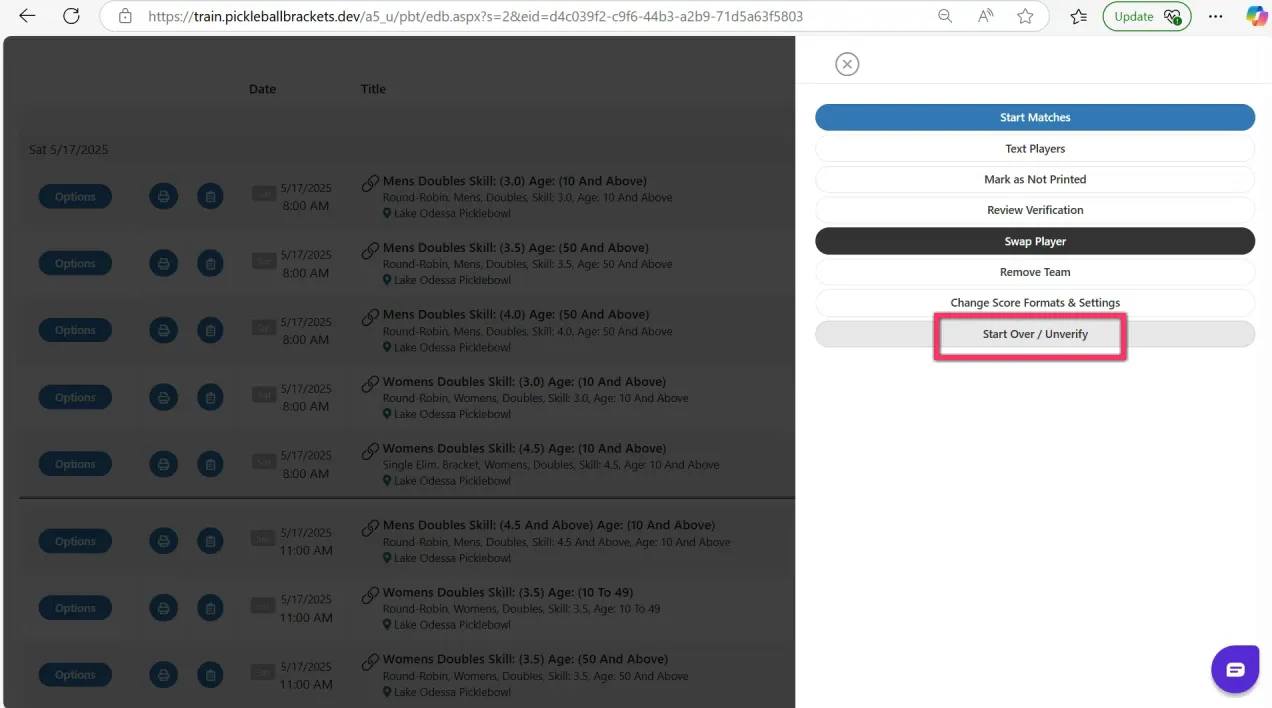
Occasionally, you may need to add a team after an event has already been verified.
To do this:
-
Click Start Over Unverify.
-
Return to the Attendees screen.
-
Add the new players to the event.
Once the players are added, reverify the event to finalize the bracket.
Adjusting Score Formats During the Tournament
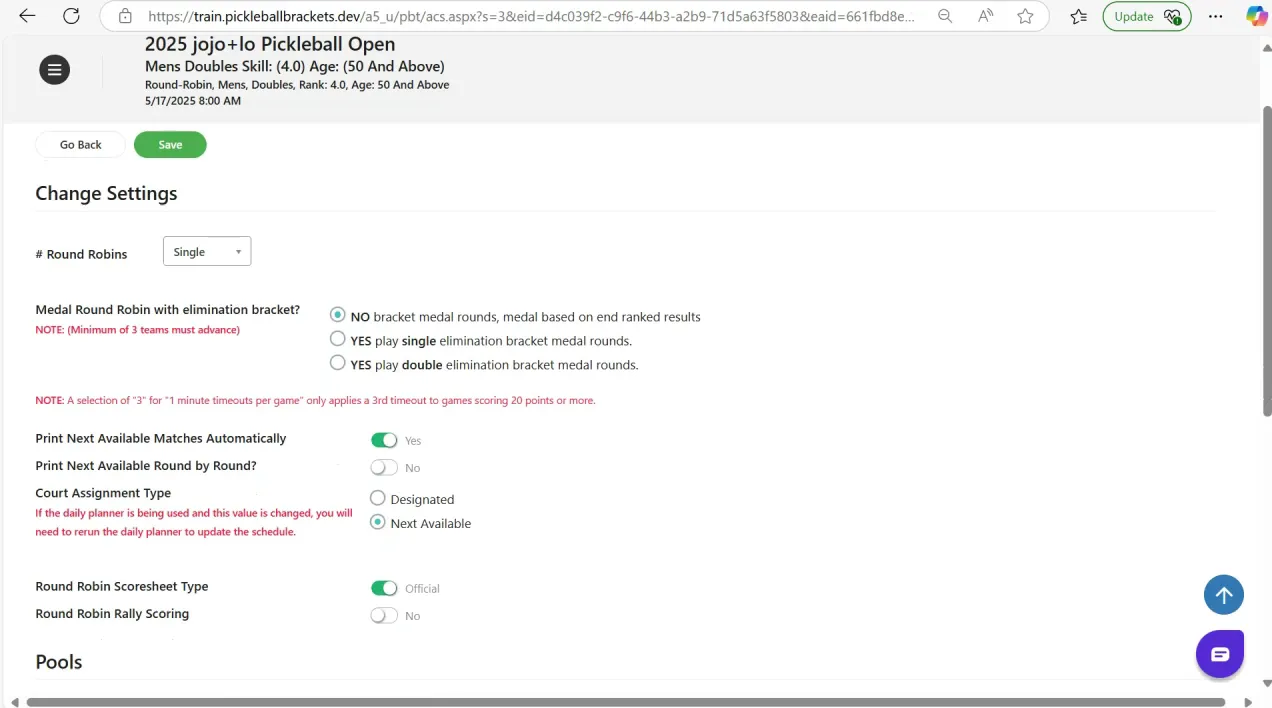
Unexpected situations—such as weather delays or scheduling challenges—may require adjustments to your match format.
The Live Console allows you to modify scoring formats even after matches have started.
For example, you might:
• Change scoring rules
• Adjust match formats
• Convert a round robin to a playoff structure
After making changes, click Save and Continue to apply the updated format.
This flexibility allows tournament directors to adapt quickly without disrupting the entire event.
Additional Live Console Features
The Live Console also includes several helpful tools to improve communication and tournament management.
Text Messaging Players
If texting is enabled, tournament directors can send messages directly to players regarding:
• Match readiness
• Court assignments
• Schedule updates
This helps keep players informed and reduces confusion throughout the day.
Marking Events as Not Printed
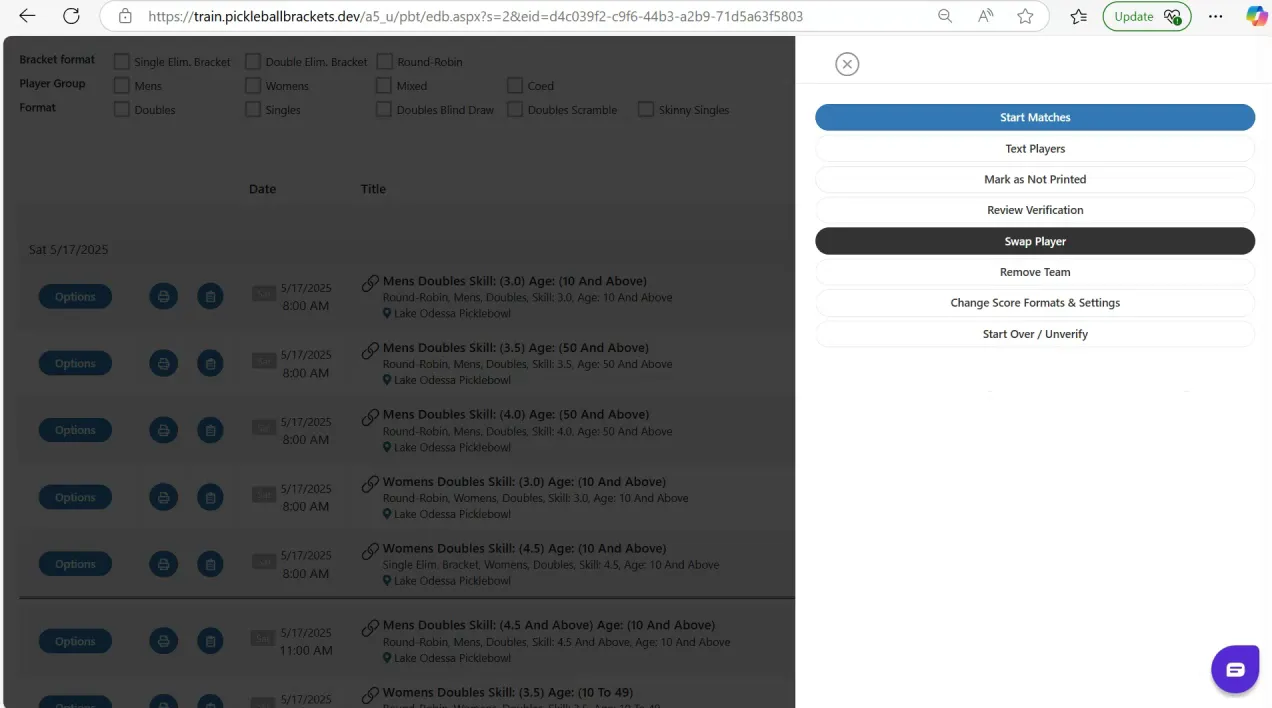
If there are issues with score sheets or printing, you can mark events as Not Printed. This allows you to troubleshoot and reprint materials when needed.
Reviewing Verification Summaries
Before starting matches, you can review the verification summary to confirm:
• Player registrations
• Event setup
• Match structures
This step helps prevent mistakes before the tournament begins.
Final Thoughts
The Live Console is a powerful tool that helps tournament directors manage events efficiently. From verifying events and printing scorecards to swapping players and adjusting formats, the console provides everything needed to handle tournament day with confidence.
By becoming familiar with these features, you’ll be able to:
• Handle last-minute changes smoothly
• Communicate clearly with players
• Keep matches moving efficiently
• Deliver a professional tournament experience
Ready to Take Your Tournament Management to the Next Level?
Ready to Take Your Tournament Management to the Next Level?
For a hands-on demonstration of these Live Console features—including how to enter scores and assign medals—visit our YouTube channel.
Our training videos and webinars provide step-by-step guidance to help you become an expert tournament organizer.
Be sure to subscribe so you never miss the latest tips and tutorials designed to make your tournament days easier and more successful.
Related articles

In defense of pros wearing jewelry on the court
Pickleball's top athletes love to add a little extra shine.
25 days ago
-Victoria Radnothy
20 things pros wish they knew earlier in pickleball
These quick tips can help you level up your game fast.
25 days ago
-Victoria Radnothy

Must-try singles pickleball drills, straight from the pros
Take your game to the next level with practice tips from the world’s top players.
35 days ago
-Victoria Radnothy

How to build a powerful pickleball serve: Tips from the pros
Here are some simple adjustments to add pace, consistency, and control.
41 days ago
-Victoria Radnothy