No. Lineups must be set before the scorecard is available for score entry. If you don’t see the scorecard, check that lineups have been submitted. See How to Set Lineups for a Team Event in PT (Captains) for help.
Team captains in Pickleball Tournaments (PT) team events enter scores directly from the tournament matchup page after lineups have been set. This guide walks through the full match management workflow — finding your scheduled matches, entering scores on the scorecard, refreshing to confirm entries, completing the matchup, and navigating to the next round.
NoteThis video covers the full match management workflow for team captains. Score entry starts at 2:00. For lineup setup instructions, see How to Set Lineups for a Team Event in PT (Captains).
Before score entry is available, lineups must already be set for the matchup. If lineups are not in place, the scorecard will not be ready for score entry.
If lineups haven’t been set yet, complete that step first before returning here to enter scores. See How to Set Lineups for a Team Event in PT (Captains).
Coming from pickleballtournaments.com:
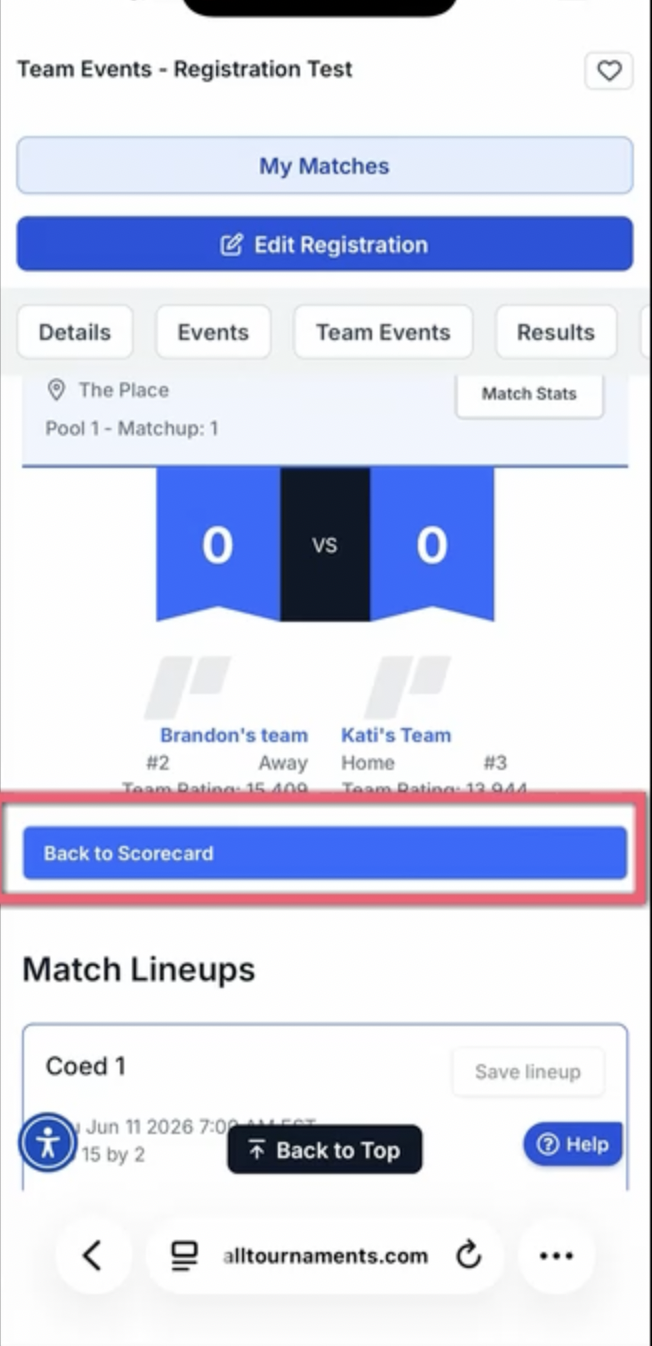
Coming from just having entered your lineups: Find the matchup banner, and below that will be "Back to Scorecard" button. Click on that, then select the individual matches to input the score.
For all cases when entering a score:
Unsaved entries will not be recorded. Always click Save after entering each score, and refresh the screen to confirm the entry is visible before moving to the next match. If the score does not automatically display properly, refresh your screen by pulling down from the top of the page on your phone.
If a match ends in something other than a standard score, use the dropdown menu above the score-entry area for that match to record the correct outcome.
Select the correct outcome type from the dropdown, then click Save.
To forfeit a full match — for example, when a team is unable to play a matchup — click on the individual match to open it, then choose Forfeit the match from the options shown. You don't need to add player names to do this.
 Warning
If you send results to DUPR, DUPR only recognizes a forfeit at the match level. If you forfeit the individual games in a match instead of using Forfeit the match, the game scores (typically 11-0) get sent to DUPR as if they were actually played, not as a forfeit.
To forfeit just one game within a match (not the whole match), click the down arrow above that game's score box instead.
If you placed a score in the wrong match card, do not cancel the match. Instead:
This is the correct way to fix a misplaced score without disrupting the matchup setup.
WarningCancelling a match removes it from the matchup setup and may require tournament director intervention to restore. Always zero out and save instead of cancelling when correcting a data-entry mistake.
Make sure to hit "complete match" when all of your matchup games have been played.
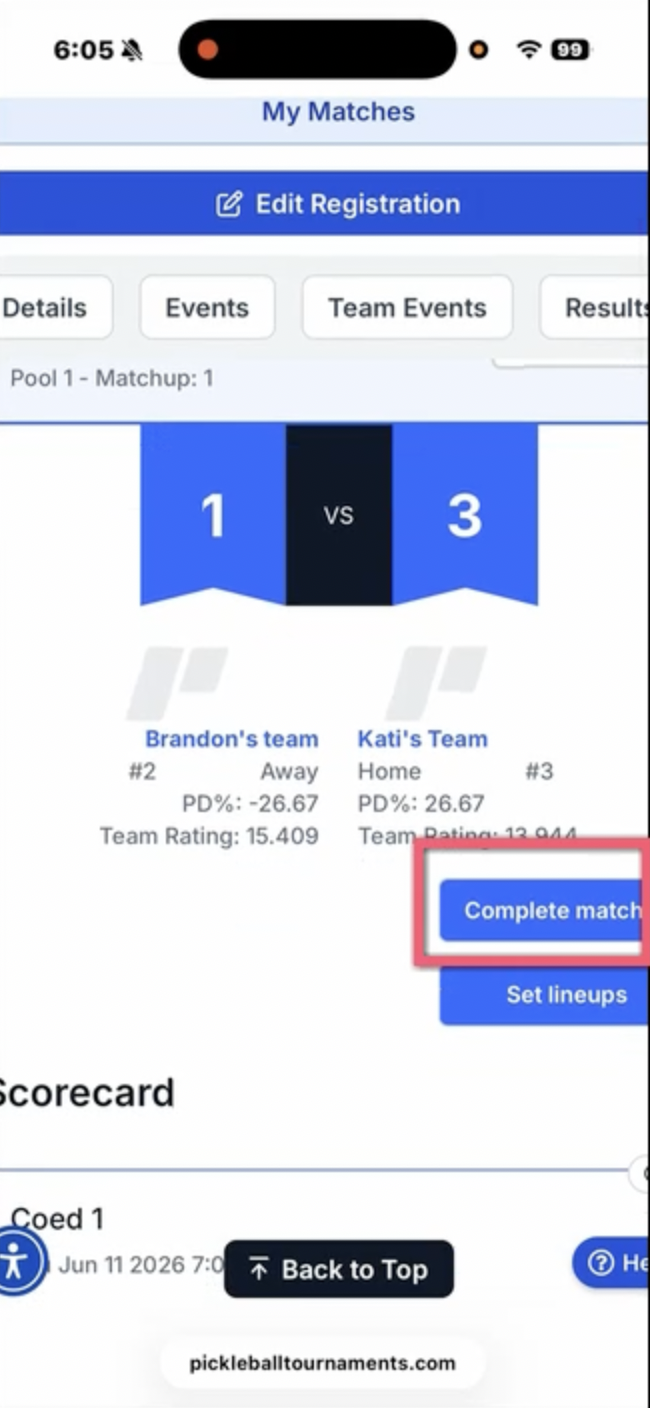
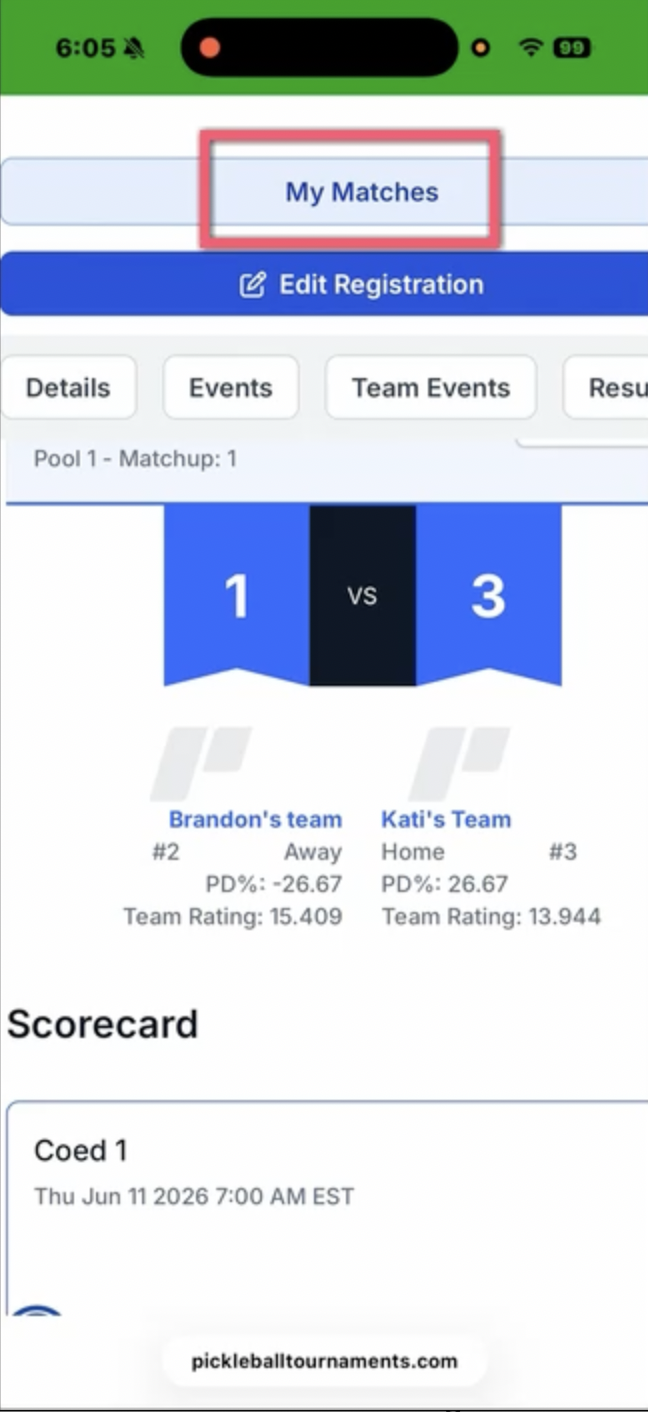
Confirm that you want to complete your match, then return to the "my matches" tab at the top of the page.
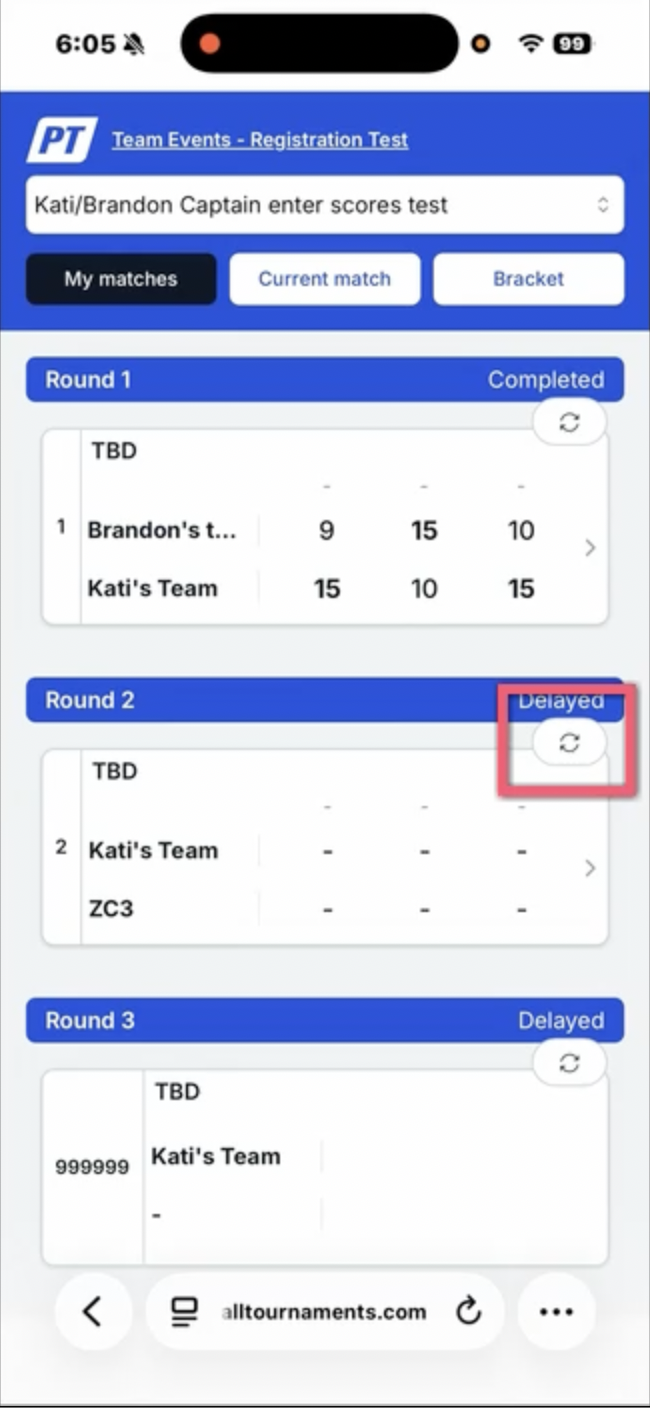
Repeat the same steps as before, going to round two, using the circular arrows to flip the scorecard, and clicking on go to matchup. This is how you find and easily navigate to your next matchup, in this case, round 2.
No. Lineups must be set before the scorecard is available for score entry. If you don’t see the scorecard, check that lineups have been submitted. See How to Set Lineups for a Team Event in PT (Captains) for help.
The My Matches tab is at the top of your tournament page. After logging in and selecting your tournament, click My Matches to see all of your team’s scheduled matchups.
After clicking Save, refresh the screen. If the scores are visible after refreshing, they were saved successfully. If they’re not visible, re-enter and save again.
Clicking Complete Matches finalizes the round and updates standings. Once a round is completed, scores cannot be edited without tournament director assistance.
Score corrections after a round has been completed require tournament director access. Contact your tournament director for assistance, or reach out to support@pickleball.com.
No. Captains can't cancel a matchup themselves. If a full matchup needs to be canceled — for example, a bronze match both teams agree to skip — contact your tournament director. Only your TD or tournament staff can cancel a matchup.
Need a hand entering scores? Reach out to support@pickleball.com and we’ll help you get your matchup wrapped up.