Why Is Managing Lineups from Your Phone Important?
Managing lineups from your phone saves time, reduces last-minute confusion, and keeps communication smooth between captains, players, and commissioners.
The mobile process works well because it focuses on three core actions:
• Selecting the correct division
• Assigning players to matchups
• Saving each card as you go
The same interface also supports:
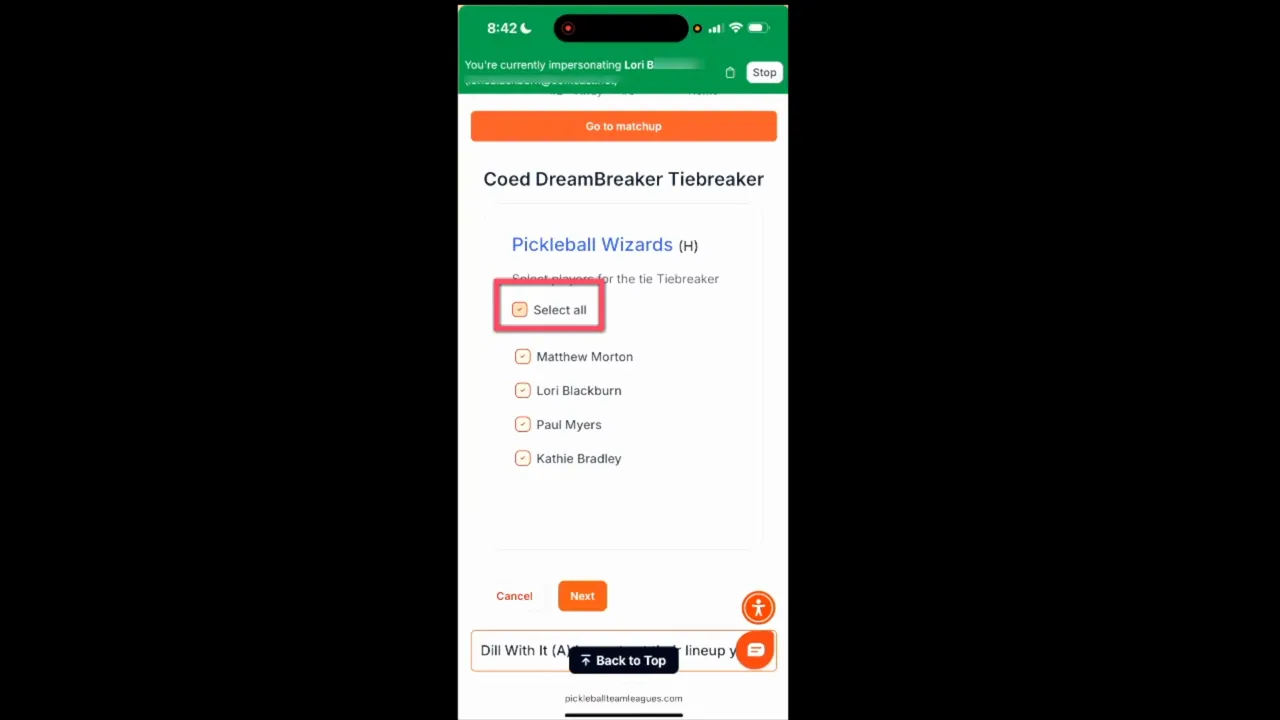
• Tiebreaker setup
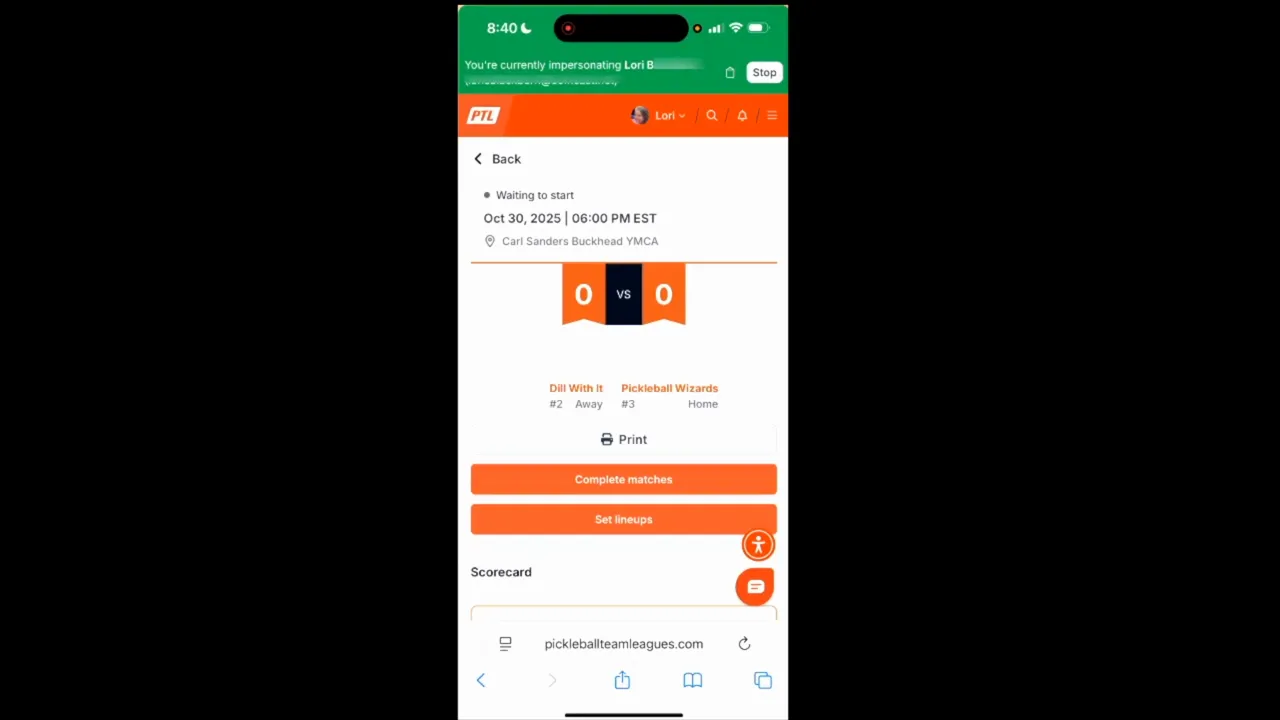
• Scorecard review
• Match-day score entry
This means captains can manage an entire matchup end-to-end without desktop access.
What Are the Key Benefits of Setting Lineups from Your Phone?
Benefit #1: Faster lineup updates
Captains can set or adjust matchups immediately, even when away from a computer.
Benefit #2: Fewer lineup errors
Division selection + save-per-card workflow helps prevent incorrect assignments or lost progress.
Benefit #3: Better match-day coordination
Captains can confirm scorecards, tiebreakers, and opponent lineup visibility in real time.
Common Questions About Setting Lineups from Your Phone
How do I get to the lineup tools quickly?
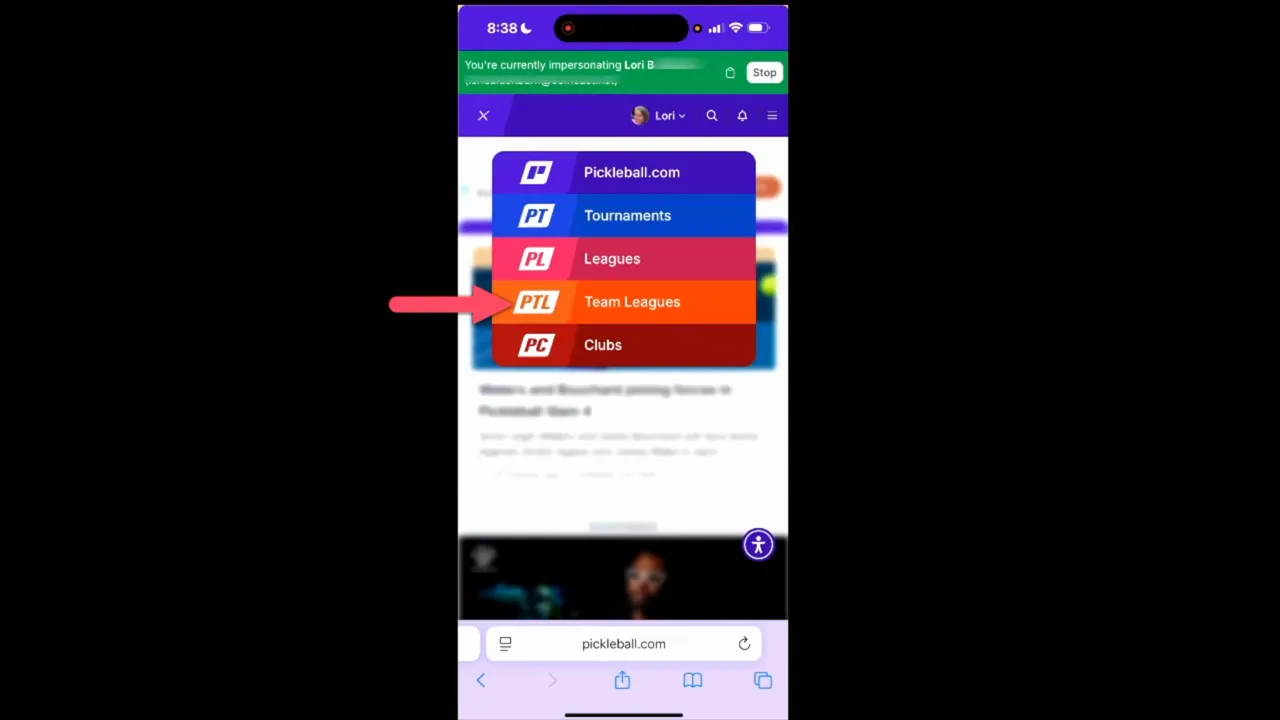
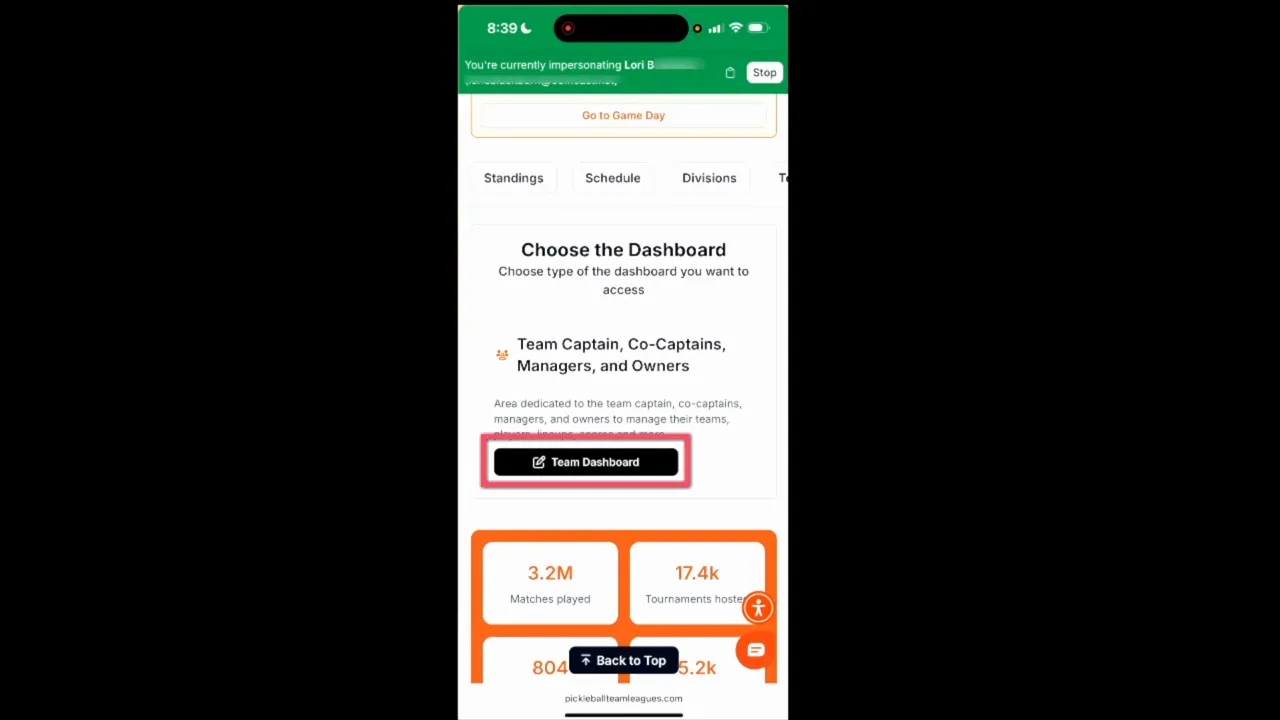
Tap the P icon menu, go to Team Leagues (or My Team Leagues), open your league, then go to My Dashboard → Team Dashboard.
What if I’m eligible for multiple divisions?
Use the division drop-down at the top of Team Dashboard before doing anything else. The Schedule button becomes active after the correct division is selected.
Why are my opponent’s lineups grayed out or missing?
Opponent lineup visibility is controlled by the League Commissioner. In many leagues, you won’t see names until they submit their lineup.
What should I do if I can’t set or save a lineup?
Lineup due times and permissions are controlled by the League Commissioner. If you can’t set or save, contact the Commissioner first.
When should I print scorecards?
Printing is best done after both teams submit lineups so player names populate automatically on scorecards.
Troubleshooting and Quick Notes
• If registration is still open, a Withdraw button may appear; otherwise it won’t be visible
• Visibility of opponent lineups and lineup due times is controlled by the League Commissioner
• Everything is designed to work from your phone, but printing scorecards is best after all lineups are finalized
Key Takeaways
• Open Team Leagues from the P icon menu and favorite active leagues for faster access
• Use My Dashboard → Team Dashboard to manage lineups and matchups
• Always select the correct division before using Schedule
• Save each lineup card as you work and set tiebreakers before finalizing
• Wait to print scorecards until opponent lineups are posted so names populate automatically
Need More Help?
Need the full step-by-step help document with clear chapters and screenshots? Refer to the Help Document for a compact walkthrough.

.png?width=592&height=237&optimizer=image)