How To Create Your Own Tournament

How To Create Your Own Tournament

How to Create a Pickleball Tournament from Scratch: A Step-by-Step Guide

Organizing a pickleball tournament may seem complicated at first, but the process is actually straightforward once you understand the basic steps. Whether you're planning a small community event or a larger competitive tournament, building your tournament from scratch gives you full control over how it runs.

This guide walks through the key steps to create a tournament on PickleballTournaments.com, helping you set up your event quickly and efficiently.


Step 1: Prepare Your Club or Organization

Before creating a tournament, you must first have a club or organization set up in the system. Every tournament is linked to a club, so this is a required starting point.

If you haven’t created a club yet, you can find tutorials that walk you through the process.

Once your club is ready:

  1. Go to PickleballTournaments.com

  2. Log in to your account

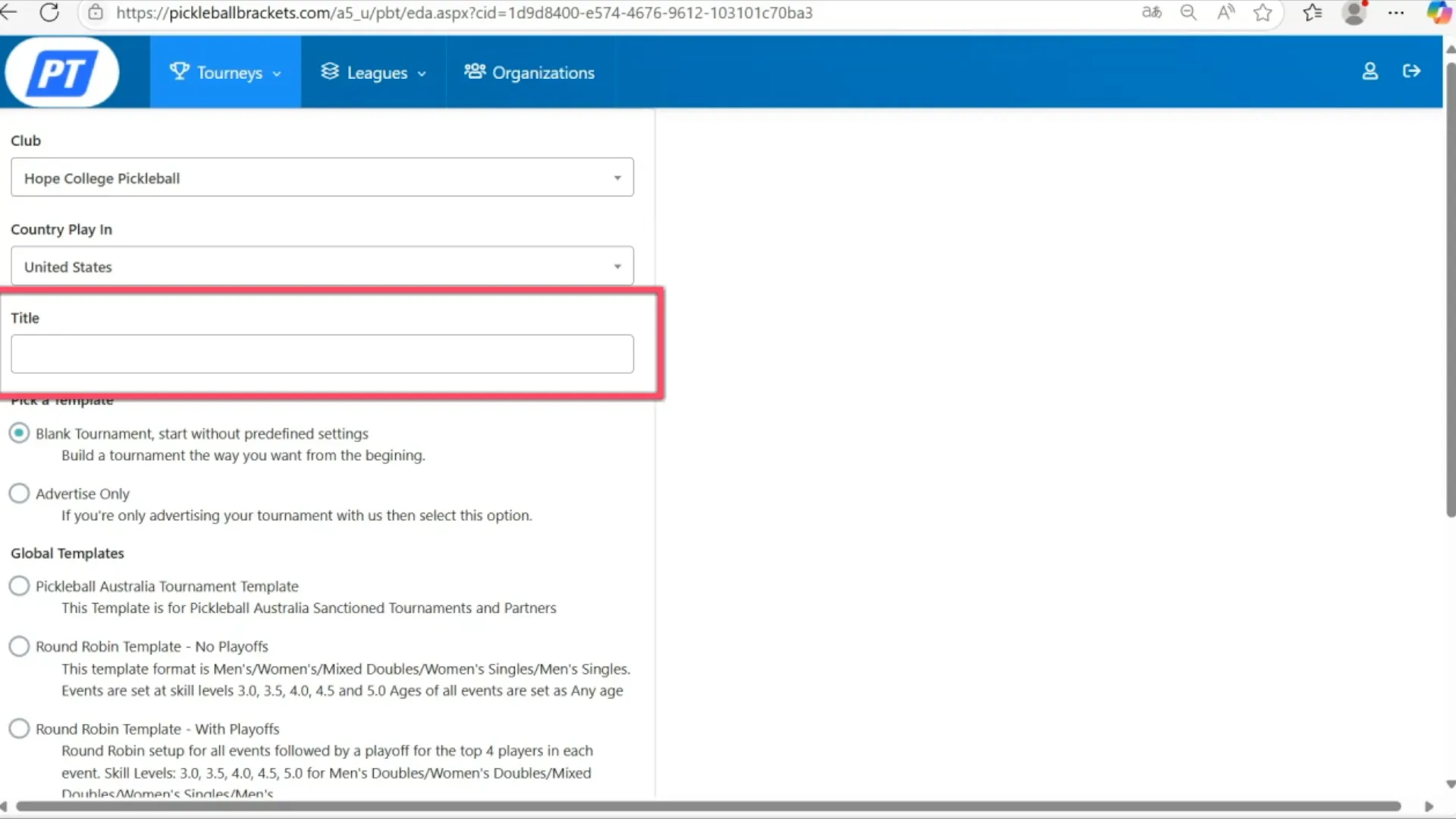
  3. Click Create a Tournament

You’ll then select:

• Your club from the dropdown list
• Your country
• The title of your tournament

Create a tournament screen with club selection and title entry

Step 2: Customize Your Tournament Settings

After saving the initial setup, you’ll arrive at the Tournament Info page, where you can configure important details.

Visibility

Choose whether your tournament is:

Public – Visible to all players
Private – Hidden from public searches

This is useful for invitation-only events.


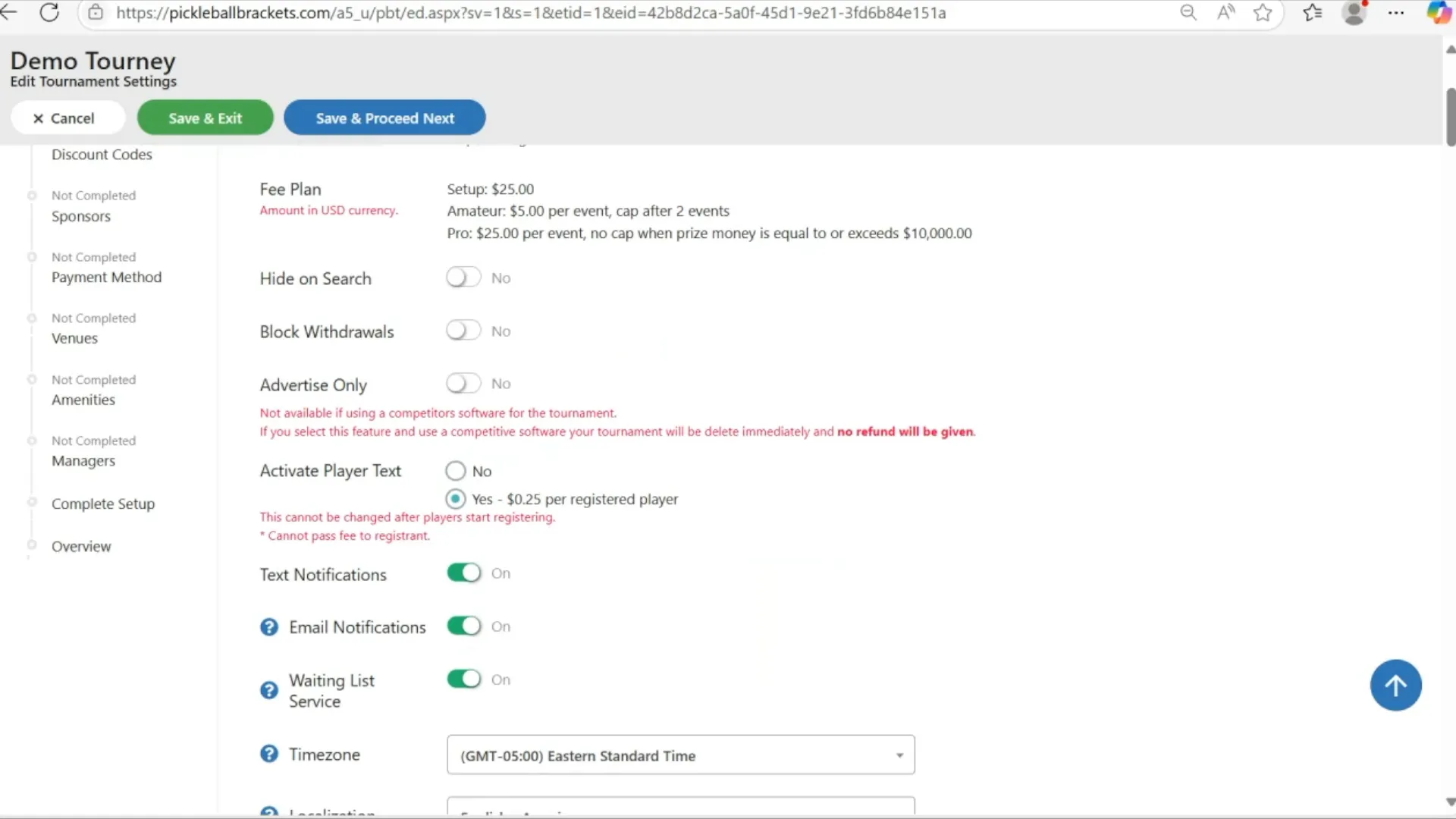
Player Withdrawals

Decide whether players can withdraw themselves from the tournament or if only the tournament director can manage withdrawals.


Communication Options

Enable player communication tools such as:

• Email notifications
• Text message alerts

These features help keep players informed before and during the event.


Waitlist Management

Turning on the Waitlist Service allows the system to automatically manage players when events reach capacity.


Location and Language Settings

Make sure the following settings are correct:

• Time zone
• Language
• Currency

Incorrect settings can cause confusion when scheduling matches or collecting fees.


Public Display Date

You can set when your tournament becomes visible to the public. This date is separate from your registration dates.

Tournament info screen showing communication and waitlist settings

  • Step 3: Add Helpful Links and Access Options

    You can also enhance your tournament setup by adding:

    • A short URL for easy sharing
    • Links to your tournament website
    • Links for ticket sales or spectators

    If needed, you can restrict registration using registration codes so only approved players can sign up.


    Step 4: Set Tournament Limits and Rules

    Establishing clear parameters helps your tournament run smoothly.

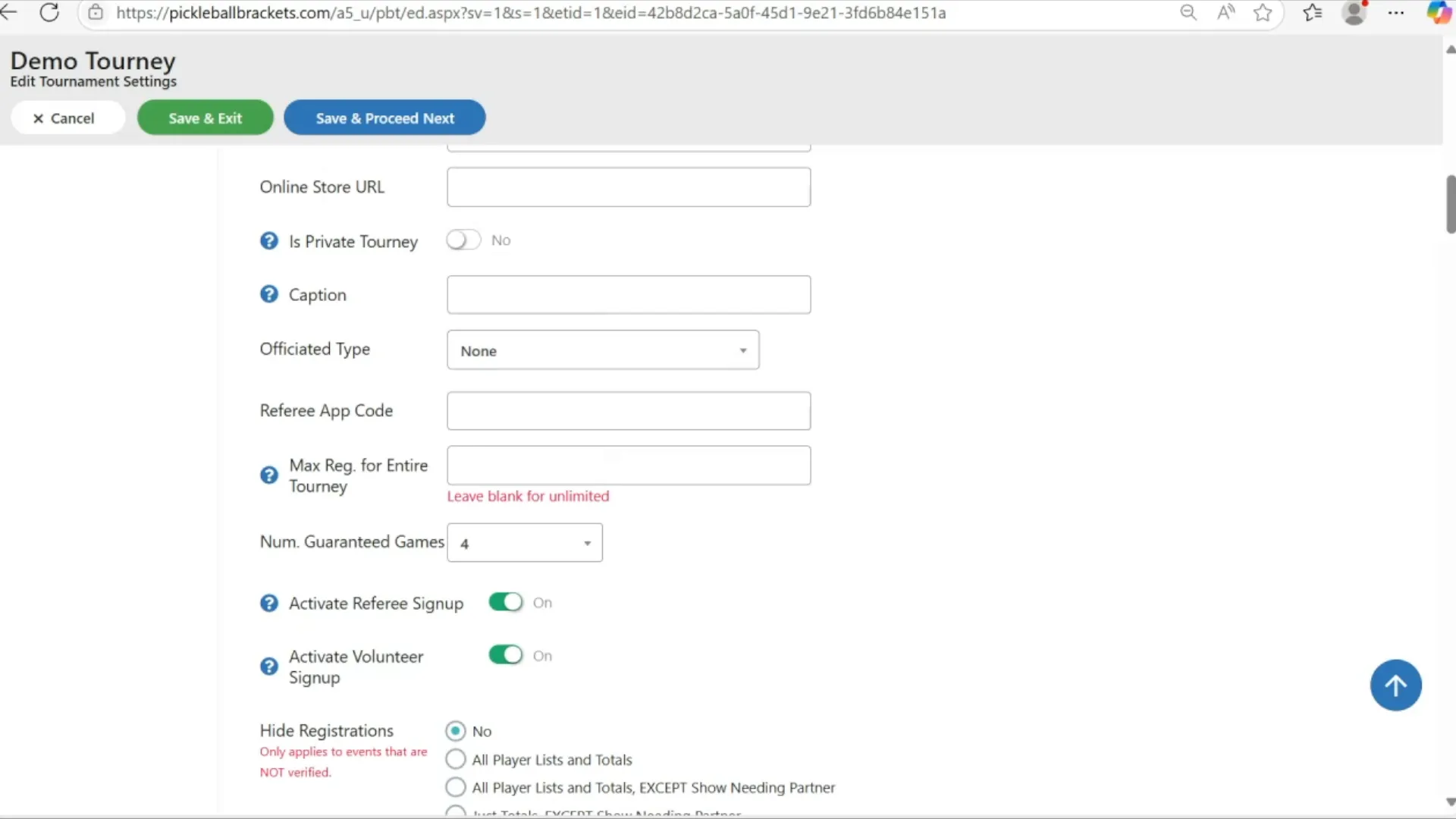
    Maximum Player Capacity

    Set the total number of players allowed in the tournament.

    This keeps the event manageable and prevents overbooking.

Settings for player capacity and guaranteed matches

  • Guaranteed Matches

    Let players know how many matches they can expect to play at minimum. This helps players plan their time and travel.


    Referee and Volunteer Registration

    You can allow referees and volunteers to sign up publicly if you need help running the event.


    Event Start Times

    If your schedule is already planned, you can publish start times so players know when their matches will begin.


    Draw Display Settings

    Choose when tournament brackets and draws become visible to players.

    This helps control when match information is released.


    Step 5: Configure Registration Settings

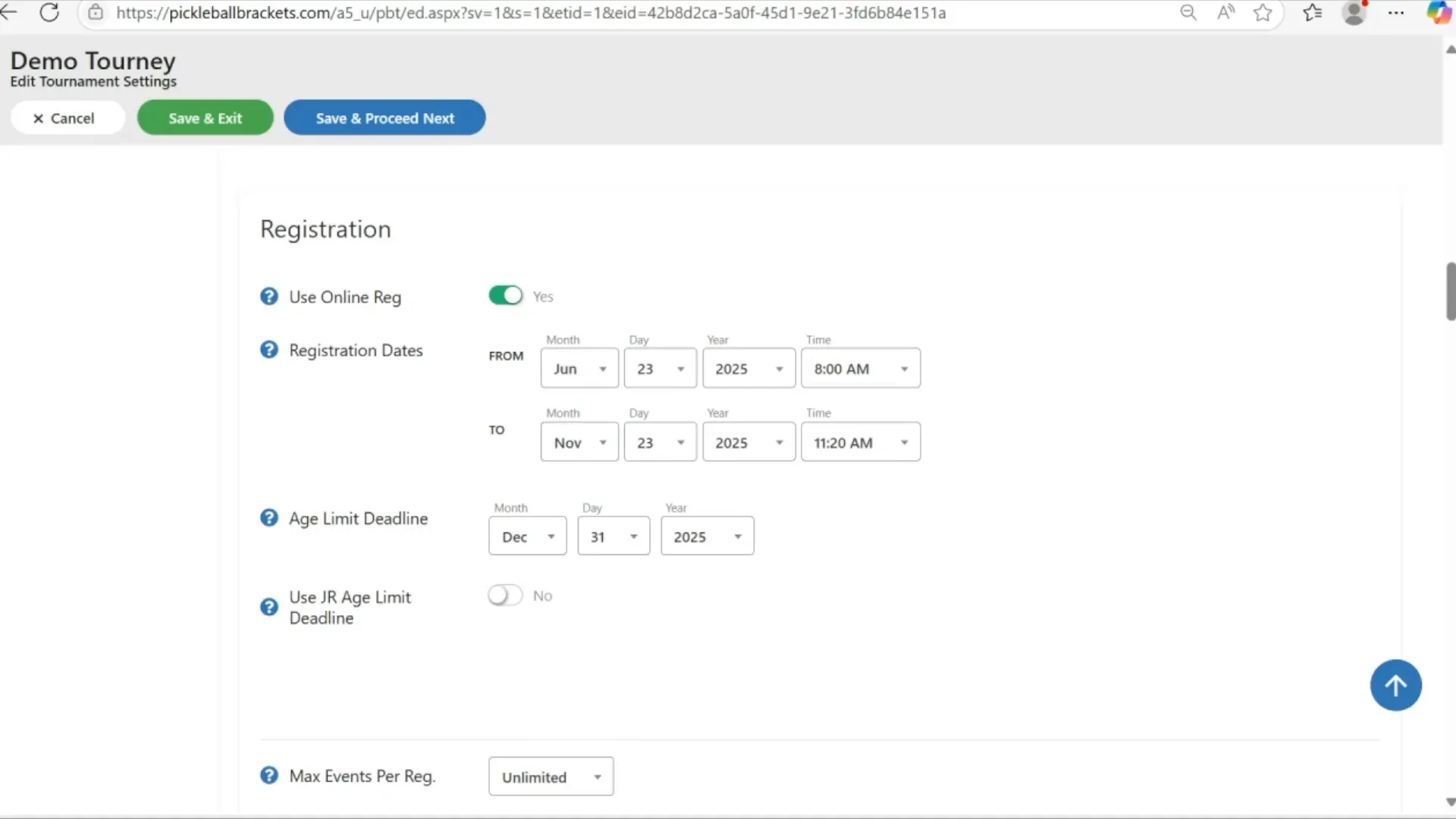
    Online registration should be enabled so players can sign up easily.

    Registration Dates

    Set:

    Registration open date
    Registration close date

    Most tournaments close registration 7–10 days before the event to allow time for scheduling and bracket preparation.


    Age Eligibility

    Age limits are usually based on December 31 of the tournament year to determine player eligibility.


    Event Limits

    You can also set:

    • Maximum number of events per player
    • Partner registration requirements

    This prevents scheduling conflicts and ensures fair participation.


    Player Information Requirements

    You may choose to collect additional player information, such as:

    • Emergency contact details
    • Phone numbers
    • Full mailing addresses

    This information can be useful for communication and local event management.

Online registration settings and player information requirements

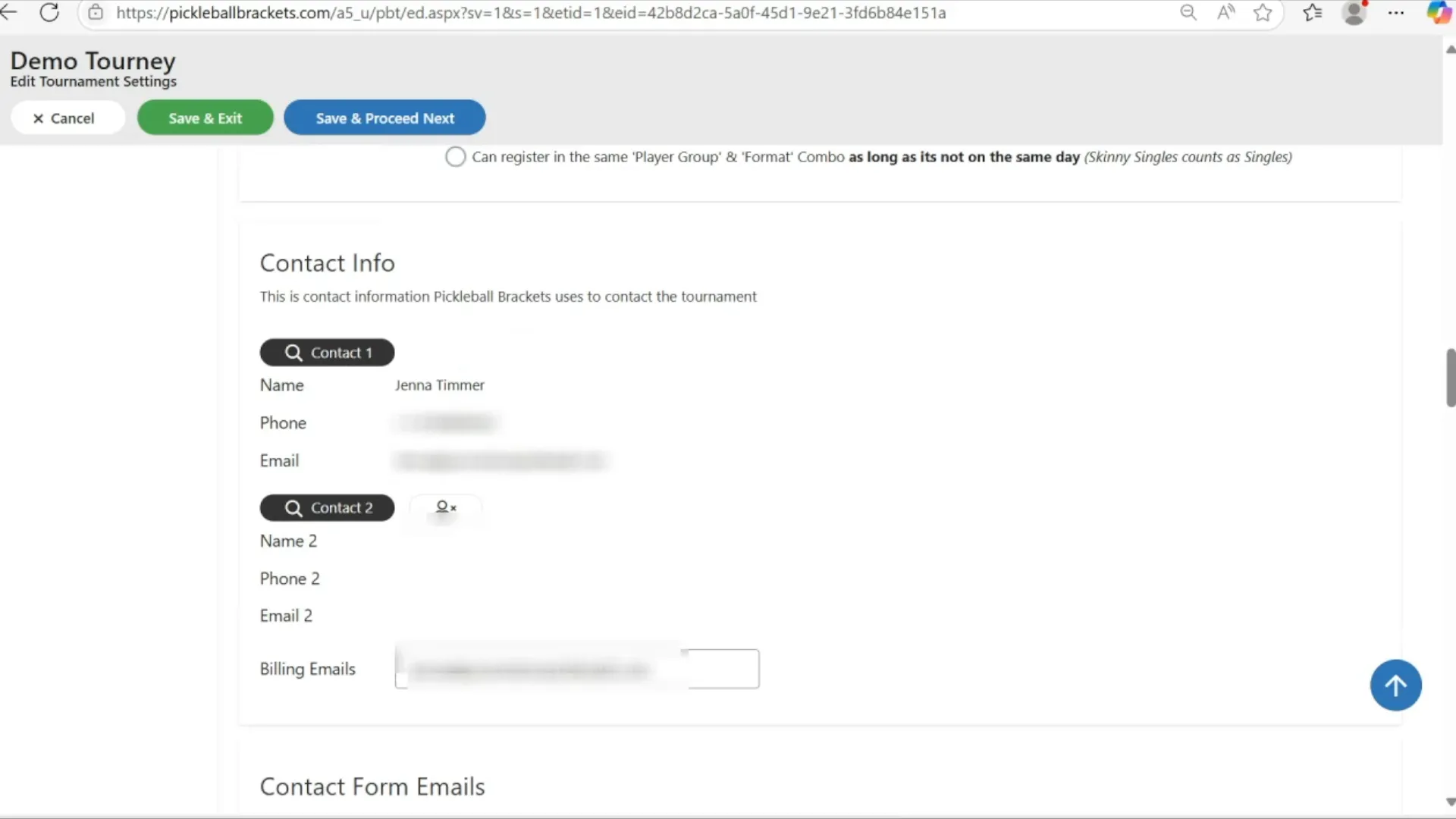
Step 6: Manage Contact Information

Clear communication channels are important for both players and organizers.

You can set:

• A primary tournament contact
• Additional contacts for specific issues like refunds or sponsorships

You may also choose whether to display your contact information publicly.

Optionally, you can receive CC copies of registration emails so you stay updated whenever players sign up.

Contact information and email settings

Step 7: Customize Tournament Features

Several optional features allow you to tailor your tournament experience.

Digital Scorecards

Customize scorecards used during matches, including court assignments if applicable.


Tournament Policies

Specify event rules such as:

• Food and drink policies
• Pet policies
• Alcohol restrictions
• Potluck or grill policies

Clear policies help set expectations for participants.


Tournament Description

Add a welcoming message or details about:

• The venue
• Charity partnerships
• Special activities

This helps create excitement around your event.


Additional Notes

Use the additional information section to include:

• Venue directions
• Bracket combinations
• Cancellation policies


Prize Money

If your tournament offers prize money, you can enable this option and provide details about payouts.

Note: Professional prize events may include additional fees.


Weather Alerts

For outdoor tournaments, enable Weather Alerts to display pop-up updates if delays occur due to weather.


Health and Safety Information

Include any relevant health guidelines or safety protocols to keep participants informed.


Step 8: Save and Finalize Your Tournament

After entering all the details, click Save and Proceed.

Remember, you can always return later to edit or update tournament settings if needed.

Creating your tournament from scratch ensures every detail matches your vision and allows you to tailor the event exactly how you want it.


Ready to Create Your Tournament?

You can start building your tournament today at Pickleball.com.

If you want a deeper walkthrough, explore our step-by-step tournament setup guides and the visual tutorials available in the Tournament Creation video series.

Start your event today and create a tournament players will be excited to join.