
How to Set Up Team Events
Creating a team event can transform a standard pickleball tournament into a strategic, high-energy competition. Team formats encourage camaraderie, crowd engagement, and dynamic matchups that keep players and spectators invested throughout the event.
This guide walks through how to build a team event using Pickleball Play Solutions’ tournament system, covering everything from initial setup and roster rules to match formats, scoring, and permissions.
Basic Setup: Start Smart
To begin creating a team event:
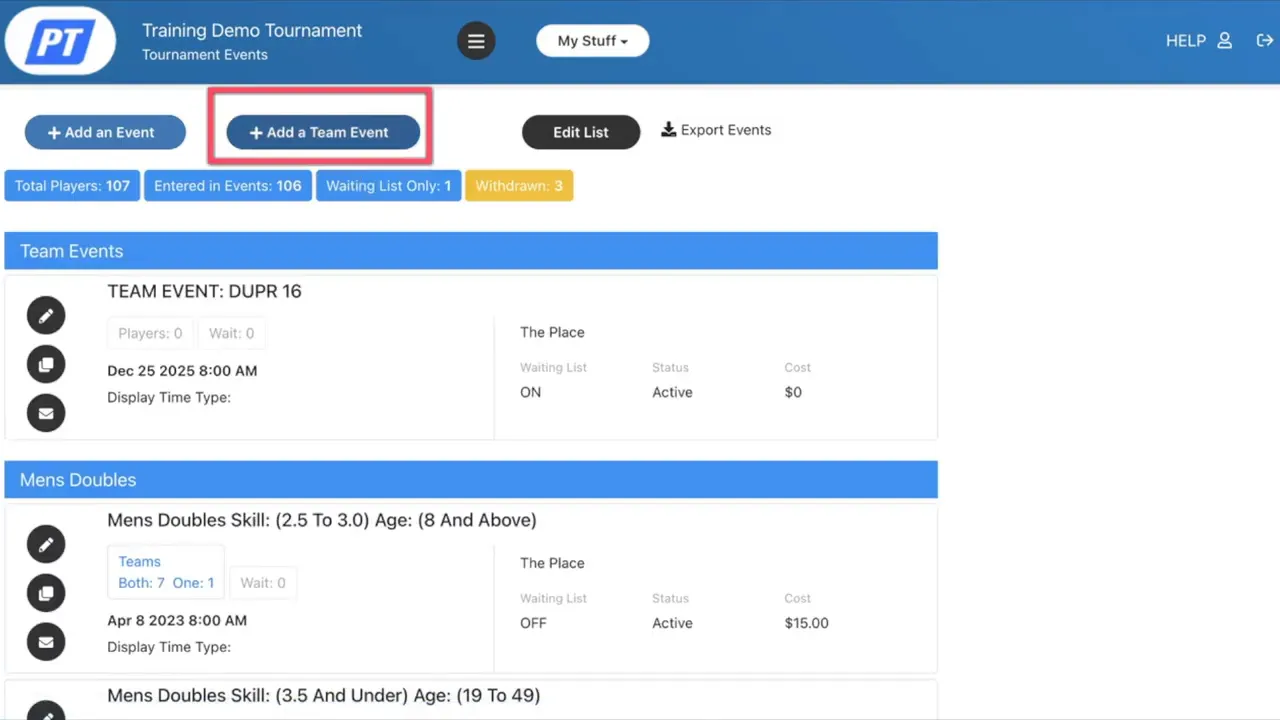
• Go to the Tournament Menu
• Select Events
• Click Add a Team Event
On the basic info page, switch the event to Active using the toggle. From there, decide whether match results will count toward:
• DUPR ratings
• Ranking points for sanctioned events
• Automatic waitlist management
Next, select the playing level and bracket format. Many team events use formats such as:
• Round Robin
• Pool Play followed by Playoffs
If you want to enforce a team rating limit, you can set a maximum combined DUPR rating. For example:
• A DUPR 16 cap means the total DUPR rating of all registered players cannot exceed 16.
You can also apply additional restrictions such as:
• Maximum player rating (example: no player above 4.5)
• Minimum age requirement (example: age 10)
These settings help ensure fair and balanced team competition.
Team Signup, Capacity, and Free Agents
Next, decide how teams will enter the event.
You can allow team signup, which lets individuals or captains register their own teams. If this option is disabled, the Tournament Director must manually enter teams into the system.
Important controls to configure include:
• Maximum number of teams allowed in the event
• Whether free agent signups are allowed
• Whether free agents are capped
• Minimum players required before a team moves to the waitlist
• Registration deadline for completing team rosters (for example: 5 days before the event)
A free agent is a player who registers without a team and becomes available for captains looking to fill roster spots.
Costs and Saving the Basic Information
Next, determine how registration fees will be handled.
Options include:
• Individual players pay their own registration fees
• The team captain pays the team registration fee
If free agents are allowed, you can also set a separate fee for free agent registration. If you do not want to charge free agents, simply leave this field blank.
Once these settings are complete, click Save to finalize the basic event setup.
Fine-Tuning Matches and Rally Scoring
After saving the basic information, move through the event menu to customize match behavior.
You can use the Move Teams In feature to transfer a team from one event to another if needed.
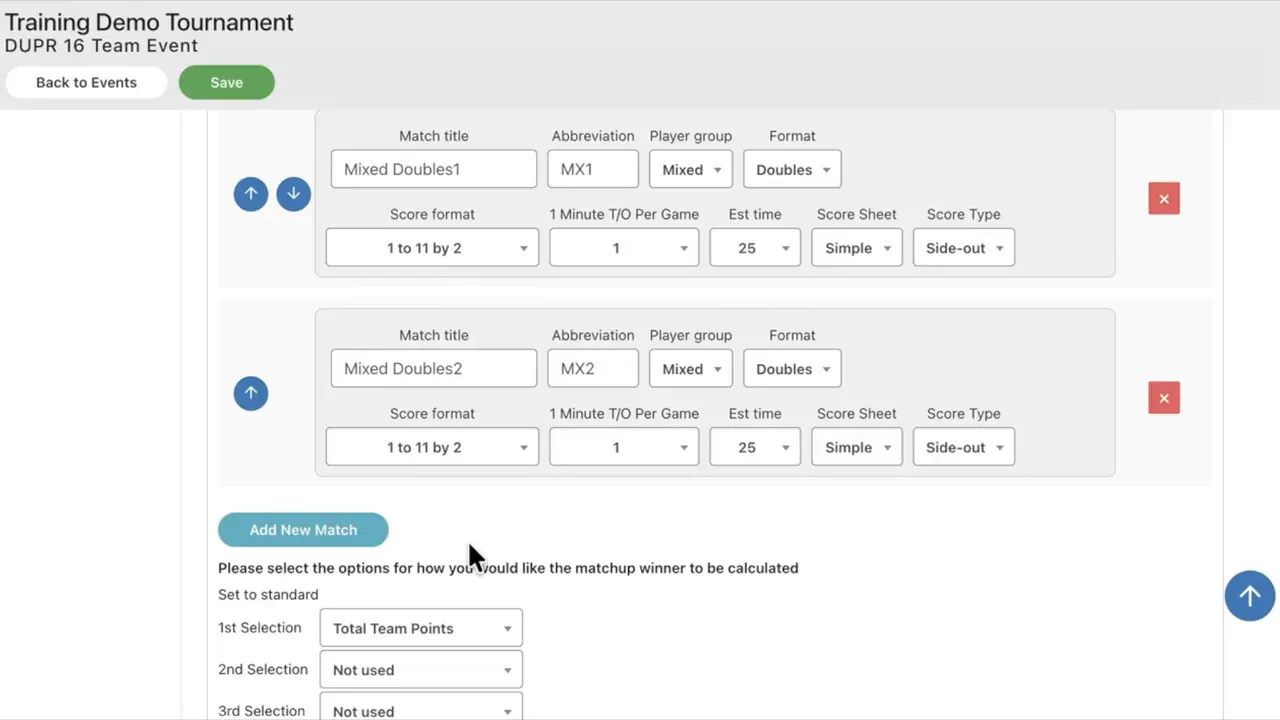
You will also see the Manage Team Matches section. This area is particularly useful if your event uses rally scoring. If rally scoring is not used, this section can typically be skipped.
To add matches in a Round Robin or elimination format:
• Click Add New Match
• Enter the required match details
Many team events use formats inspired by Major League Pickleball (MLP).
For example, each team matchup might include:
• One women’s doubles match
• One men’s doubles match
• Two mixed doubles matches
The scoring format configured here automatically transfers to the Live Console after event verification, so you do not need to reconfigure scoring during the tournament.
Results Calculation and Tiebreakers
Next, determine how team standings will be calculated.
A common scoring structure includes:
• Primary ranking: Total team points
• Secondary ranking: Point differential
You will also configure tiebreaker rules.
Standard MLP tiebreaker formats are preset and cannot be edited. If you want to create custom tiebreaker rules, select the Custom option.
Even when using preset formats, you can still decide whether tiebreaker matches count toward the overall standings.
Player Requirements and Roster Rules
The Team Player Requirements section allows you to enforce rating requirements or override player self-ratings.
Examples of rules you might set include:
• Minimum team player rating of 3.0 for a DUPR 16 event
• Requiring at least two players with a rating of 3.5 or higher
• Designating specific roster spots as required
Required roster spots must be filled before the team can be verified for competition.
You can also require a minimum number of players to form a team while still allowing additional players on the roster.
Team Points, Bonus Rules, and Standings
Some tournaments award a single win for each team match. If that’s your format, you may not need detailed point customization.
However, many team events assign points for individual matchups.
For example:
• 1 point awarded for each individual match win
You can also add bonus scoring rules, such as:
• Awarding half a point to a losing team that scores more than a set threshold (for example: scoring more than 8 points)
Points can also be assigned for tiebreaker matches.
Once scoring rules are set, configure how standings will be calculated.
For a single-pool Round Robin event:
• Enable the appropriate standings toggle
• Select the ranking order (primary, secondary, etc.)
Repeat these selections for playoffs or final standings if applicable, then click Save.
Lineup and Score Permissions
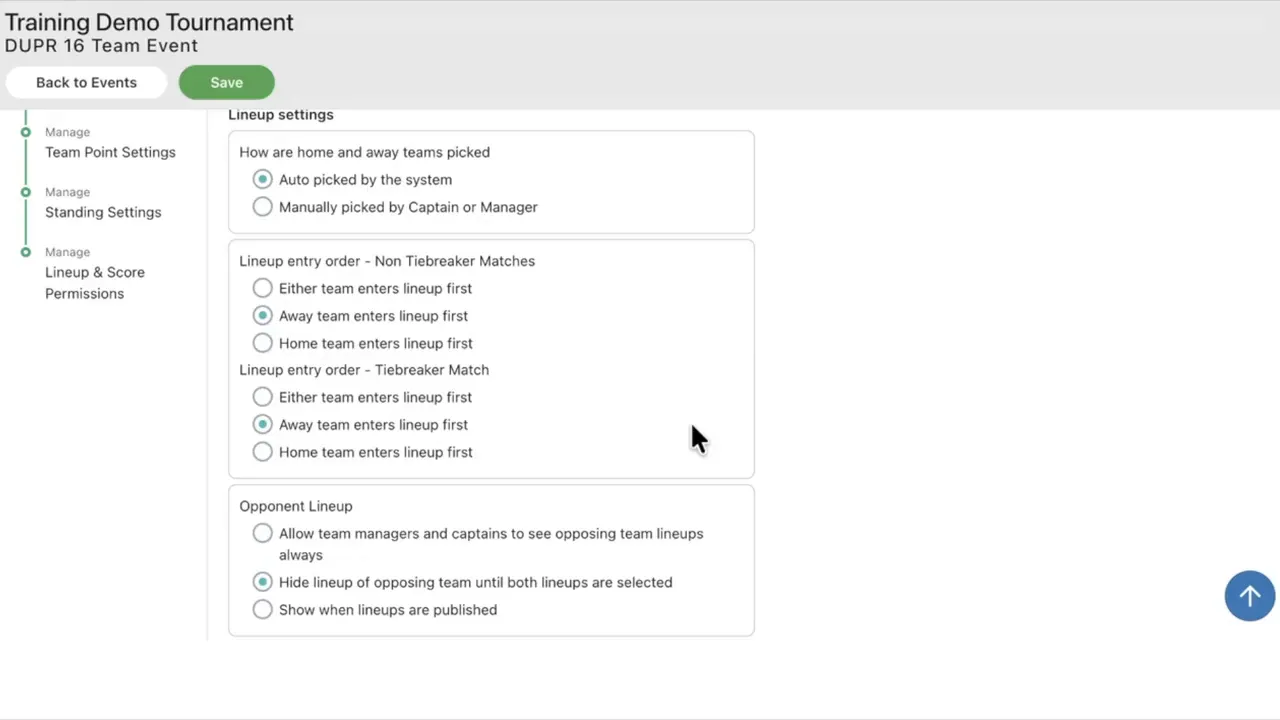
Permissions determine who can manage lineups and enter scores during the event.
You can configure:
• Who can set lineups (team captain, players, or Tournament Director)
• When lineups can be entered (specific time windows before matches)
• Who is allowed to enter scores
• Whether opposing teams can set lineups
Review each option carefully to ensure your match-day workflow aligns with how you want the event managed.
Be sure to click Save after setting permissions.
Final Checklist Before Opening Registration
Before opening your team event for registration, confirm the following:
• All basic event settings have been saved
• Match formats and scoring transfer correctly to the Live Console
• Tiebreaker rules are selected
• Player requirements and required roster spots are defined
• Point rules and standings calculations are configured
• Lineup and score permissions are set
Completing this checklist ensures your team event will run smoothly once registration begins.
Next Steps
If you want a deeper walkthrough of advanced team event options, check out the full training video, which demonstrates live examples and event verification steps.
For most tournaments, following the steps above will help you create a well-structured team event that keeps scoring, standings, and roster management organized and efficient—delivering an exciting experience for both players and spectators.