
How to Add Players to Your Team in Pickleball Team Leagues
How to Add Players to Your Team in Pickleball Team Leagues
Adding players to your team in Pickleball Team Leagues can be done in three primary ways: directly inviting players from your Team Dashboard, generating an invite code for controlled recruitment, or adding players during team registration. Each method allows captains to manage roster access, approvals, and payments efficiently.
What Is Team Roster Management in Pickleball Team Leagues?
Team roster management is the process captains use to add, approve, organize, and monitor players on their team throughout a league season.
In Pickleball Team Leagues, this includes:
-
- Directly inviting specific players
-
- Allowing players to join using invite codes
-
- Managing free agent requests
-
- Adding players during team registration
-
- Monitoring approvals and pending invitations
Proper roster management ensures:
-
- Accurate team composition
-
- Eligibility compliance
-
- Clean scheduling
-
- Organized communication
For example, a captain forming a new season team may use direct invites for returning players, an invite code for recruiting new members, and registration-time adds for final roster completion.
How Does Adding Players to a Team Work?
There are three main workflows for adding players to your team. All roster management takes place within the Team Dashboard.
Step 1: Access the Team Dashboard
Before adding players:
-
Log in at PickleballTeamLeagues.com
-
Select the league you’re captaining
-
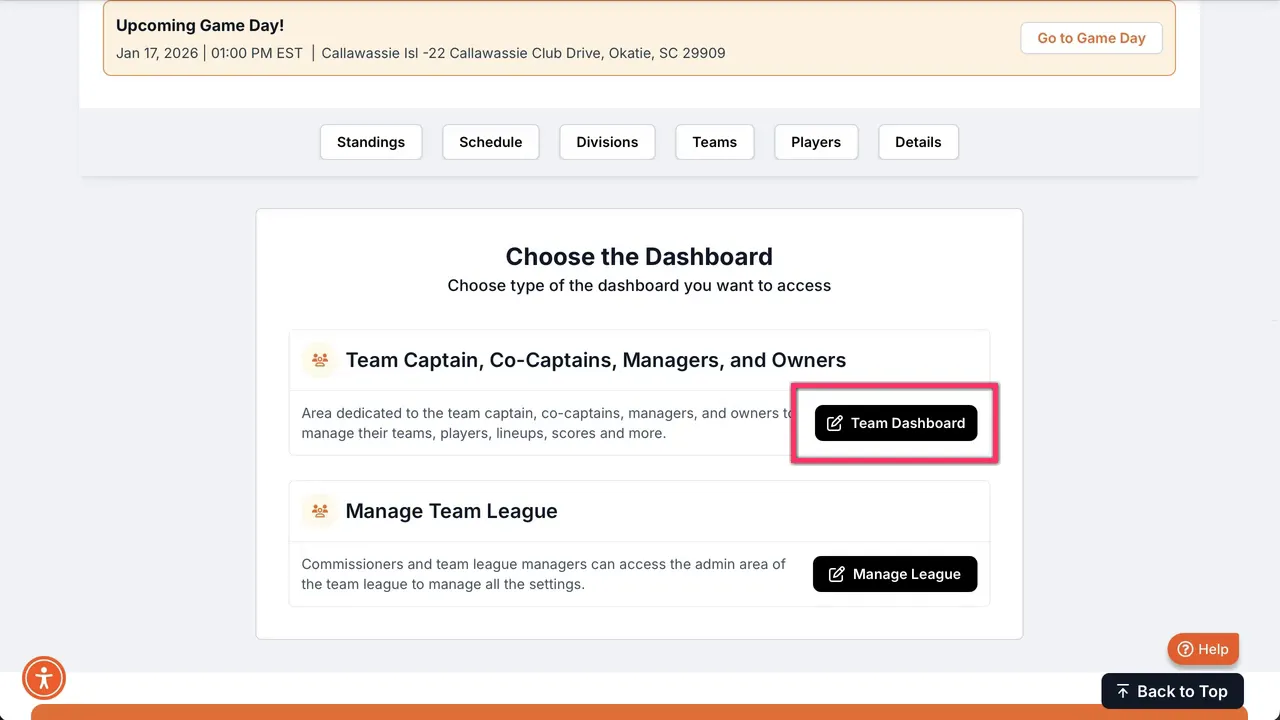
Click My Dashboard
-
Choose Team Dashboard
Depending on your privileges, you may see additional options — but Team Dashboard is where all roster management happens.
Step 2: Choose Your Player-Adding Method
You have three structured options depending on your recruitment strategy.
Method 1 — Add or Move Player (Direct Invite)
This is the most common method when you already know who belongs on your roster.
How to add a player directly:
-
From Team Dashboard, click Add or Move Player.
-
Scroll down and click the Add button, then choose Add Players.
-
Search by the player’s last name, select them, and add them to the team.
Once added:
-
The player receives an email invitation.
-
The email includes a direct link to accept or decline.
This method gives captains maximum control because you are selecting players individually rather than relying on shared codes.
Tips for Using Direct Invites
-
If you cannot find a player, confirm the email they used to register — spelling or email mismatches may prevent search results.
-
Add players early to allow time for acceptance before roster deadlines.
-
Keep records of invitations and email confirmations for follow-up tracking.
Method 2 — Invite Codes (Ideal for Open Recruitment)
Invite codes allow controlled open enrollment. You generate a code and share it with friends, club members, or on social channels.
To configure an invite code:
-
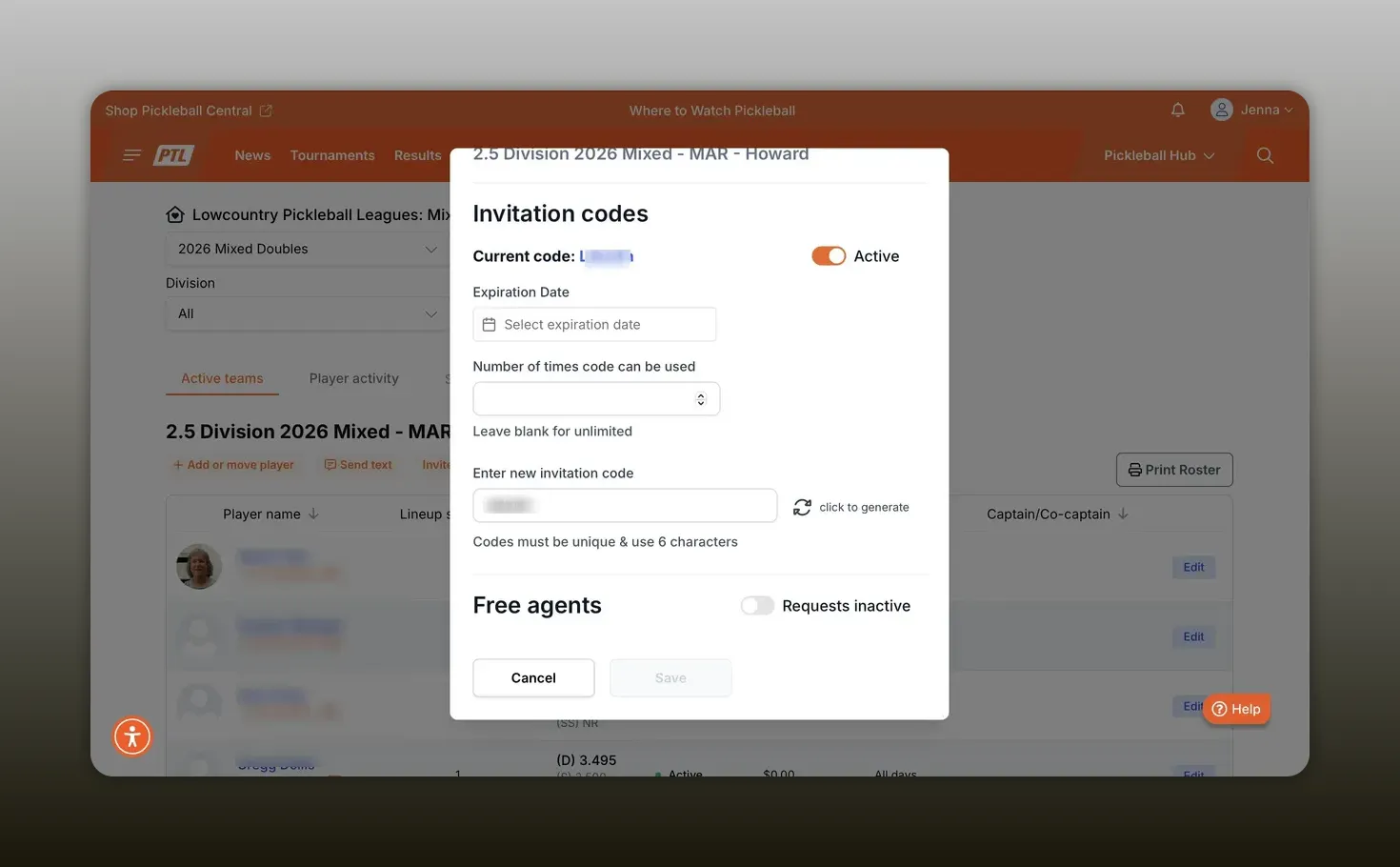
On Team Dashboard, click the edit pencil next to your team.
-
Ensure the invite code is set to Active.
-
Note the displayed code.
-
Optionally:
-
Set an expiration date
-
Limit the number of uses
-
Change the code for tighter control
-
-
Save your changes.
Free Agent Requests and Invite Code Settings
You can also control whether free agents may request to join.
-
If enabled, you’ll receive an email notification when someone requests to join.
-
The notification includes a link to your Team Dashboard.
-
Manage approvals in the Player Activities section.
If you want players to join only via a specific invite code, set free agent requests to Inactive.
Best Practices for Invite Codes
-
Set short expiration dates or usage limits when posting publicly.
-
Rotate codes between seasons or when your roster is full.
-
Include division level or skill expectations when sharing the code so players self-select appropriately.
Method 3 — Add Players During Team Registration
You can also add players while registering your team for a season.
This method combines roster setup and payment in one streamlined flow.
How to add players during registration:
-
Visit the league page at pickleballteamleagues.com
-
Click Register Now
-
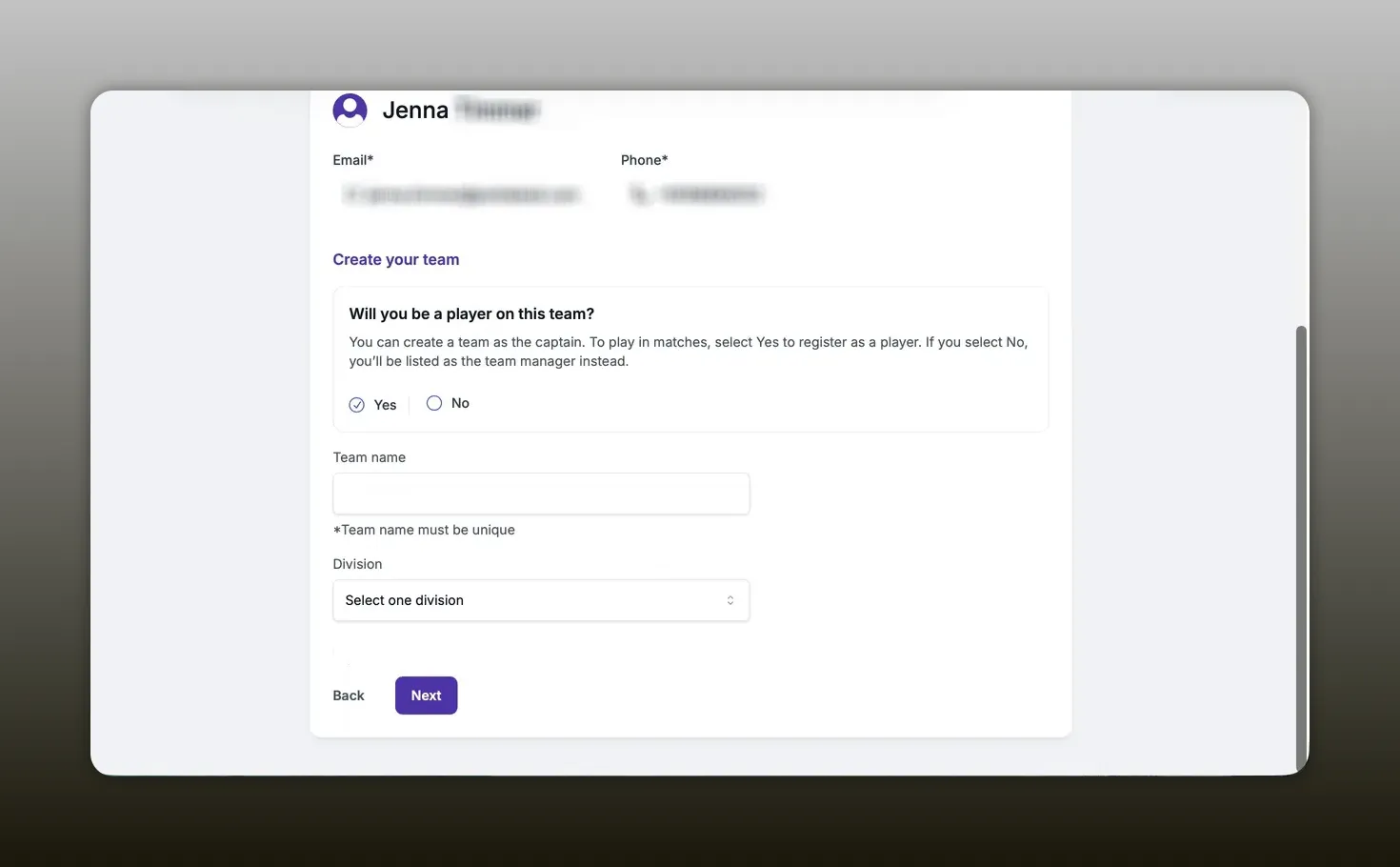
Select Team Registration as captain
-
Enter required details (team name, division, etc.)
-
Add players during the prompts
-
Complete payment to finalize registration
This option is especially useful when:
-
Forming a team for the first time
-
Recruiting players at sign-up events
-
Finalizing roster and payments simultaneously
Considerations for Registration-Time Adds
-
Confirm division eligibility before finalizing registration.
-
Clarify who is responsible for payment if players are paying individually.
-
Keep copies of confirmation emails and receipts for records.
Why Is Proper Roster Management Important?
Organized roster management protects your team from eligibility issues, scheduling complications, and last-minute confusion.
Without clear systems, captains may face:
-
Incomplete rosters
-
Unapproved player access
-
Payment disputes
-
Missed deadlines
Using the Team Dashboard tools ensures:
-
Controlled access to your team
-
Real-time tracking of invitations and approvals
-
Clean communication through email notifications
-
Transparent registration records
Structured roster management allows captains to focus on competition instead of administrative errors.
What Are the Key Benefits of Using the Team Dashboard?
Benefit #1: Full Roster Control
Direct invites and approval settings ensure only approved players join your team.
Benefit #2: Flexible Recruitment Options
Invite codes and free agent toggles allow both private and semi-open recruitment strategies.
Benefit #3: Streamlined Registration and Payment
Adding players during registration simplifies season setup and reduces administrative back-and-forth.
Common Questions About Adding Players to a Pickleball Team
How long does it take to add players to a team?
Adding a player directly takes only a few minutes. Approval timing depends on how quickly players accept their email invitations or complete registration.
What tools are needed to manage a team roster?
You need access to your Team Dashboard at PickleballTeamLeagues.com and captain-level privileges. All invitation, approval, and registration features are managed within the dashboard.
How is using an invite code different from directly adding a player?
Direct invites allow captains to select specific players by name and maintain tighter control. Invite codes allow broader recruitment but should be managed with expiration dates and usage limits.
Can free agents request to join my team?
Yes, if free agent requests are enabled. You will receive an email notification and can approve or deny requests within the Player Activities section of the Team Dashboard.
Checklist for Captains
-
Confirm you are logged in and accessing the Team Dashboard.
-
Choose the method that fits your recruitment strategy: direct invite, invite code, or registration-time addition.
-
Set expiration dates and usage limits if using invite codes.
-
Monitor Player Activities and email notifications.
-
Save changes after updating codes or roster settings.
-
Keep payment confirmations and registration records organized.
Key Takeaways
-
You can add players via direct invite, invite codes, or during team registration.
-
The Team Dashboard is the central hub for all roster management.
-
Invite codes should include expiration dates and usage limits for better control.
-
Monitoring Player Activities ensures accurate approvals and roster cleanliness.
Managing a team roster is straightforward once you understand the available tools. Direct adds provide precision, invite codes expand recruitment reach, and registration-time additions streamline setup and payment.
See the full help document for guided instructions and frequently asked questions:
View Help Document
Related articles

Anna Bright hands out her own MLP awards
A mix of praise, playful jabs, and standout moments as she puts her own spin on the season.
62 days ago
-Pickleball.com Staff

Webinar Alert: Pickleball Team Leagues Live Demonstration
139 days ago
-Jenna Timmer

How to Set Up Team Events on PickleballTournaments.com
217 days ago
-Tyrece Warner

How to Navigate and Enter Scores for Team League Game Days
301 days ago
-Tyrece Warner