How to Use Premade Templates to Create a Tournament in PT
When creating a new tournament in Pickleball Tournaments (PT), you can choose a premade template instead of configuring every setting from scratch. Templates pre-fill common formats, event structures, and settings based on tournament type — so you can get to the details that actually differ for your event faster.
You'll need your Stripe account connected to your club before you can collect registration payments. See How Tournament Billing Works in PT.
What templates do
PT's premade templates are global starting points built around common tournament formats — round robin, single elimination, double elimination, and others. When you select a template, PT pre-fills your tournament's event structure, bracket format, and related defaults. You still configure your specific details (dates, pricing, venue, contacts), but the structural decisions are already made.
Note
Templates are not permanent. If your needs change after setup — for example, your bracket grows larger or you want to add a playoff round — you can adjust individual events at any time from your tournament dashboard.
Step 1: Start tournament creation and select a template
From your club dashboard, click Create a Tournament.
Select the club that will host the tournament from the dropdown.
Enter your tournament title.
When prompted to choose a starting point, select Blank Tournament (not "Advertise Only"). This is where template selection becomes available.
Review the available global templates and select the one that best matches your planned format (e.g., round robin, single elimination).
Step 2: Review and complete your tournament setup
After selecting a template, PT loads your tournament dashboard with the pre-filled structure in place. From here, work through each setup section to add your specific details. The template handles the format — you handle the rest:
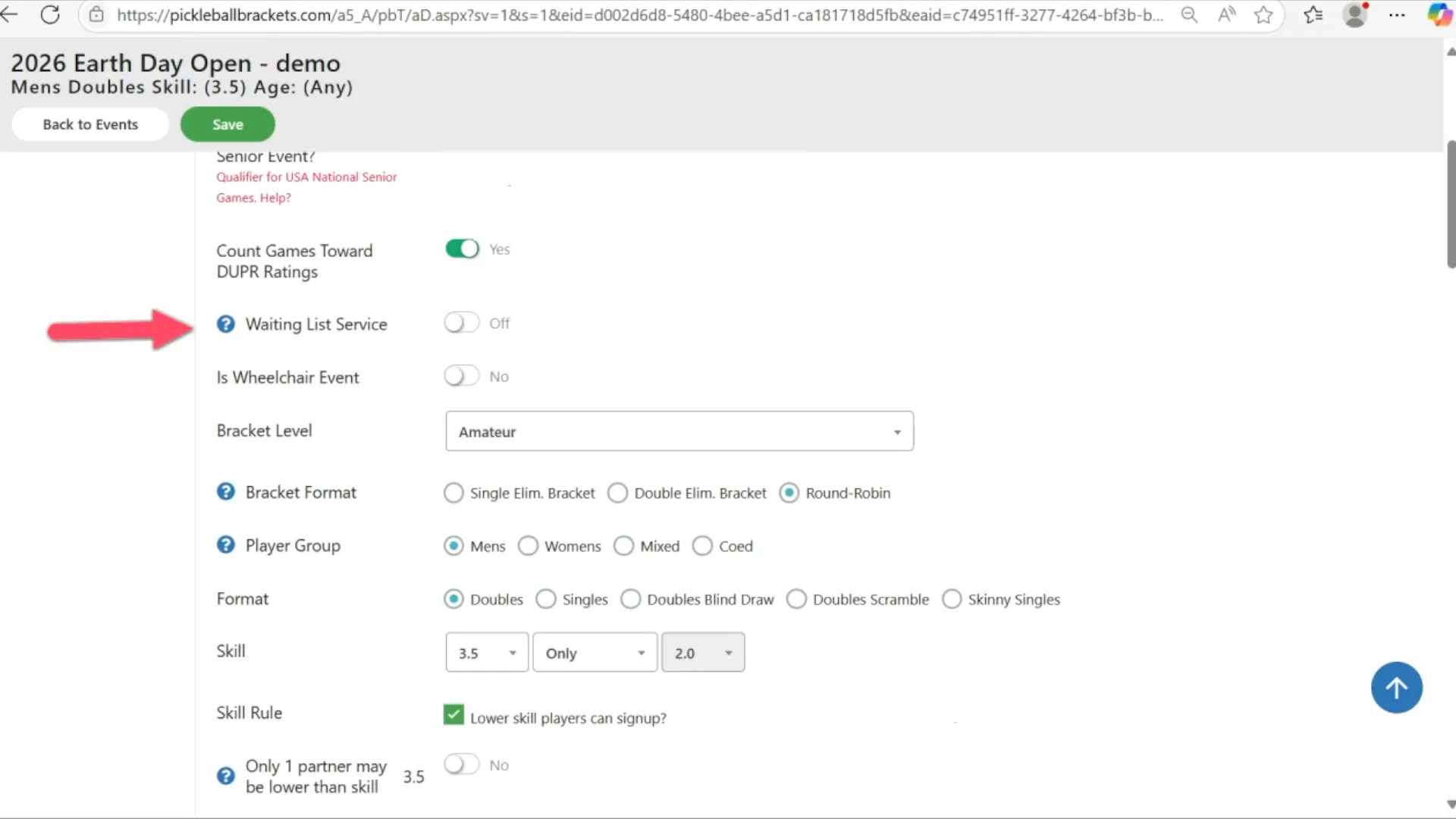
Events — review the pre-filled events from your template. Adjust formats, set age minimums, configure waitlists, and add any event-specific fees as needed.
Review and adjust template-populated events from your tournament dashboard
Step 3: Pay the setup fee and open registration
Use the preview link on your dashboard to see how your tournament page appears to players before going live.
Pay the tournament setup fee from your dashboard.
Set your Show Public Date so the tournament becomes visible on PickleballTournaments.com.
Confirm your registration open date is correct — players can begin registering once that date passes.
Warning
If the setup fee is not paid, your tournament will be automatically deleted after 5 days. Pay the fee as soon as your settings are finalized to avoid losing your work.
Frequently asked questions
Can I change the template format after I've started setup?
You can't swap the template itself after creation, but you can edit individual events at any time from the Events section of your dashboard. Change the bracket format, add or remove events, or adjust settings per event — the template is just a starting point, not a lock.
What's the difference between a template and starting from scratch?
Starting from scratch gives you a blank tournament with no pre-filled events or format settings — every field starts empty. A template pre-fills the event structure and bracket format based on a common tournament type, so you only need to fill in the details specific to your event. Both paths end up at the same setup dashboard; templates just reduce the initial configuration work.
Do I still need to add events manually if I use a template?
No — templates include pre-populated events based on the format you selected. You'll still want to review each event, confirm dates, adjust skill levels or age splits if needed, and set any event-specific fees. But you won't be creating events from scratch.